Creating a free shipping discount
Set up a code that takes the delivery charge off an order, and see how to offer free shipping over a set spend with no code at all.
A free shipping discount takes the delivery charge off the order when the customer types your code. You create it under Discounts in your Orbit dashboard.
Considerations
- This type has no value to set. The Free shipping card reads This discount will apply free shipping to the entire order. The code is the whole discount.
- Shoppers must type the code at checkout. It never applies on its own.
- A discount has no country or shipping zone setting. It covers the whole order wherever the customer is.
- For free shipping that everyone gets over a set spend, with no code to type, add a Free Shipping method to your shipping zone instead. See the last section.
- A shopper can use one discount code per order.
Create a free shipping discount
- From your Orbit dashboard, go to Discounts.
- Click Create discount. The Select discount type dialog opens.
- Click Free shipping, the row that reads Offer free shipping on an order.
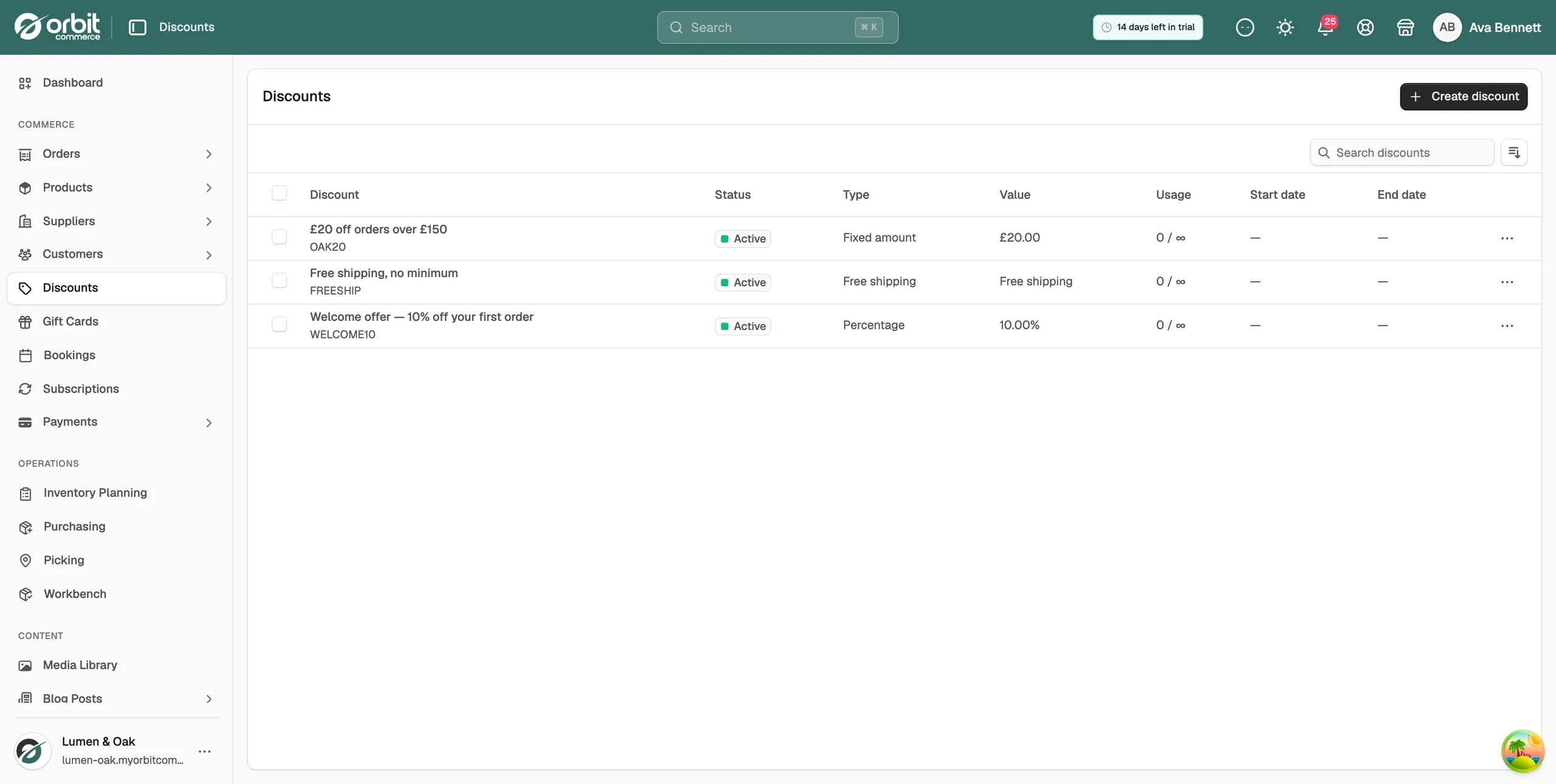
- In Title, type a name you will recognise later, such as Free shipping, no minimum.
- In Discount code, type the code customers will use, for example FREESHIP, or click Generate code for a random one. The field turns your typing into capitals and keeps only letters, numbers, hyphens and underscores.
- There is nothing to fill in on the second card. It only tells you what the discount does.
- Set any conditions you want, such as a minimum spend or an end date.
- Click Save discount to start it straight away, or Save draft to save it as inactive. The message Discount created successfully appears.
Ask for a minimum spend
Free shipping over a set basket value keeps the cost to you in check.
- On the discount, click Requirements in the list on the left.
- In the Minimum purchase requirements card, click Minimum purchase amount.
- Type the amount the basket must reach, for example 75.
- Save the discount.
Note: The minimum is checked against the item prices added together, before delivery is added. Shipping does not count towards it.
Free shipping without a code
A discount always needs a code. To give every qualifying shopper free delivery with nothing to type, add a shipping method instead.
- From your Orbit dashboard, go to Settings.
- Under Selling, click Shipping.
- Click the Shipping Methods tab, then pick your zone under Select Shipping Zone.
- Click Add Method. Under Shipping Method Type, pick Free Shipping. The Method Name fills in on its own. Customers see this name at checkout.
- Click Create Method. The method's settings open.
- Under Free Shipping Conditions, type a Minimum Order Amount. Leave it empty and free shipping is offered on every order.
- Click Update Method.
Two settings in that card are worth knowing:
- Require Coupon: only show this option when a valid coupon is applied. Turning it on adds a Required Coupon Code box.
- Ignore Discounts: work out the minimum amount before other discounts and coupons come off.
A shipping method only reaches the countries its zone covers, so add one to each zone that needs it. See Setting up shipping zones and rates.
Related guides
Was this helpful?
0 people found this helpful