Creating a Buy X get Y discount
Set up an offer such as buy two get one free: the quantities that unlock it, what the reward items cost, and which products it covers.
3 min read8viewsUpdated 4 October 2026Orbit Commerce
A Buy X get Y discount gives money off one set of items when the customer buys another, such as buy two and get one free. You set how many they buy, how many they get, and how much comes off the items they get.
Considerations
- Buy X get Y is its own discount type. You cannot turn a percentage or fixed amount discount into one later.
- Both quantities count only the products, collections or variants you pick in the form, not everything in the basket.
- The offer applies once the basket holds a full set. Buy 3 get 2 is a set of five, so four items get nothing.
- Customers add the reward items to their basket themselves. Orbit discounts them, it does not add them.
Create a Buy X get Y discount
- From your Orbit dashboard, go to Discounts.
- Click Create discount.
- In the Select discount type window, click Buy X get Y.
- Type a Title you will recognise in your own list, such as Buy 3 get 2 half price.
- Type a Discount code, or click Generate code for a random one.
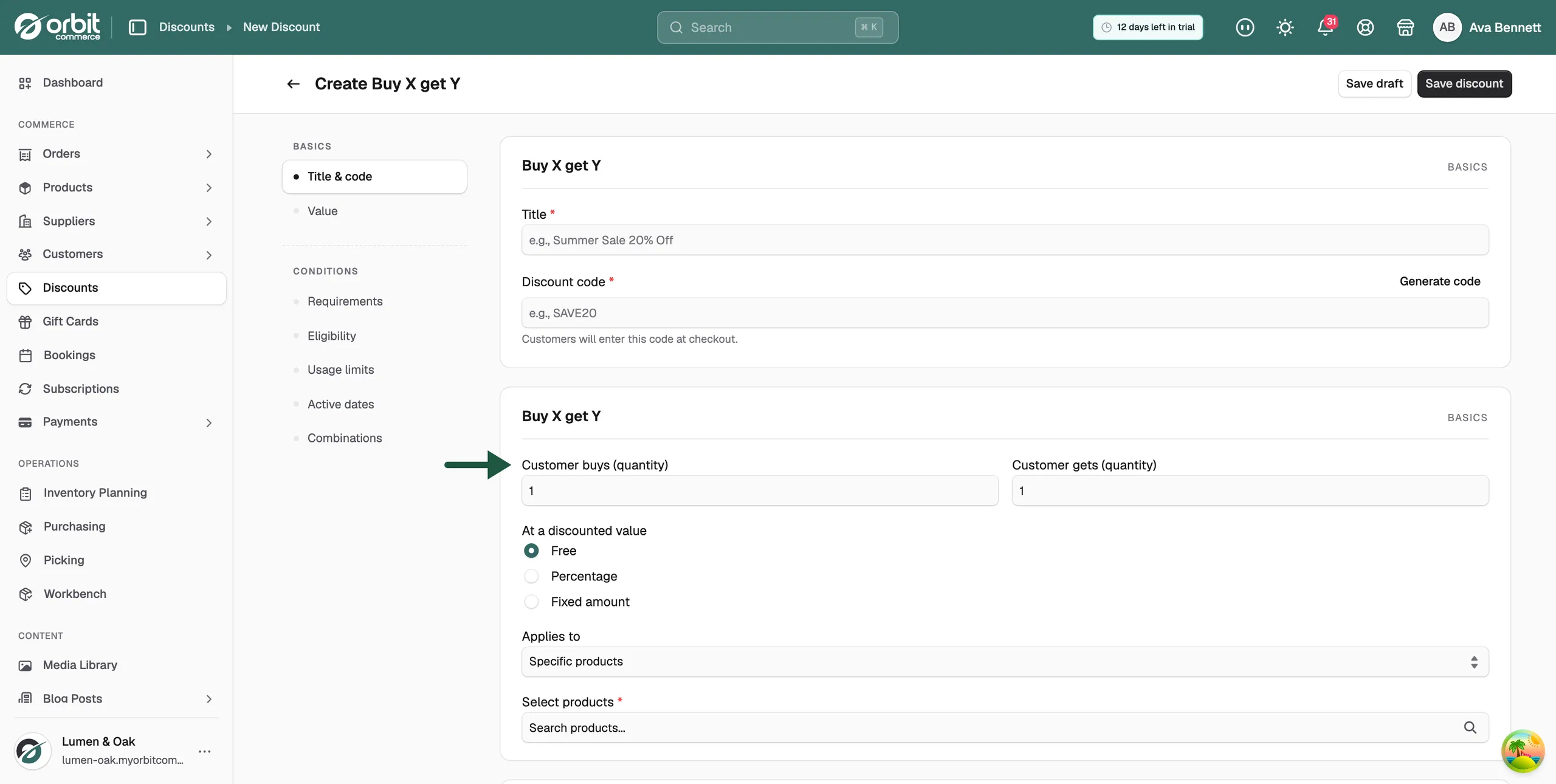
- In Customer buys (quantity), enter how many qualifying items the customer must buy. Both quantity fields start at 1, which is a buy one, get one offer.
- In Customer gets (quantity), enter how many items the discount then covers.
Set what the customer gets
- Under At a discounted value, choose how much comes off the reward items.
- For Percentage or Fixed amount, a value box appears below the options. Type the figure in it.
- Free: the reward items cost nothing. No value box is needed, so none is shown.
- Percentage: takes a share off each reward item, for example 50 for half price.
- Fixed amount: takes a set sum off each reward item, for example £5.
Choose which products the offer covers
- In Applies to, choose Specific products, Specific collections or Specific variants. It starts on Specific products.
- Click the field below, such as Select products, and type part of a name.
- Tick each item the offer covers. A line under the field counts what you picked, for example 2 product(s) selected.
Warning: Changing Applies to clears whatever you already picked. Choose the option first, then pick the items.
Save the offer
- Set any conditions you need, such as a minimum spend or an end date, under Conditions in the left-hand menu. They are all optional.
- Click Save draft to finish later, or Save discount to start the offer now.
- Orbit opens the discount's edit page, where you can change any setting or switch it off.
Tip: Two offers worth trying: three for the price of two on one product, which shifts volume on small items, and a cheap add-on with a big item, such as cushions at half price with a sofa. Pick reward items that cost you little.
Related guides
Was this helpful?
0 people found this helpful