Requiring customers to sign in before they can buy
Let anyone browse but limit buying to approved trade customers, and restrict a single category to signed-in or tagged customers.
You can let anyone browse your store but limit buying to approved trade customers. Visitors still see your products. To put anything in a basket or check out, they have to sign in with a verified company account. You turn this on under Storefront, then Preferences.
Considerations
- B2B customer access is included in the Enterprise plan. On other plans the card shows View plans instead of the switch.
- Browsing stays open to everyone. Only adding to the basket and checking out are blocked.
- Guest checkout is switched off while this is on.
- Three things must be true before a customer can buy: they are signed in, their email address is verified, and they are a contact of a company that is active.
- If your plan changes, your settings are kept but the gate stops working until B2B is back.
Turn on the purchase gate
- From your Orbit dashboard, go to Storefront.
- Click Preferences.
- Find the B2B customer access card.
- Switch on Restrict access to B2B customers only. The Message for visitors box appears.
- In Message for visitors, say what someone should do to get an account, for example who to email for a trade login.
- Click Save on the Unsaved changes bar.
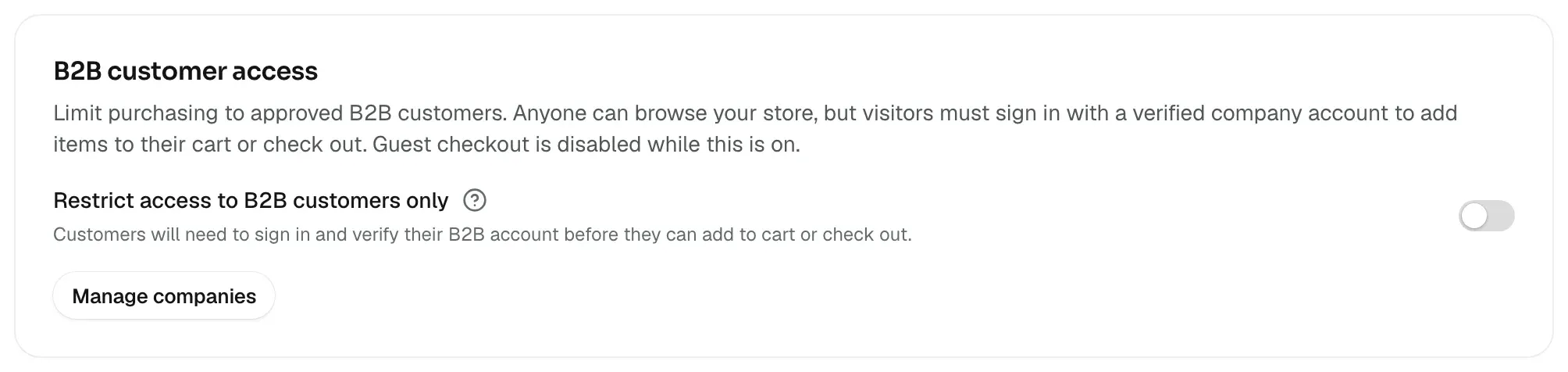
Manage companies on the same card takes you to your companies list. To turn the gate off again, switch Restrict access to B2B customers only off and click Save on the Unsaved changes bar.
What your customer sees
Nothing changes until a visitor tries to buy. Then a box opens with your message and one of three headings.
- This store requires a B2B account to purchase: they are not signed in. The box offers Log in and Create account.
- Verify your email: they are signed in but have not confirmed their email address. The box offers Resend verification email.
- Your store name, followed by a line saying their account is not approved for B2B purchasing yet: they are signed in and verified, but no active company has them as a contact.
On a product page the box can be closed, so the customer can keep browsing. At checkout the same message replaces the page and cannot be closed. The only way on is the Back to cart link.
Let a customer buy
A customer can only buy once they belong to an active company. Suspending a company stops its buyers at once.
- From your Orbit dashboard, go to Customers, then Companies.
- Open the company, or click New company to create one.
- Click Contacts in the list on the left, then click Create user.
- Fill in their name and email, and pick a Permission preset. Buyer and Admin can place orders. Viewer cannot.
- Click Create user. Orbit emails them a link to set their own password.
Setting a password from that link also verifies their email address, so they can buy straight away. Accepting an invitation from the Invitations card does the same. Full steps are in Adding a B2B company.
Note: A buyer's spending limit and permissions still apply when the gate is off. Someone without permission to place orders is told to contact their company administrator.
Restrict a category to signed-in customers
A purchase gate covers the whole store. To hide one part of your catalogue instead, set who can view a category.
- From your Orbit dashboard, go to Products, then Categories.
- Click the category you want to change.
- In the list on the left, click Who can view.
- Choose Everyone, Logged-in customers or Customers with tags.
- For Customers with tags, pick the tags under Required customer tags. A customer needs at least one of them.
- Click Save in the Unsaved changes bar.
Visitors without access are asked to sign in, and the category drops out of search and out of category lists for them. A signed-in customer who does not qualify is told the page is private.
Warning: Who can view is only on the category edit page, and only on plans that include page visibility rules. There is no upgrade prompt in its place, so on other plans you will not see the section at all.
Related guides
Was this helpful?
0 people found this helpful