Reviewing supplier updates
Use the Supplier updates inbox to accept or dismiss new products and changes from your connected suppliers, one at a time or in bulk.
Supplier updates is an inbox. New products your suppliers have added, and changes to products you already stock, wait there until you accept or dismiss them. Nothing reaches your store from this page until you say so.
Considerations
- Only changes your connection settings do not handle for you arrive here. Anything covered by Automation on the connection is applied as it comes in and never appears in the inbox.
- Pick a filter before you tick anything. Switching filter clears your selection.
- Accept all and Dismiss all act on every pending update from that supplier, including ones the page has not loaded yet. There is no confirmation step and no undo.
Open the inbox
- From your Orbit dashboard, go to Suppliers.
- Click Updates.
You can also get there from the banner at the top of the Suppliers page. It reads 3 pending updates from your suppliers, with a Review updates button. The banner only shows while updates are waiting.
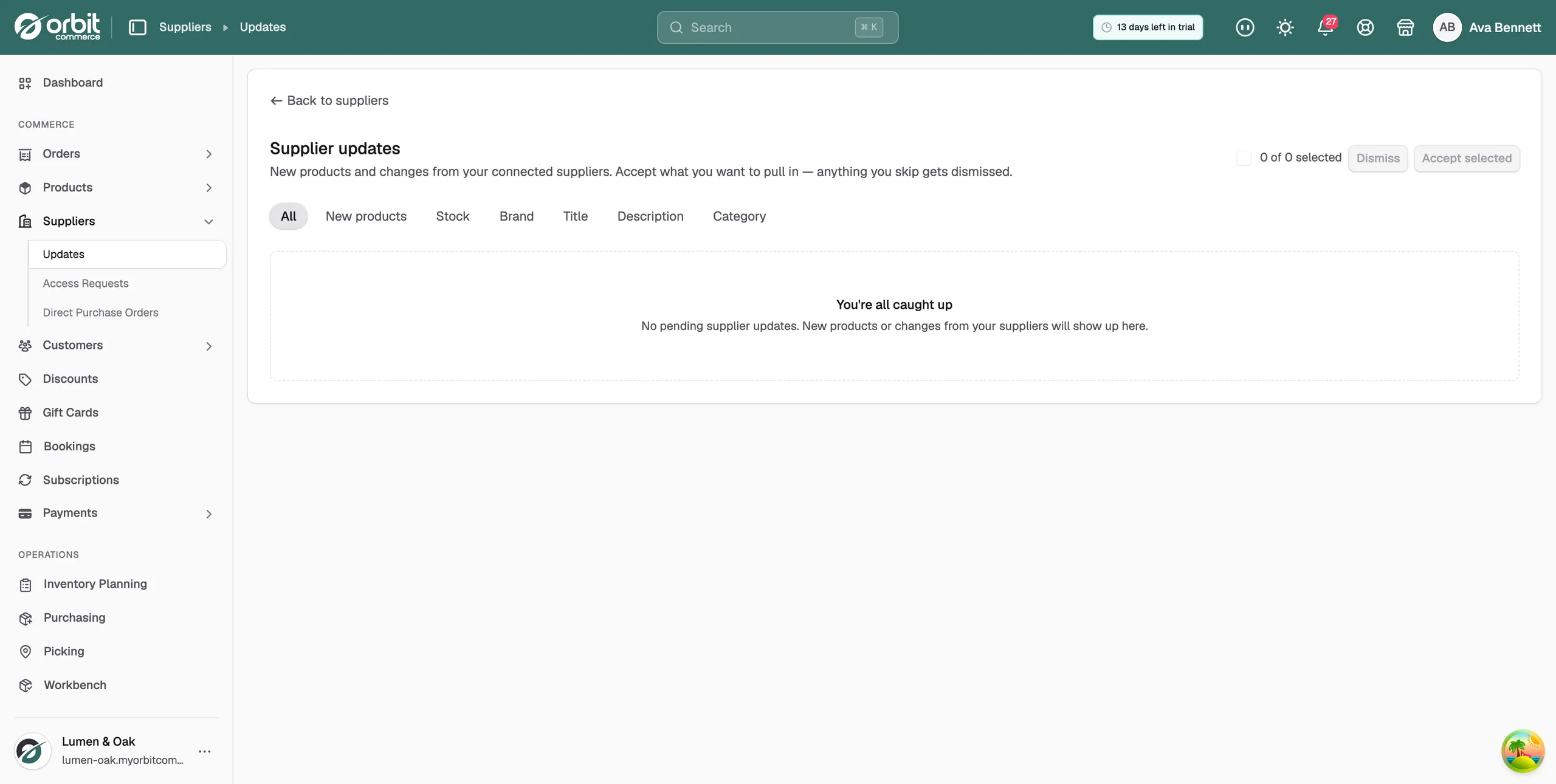
Filter by what changed
The chips across the top narrow the inbox to one kind of update.
- All: every pending update.
- New products: products the supplier has added that you do not stock.
- Stock: changes to stock levels.
- Brand: changes to a product's brand.
- Title: changes to a product's title.
- Description: changes to a product's description.
- Category: changes to a product's category.
Warning: Clicking a chip clears every tick you have made. Choose the filter first, then tick the updates you want.
Read an update
Updates are grouped by supplier. Each group header shows the supplier's logo, their name and a count such as 5 updates. Every group starts closed.
- Click the arrow next to a supplier's name to open the group.
- Read each row. It shows the product image and name, with a badge marking it New product or Update.
- On a New product row, Orbit notes that Accepting will import this product into your store.
- On an Update row, each changed field is listed with the old value crossed out and the new value beside it.
Accept or dismiss one update
- Find the row you want to deal with.
- Click Accept to apply the change, or import the product.
- Click Dismiss to leave your product as it is. The update leaves the inbox without being applied.
Accepting a new product queues a real import, so give it a moment to finish.
Accept or dismiss several at once
You can work through a whole supplier, or pick rows across several.
- To clear one supplier, click Accept all or Dismiss all in that supplier's header. If a filter chip is active, the button covers updates of that kind only.
- To pick rows yourself, tick the checkbox on each update you want. The header counts them, for example 3 of 5 selected.
- Click Accept (3) to take in the ones you ticked, or Dismiss to drop them.
Change what arrives here
Each supplier connection has its own Automation settings. Turn one on and Orbit applies that kind of change for you, so it never reaches the inbox. Leave it off and the change waits here for your decision.
- Auto-accept new products: imports new products as the supplier publishes them.
- Auto-accept cost price changes: applies supplier cost price updates. Your markup rules still apply.
- Auto-accept stock changes: mirrors supplier stock movements as they happen.
Tip: The You're all caught up message reflects the filter you are standing on. Click All before you decide the inbox is empty.
Related guides
Was this helpful?
0 people found this helpful