Inviting your own supplier to Orbit
Ask a supplier who is not in the Orbit directory to join. Send an email invitation from the Suppliers page, or copy the sign-up link and send it yourself.
The supplier directory only lists suppliers who are already on Orbit. If the supplier you buy from is not there, you can ask them to join. Orbit can email them an invitation for you, or you can copy the sign-up link and send it yourself.
Considerations
- Your supplier signs up for their own account on Orbit Commerce Suppliers. They control their own catalogue, prices and stock.
- Inviting someone does not connect you to them. You connect once they are set up and approved.
- There is a daily limit on how many invitations you can send.
- You cannot invite the same supplier again straight away.
Find the invite button
- From your Orbit dashboard, go to Suppliers.
- Click Invite a supplier at the top right of the page.
You can also open it from the Invite a supplier entry under Suppliers in the sidebar. It opens the Invite a supplier page.

Invite a supplier by email
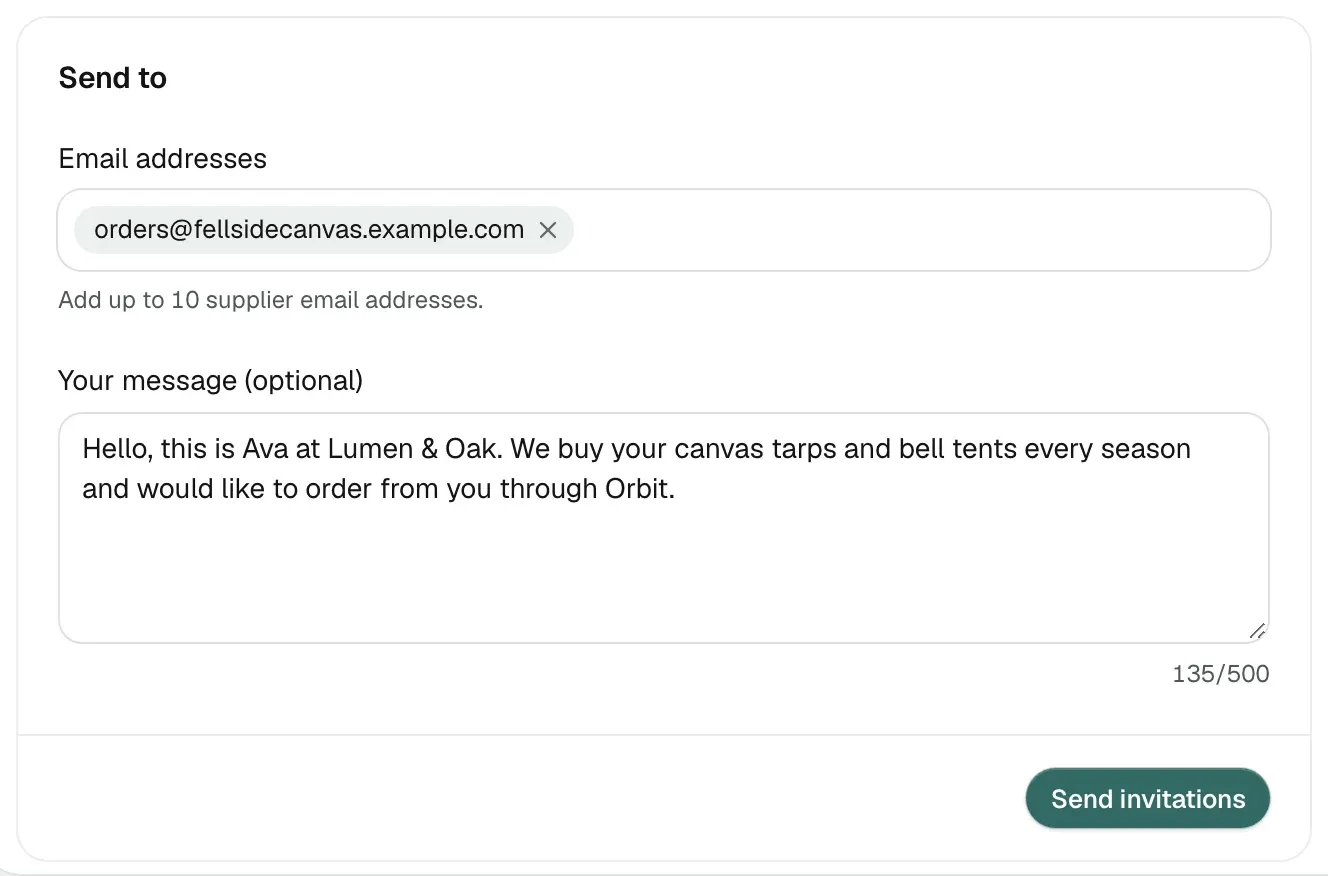
- On the Invite a supplier page, fill in the Send to card.
- In Email addresses, type an address and press Enter. You can add up to 10.
- In Your message, add a personal note to include in the invitation. This is optional and holds up to 500 characters.
- Click Send invitations.
- Orbit sends the invitation to every address you added. A Results list shows what happened to each one.
Note: The Send from card beside it shows your name, email address and store. The invitation carries them, so the supplier knows who is asking.
What your supplier receives
Orbit sends the invitation on your behalf. The page sums up what happens next: "Ask a supplier you already work with to list on Orbit. They set up their catalogue once and you connect to it."
The note you write in Your message is included in that invitation, so use it to say who you are and what you want to buy.
Copy the sign-up link instead
If you would rather send the invitation yourself, share the link over WhatsApp, a phone call or an email thread you already have going.
- From your Orbit dashboard, go to Suppliers and click Invite a supplier.
- On the Invite a supplier page, click Copy in the Share a link instead card.
- A message confirms Link copied.
- Paste the link into your own message and send it.
The link takes your supplier to the supplier sign-up. They fill in their own details, so you do not need to send them anything else.
Messages you might see
- Enter a valid email address: an address in Email addresses is not a full email address. Correct it and add it again.
- You can add up to 10 addresses at a time.: you have already added 10. Send these, then add the rest.
- Invitation sent: the invitation went to that address.
- Already on Orbit, you can connect to them from the directory: no invitation is sent. Click Find them in the directory to open their profile and connect.
- Already invited recently, so nothing new was sent: an invitation has gone to that address not long ago. Wait before sending another.
- Not sent, today's invite limit has been reached: you have sent as many invitations as you can in one day. Try again tomorrow.
- Could not send: the invitation did not go out. Try once more.
- Couldn't copy the link. Select it and copy it yourself.: the link was not copied. Select the link in the card and copy it.
- Couldn't get the sign-up link. Refresh the page to try again.: the link did not load. Refresh the page.
Connect once your supplier has joined
Your supplier has to finish signing up and be approved before you can work with them. After that they appear on the Available tab like any other supplier, and the badge on their card tells you how they accept new partners.
- From your Orbit dashboard, go to Suppliers.
- On the Available tab, search for the supplier by name.
- Click the button on their card to connect.
The steps for each access mode are in Connecting to a supplier.
Related guides
Was this helpful?
0 people found this helpful