Changing a subscriber's plan
Move a subscriber to another plan on the same product. The record changes at once, nothing is prorated, and the card payment stays as it was.
You can move a subscriber from one plan to another, for example from monthly to annual. You do it from the subscription's own page in your Orbit dashboard. The record changes at once, and the card payment does not change with it.
Considerations
- Change plan shows only on a subscription that is Active or Trialing.
- Orbit does not work out proration. Nothing is credited for unused time and nothing is charged when you confirm.
- The change applies to the record straight away, whether the new plan costs more or less. The Upgrade timing and Downgrade timing settings do not change this.
- The card payment is not updated. Check the customer's payment in Stripe after the change.
- Only other active plans on the same product are listed. If there are none, the window reads No other plans available for this product.
Change a subscriber's plan
- From your Orbit dashboard, go to Subscriptions.
- Click the row of the subscription you want to change. Its page opens.
- Click Change plan at the top right. The Change Plan window opens.
- Check the Current plan box. It shows the plan the customer is on now and what they pay each cycle.
- Under Select a new plan, click the plan you want.
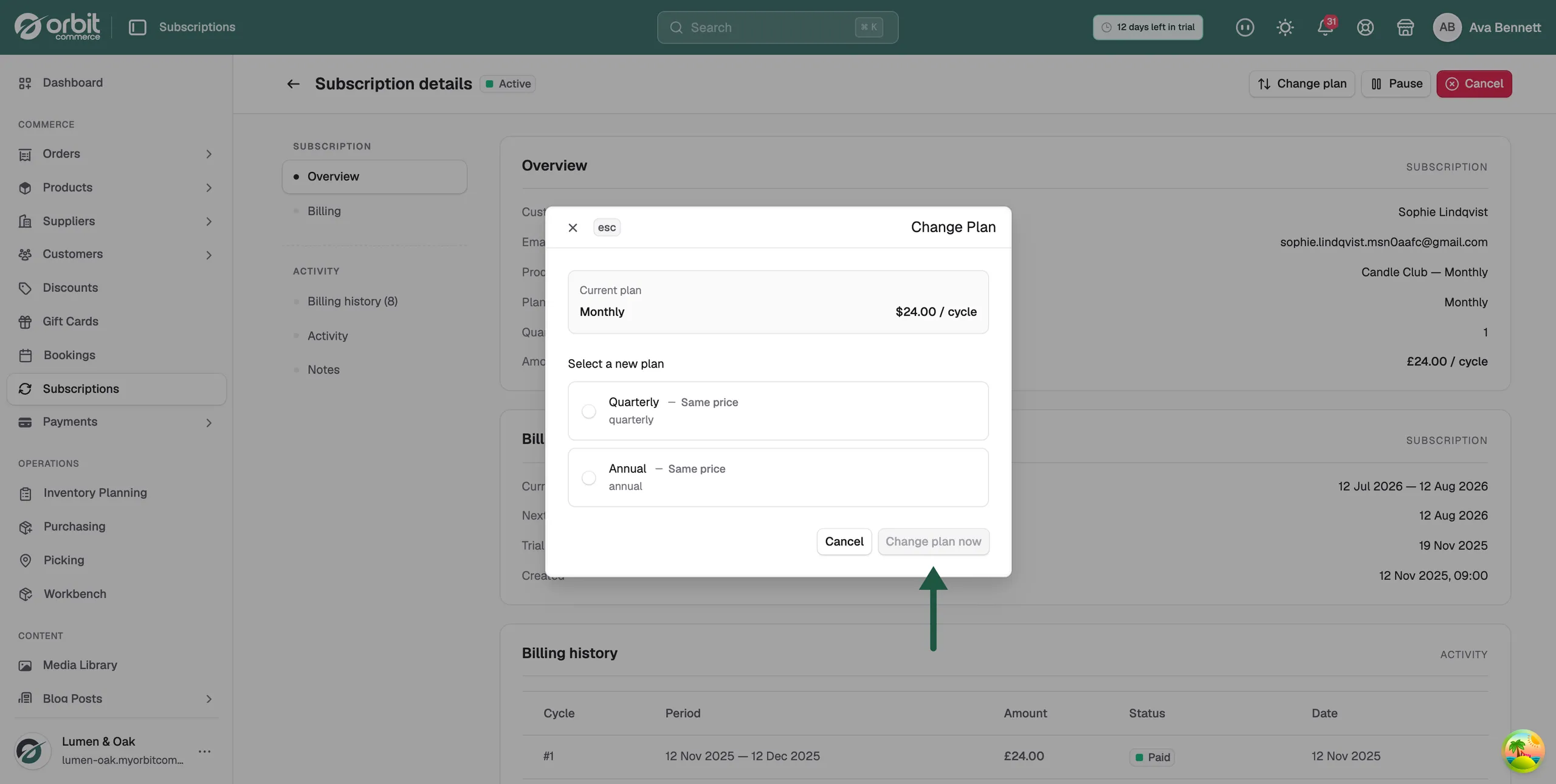
- Click Change plan now. To close the window and change nothing, click Cancel.
Note: The Change Plan window shows amounts with a dollar sign, while the subscription page shows the same amount with a pound sign. The figure is the same. Only the symbol is different.
What the window shows
- Current plan: the plan name and the amount per cycle, for example Monthly and 24.00 / cycle.
- Select a new plan: one row per plan. Each row shows the plan name and a label reading Upgrade, Downgrade or Same price. The billing interval sits below the name in lower case, such as quarterly.
- Proration summary: appears once you pick a plan. It reads Proration will be calculated on confirmation. and no figures follow.
Warning: The Upgrade, Downgrade and Same price labels compare the current plan with itself, so every row carries the same label. Read the plan name and interval instead, and check the price on the product.
What happens after you confirm
The subscription shows the new plan and its full price at once. Nothing is charged and nothing is credited for the part of the period the customer has paid for.
The change is written to the Activity card on the subscription. You have a record of when the plan changed and what it changed to.
The next card payment does not change on its own. The customer keeps paying the old amount on the old interval. Update their payment in Stripe as well.
Related guides
Was this helpful?
0 people found this helpful