Cancelling a subscription
Cancel a customer's subscription, record why, and choose whether access ends at the end of the billing period or right away.
Cancelling a subscription stops future billing for a customer. You cancel from the subscription's own page in your Orbit dashboard. Orbit asks why you are cancelling. It then asks whether the customer keeps access until the end of the period, or loses it at once.
Considerations
- You cannot undo a cancellation. To bill the customer again you need a new subscription.
- The Cancel button shows only on a subscription that is Active, Trialing or Paused.
- Cancel does not cancel on the spot. It opens a short form with up to three steps.
- At end of billing period is always chosen for you, whatever you set for Default cancellation timing in your subscription settings. Pick Immediately by hand each time you need it.
Cancel a subscription
- From your Orbit dashboard, go to Subscriptions.
- Click the row of the subscription you want to cancel. Its page opens.
- Click Cancel at the top right. The Why are you canceling? step opens.
- Choose a reason. If you choose Other, a Tell us more box appears for your own words.
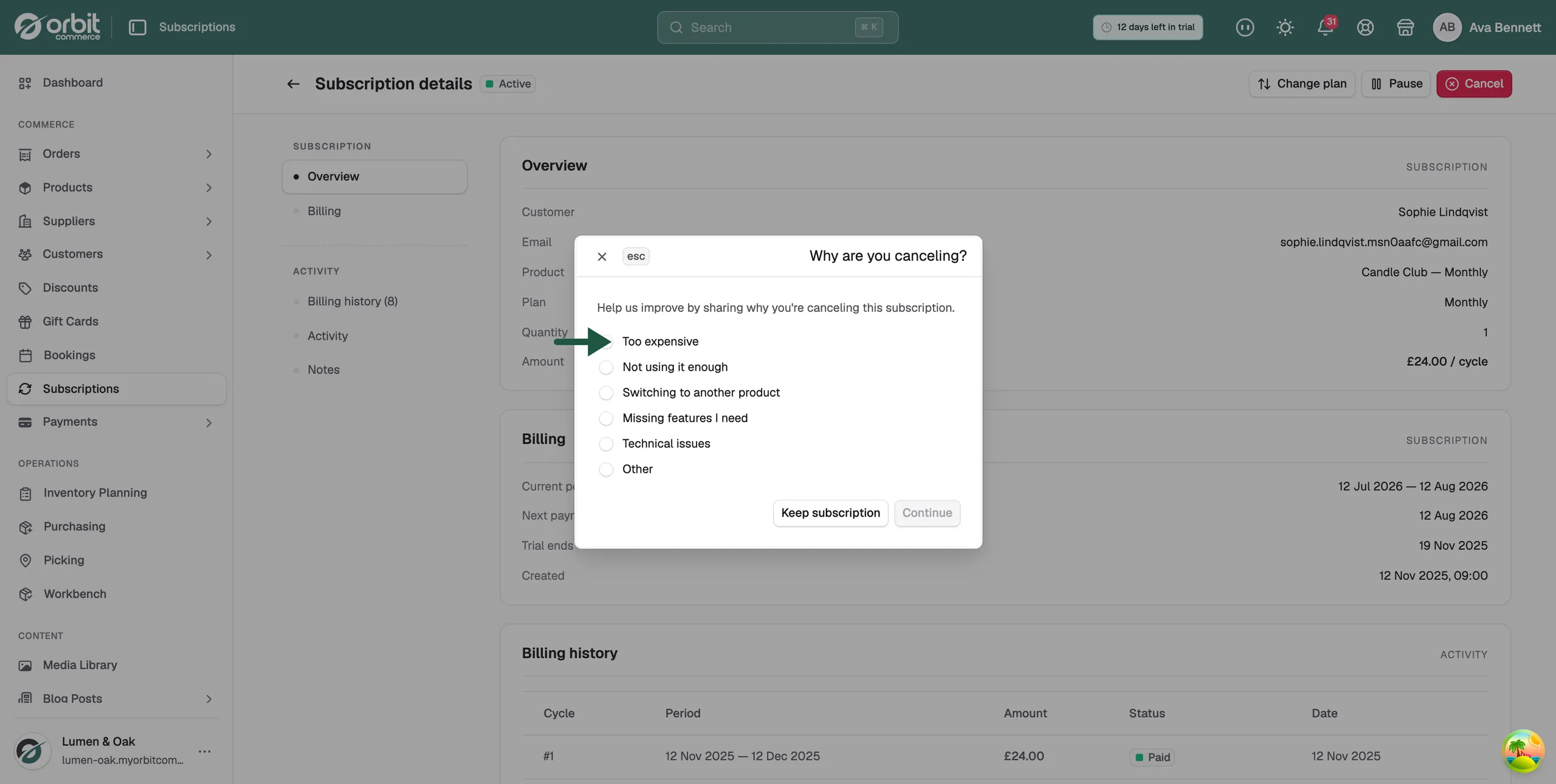
- Click Continue. For two of the reasons, a Before you go... step appears next. See the section below.
- Choose when the cancellation takes effect: At end of billing period or Immediately.
- Click Cancel subscription to confirm.
At any step, Keep subscription closes the form and changes nothing.
The reasons you can choose
- Too expensive: price was the problem.
- Not using it enough: the customer is not getting the value.
- Switching to another product: they are going elsewhere.
- Missing features I need: the product does not do what they want.
- Technical issues: something did not work.
- Other: anything else, with a free text box.
The reason you pick is saved with the cancellation. Reasons build up into the Cancellation Reasons card on the Subscriptions page, so you can see why customers leave.
The Before you go step
This step appears only when you choose Too expensive or Not using it enough. What the buttons do is not the same in each case.
- Not using it enough offers Pause instead?. Pause instead pauses the subscription and closes the form. Nothing is cancelled.
- Too expensive offers How about a discount?. Accept offer closes the form and leaves the subscription as it was. No discount is applied.
- No thanks, cancel takes you on to the timing step.
Warning: Do not promise a customer the 20% discount. Accept offer applies nothing. If you want to give a discount, set it up yourself.
Choose when the cancellation takes effect
- At end of billing period: the customer keeps access until the current period ends. They are not billed again.
- Immediately: access is revoked right away.
What happens after you cancel
No further billing takes place. What you see on the subscription depends on the timing you chose.
- At the end of the period: the status stays Active or Trialing, and a Cancels at date appears in the Billing card in red. The status becomes Canceled when the period ends.
- Immediately: the status becomes Canceled and access ends at once.
The Activity card records the cancellation, and the billing history stays on the page for your records. A cancelled subscription has no buttons at the top, so it cannot be paused, resumed or changed.
Related guides
Was this helpful?
0 people found this helpful