Uploading custom fonts
Add your own brand font to your store from the page builder font picker, upload extra weights, and remove a family you no longer use.
You can upload your own font files to your store and use them for headings, body text and buttons. Fonts are uploaded from the font picker in the page builder. A font you upload belongs to that store and can be used on any of its pages.
Considerations
- Accepted file types are .woff2, .woff, .ttf and .otf.
- Each file can be up to 10 MB.
- One file holds one weight and one style. Upload a separate file for each weight you want, using the same family name.
- Orbit checks the contents of the file, not only its name. A file that is not a real font is refused.
- Check that your font licence covers use on a website. Licensing the font is your responsibility.
- Fonts use the same permissions as other file uploads, so a staff member who cannot add or delete files cannot add or remove a font.
Open the font picker
- Open a page in the page builder. See Getting started with the page builder.
- In the toolbox on the far left, click Settings.
- Open Typography, then open the level you want to change, such as Heading 1 or Body Text.
- Click the Font Family box. The font picker opens.
The picker has a Search fonts... box at the top and a row of categories: All, Sans Serif, Serif, Display, Handwriting and Monospace. Your own fonts sit under the Custom Fonts heading. The + Upload Font row is hidden while there is text in the search box, so clear the search if you cannot see it.
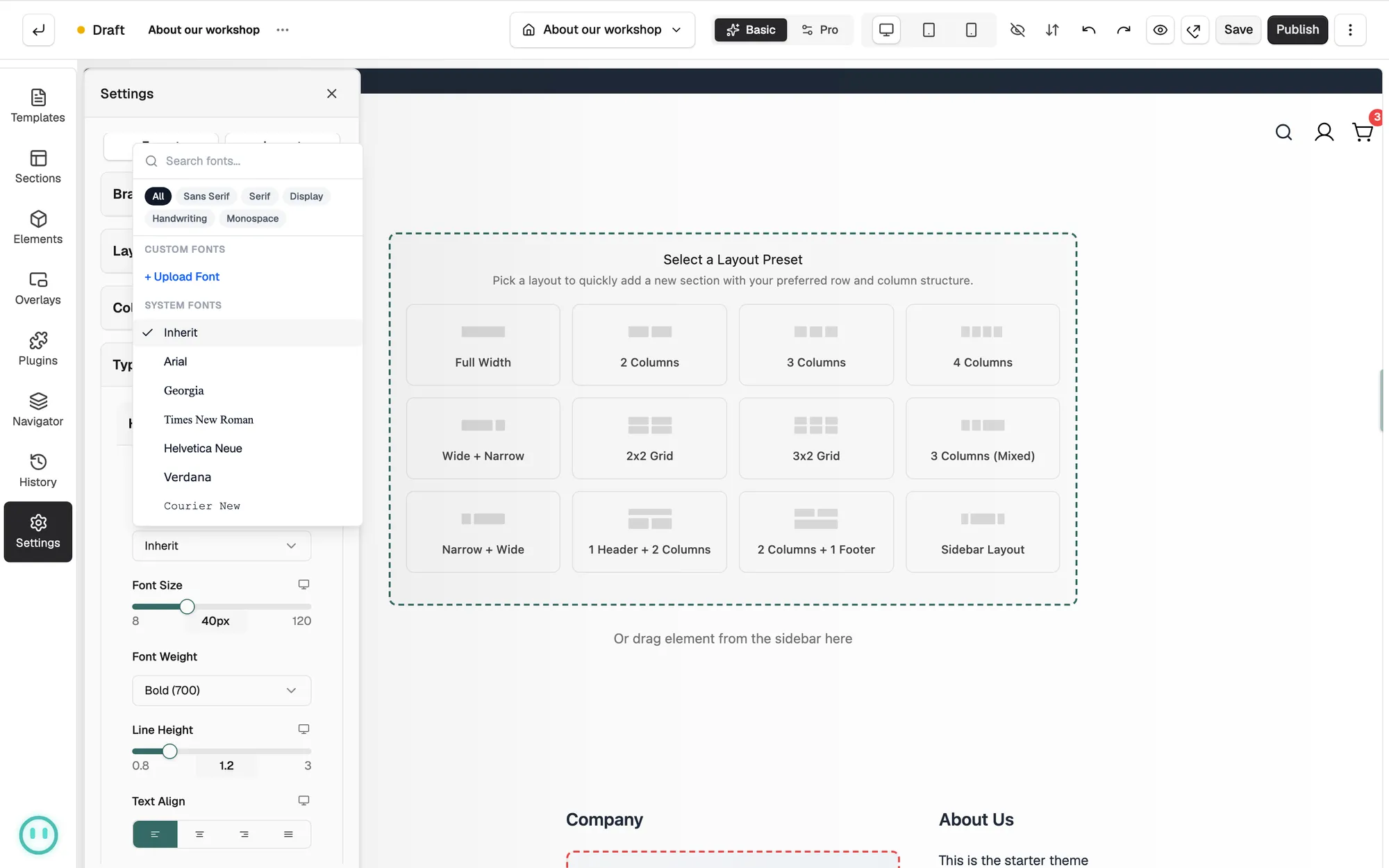
Upload a font
- In the font picker, under Custom Fonts, click + Upload Font. The Upload Custom Font box opens.
- Click the dashed box and pick your font file. The box then shows the file name and its size.
- Check Font Family Name. Orbit suggests a name taken from the file name. This is the name you will see in the picker later.
- Pick the Weight, from Thin (100) to Black (900). Regular (400) is the default.
- Pick the Style, either Normal or Italic.
- Click Upload. The button reads Uploading... while the file is sent.
The box closes and your font appears under Custom Fonts, drawn in its own typeface. Orbit also sets the font up for your shop, so it loads for your customers on the live pages that use it.
Add more weights to the same family
Each file covers one weight and one style. To get bold or italic text in your brand font, upload those files as well.
- Open the font picker and click + Upload Font.
- Pick the next file, such as the bold one.
- Type the same Font Family Name you used before. The spelling must match.
- Set the Weight and Style for this file, then click Upload.
The files group into one family in the picker. If you upload the same family, weight and style twice, Orbit refuses the upload and tells you the font variant already exists.
Note: Only the weights and styles you upload exist as real files. If you set a weight you have not uploaded, the browser approximates it, and the text can look different to the real font.
Use your font for headings or body text
- In the toolbox on the far left, click Settings, then open Typography.
- Open the level you want to style: Heading 1 to Heading 6, Body Text or Small Text.
- Click Font Family, scroll to Custom Fonts and click your family.
- Set Font Weight and Font Style for that level.
- Save the page, then publish it when you are happy with it. See Saving, previewing and publishing a page.
Inherit at the top of the list means no font is set for that level, so the text uses the font it takes from the page. The same Font Family picker sits in the Buttons group, so your buttons can use the font too.
Delete a font family
- Open the font picker and find your font under Custom Fonts.
- Click the X at the end of its row.
- The Delete Font box asks you to confirm. Click Delete.
The X removes the whole family, which is every weight and style you uploaded under that name. The picker has no button for removing a single weight on its own.
Text that was set to the deleted font falls back to a standard system font. Check any page that used it and pick a new font there.
Warning: The box warns that this cannot be undone. If you delete a family by mistake, upload the files again with the same family name, weight and style.
Related guides
Was this helpful?
0 people found this helpful