Setting a courier policy and weight bands
Choose which courier service Orbit suggests when you fulfil orders on a shipping method, and set a different service for heavier parcels.
A courier policy tells Orbit which courier service to suggest when an order on a shipping method is fulfilled. You pick one default service for the method, then add weight bands if heavier parcels should go a different way. You set this under Settings, then Shipping, on the Shipping methods tab.
Considerations
- You need a connected carrier account with at least one service enabled. Without one the window shows No enabled courier services. Enable one in Courier integrations first. See Connecting carriers and testing rates.
- A policy only pre-fills the choice. Whoever buys the label can pick a different service.
- On a Carrier Calculated method the default service is what customers buy at checkout. You can change it, but you cannot leave it empty.
- A method can have up to ten weight bands.
Open a method's courier policy
- From your Orbit dashboard, go to Settings.
- Under Selling, click Shipping.
- Click the Shipping methods tab.
- Under Select shipping zone, pick the zone the method sits in.
- On the method's row, click the menu button at the end of the row, then click Courier policy.
- The Courier policy window opens with the method name in its title.
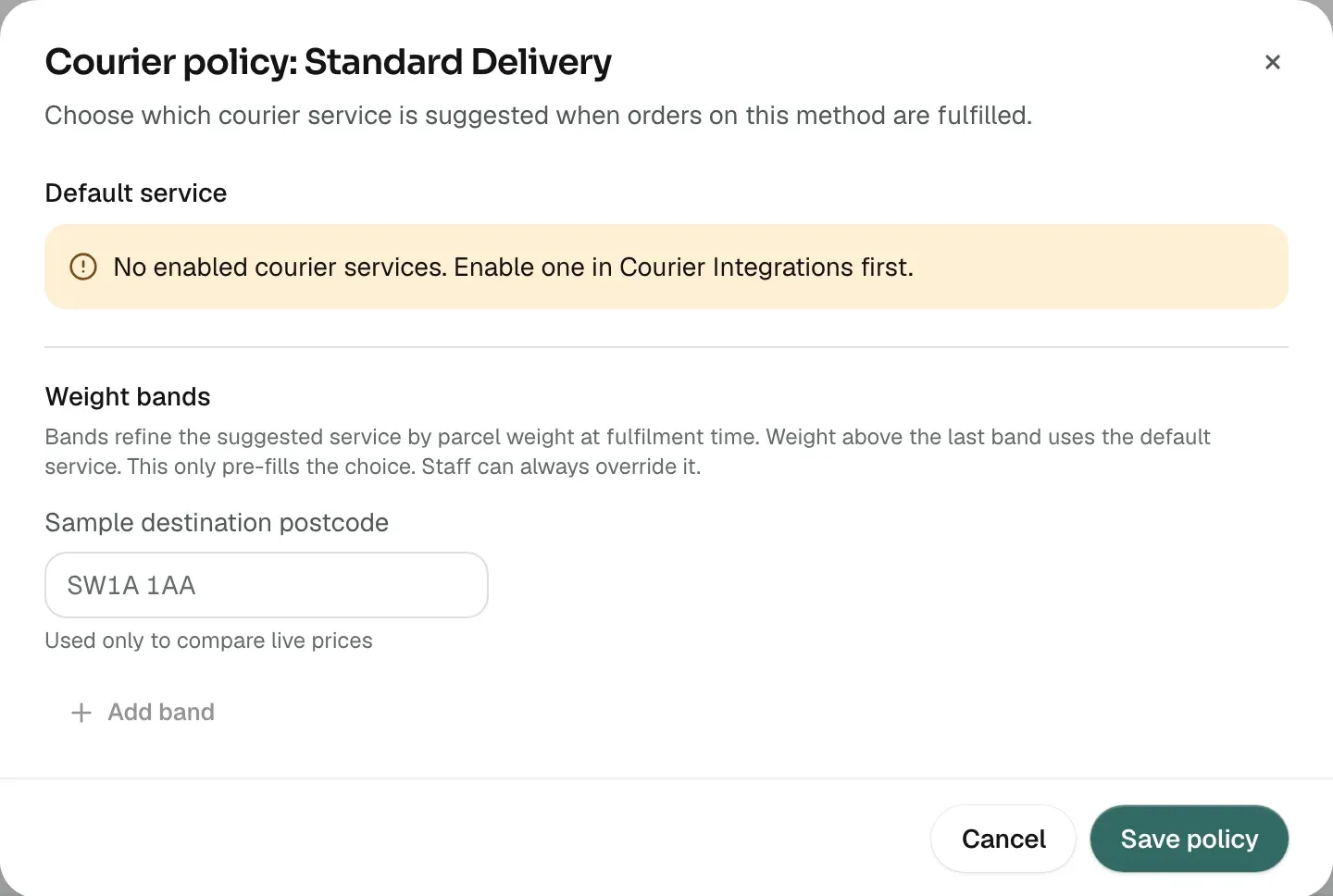
Note: If you see Could not load this method. Try again before editing its courier policy. the window stays shut. Try again in a moment rather than editing the method.
Set the default service
- Under Default service, open the list. It reads Select a service... until you pick one. Each service shows its name and the courier account it comes from.
- Click the service you want suggested for this method.
- To leave the choice open, pick No default. This option is not offered on a Carrier Calculated method.
- Click Save policy. The message Courier policy saved appears.
The help text under the list tells you how the service is used:
- On most methods: Suggested when staff fulfil orders shipped with this method.
- On a carrier calculated method: This service is what customers buy at checkout. Changing it changes checkout rates.
If the service you picked is later turned off, saving shows This service is no longer enabled. Enable it in Courier integrations first.
Add weight bands
A band is a weight limit and the service to use up to that limit. Use bands when a light parcel and a heavy parcel should go by different services.
- In the Weight bands section, click Add band.
- In Up to (kg), type the top weight for the band, such as 2.5.
- Under Service, pick the courier service for parcels up to that weight.
- Click Add band again for each further band. Work from the lightest band to the heaviest.
- Click Save policy.
To remove a band, click the bin icon at the end of its row. Saving stops if a band is incomplete, and the window says what to fix:
- Enter a weight above zero for each band: a band has no weight, or a weight of zero.
- Band weights must increase from one band to the next: each band must be heavier than the one above it.
- Select a service for each band: a band has no service picked.
Compare live prices with Suggest cheapest
Orbit can ask your connected couriers what they charge right now, so you can put the cheapest service in a band.
- In Sample destination postcode, type a postcode you often ship to, such as SW1A 1AA. It is Used only to compare live prices.
- Fill in Up to (kg) for the band you want to price.
- Click Suggest cheapest on that band's row. Orbit prices a parcel weighing about the middle of the band.
- The cheapest service appears under the row as a button with its name and price. Click it to set that service for the band.
- Click Save policy.
You may see one of these instead of a price:
- Could not fetch live prices. Try again.: the request did not go through.
- No live prices available for this weight.: no courier quoted for a parcel that size.
- No live prices from: then a list of names: those courier accounts did not quote, but the others did.
Tip: Prices change with the destination. Try a second postcode before you settle on a service for a band.
What happens when no band matches
A parcel heavier than your last band uses the default service. A method with no bands at all uses the default service for every order on it. If the method is set to No default, nothing is pre-filled and the person fulfilling the order picks the service.
Bands and defaults never lock the choice in. Your staff can change the service when they buy the label.
Related guides
Was this helpful?
0 people found this helpful