Setting up conditional shipping rates
Build a delivery method from rules, so the price changes with the basket. Includes two worked examples and the full list of condition fields, operators and cost types.
A conditional rates method holds several rules. Each rule offers a delivery price when its conditions match the basket, such as free delivery over £50 or a higher price for some postcodes. You set it up under Settings, then Shipping, on the Shipping methods tab.
Considerations
- A rule applies only when all its conditions are true. For two situations, make two rules.
- A rule with no conditions matches every basket, so it makes a good catch-all.
- If no rule matches, this method shows no price and customers see your other methods.
- Create the zone first. See Setting up shipping zones and rates.
Add a conditional rates method
- From your Orbit dashboard, go to Settings.
- Under Selling, click Shipping, then the Shipping methods tab.
- Under Select shipping zone, pick the zone.
- Click Add method, or Add first method on an empty zone.
- Under Shipping Method Type, pick Conditional Rates, then click Create method. The Configure conditional rates sheet opens (it is titled Edit conditional rates on a method that already exists).
- Type a Method name, add a Description if you want one, and leave Active switched on.
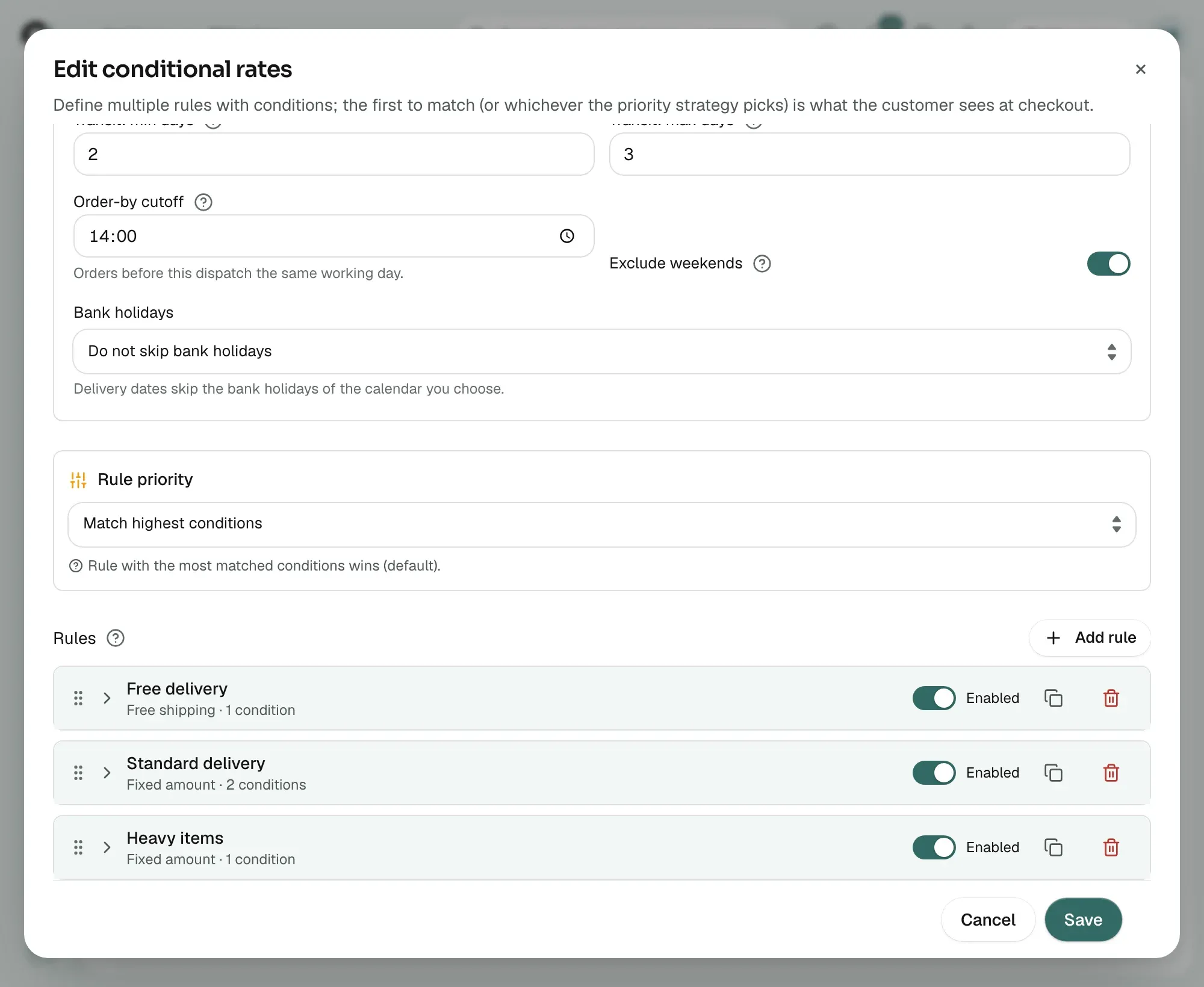
- Under Rule priority, pick how a winner is chosen.
The sheet starts with one rule under Rules. Nothing saves until you click Save.
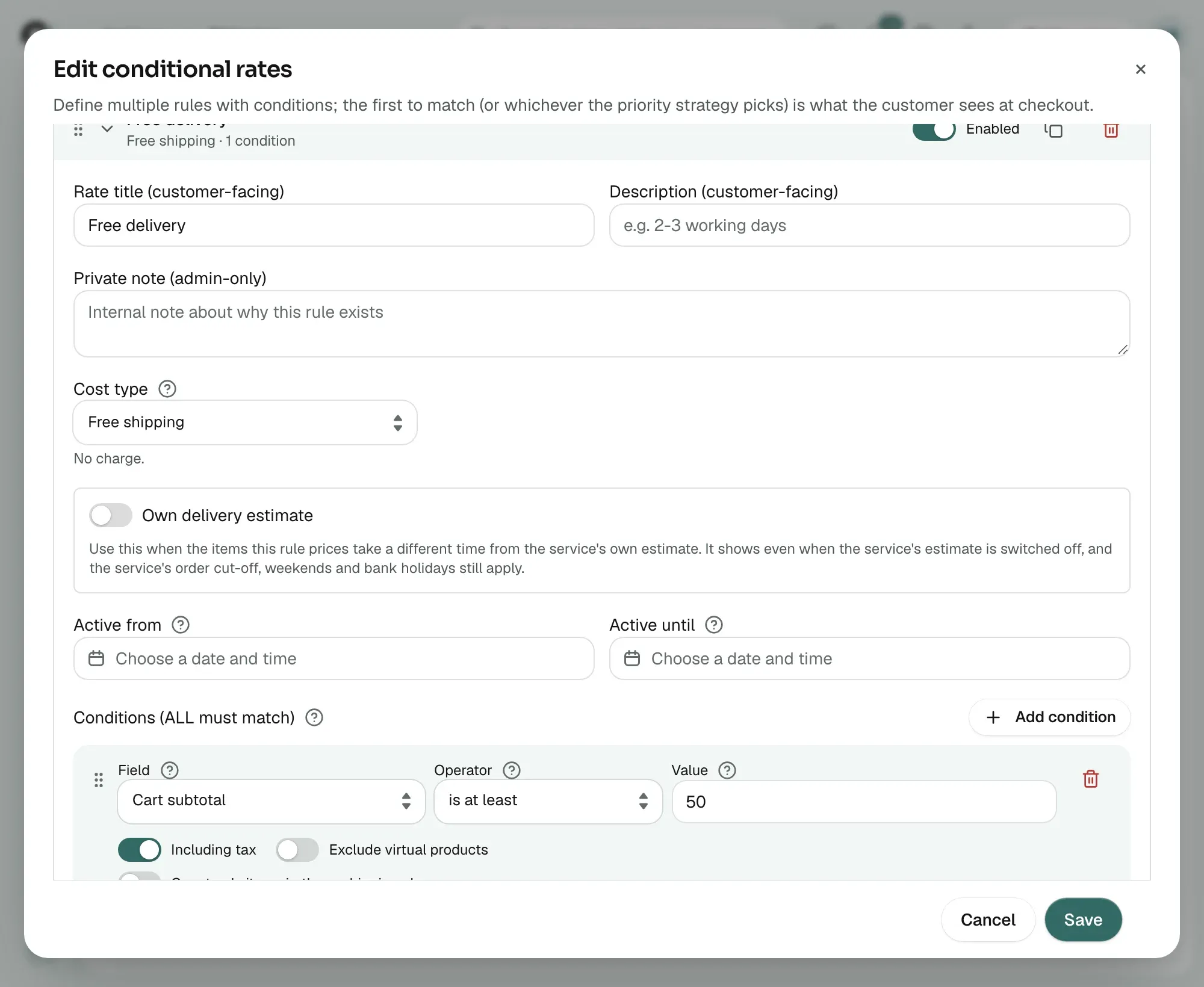
Example: free delivery over £50
- Under Rules, click the rule to open it.
- In Rate title (customer-facing), type the name customers see, such as Free Delivery.
- Under Cost type, pick Free shipping.
- Click Add condition.
- Under Field, pick Cart subtotal.
- Under Operator, pick is at least.
- In Value, type 50.
- Switch on Including tax to test the £50 against prices with VAT.
- Click Save.
Note: With only this rule, baskets under £50 get no price here. Add a second rule with no conditions and a Fixed amount cost to cover them.
Example: charge more for some postcodes
- Under Rules, click Add rule.
- In Rate title (customer-facing), type a name, such as Highlands Delivery.
- Under Cost type, pick Fixed amount, then type the price in Base, such as 12.95.
- Click Add condition.
- Under Field, pick Shipping postcode.
- Under Operator, pick is one of.
- In Value, type a postcode and press Enter. Repeat for each one.
- Click Save.
Warning: A postcode condition compares the whole postcode, ignoring spaces and capitals. IV1 1AA matches iv11aa, but IV1 on its own matches nothing. List every postcode you need.
Condition fields
The Field list is grouped:
- Cart aggregates: Cart subtotal, Total quantity, Total weight (kg), Total volume (m³), Applied coupons.
- Cart products: Product, Product variant, Brand, Category, Tag, Product shipping class, Variant option (e.g. Size = XL), Product custom field.
- Date / time: Time of day, Date, Day of week.
- Billing address: Billing city, Billing postcode, Billing state, Billing country.
- Shipping address: Shipping city, Shipping postcode, Shipping state, Shipping country.
- Customer: Customer (id or email), Customer logged in, First purchase, Customer custom field.
Some fields add a setting:
- Scope: on the cart product fields, sets where the check runs: In cart, In brand, In category, In tag, In shipping class or In variant option. Custom fields take a field key.
- Including tax: on Cart subtotal, compares the figure with tax added.
- Exclude virtual products: on subtotal, quantity, weight and volume, leaves digital items out.
Operators
Only operators that suit the field are offered.
- is: matches exactly.
- is not: does not match.
- is less than: below your number.
- is at most: your number or below.
- is greater than: above your number.
- is at least: your number or above.
- is between: within a from and to range.
- is one of: matches an entry in your list.
- is none of: matches no entry in your list.
- contains any of: the basket holds one of your entries.
- contains all of: the basket holds all of them.
Cost types
- Free shipping: no charge.
- Fixed amount: the Base amount on its own.
- Based on weight: base plus Per-unit for each kilogram.
- Based on quantity: base plus per-unit for each item.
- Based on subtotal: base plus a share of the subtotal. Per-unit is a decimal, so 0.05 adds 5 per cent.
Min cost and Max cost hold the result between a floor and a ceiling. Active from and Active until set the dates it runs. Rules also have a Private note (admin-only) box, a Disabled switch and a drag handle.
Rule priority
- Match highest conditions: the rule with the most matched conditions wins. This is the default. A tie goes to the rule nearest the top.
- Match first rule: the first matching rule wins.
- Match last rule: the last matching rule wins.
- Lowest shipping price: the cheapest matching rule wins.
- Highest shipping price: the dearest matching rule wins.
- Calculate all (combined): matching rules are added into one option.
- Calculate all (separate options): each matching rule shows as its own option.
Tip: Use the Rate tester tab to check which rule wins for a basket.
Related guides
Was this helpful?
0 people found this helpful