Setting up click and collect
Add a Local pickup shipping method so customers can collect their orders from you, with a fee, an address, collection instructions and a preparation time.
Click and collect lets your customer buy online and pick the order up from you. In Orbit you set it up as a shipping method with the type Local pickup. You add the method to a shipping zone, set a fee if you charge one, and tell the customer where to come and when the order will be ready.
Considerations
- A method lives inside a zone, so you need a shipping zone first. See Setting up shipping zones and rates.
- Every order is served by the zone that matches the customer's address most closely. Pickup only shows to customers whose address falls in that zone.
- Pickup is free unless you set a fee.
- You can add more than one pickup method, for example one for each shop. Give each one a different name. Two methods in the same zone cannot share a name.
Add a Local pickup method
- From your Orbit dashboard, go to Settings.
- Under Selling, click Shipping.
- Click the Shipping methods tab.
- Under Select shipping zone, pick the zone your collecting customers are in.
- Click Add method. On a zone with no methods yet the button reads Add first method.
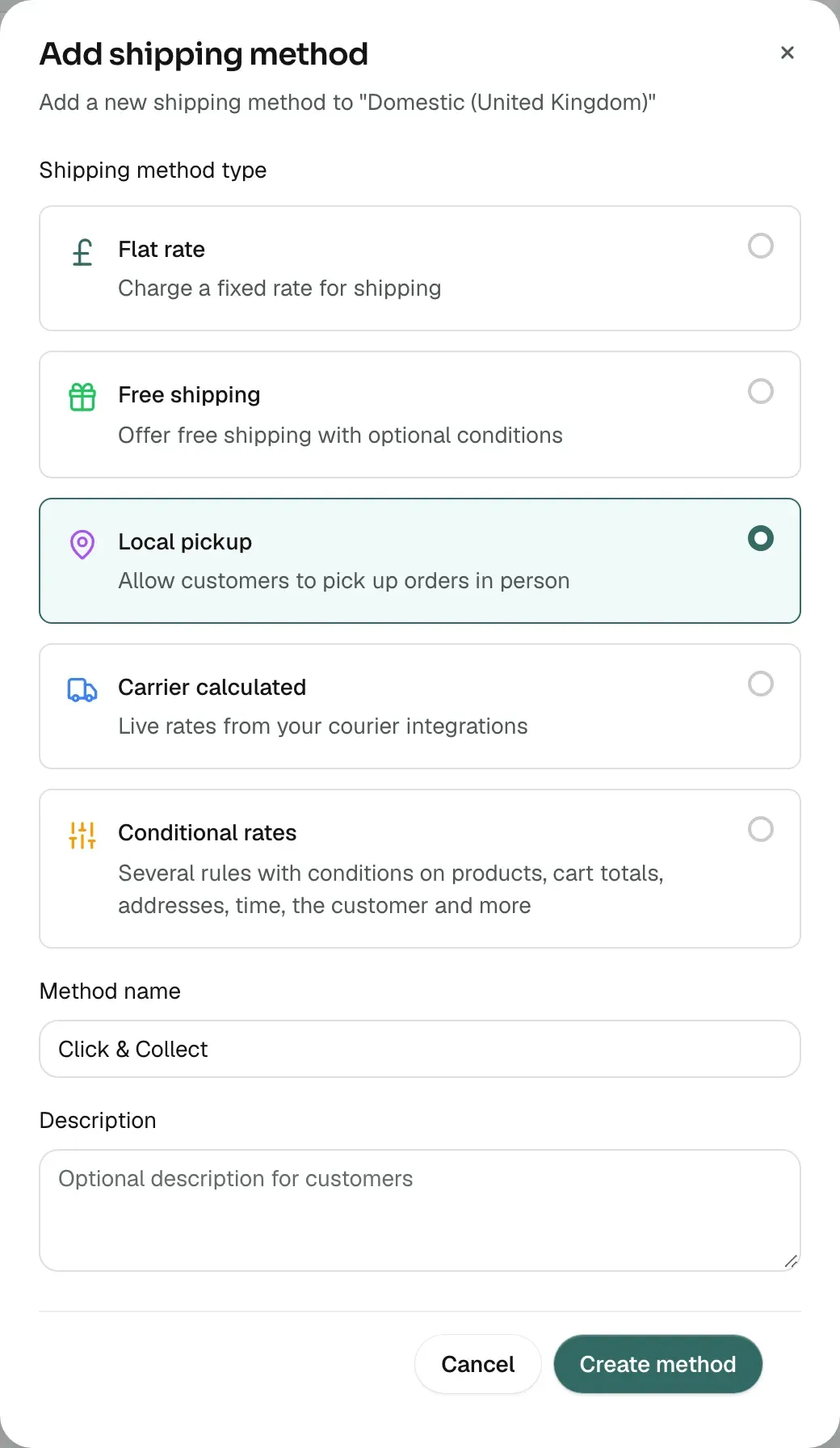
- Under Shipping method type, pick Local pickup. Its line reads Allow customers to pick up orders in person.
- Check the Method name. It fills in as Local Pickup. Change it to something your customer will understand, such as Collect from our Northampton shop. This name is visible to customers during checkout.
- Add a Description if you want one. Customers see it at checkout under the name.
- Click Create method. The Edit local pickup method panel opens on its own.
Set the pickup details
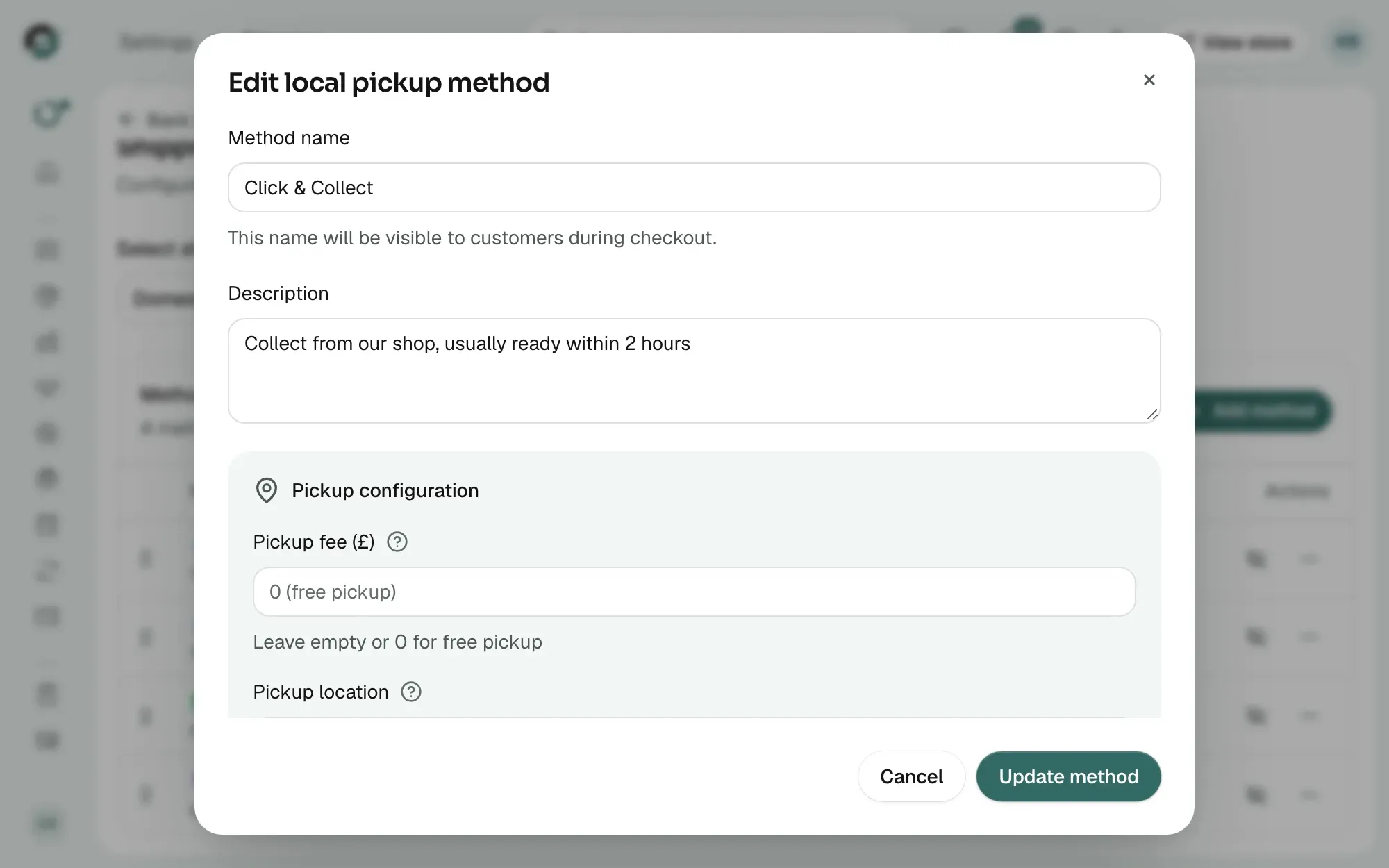
The Pickup configuration section holds everything about the collection itself. None of it is required, but the more you fill in, the fewer questions you get.
- In Pickup fee, type what you charge for collection. Leave it empty or type 0 for free pickup.
- In Pickup location, type the address the customer collects from. Start typing and pick the address from the list of suggestions.
- In Pickup instructions, add what the customer needs to know on the day, such as parking or which entrance to use.
- In Preparation time, say how long before an order is ready, for example 1-2 hours or Same day.
- In Contact information, add a phone number or email for collection questions.
- Read the Customer preview box. It lists Cost:, Location:, Preparation: and Contact: as you have set them.
- Leave Method status on. Active methods are available for customers to select.
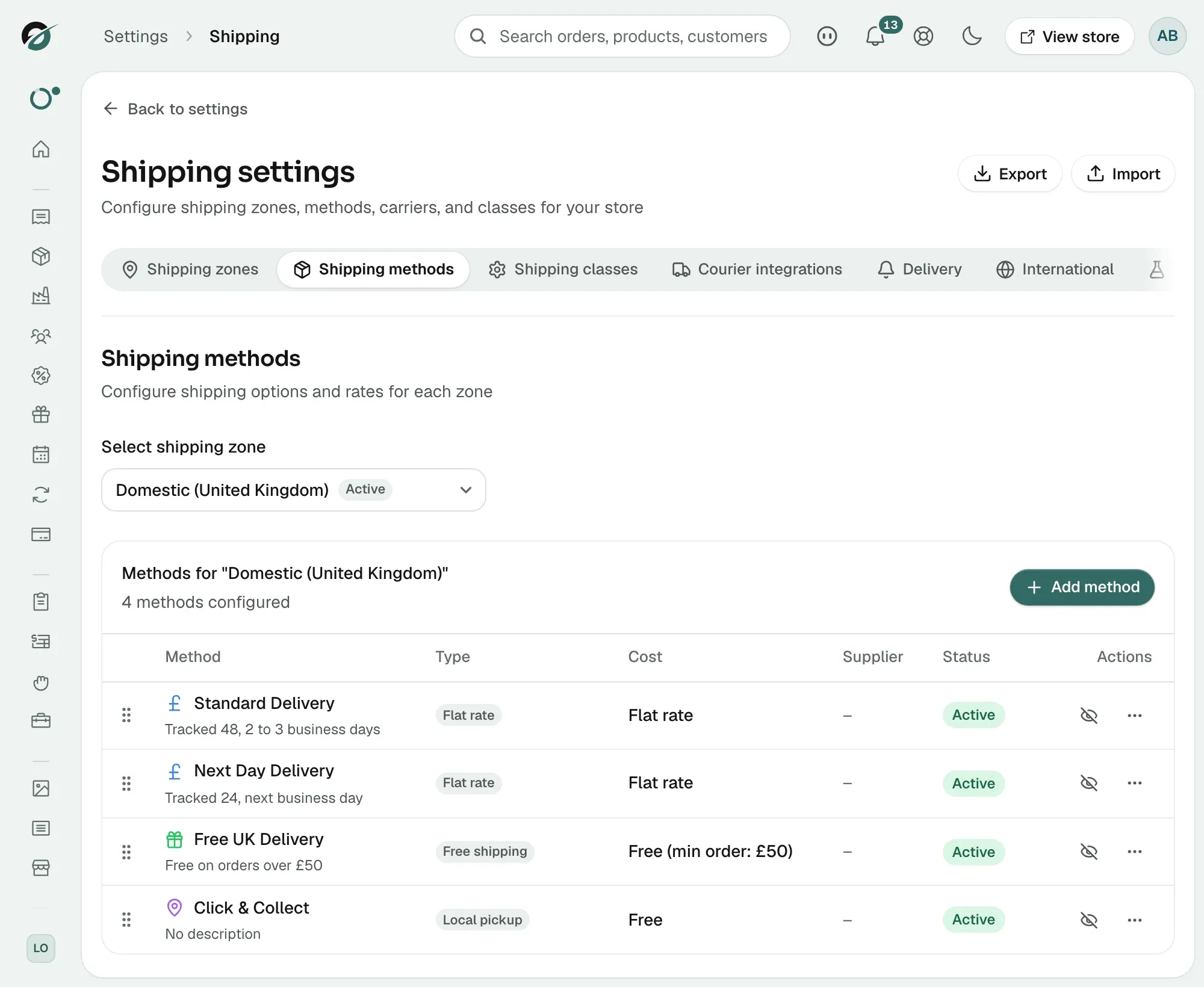
- Click Update method. The method shows in the table with its cost, or Free if you set no fee.
Note: The Pickup fee is in your store's currency, and the field label shows its symbol. Type the number on its own.
What your customer sees at checkout
At checkout your customer picks one option under Shipping method. Your pickup method sits in that list with the other methods in the zone. Each option in the list shows:
- Method name: the name you gave the method.
- The price: the pickup fee, or a zero price if you set none.
- Description: the line you added, if you added one.
Choosing pickup charges the pickup fee in place of a delivery rate. The rest of the checkout is the same as any other order.
Tip: The checkout list does not show the pickup location, instructions or preparation time. Put the shop or the town in the Method name, and the collection address in the Description, so your customer knows where they are going before they pay.
How a collect order shows in your dashboard
- From your Orbit dashboard, go to Orders.
- Click the order number. The order page opens.
- Under Order summary, the shipping line shows the pickup fee the customer paid.
A collect order is an ordinary order in every other way. It still needs fulfilling once the customer has taken the goods, so the order moves to Fulfilled and leaves your open work. Click Fulfil items and fulfil it with no tracking number. See Fulfilling an order and adding tracking.
Change or turn off pickup
Use the method's row on the Shipping methods tab:
- Edit method in the row's menu: reopen the Edit local pickup method panel and change any detail. Click Update method to save.
- The eye icon in the Actions column: keep the method but take it off your checkout. Click it again to put it back. Use this when the shop is shut for a spell.
- Delete method in the row's menu: remove the method for good.
Related guides
Was this helpful?
0 people found this helpful