Setting your service hours
Choose which days and times customers can book your services, set the timezone Orbit reads them in, and learn how the storefront uses the hours.
Service hours are the days and times customers can book your services. Your storefront only offers booking slots inside these windows. You set them under Settings, then Services.
Considerations
- Service hours apply to every bookable service in your store. You set them once, not per product.
- The times are read in the timezone you pick at the bottom of the page. Check it matches where you work.
- How long a booking lasts, how much notice you need and the gap between bookings are set on the product itself. See Setting up a bookable service.
Open Service hours
- From your Orbit dashboard, go to Settings.
- Under Selling, click Services. The Service hours page opens with one row for each day of the week, Monday to Sunday.
Set your weekly hours
- Find the day you want to change.
- Use the toggle next to the day name. When it is on, the label reads Open and customers can book that day. When it is off, the label reads Closed and no slots are offered.
- For an open day, set the Opens time. This is when bookings can start.
- Set the Closes time. This is when bookings stop.
- Repeat for each day. On a closed day the Opens and Closes fields are greyed out.
- Click Save in the Unsaved changes bar. The message Service hours saved appears.
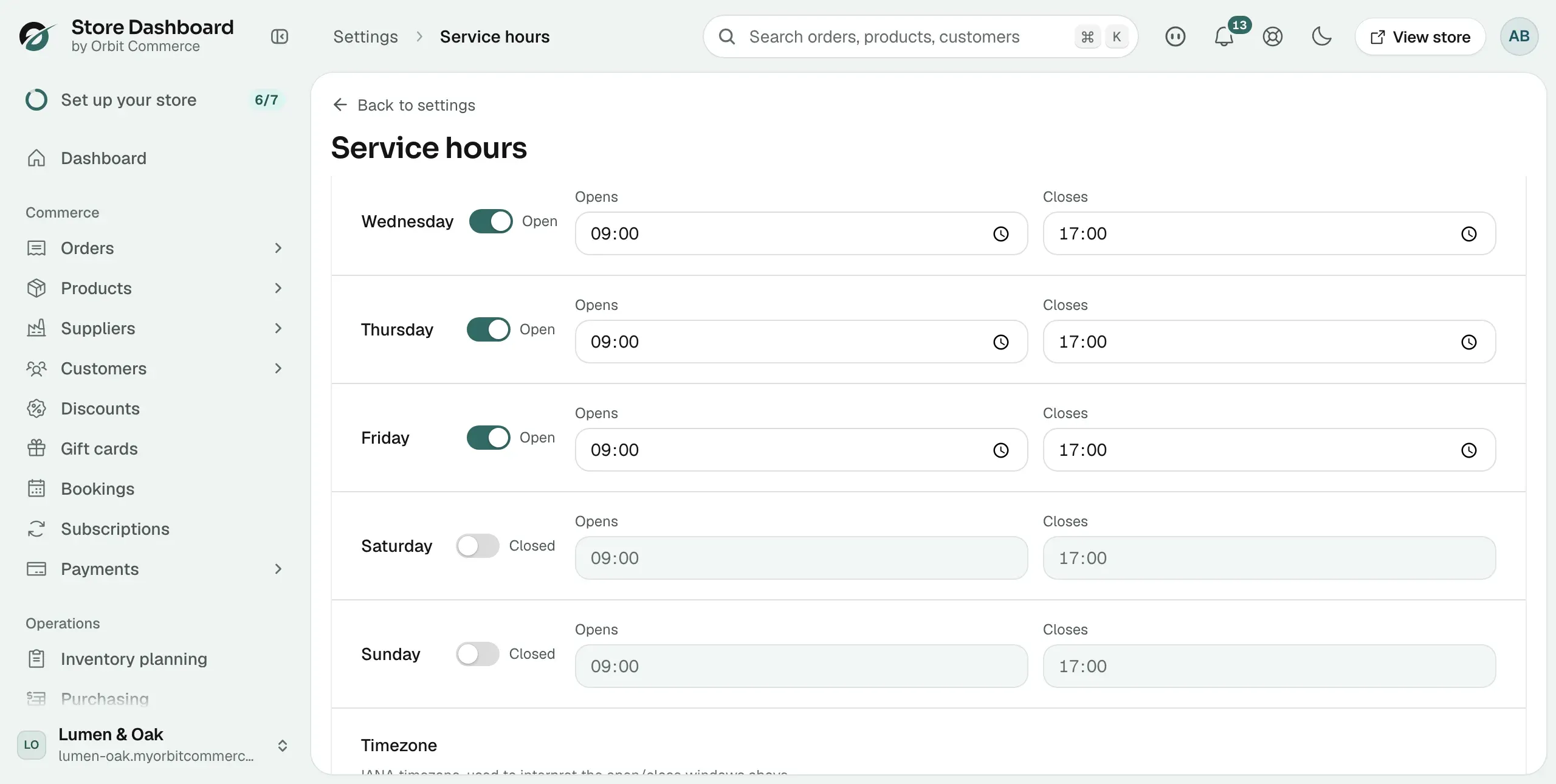
In the example above, the weekdays are open from 09:00 to 17:00, and Saturday and Sunday are closed.
Set the timezone
- Scroll below the day rows to Timezone.
- Pick the timezone your business works in from the list, for example Europe/London. Orbit uses it to read the open and close times above.
- Click Save in the Unsaved changes bar.
Tip: If your slots look an hour out on the storefront, the timezone is the first thing to check.
How the storefront uses service hours
When a customer opens a bookable service, Orbit checks your service hours to work out which slots to show. Slots are only offered between the Opens and Closes times you set. Closed days are hidden from the booking options. This means customers can only pick times when you can do the work.
Keep the page up to date when your week changes. Bookings already made are not moved when you change the hours.
Related guides
Was this helpful?
0 people found this helpful