Setting up order numbering
Choose sequential or date-based order numbers, add a prefix or suffix, and set the number your next order will use.
2 min read2viewsUpdated 14 September 2026Orbit Commerce
Every order gets a number. You, your customers and your accountant use it to refer to the sale. You choose the format, add a prefix or suffix, and set where the count starts, all in the Order Numbering section of Store Settings.
Considerations
- Changes apply to new orders only. Existing orders keep their numbers, because invoices and records refer to them.
- You can move Next Order Number forwards, never backwards. Numbers you skip are gone for good.
- Prefix and suffix changes are safe at any time. They only dress the number up.
Set your order number format
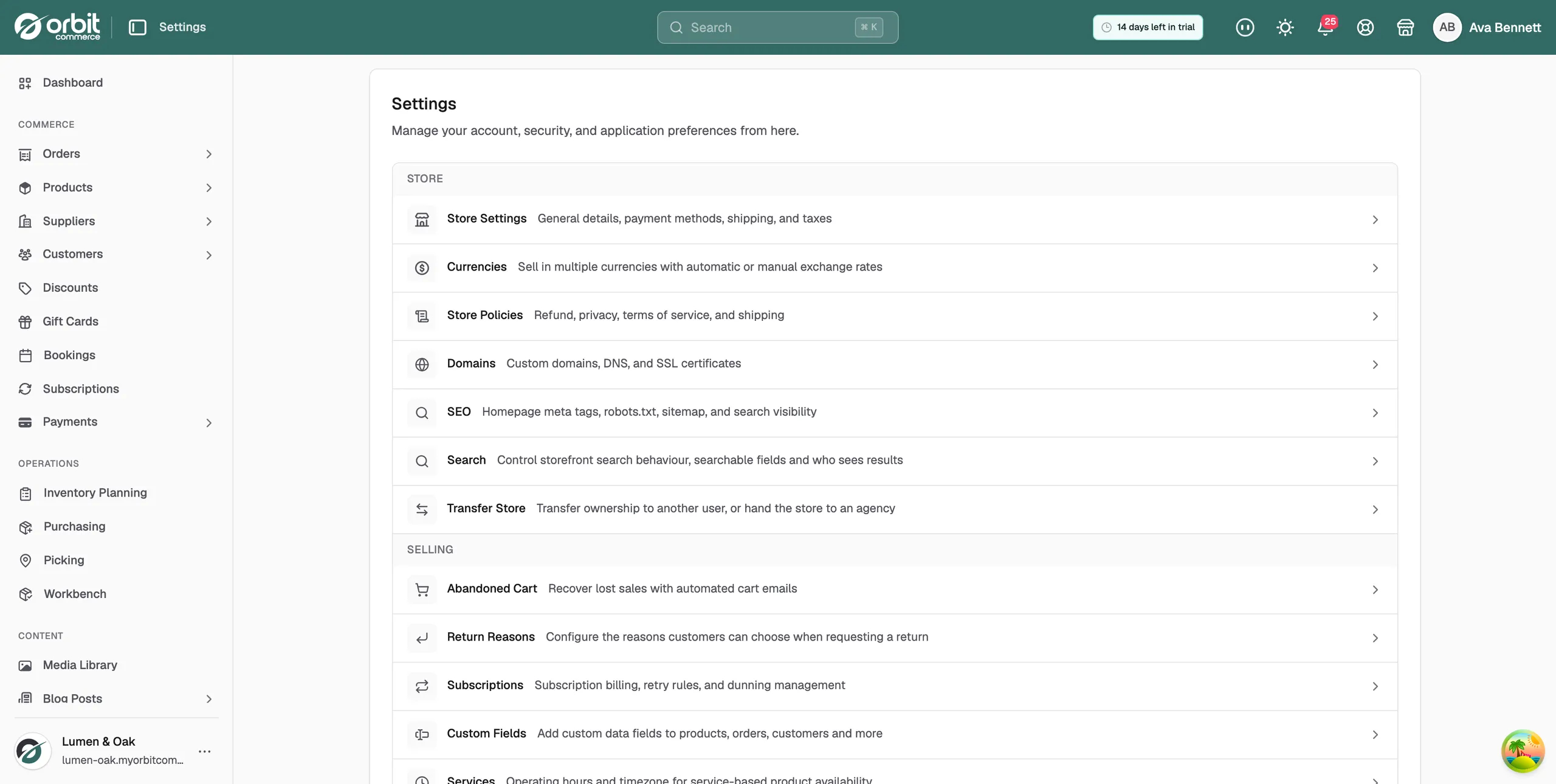
- From your Orbit dashboard, go to Settings.
- Under Store, click Store Settings. The General tab opens.
- Scroll to Order Numbering.
- Under Format, choose Sequential (1001, 1002, 1003...) or Date-based (20260321-0001).
- In Prefix, type any text to go before the number, for example ORD-. Leave it blank for none.
- In Suffix, type any text to go after the number, for example -26.
- If you chose Sequential, set Next Order Number. The next order created uses this number.
- Check the Preview box. It shows what the next order will be called.
- Click Save in the Unsaved changes bar at the bottom of the page.
The controls
- Format: how numbers are made. Sequential counts up by one. Date-based uses the order date plus a daily count.
- Prefix: text before the number. LO- gives LO-1042. If you run more than one store, give each its own prefix so numbers never clash.
- Suffix: text after the number, such as a year marker.
- Next Order Number: where the sequence carries on from. Shown for the Sequential format only.
- Preview: the next order number, or an example for today if you chose Date-based.
Moving from another platform
Set Next Order Number a little above the last order number on your old store. Your history then carries on without overlap. Decide this before your first real order arrives, because you cannot go back down later.
Tip: Keep the format plain and easy to sort. A clever scheme is fun once and confusing for years.
Related guides
Was this helpful?
0 people found this helpful