Adding product images and alt text
Upload photos to a product, put them in order and choose the main image. Set a template so Orbit writes alt text for your product images.
Product photos live in the Title & media section of the product editor. You can upload images, put them in order and choose the one shoppers see first. Orbit can also write alt text for your product images from a template you set in Settings.
Before you start
- Your plan has a media allowance. The upload control shows how much is left, for example 1999 of 2000 images remaining.
- The first image in the list is the Primary image. Shoppers see it in listings, search results and social shares.
- Automatic alt text covers product images. The Uploaded images tab in the alt text settings is marked as coming soon.
- Running a resync with Overwrite everything replaces alt text you wrote by hand. You cannot undo it.
Add images to a product
- From your Orbit dashboard, go to Products.
- Select the product's row to open the editor. For a new product, select New product instead.
- Open the Title & media section.
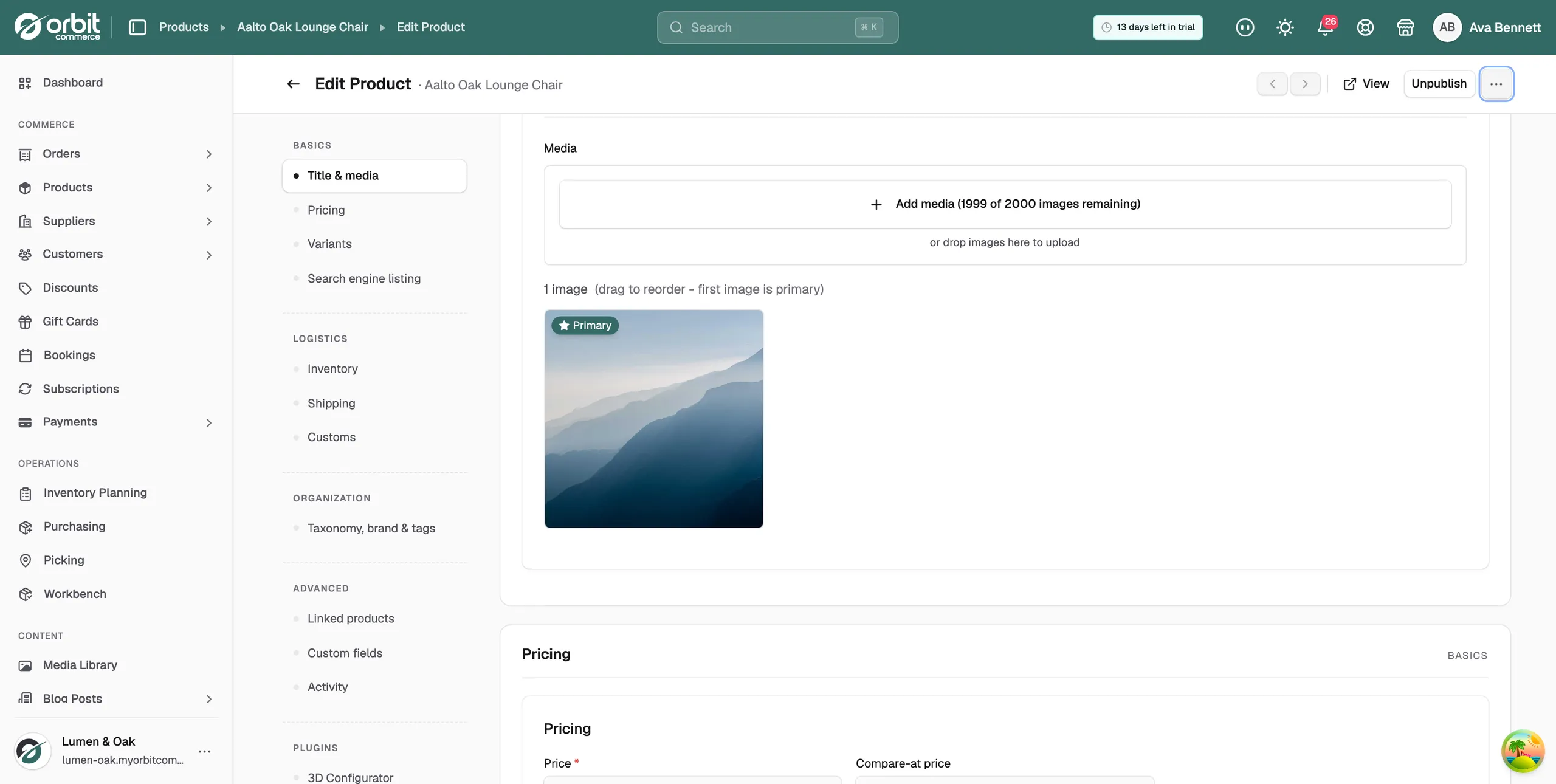
- Select Add media. Upload files from your computer, or pick images from the media library. You can also drop image files straight onto the section.
- Add every photo the product needs: each angle, the detail shots and a photo of the product in use.
- Click Save.
Reorder images and set the primary image
Images show under the section in the order shoppers see them.
- In the Title & media section, drag an image to a new place in the order.
- Drag your strongest photo to the first place. It is marked Primary.
- Click Save.
Write good alt text
Alt text is a short description of an image. Screen readers speak it and search engines read it. Every product image carries an alt text.
Write it as if you were describing the photo to someone on the phone. For example: "oak lounge chair with oatmeal wool seat, side view". Do not use a file name such as "IMG_2041".
Products with complete images and alt text also pass the storefront readiness checks used by AI shopping channels.
You can write alt text yourself, or let Orbit build it from your product details. The next sections show the automatic route.
Set alt text automatically
Orbit builds alt text for product images from a template. The template uses details such as the product name, product type and brand.
- From your Orbit dashboard, go to Settings, then SEO.
- Scroll to Image alt text. The Products tab is open.
- Choose a template. The Recommended option uses the product name, product type, brand and up to three variant options.
- Check the preview under the options. It shows the alt text for one of your products, with a character count. If a product has no brand or no variants, those parts are left out and the words close up.
- Click Save template.
Alt text built from a template is cut at 250 characters.
Write your own template
- Under Image alt text, select Customise my own template. A blank box appears with a row of buttons under it.
- Click a button to add a detail, such as [product_name], [product_type] or [store_name]. The detail lands where your cursor is.
- Type a space between each detail. The buttons do not add spaces for you.
- Check the preview, then click Save template.
Turn automatic alt text off
- Under Image alt text, select Don't set alt text automatically.
- Click Save template. Alt text your images already have is kept.
Add alt text to images you already have
Saving a template does not change images on its own. To fill in alt text across your store, run a resync.
- Under Image alt text, click Resync alt text. The button is available once you have saved a template.
- Choose how to update:
- Fill in the blanks only: writes alt text on images that have none. Alt text you wrote yourself is kept. This is selected by default.
- Overwrite everything: replaces the alt text on every product image.
- Click Start resync. If you chose Overwrite everything, the button says Overwrite and the number of images instead.
The update runs in the background. Check a product image in a few minutes to see the new alt text. To run another resync, reload the page first.
Warning: Overwrite everything cannot be undone. It replaces any alt text you wrote by hand.
Image tips
- Keep one aspect ratio across your catalogue. Square works everywhere and keeps grids tidy.
- Reuse shared images, such as size guides and lifestyle shots, from the media library. One file can serve many products.
- For a digital product, attach the file you sell in the Digital files section, not here. Media is for marketing images.
Related guides
Was this helpful?
0 people found this helpful