Building a bundle
Sell a fixed kit of products as one item. Add the components, set a quantity for each, and see how many bundles your stock allows.
A bundle is a fixed kit of products you already sell, bought as one item for one price. You list the products it contains in the Components section of the product editor. Orbit works out how many bundles you can sell from the stock of those products, so a bundle never holds stock of its own.
Considerations
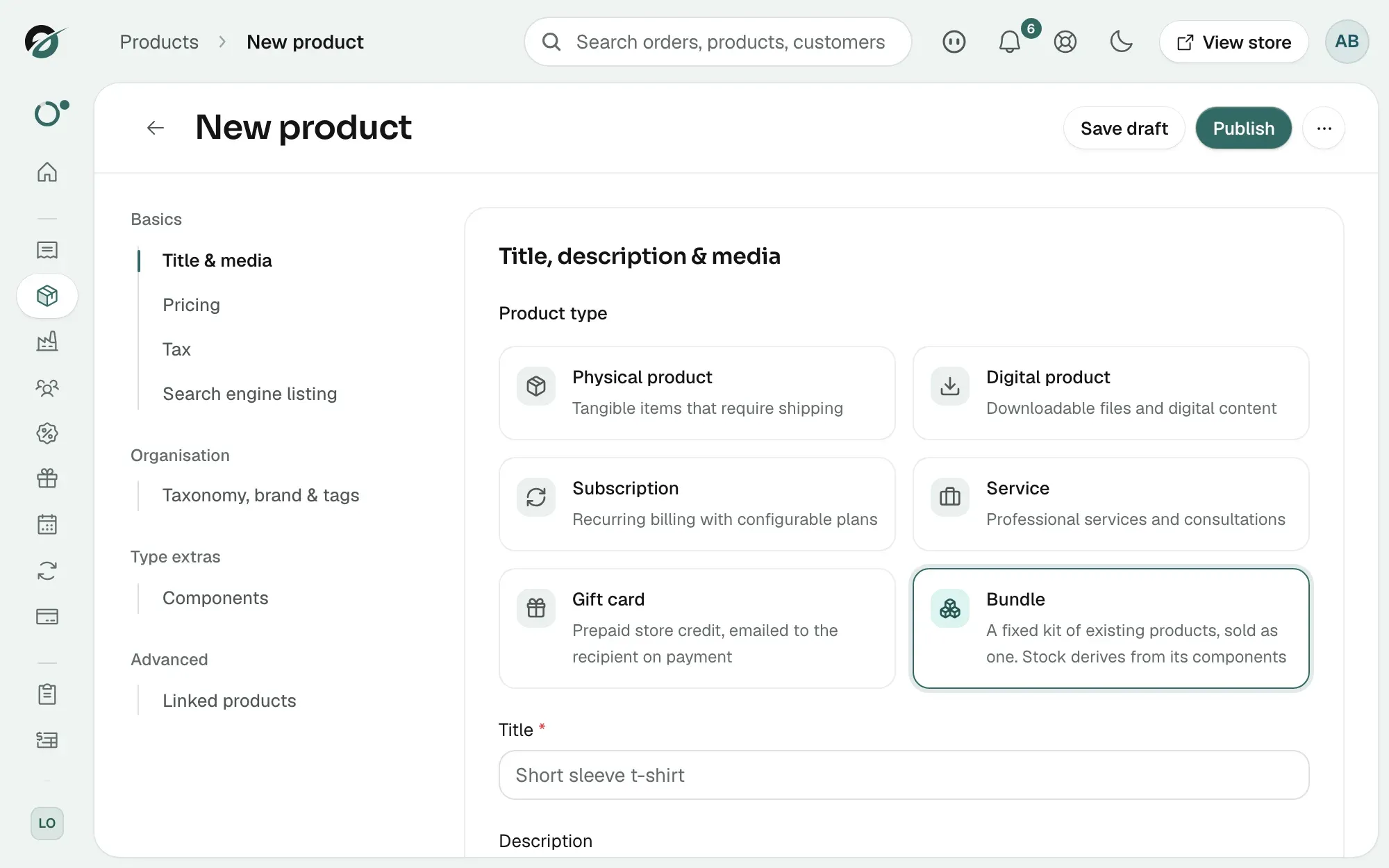
- The product type is set when you create the product and cannot be changed later. An existing product cannot become a bundle. See Choosing a product type.
- The kit is fixed. Your customer buys it as it stands and cannot swap an item or pick a size.
- A bundle can hold up to 30 components. Each component can have a quantity of 1 to 100.
- A bundle cannot contain itself or another bundle. Components have to be physical products. Orbit rejects any other choice when you save.
- A bundle has no Inventory, Shipping or Variants section of its own.
- The bundle price is the one you type. It is not worked out from the components and it never changes on its own.
Build a bundle
- From your Orbit dashboard, go to Products.
- Click Add product.
- Under Product type, click Bundle.
- Enter a Title and a Price. The price is what the customer pays for the whole kit.
- In the left-hand list, click Components.
- In Search products to add as components, type part of a product name, then click the product in the list. It is added as a row.
- If that product has more than one variant, choose the one you want under Pick a variant. A kit is fixed, so each component needs one named variant.
- In the box next to the row, set how many of that product one bundle contains.
- Repeat for every product in the kit. Use the up and down arrows on a row to change the order, and the bin icon to take a row out.
- Click Publish, or Save draft to come back later. The components are saved with the product.
Tip: One product with a quantity of 6 makes a multipack. You do not need six separate rows.
Note: On a product you have not created yet there is no Save components button. The rows are saved for you as soon as the product is created.
What the Components section shows
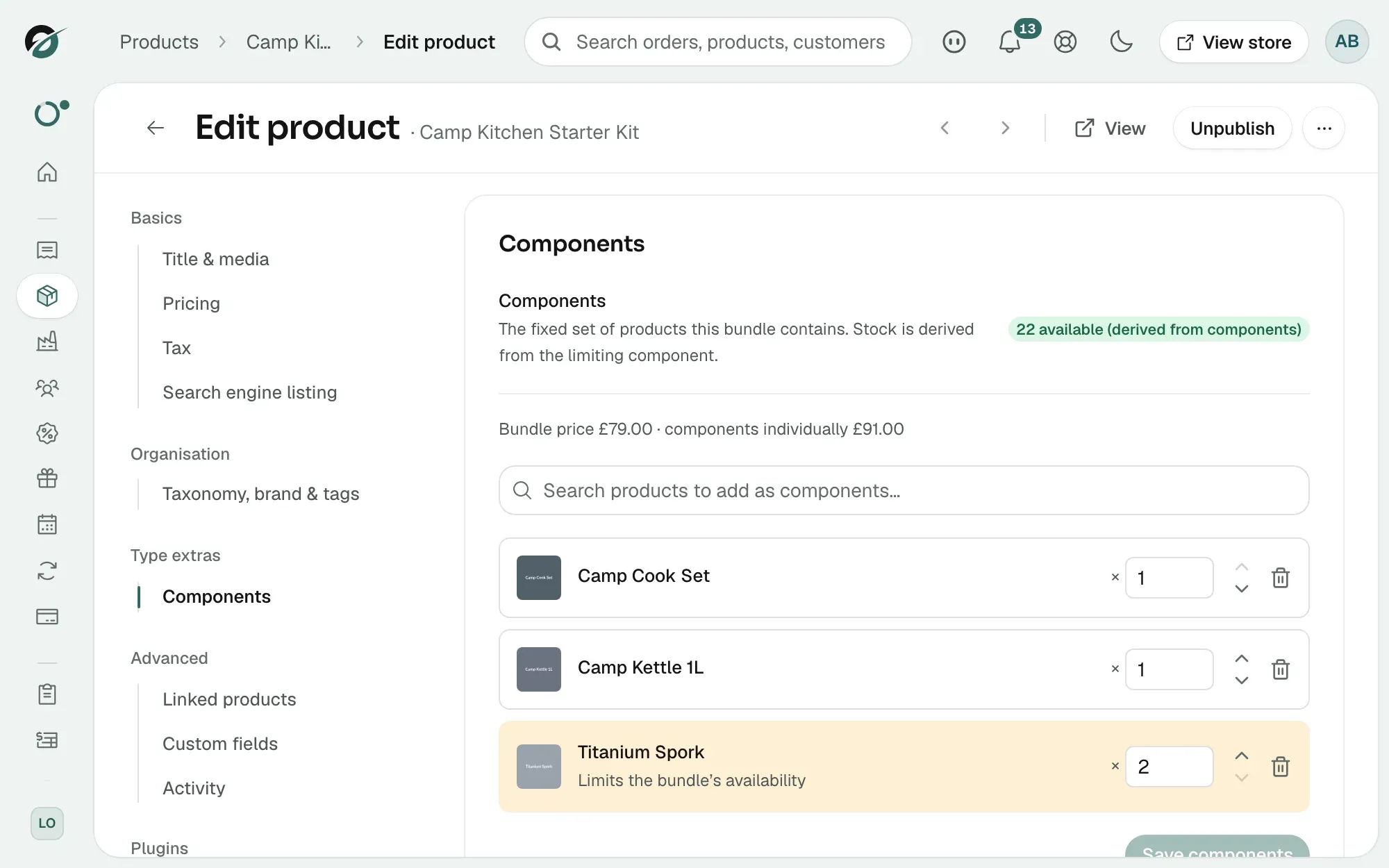
- Components: the fixed set of products this bundle contains, one row each.
- The row image and name: the product, with its variant underneath when you have picked one.
- The number box on each row: how many of that product go into one bundle.
- The badge at the top: how many bundles you can sell, for example 12 available (derived from components), or Unlimited when no component limits the bundle.
- The highlighted row: the component that runs out first, marked Limits the bundle's availability. It appears once the components are saved.
How bundle stock is worked out
Orbit takes the stock of each component and divides it by the quantity that component adds to one bundle. The smallest result is the number of bundles you can sell.
Say a gift set holds one mug and two coasters. You hold 10 mugs and 6 coasters. The mugs allow 10 bundles and the coasters allow 3, so the bundle shows 3 available. The coasters are the limiting component.
On the Products list, the stock column for a bundle shows this figure with (derived) next to it. You cannot type a stock figure for a bundle. To raise what a bundle can sell, add stock to the limiting component. See Checking and correcting stock levels.
Change what is in a bundle
- From your Orbit dashboard, go to Products.
- Open the bundle.
- In the left-hand list, click Components.
- Add a product, change a quantity, reorder the rows, or remove a row.
- Click Save components. The availability badge and the highlighted row refresh.
If you add a product that is already in the kit, Orbit tells you to raise its quantity instead. A product can only appear once.
Keep the bundle price current
Under the Components heading, Orbit shows the bundle price next to what the same products cost bought one by one. Use it to check the saving your customer gets.
When a component price changes after you set the bundle price, a warning appears above the rows: Component prices changed since the bundle price was set. It names the products that changed. The bundle price does not update on its own, so review it.
- From your Orbit dashboard, go to Products.
- Open the bundle.
- In the left-hand list, click Pricing.
- Change the Price.
- Click Save changes.
Related guides
Was this helpful?
0 people found this helpful