Connecting your store to Zigaflow
Install the Zigaflow plugin, connect your Zigaflow account, choose how website orders become jobs, then follow each order into Zigaflow.
The Zigaflow plugin sends your website orders to Zigaflow as jobs, with the customer, the delivery and invoice addresses and every line, so your team works from Zigaflow without keying orders in.
Considerations
- You need a Zigaflow account with API access. Zigaflow switch API access on and charge for it separately, so contact Zigaflow for their API pricing before you install.
- Zigaflow counts every API call against a monthly allowance, including the look-ups the plugin makes to find customers and products. A typical order uses 5 to 15 calls, fewer once its customer and products are known.
- Your store's products need SKUs. The plugin matches each line to a Zigaflow product by its SKU.
- The VAT on a Zigaflow job line comes from the Zigaflow product's VAT code. Check your products in Zigaflow have one. Products the plugin adds itself get the right code automatically.
Install the plugin
- From your Orbit dashboard, go to Plugins.
- Find Zigaflow and install it. The full steps are in Installing and managing plugins.
- Once installed, the plugin appears in the left menu as Zigaflow. It opens on Settings until you connect your account.
Connect your Zigaflow account
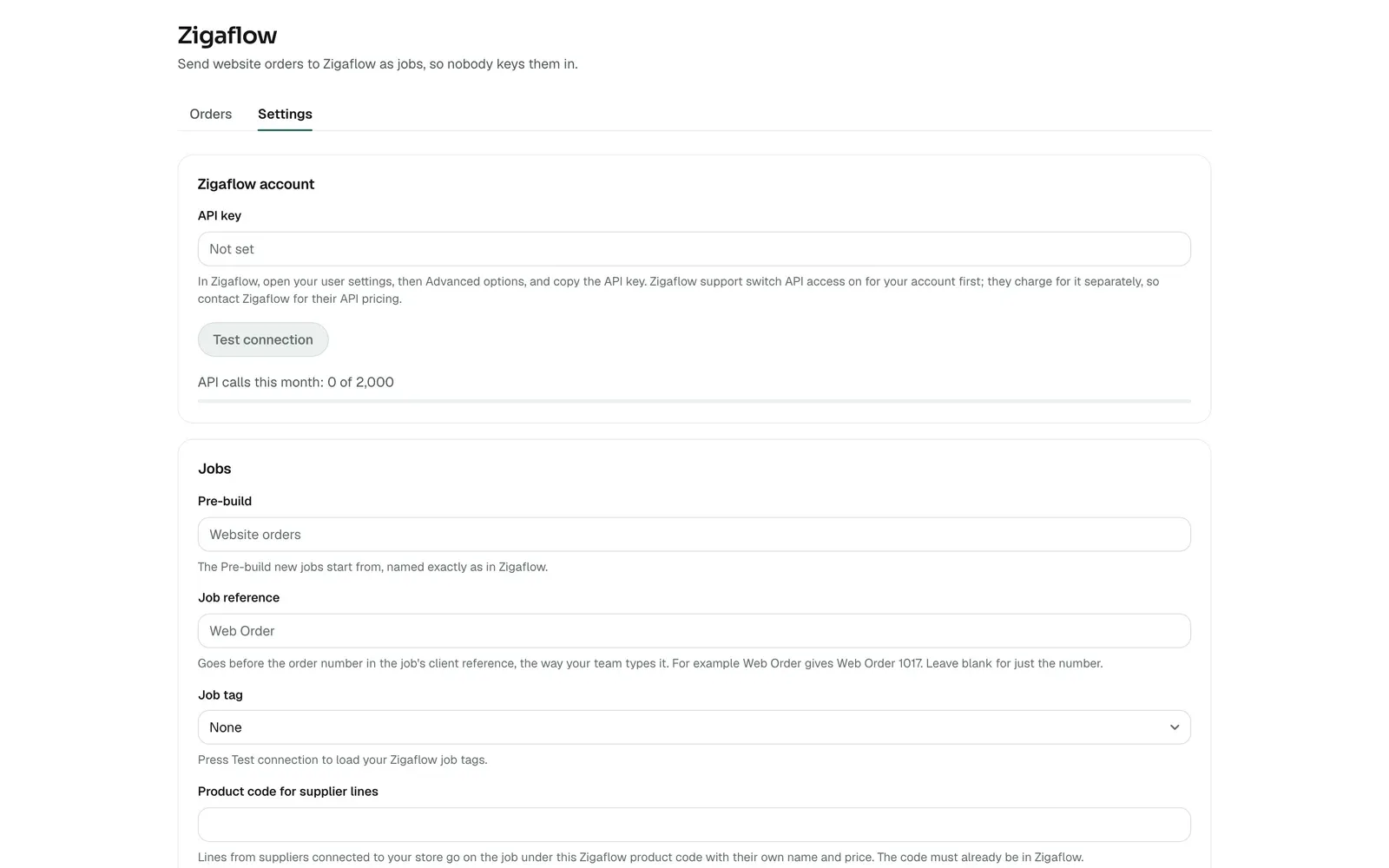
- In Zigaflow, open your user settings, then Advanced options, and copy your API key.
- In the plugin, paste it into API key and press Save. The plugin checks the key with Zigaflow before saving it, and stores it encrypted.
- Press Test connection. You should see Connected with the number of job tags found in your Zigaflow account.
Set up your jobs
The Jobs card decides how each order looks in Zigaflow.
- Pre-build: the Zigaflow Pre-build new jobs start from, typed exactly as it is named in Zigaflow.
- Job reference: text that goes before the order number in the job's client reference, the way your team types it. For example, Web Order gives Web Order 1017. Leave it blank for just the order number.
- Job tag: a Zigaflow job tag added to every job, so your team can spot website orders. Press Test connection to load your tags.
- Product code for supplier lines: lines from suppliers connected to your store go on the job under this one Zigaflow product code, each with its own name, SKU and price. The code must already exist in Zigaflow.
- Delivery product code: the delivery charge goes on the job as a line under this code. Leave it blank to put the delivery charge in the job note instead.
- Create missing products: when a product's SKU is not in Zigaflow yet, the plugin adds it with its price, cost and VAT code. Turn this off and the order waits until you add the product in Zigaflow.
Choose how orders are sent
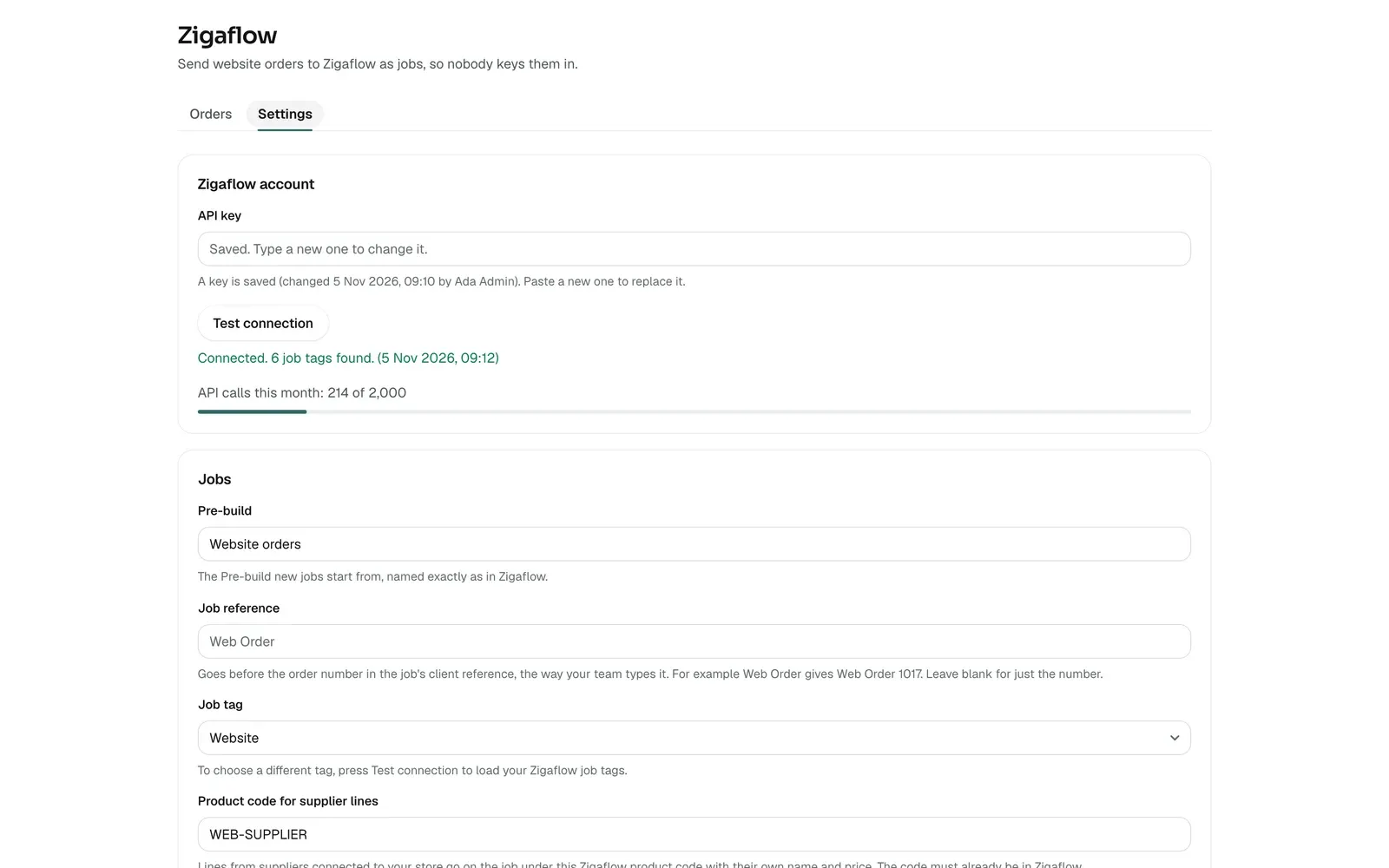
In the Sending card:
- Sending: Off sends nothing. Manual sends only the orders you send yourself, which is a good way to check a few orders first. Automatic sends orders within a minute of them being ready.
- Send orders placed from: orders placed before this date are never sent automatically, so your existing orders stay out of Zigaflow. You can still send one by hand.
- Monthly API allowance: your Zigaflow call allowance. Automatic sending stops 50 calls short of it so you can still send orders by hand, and starts again on the 1st.
- Alert emails: who to email if orders stop reaching Zigaflow, for example if Zigaflow refuses the API key.
Orders not paid yet
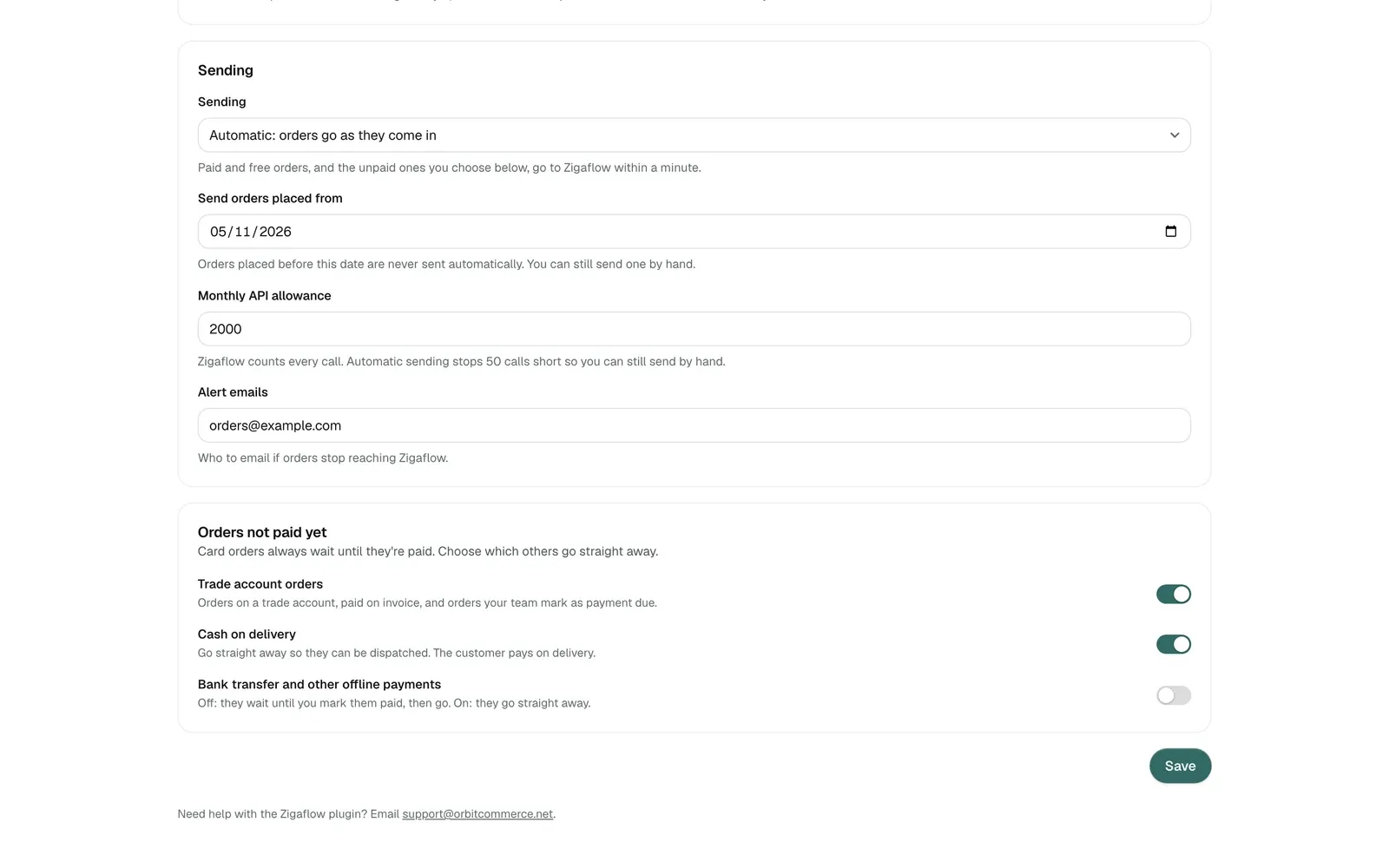
Paid and free orders are sent as soon as they are ready. Card orders always wait until they are paid. For other orders, choose what happens in the Orders not paid yet card:
- Trade account orders: orders on a trade account paid on invoice, and orders your team mark as payment due. On by default.
- Cash on delivery: sent straight away so they can be dispatched, as the customer pays on delivery. On by default.
- Bank transfer and other offline payments: off by default, so these wait until you mark them paid in Orbit and then go to Zigaflow. Turn it on to send them straight away.
What goes on the Zigaflow job
- Customer: the plugin looks for a Zigaflow contact with the order's email, then a client with the order's company name. If neither exists it adds the client and contact, using the company name or, for a private customer, their name.
- Lines: each product under its SKU with its quantity and price excluding VAT, all in one section called Website order. Supplier lines and delivery go under the codes you chose.
- Job note: the order number and date, how it was paid, the customer's note and delivery instructions.
- Discounts: a discount on a single line is already in that line's price. A discount on the whole order is not on the lines; the job note shows the amount, so you can take it off the invoice.
Zigaflow stores prices to two decimal places, so occasionally a job total can be a penny different from the Orbit order. The job note always shows the amount the customer paid.
Follow your orders
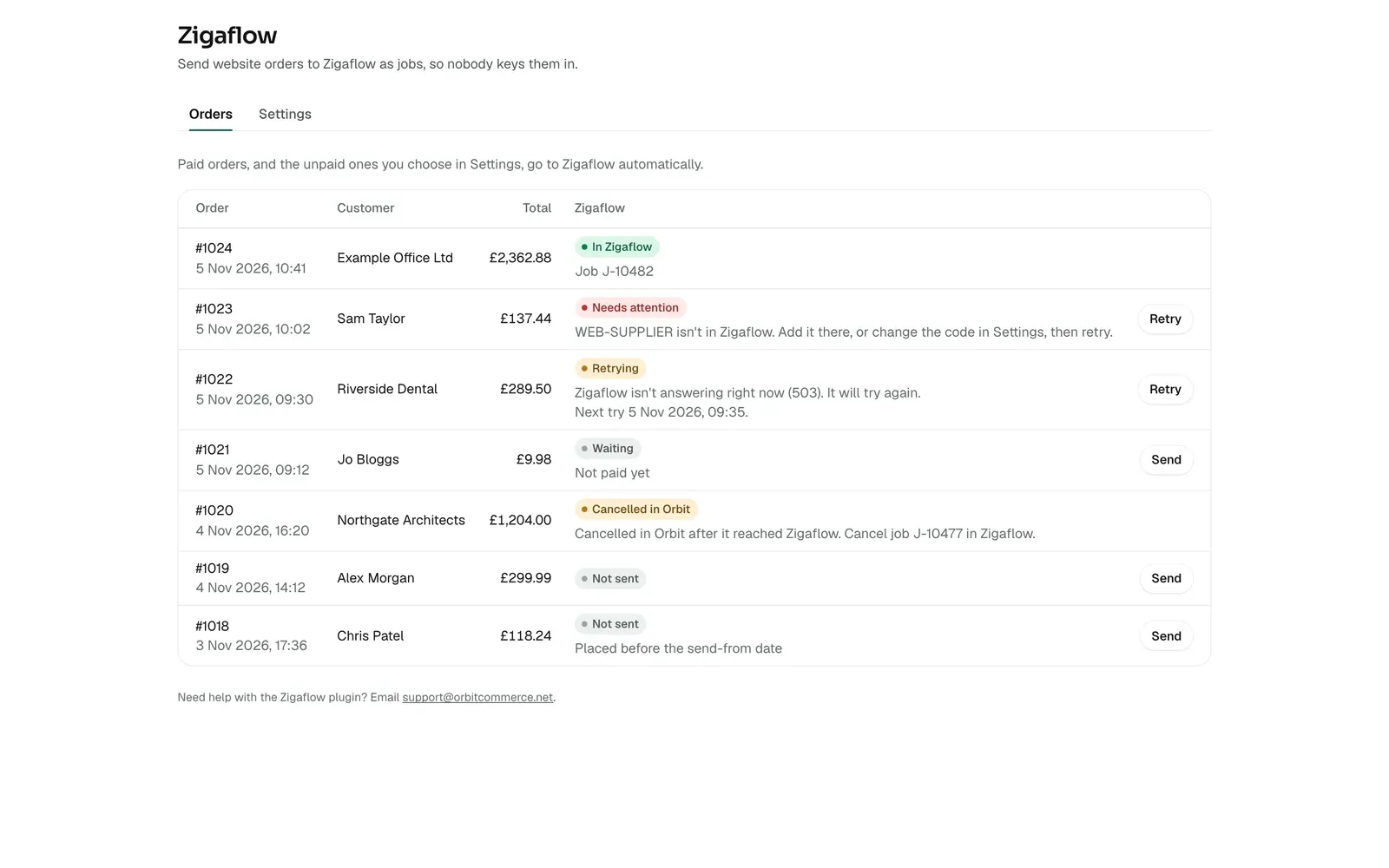
The Orders tab lists your recent orders with their Zigaflow status. Each order's page in Orbit also has a Zigaflow panel showing the same status, and sent orders are tagged Zigaflow in Orbit.
- In Zigaflow: the job was created, with its job number.
- Waiting: the order is not ready yet, for example it is not paid. The reason is shown, and it goes on its own once it is ready.
- Not sent: the order will not be sent automatically, for example it was placed before your send-from date. Press Send to send it anyway.
- Retrying: Zigaflow did not answer. The plugin tries again on its own and shows when.
- Needs attention: Zigaflow refused something the plugin cannot fix, such as a product code that does not exist. Fix what the message says, then press Retry. A retried order carries on with the same job, so you never get a second one.
- Cancelled in Orbit: the order was cancelled after it reached Zigaflow. The plugin does not cancel Zigaflow jobs, so cancel the job in Zigaflow yourself.
If something goes wrong
- Zigaflow refused the API key: copy a fresh key from Zigaflow and save it. Check with Zigaflow that API access is still on for your account.
- A product code isn't in Zigaflow: add the product in Zigaflow, or turn on Create missing products, then press Retry.
- A job line has no VAT: that Zigaflow product has no VAT code. Set one on the product in Zigaflow.
- Orders have stopped and nothing looks wrong in Settings: open the Zigaflow plugin as the store owner. If its access to your store has run out, opening it reconnects it, and orders that came in meanwhile are sent, or listed with Send if you are on Manual.
- The allowance is nearly used: automatic sending pauses until the 1st. Send urgent orders by hand, or ask Zigaflow about a larger allowance and update Monthly API allowance.
Related guides
Was this helpful?
0 people found this helpful