Creating PDF spec sheets and catalogues
Export a branded PDF catalogue, design how spec sheets and catalogues look, and add a PDF download button to your product page.
Product Sheets turns your catalogue into branded PDFs. Customers can download a one-page spec sheet from a product page, and you can export a whole-catalogue PDF to send to trade buyers. Layout and branding come from a design you set once in the designer.
Considerations
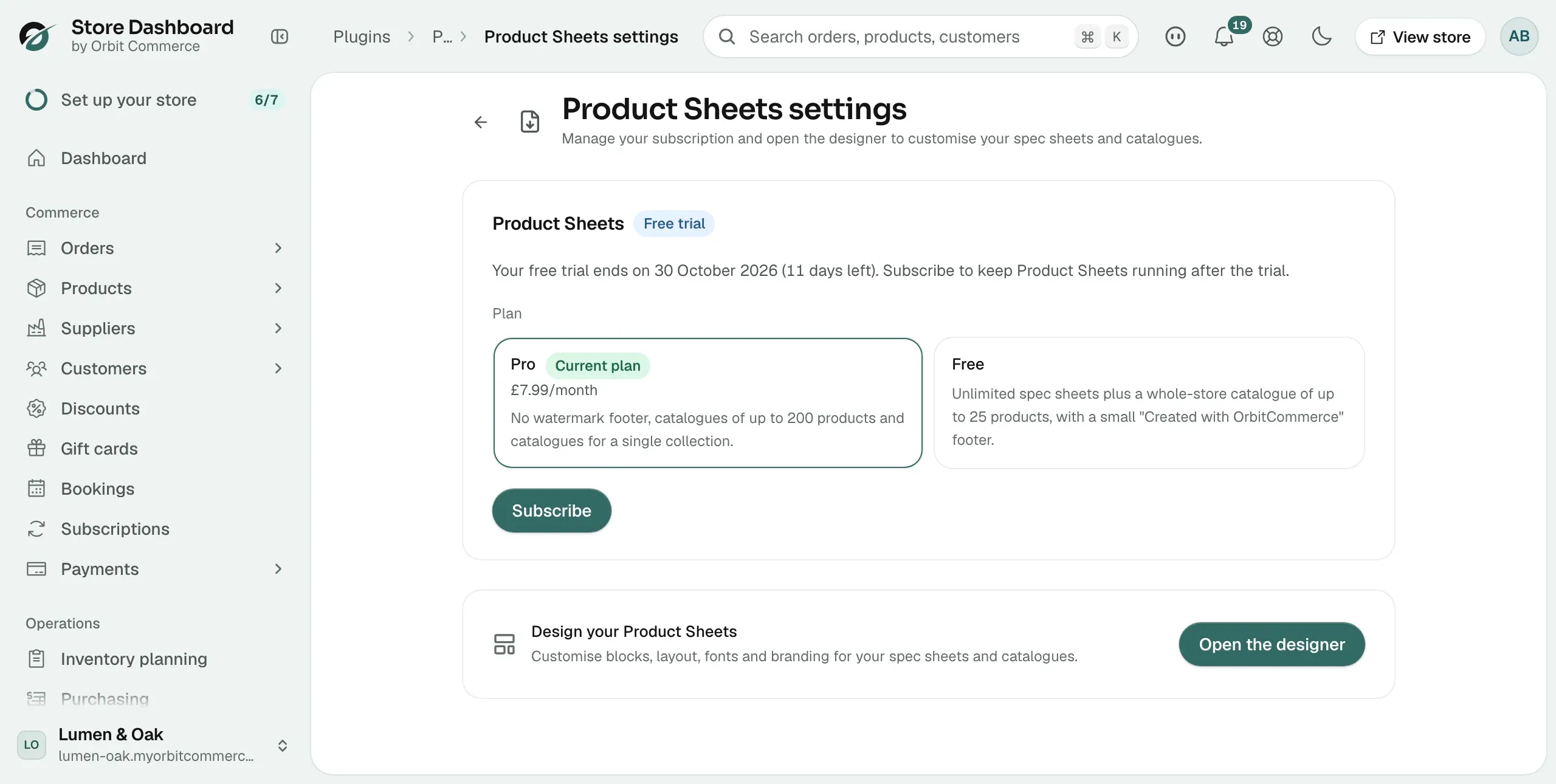
- Installing Product Sheets starts a 14-day free trial of the Pro plan. Pro removes the small Created with OrbitCommerce footer and allows catalogues of up to 200 products or of a single collection. The Free plan covers spec sheets and a whole-store catalogue of up to 25 products. Subscribe to keep Pro after the trial ends.
- On the Pro plan a catalogue export holds up to 200 products. For a bigger store, export one collection at a time.
- Customers can only download spec sheets once the PDF Download Button element is on your product page in the page builder.
Install the plugin
- From your Orbit dashboard, go to Plugins.
- Find Product Sheets and install it. The full steps are in Installing and managing plugins.
The Product Sheets page
Open the plugin from Plugins. The page shows how your sheets are doing and holds the export tool.
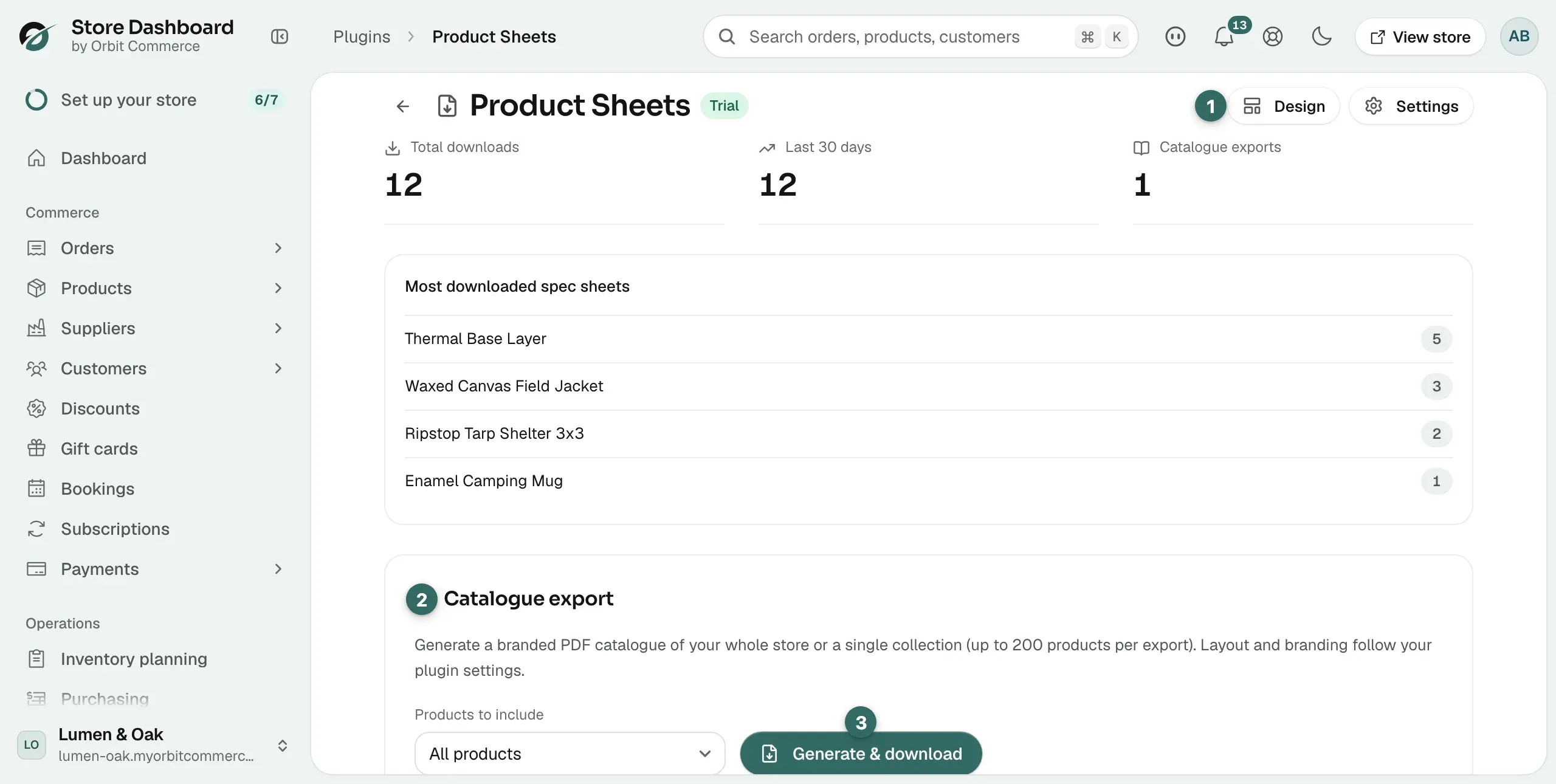
- Total downloads, Last 30 days and Catalogue exports: your download counts.
- Most downloaded spec sheets: the products customers download most.
- Design: opens the designer, where layout and branding live.
- Settings: opens the settings page, where you manage your subscription.
- Catalogue export: builds a branded PDF catalogue of your whole store or a single collection.
Export a catalogue
- On the Product Sheets page, find Catalogue export.
- Under Products to include, choose All products or, on the Pro plan, a collection.
- Click Generate & download. The PDF downloads and the message Catalogue downloaded appears with the number of products included.
Note: If your store has more products than your plan's catalogue holds (25 on the Free plan, 200 on Pro), the message Catalogue capped tells you how many were included. On Pro, export per collection to cover everything.
Design your sheets and catalogues
- On the Product Sheets page, click Design. The Product Sheets designer opens.
- Pick the Sheet tab for single-product spec sheets or the Catalogue tab for catalogue exports. Each has its own design.
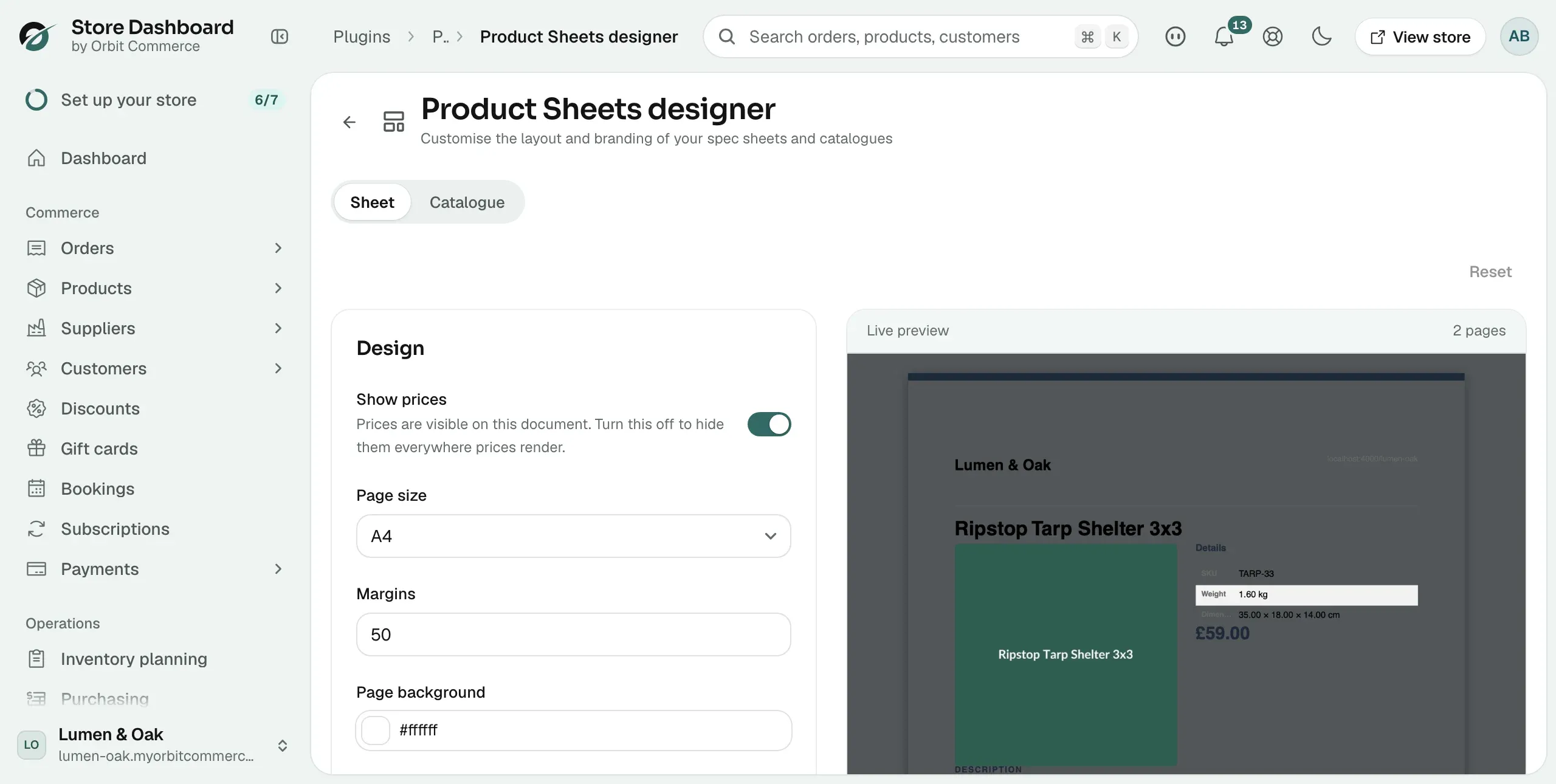
- Under Design, set the options below. The Live preview on the right updates as you go.
- Click Save in the Unsaved changes bar. The message Saved appears and every future sheet or catalogue uses the new design.
The Design settings are:
- Show prices: turn prices on or off everywhere they render. Useful for trade catalogues.
- Page size: A4 or Letter.
- Margins: the space around the page edge.
- Page background, Accent colour, Text colour and Muted colour: your palette. Switch on Use theme colour to have the accent follow your storefront theme.
- Heading font and Body font: the fonts used in the document.
Under Blocks, choose what the page shows and in what order, such as the header, images, price, variant table and QR code. Click Add block to add one, drag a block to move it, and expand it to change its settings.
Warning: Reset, once you confirm with Reset to default, deletes your saved design for that tab and returns to the default template. It also discards unsaved changes. You cannot undo it.
Add the download button to your product page
- Open your product page in the page builder.
- Drag the PDF Download Button element from the Single Product category to where you want it.
- Save the page. Customers click the button to download that product's spec sheet.
Manage your subscription
On the Product Sheets page, click Settings. The Product Sheets settings page shows your plan and status, and has an Open the designer button that takes you back to the designer.
Tip: Hide prices on the catalogue you send to new trade prospects. Share a priced version only with approved accounts. Export one collection at a time for focused seasonal lines.
Related guides
Was this helpful?
0 people found this helpful