Collecting product reviews
Install the free Product Reviews plugin, approve or reject new reviews, show ratings on your product pages, and see how your customers leave a review.
The Product Reviews plugin adds star ratings and written reviews to your product pages. Reviews from real customers are the social proof that lifts conversion. The plugin is free, made by Orbit, and takes about a minute to set up.
Considerations
- The plugin is free, so there is no trial clock. It is ready to use as soon as it is installed.
- New reviews wait for your approval before they go live. Nothing unvetted appears on your storefront.
- Reviews only show on the storefront once the review elements are on your product page in the page builder.
Install the plugin
- From your Orbit dashboard, go to Plugins.
- Under Explore Plugins, find Product Reviews and click Install.
- The details page lists what you get: star ratings, review moderation, review photos and verified-purchase badges. Check the permissions, then confirm the install. The full steps are in Installing and managing plugins.
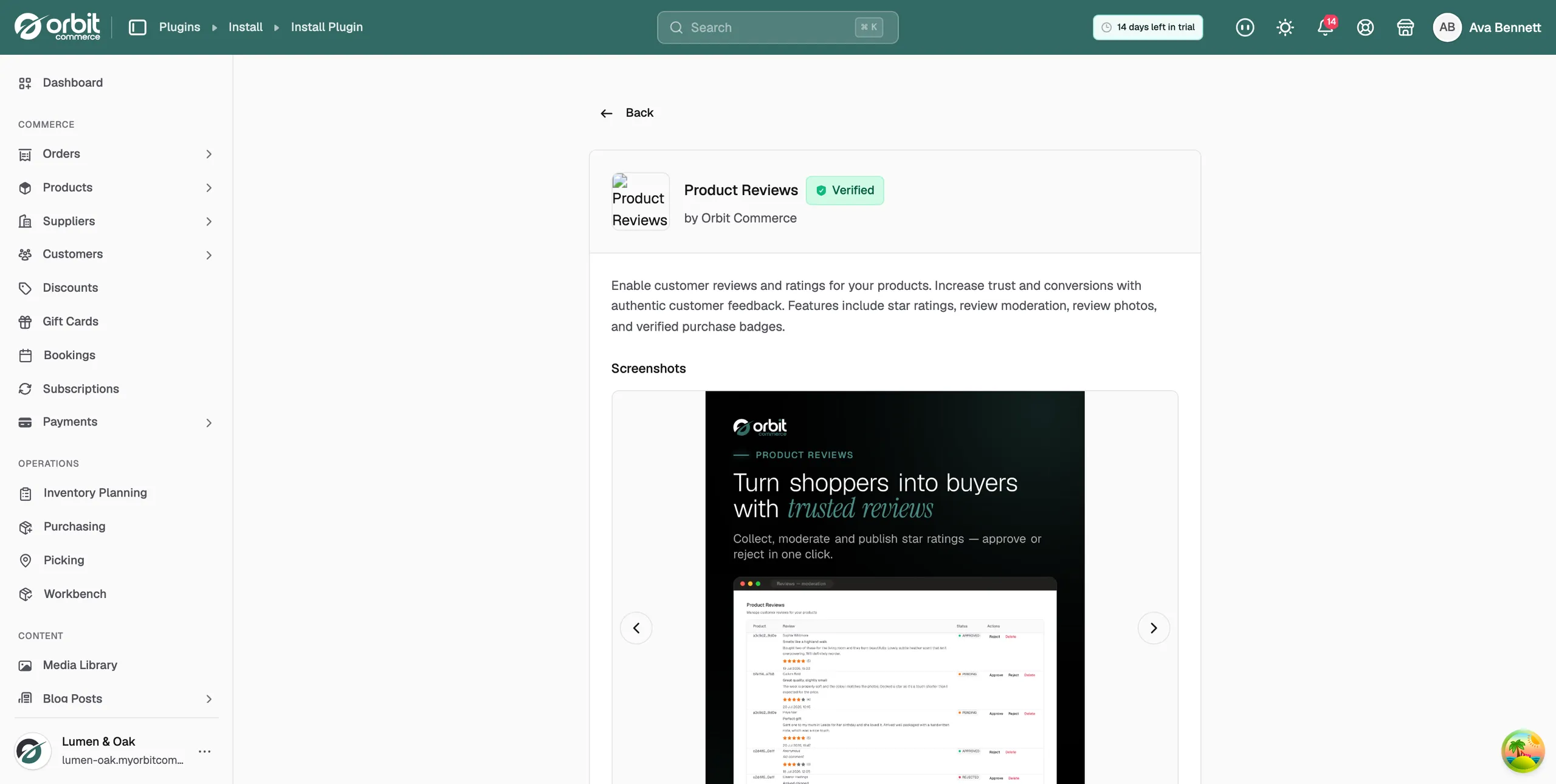
What you get
- Star ratings and reviews: shown on product pages, with photo uploads from customers.
- Verified purchase badges: reviews from real orders are marked as such.
- Moderation: new reviews queue for approval. You approve or reject each one in a click.
Moderate reviews
- Open the plugin from Plugins. The Product Reviews page lists every review with its Product, Review and Status. Until customers leave one, it reads No reviews yet.
- Under Actions, click Approve to publish a review or Reject to keep it off your storefront.
- To remove a review for good, click Delete.
You can also moderate from the product editor. Each product has a Product Reviews block in its Plugins section, with the same Approve and Reject actions for that product's reviews.
Show reviews on your product page
- Open your product page in the page builder.
- Add the review elements where you want the ratings and reviews to show.
- Save the page.
Tip: Ask for the review. A follow-up email after delivery, with a direct link, brings in far more reviews than waiting. Publish honest 4-star reviews alongside the 5-star ones. A wall of perfect scores reads as fake.
How customers leave a review
The review form sits on the product page itself, in the reviews section. Your customer does not need an account, and does not need to have bought the product. Anyone who can open the product page can write a review.
- Your customer opens the product page and scrolls to the reviews.
- They click Write a Review, above the list of reviews. The form opens on the page.
- They fill it in and click Submit Review. Cancel closes the form without sending anything.
The form has five fields:
- Your Rating: required. One to five stars, set to five to begin with.
- Name: required. This is the name shown with the review.
- Email: required. It is not shown with the review.
- Review Title: optional. The box reads "Summarize your experience".
- Your Review: optional. The box reads "Tell others about your experience".
When they submit, the form closes and a green message takes its place: "Thank you for your review! It will be visible after moderation." The review is now in your review list with the status PENDING, and it stays off your storefront until you approve it. The plugin's Settings page has an auto-approve option that publishes new reviews as they arrive. It is off unless you turn it on, and the message your customer sees mentions moderation either way.
Reviews from real orders carry a green Verified label next to the name. The plugin reads your orders and adds the label when it can match the review to an order for that product. Reviews it cannot match show the name on its own.
Your customer cannot edit or delete a review once it is sent. There is no edit control on the storefront. If someone asks you to change or take down their review, use Reject or Delete in your review list.
One action does need an account. Helpful, the button under each review, only counts a vote from a signed-in customer. A shopper who is not signed in sees "Please log in to mark reviews as helpful".
Related guides
Was this helpful?
0 people found this helpful