Setting up a Pinterest catalogue feed
Install the Pinterest Catalog Feed plugin, create and generate a feed, and add it as a data source in Pinterest Business for product pins and shopping ads.
The Pinterest Catalog Feed plugin builds the catalogue data source Pinterest needs. Pinterest uses it to turn your products into product pins and shopping ads. You set the feed up in your Orbit dashboard, then give Pinterest the feed URL.
Considerations
- Pinterest is a visual channel. Image quality decides how a pin performs more than any other field, so make sure every product has a strong lead image. See Adding product images and alt text.
- Home decor, fashion and gifting products tend to do well on Pinterest.
- Prices and stock levels sync from the feed. Pinterest marks down stale data, so keep the fetch schedule on.
Install the plugin
- From your Orbit dashboard, go to Plugins.
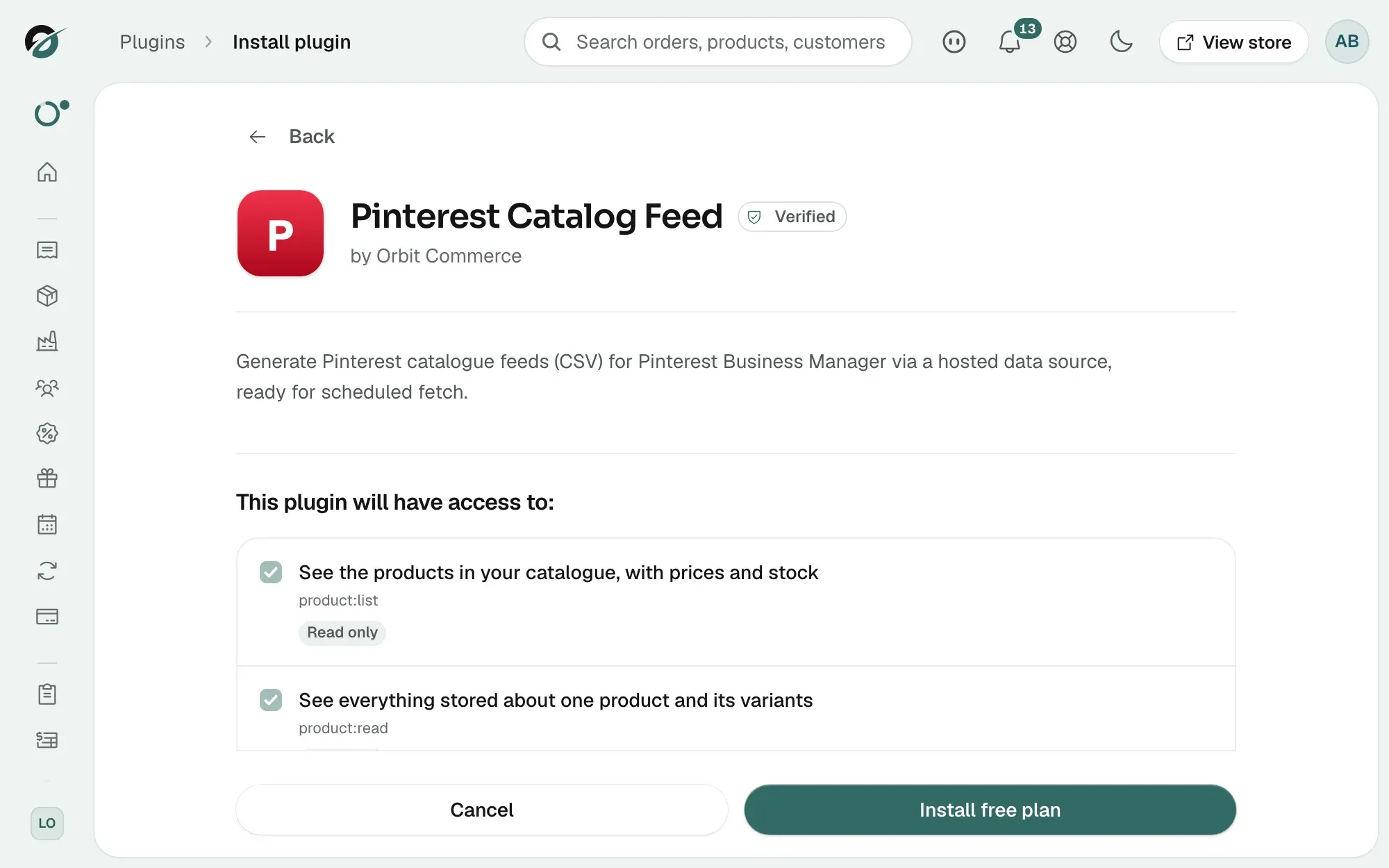
- Under Explore plugins, find Pinterest Catalog Feed and click Install.
- Check the details page, then click Install free plan. The plugin appears under My plugins.
- Click Open to go to the plugin.
Create a feed
- On the plugin page, click Create Feed.
- Give the feed a name, then choose the country and currency it is for.
- Under Schedule, turn the schedule on so the feed rebuilds itself on a regular interval. Daily suits most stores.
- Under Product Filtering, choose Active only to send only live products, or All statuses to send everything.
- Click Save. The feed appears in the list with its country, schedule, status and when it was last generated.
Generate the feed and copy the URL
- Open the feed from the list.
- Click Generate Now. Orbit builds the feed file and adds a run to Generation History.
- Check Validation Results. Fix anything listed under Issues Found before you send the feed to Pinterest.
- Under Feed URL, click the copy icon to copy the address.
Add the data source in Pinterest
- Sign in to Pinterest Business and go to Catalogs.
- Add a data source and paste the feed URL from Orbit.
- Set the fetch schedule. Daily is right for most stores.
- Wait for the first ingestion report, then fix any flagged items in Orbit and generate the feed again.
Tip: Descriptive product titles do better in a pin grid. "Arc floor lamp in brass and linen" beats "Floor lamp".
Related guides
Was this helpful?
0 people found this helpful