Setting up a Facebook and Instagram catalogue feed
Create a Facebook Catalog feed, copy its URL into Meta Commerce Manager as a scheduled upload, and use it for shops, product tags and dynamic ads.
The Facebook Catalog Feed plugin keeps a live feed of your products ready for Meta. Meta uses it to run your Facebook and Instagram shop, tag products in posts, and show dynamic product ads.
Considerations
- Meta rejects products with missing or weak data, in the same way Google does. Clean images with no heavy text, real prices, and stock that matches your store all matter.
- Fill in brand and GTIN where you have them. They lift both approval rates and ad performance. See Adding SKUs and barcodes.
- The feed refreshes as you edit products. You never re-upload it by hand.
Install the plugin
- From your Orbit dashboard, go to Plugins.
- Find Facebook & Instagram Catalog Feed and install it. The full steps are in Installing and managing plugins.
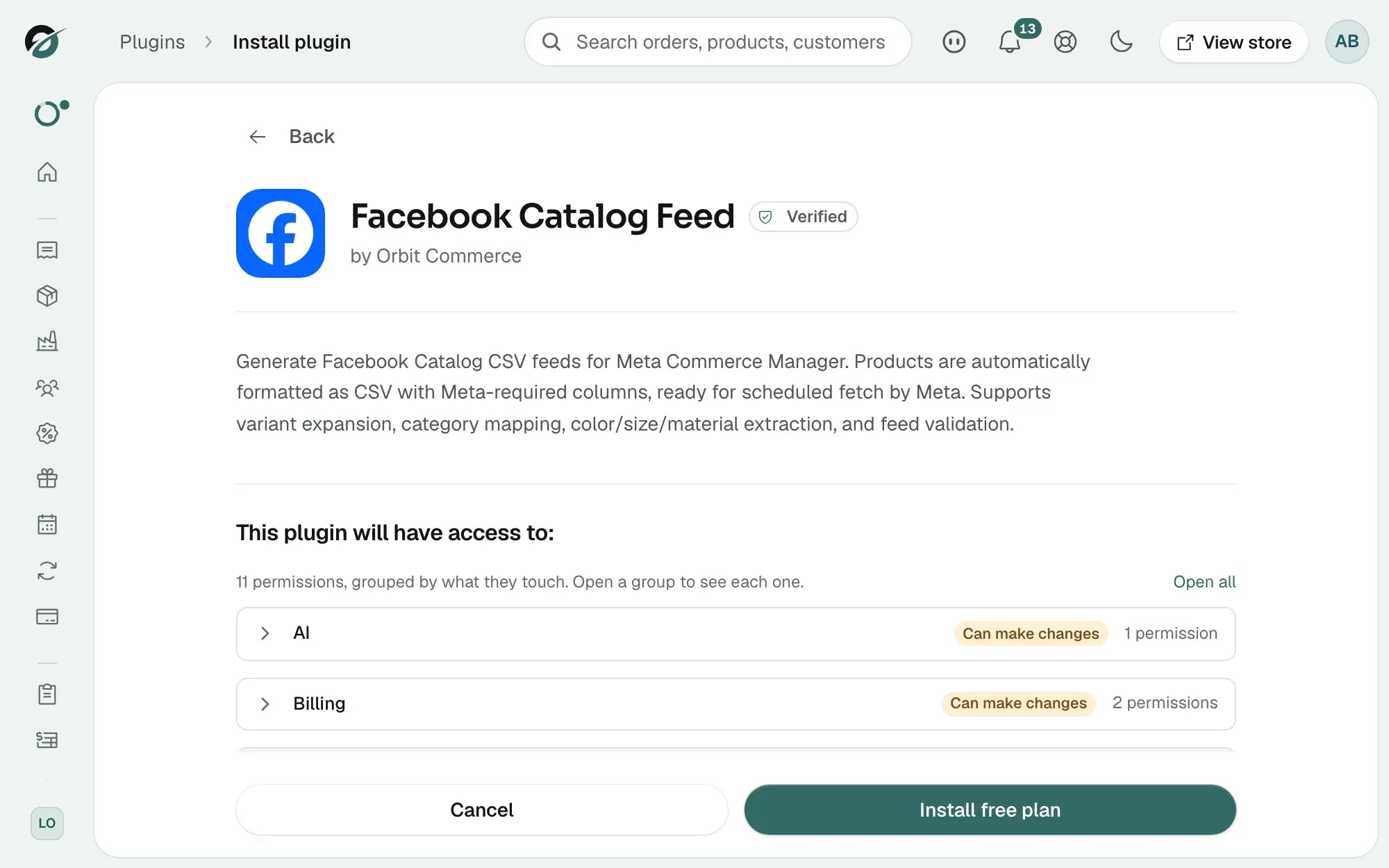
Create a feed
- Open the plugin. The Facebook Catalog Feeds page lists your feeds.
- Click Create Feed.
- Enter a Feed Name, for example Summer Collection Feed.
- Set the Target Country, Currency and Content Language.
- Enter your Storefront URL. The plugin uses it to build the product links in the feed.
- Under Product Filtering, choose a Product Status Filter and whether to Include out-of-stock products. Set a Default Brand if some products have no brand.
- Under Schedule, switch on Enable scheduled generation and pick a Generation Interval. Daily suits most catalogues.
- Click Create Feed.
Copy your feed URL
- Open the feed from the list.
- Click Generate Now to build the feed for the first time. The run appears under Generation History.
- Next to Feed URL, click Copy. This is the address you give to Meta.
- Click Validate Feed to check for problems before Meta sees them. Fix anything listed under Validation Results.
Add the feed in Meta Commerce Manager
- In Meta Commerce Manager, add a data source.
- Choose scheduled feed upload.
- Paste your feed URL and set the schedule. Daily suits most catalogues.
- After the first upload, open Commerce Manager's diagnostics and fix the items it flags.
Note: If Commerce Manager shows stale prices, check its fetch schedule first. The feed itself updates as you edit products.
Use the feed
- Product tags: tag products in Instagram posts and stories. A tap lands on your product page.
- Dynamic ads: retarget browsers with the exact products they viewed. This is the feed plus Meta's pixel.
- Product Category Mapping: map your store categories to Meta's product categories for better ad targeting. Open the feed and use the mapping panel.
Related guides
Was this helpful?
0 people found this helpful