Plugin panels, permissions, private links, gifts and reviews
What to do when a plugin adds a panel to a page, asks for new permissions after an update, arrives by private link or as a gift from Orbit, and how to review one.
Once a plugin is installed, it can show up in more places than its own page: as a panel on your dashboard or on a product, order or customer, or as a request for new permissions after an update. This guide covers those, plus private install links, plugins Orbit has gifted you, and leaving a review.
Plugin panels on your dashboard and records
A plugin can add its own panel inside pages you already use: your dashboard home, a product, an order or a customer. The panel comes from the plugin, not from Orbit.
- Blocks: a card on the page, under the heading Plugins. The card header shows the plugin's icon and its name. Click the header to collapse or open the card. If the panel does not load, the card shows the reason and a Retry link.
- Actions: an extra item in the page's dropdown menu, under a dividing line. The item shows the plugin's icon and its name. Click it to open the plugin's panel in a window over the page.
Each panel belongs to the plugin that added it, so its name is the plugin's name. To take a panel off a page, uninstall that plugin.
When a plugin needs new permissions
A plugin update can need more access than you granted when you installed it. Orbit asks you first.
- From your Orbit dashboard, go to Plugins.
- Look under My plugins for a banner above the plugin's row. It reads Update available: this update to [plugin name] needs 3 new permissions. (the number depends on the update). The same banner shows at the top of the plugin's page when you click Open.
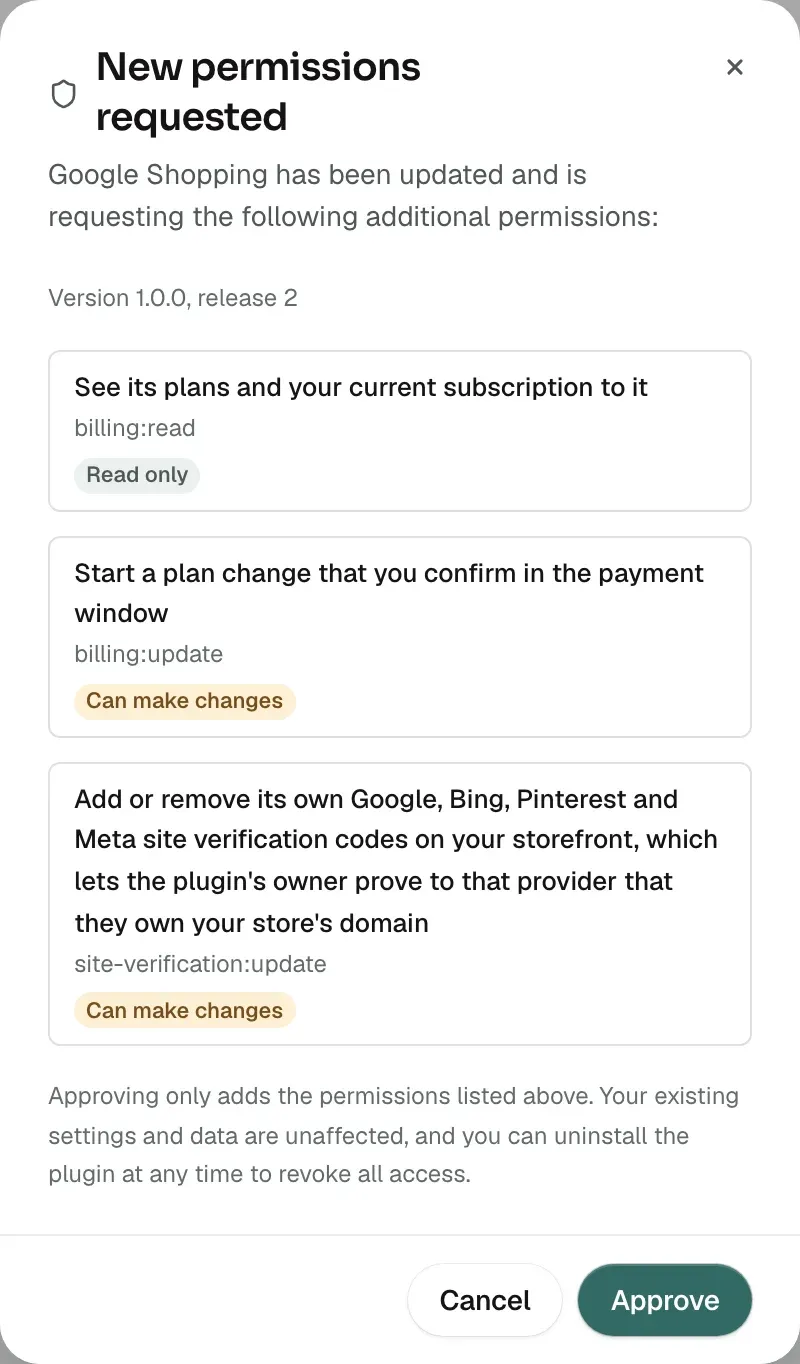
- Click Review permissions. A window titled New permissions requested lists only the new permissions. To put the banner away for now, click Later instead.
- Click Approve, or Cancel to close the window without granting anything. The message Permissions updated appears.

Approving adds only the permissions on that list. Your settings and data are not affected, and uninstalling the plugin still removes all of its access. If you do not approve, the plugin keeps the access it has, so the parts that need the new permissions may stop working.
Installing a plugin from a private link
Some plugins are not in the Plugin Store. A developer can send you a private install link instead. The link opens a page in your Orbit dashboard that shows what the plugin is and what it can do.
- Open the link the developer sent you. The plugin's name appears with a Private or Unlisted badge, along with the maker's name and the version.
- Read the notice under the name. It says the plugin is not listed in the plugin store, and to install it only if you trust the developer who shared it.
- Under This plugin will be able to:, read each permission. If the plugin asks for none, the page says so.
- Click Install [plugin name], or Cancel to go back to your plugins.
- The message Plugin installed successfully! appears. The plugin is installed, switched on, and its page opens.
A link that was revoked, has expired or has been used up gives This install link cannot be used. Ask the developer for a new one. A link meant for another store gives This install link is for a different store.
Warning: A plugin shared by private link is not in the Plugin Store, so it carries no Verified badge.
Plugins Orbit has gifted you
Orbit can give you a plugin free. A gifted plugin works like any other, but you are not charged for it while the gift runs.
- The plugin's row under My plugins carries a Gifted badge.
- A gift with an end date also shows Free until and that date, for example Free until 5 Oct 2026.
- A gift with no end date shows no date. The plugin stays free.
When the end date passes, the gift ends and the badge goes. If you want to keep the plugin, check its price under Pricing on its details page. See Managing plugin plans and billing for how plugin charges reach your invoice.
Writing a plugin review
You can review any plugin you have installed. You get one review per plugin, and you can edit or delete it later.
- From your Orbit dashboard, go to Plugins.
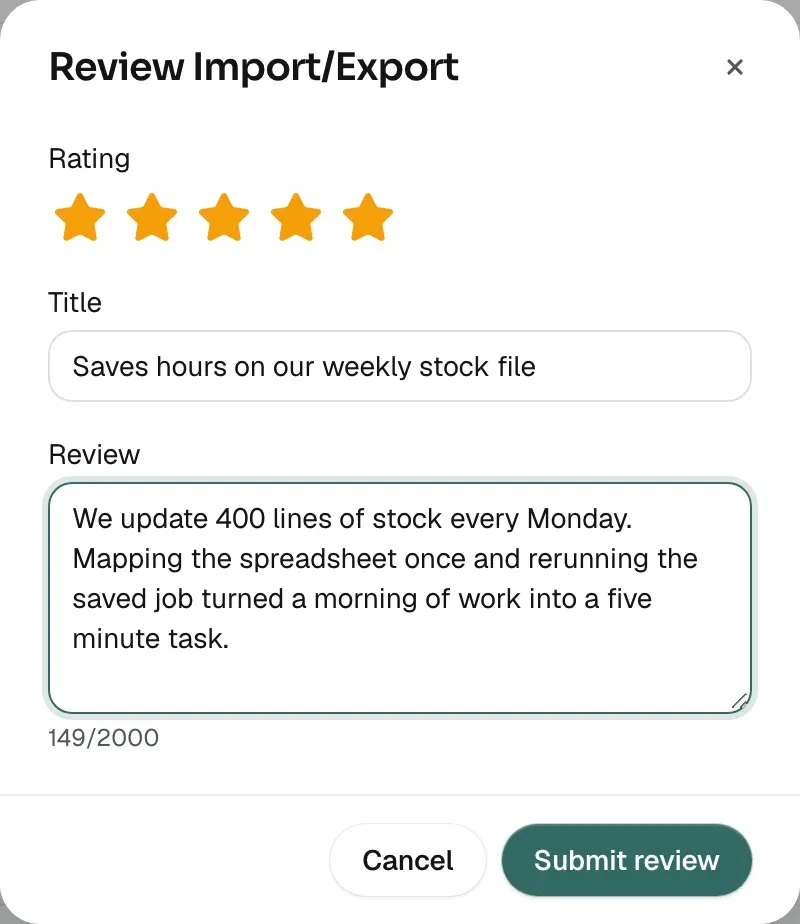
- Under My plugins, open the dots menu on the plugin's row and click Write a review. A window titled Review [plugin name] opens.
- Under Rating, click one to five stars.
- In Title, sum up your experience. It needs at least 3 characters and holds up to 120.
- In Review, write what you liked and how the plugin helped your store. It needs at least 10 characters. The counter under the box shows how much of the 2,000 you have used.
- Click Submit review. The message Review submitted appears.
To change a review you have left, click Write a review again. The window is then titled Edit your review of [plugin name], and the buttons read Update review and Delete review.
Related guides
Was this helpful?
0 people found this helpful