Extending your store with plugins
What plugins do, where to find them in your Orbit dashboard, and every plugin guide grouped by selling channels, store features, marketing and tools.
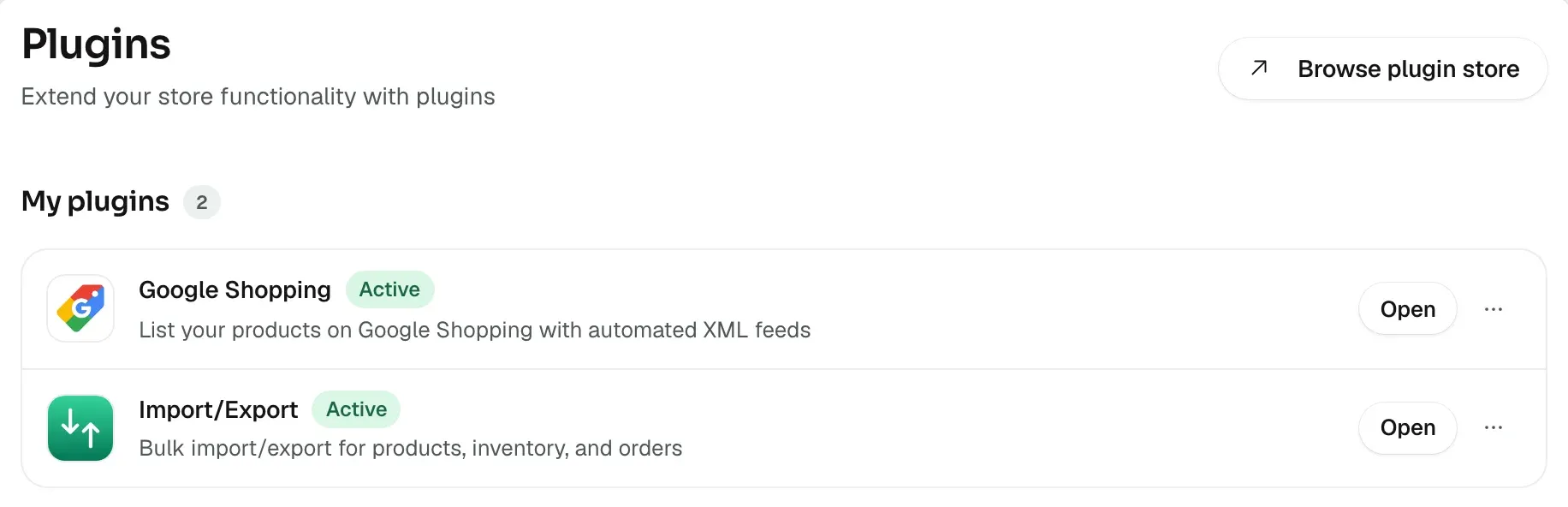
Plugins add features to your store without custom development: customer reviews, marketplace listings, product feeds, live chat, loyalty points and more. You find and install them on the Plugins page in your Orbit dashboard. Each installed plugin gets its own page and a row in your left menu.
New to plugins? Start with Installing and managing plugins. It covers the Plugins page, permissions, pricing and trials, and how to switch a plugin off or remove it.
Selling channels and feeds
- Connecting your store to Amazon: products, stock and orders.
- Connecting your store to eBay: products, stock and orders.
- Setting up a Google Shopping feed: list on Google Shopping.
- Setting up a Facebook and Instagram catalogue feed: list on Facebook and Instagram.
- Setting up a Microsoft Merchant Center feed: list on Bing.
- Setting up a Pinterest catalogue feed: list on Pinterest.
- Setting up a Snapchat catalogue feed: list on Snapchat.
Store features
- Collecting product reviews: star ratings and reviews on product pages.
- Showing feature highlights with Product Features: highlights such as free delivery or a guarantee.
- Creating PDF spec sheets and catalogues: branded PDF spec sheets.
- Setting up the 3D Product Configurator: build and view a product in 3D.
- Controlling storefront search: control what search returns and suggests.
- Setting up Live Chat: talk to customers from your dashboard.
- Adding seasonal effects to your storefront: snow, hearts or confetti for a season.
Marketing and CRM
- Getting started with Orbit CRM: pipelines, deals and customer timelines.
- Automating deals and tasks in Orbit CRM: move deals and create tasks on their own.
- Setting up loyalty points: points customers earn on their orders.
- Building forms with Form Builder: contact, enquiry and sign-up forms.
- Building calculators with Calculator Builder: instant quotes that turn into leads.
Tools
- Installing and managing plugins: find, install, switch off and remove plugins.
- Running bulk imports and exports: move products, stock and orders in bulk.
- Automating your store with Workflows: automate tags, statuses and emails.
Need help?
If a plugin does not show on your storefront, see Fixing a plugin that does not show. For anything else, email support@orbitcommerce.net.
Was this helpful?
0 people found this helpful