Getting started with Orbit CRM
Open Orbit CRM, create and work deals on the pipeline board, manage tasks, and set up your pipelines and stages.
Orbit CRM adds a sales pipeline to your Orbit dashboard. You track deals on a board, set tasks with due dates, and see every order, chat, ticket and note for a customer in one timeline. You install it from Plugins and it comes with a ready-made Sales Pipeline you can change at any time.
Considerations
- Orbit CRM is a subscription plugin. If your subscription lapses, the CRM shows Subscription required until you renew.
- Deals link to real customer records, so a customer needs to exist in Customers before you can attach a deal to them.
- Automations that create deals and tasks for you are covered in Automating deals and tasks in Orbit CRM.
Open the CRM
- From your Orbit dashboard, go to Plugins.
- Under My Plugins, find Orbit CRM and click Open. The CRM opens on the Overview tab.
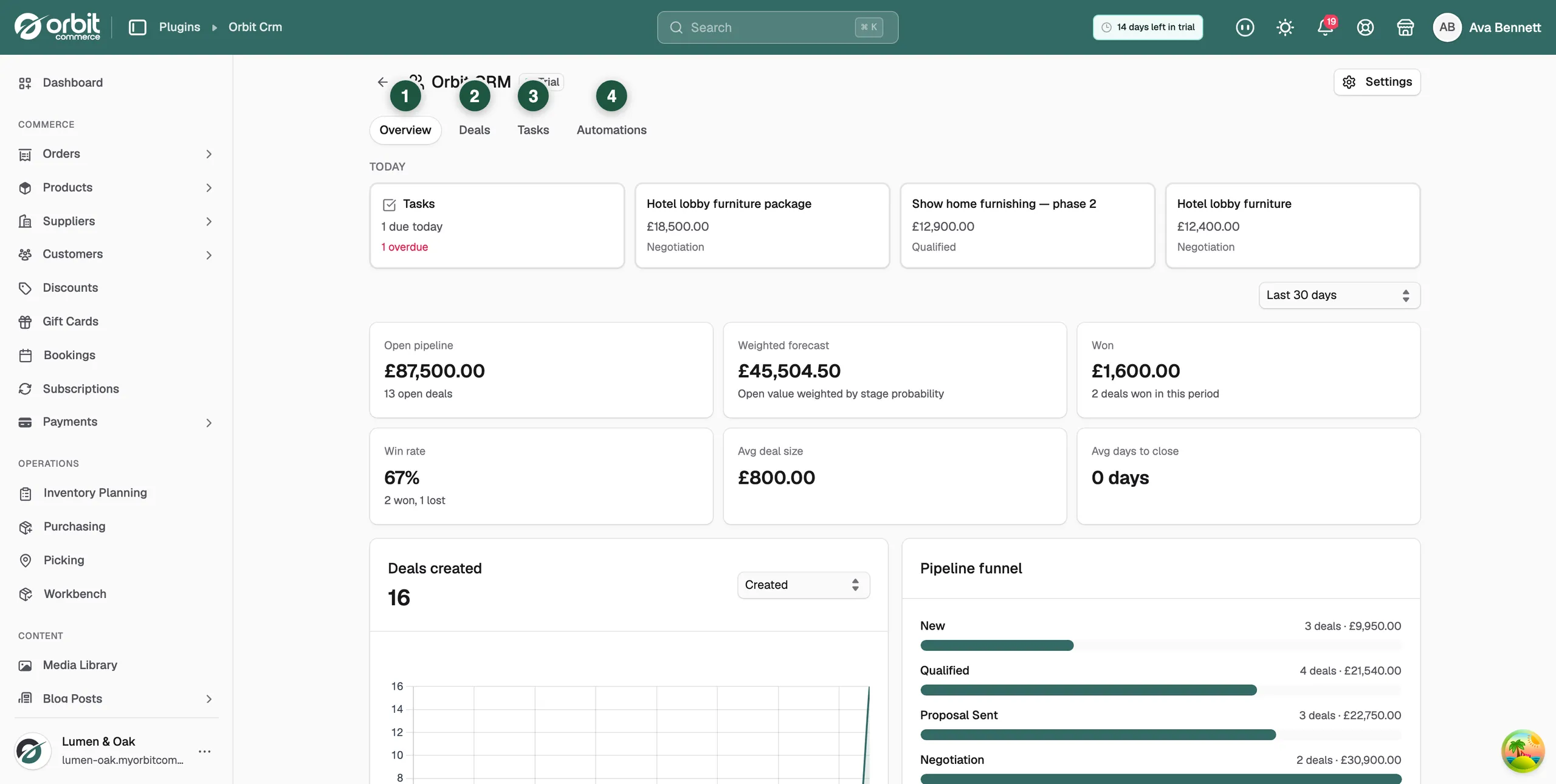
The CRM has four tabs:
- Overview: open pipeline value, weighted forecast, deals won, win rate, average deal size and average days to close, plus a deals-created chart and the pipeline funnel. The Today row lists tasks that are due or overdue and deals closing soon.
- Deals: the pipeline board.
- Tasks: everything due, across every deal.
- Automations: rules that create deals and tasks for you.
Use the pipeline board
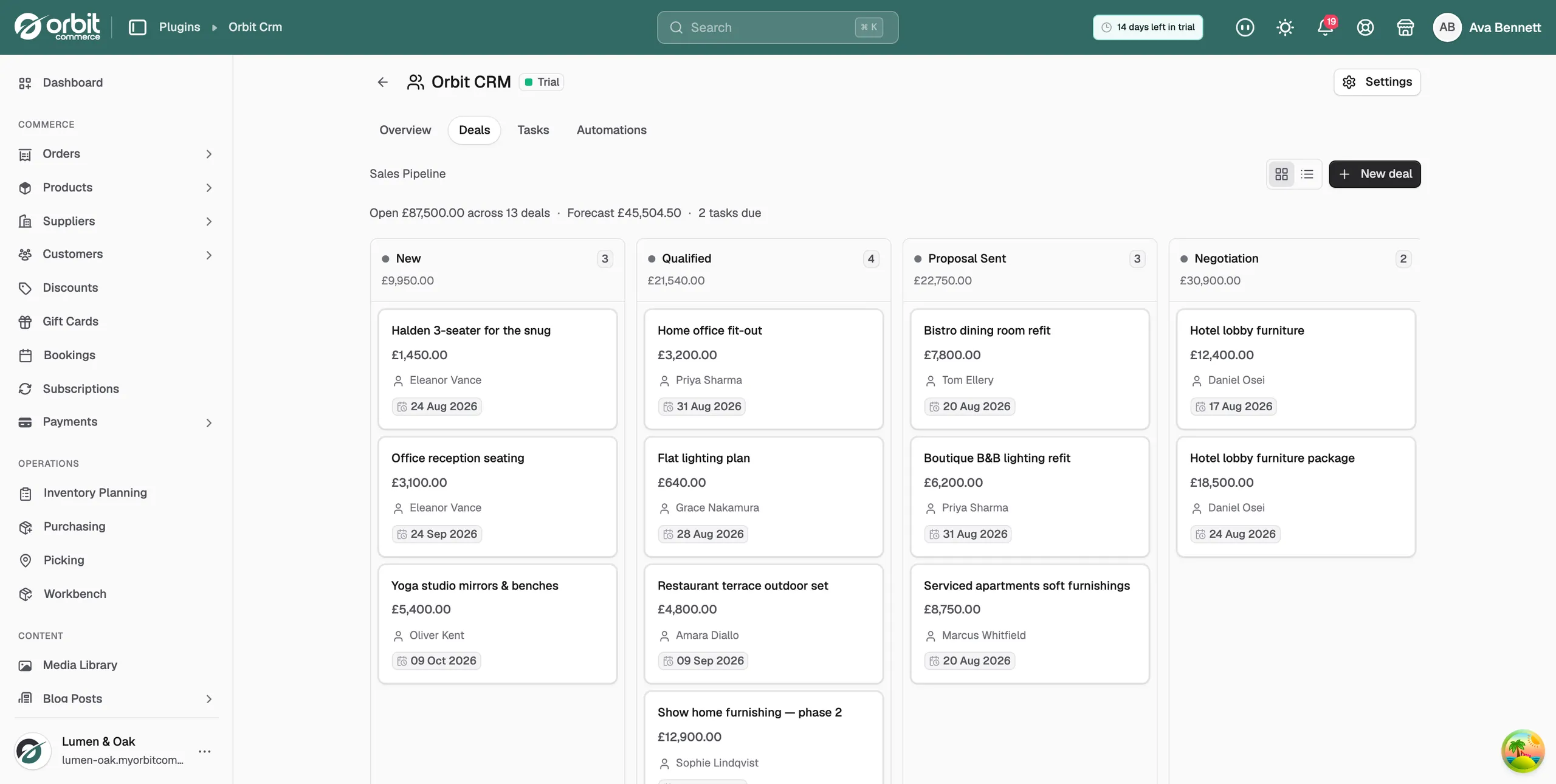
The Deals tab shows one column per stage of your pipeline. The total value of the deals in each stage sits at the top of its column. Drag a card to another column to move the deal to that stage. The forecast on the Overview tab updates using each stage's win probability.
Create a deal
- On the Deals tab, click New deal.
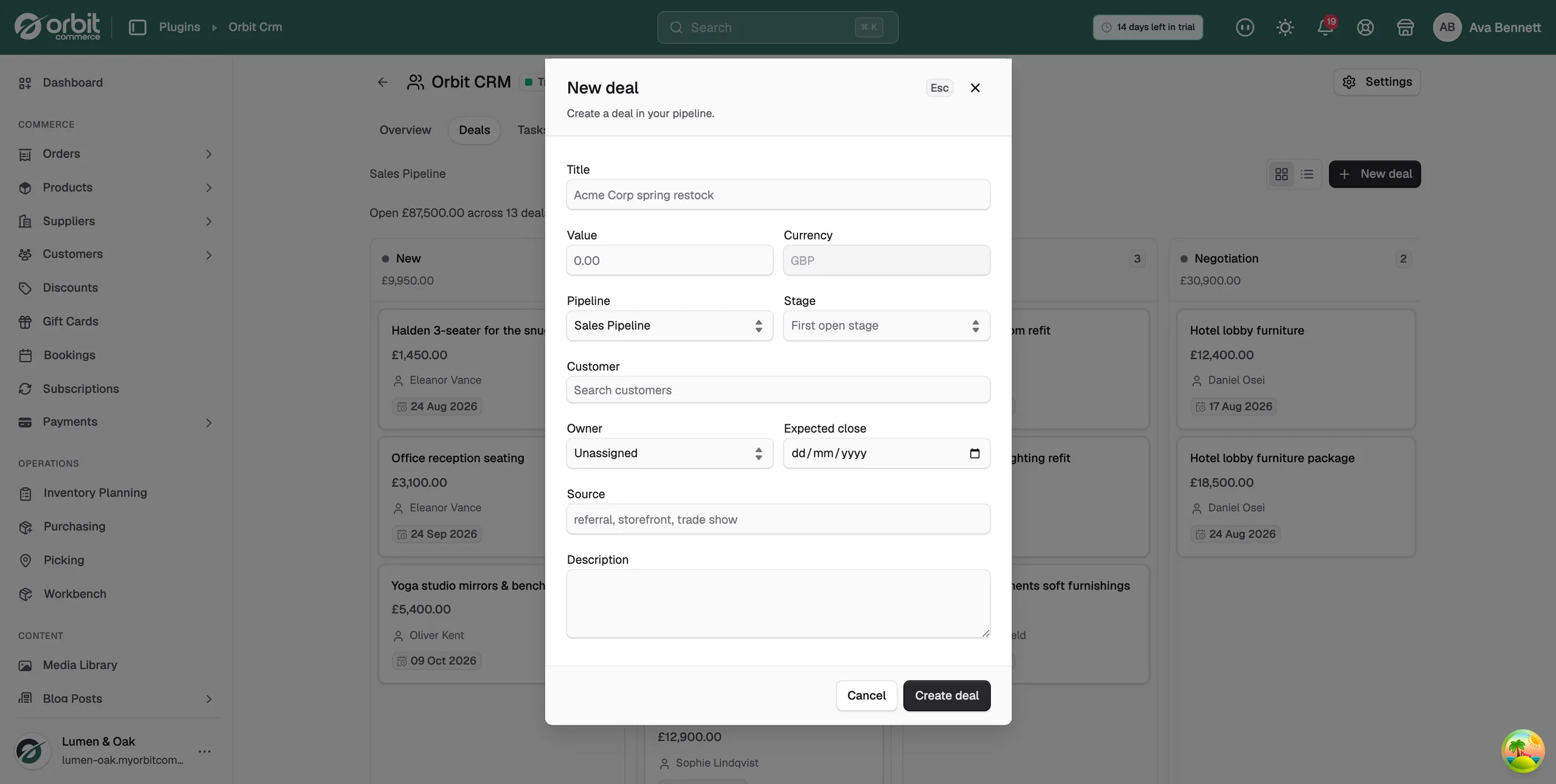
- Enter a title, the deal value and currency.
- Choose the Pipeline and the starting Stage.
- Pick the Customer and an Owner.
- Add the expected close date and a source, such as referral or trade show, if you know them.
- Click Create deal. The card appears on the board.
Work a deal
Click any card to open the deal.
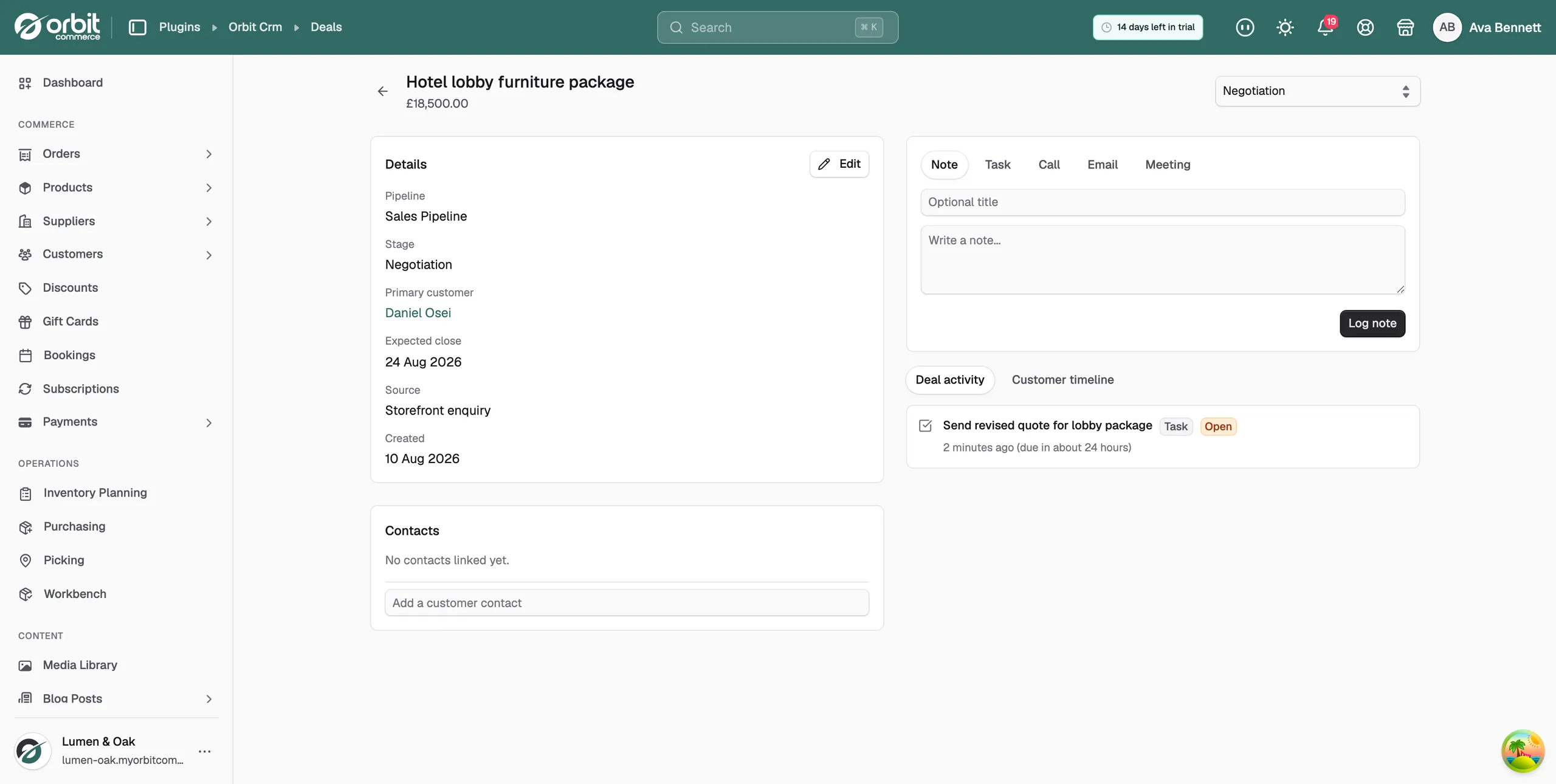
- Details: pipeline, stage, primary customer, expected close and source. Click Edit to change them, or use the stage selector at the top to move the deal.
- Activity composer: log a Note, Task, Call, Email or Meeting against the deal. Add a due date where it matters.
- Deal activity: everything that has happened on this deal.
- Customer timeline: everything across the customer's whole history with your store, including orders, chats and tickets.
- Contacts: link more customer contacts to the deal.
Manage tasks
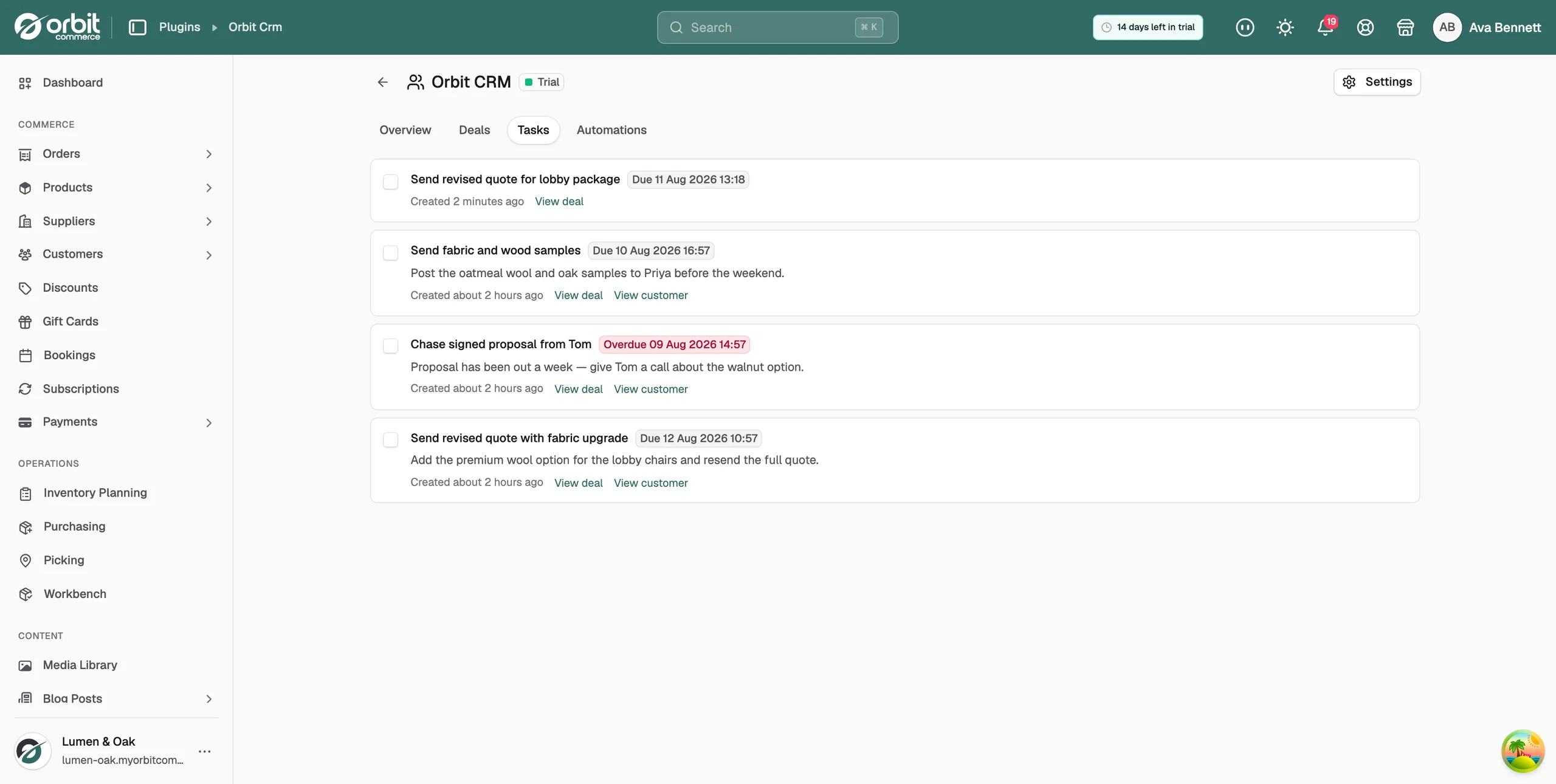
The Tasks tab lists every open task with its due date. Overdue tasks are highlighted. Tick a task to complete it, or click through to the related deal or customer.
Tip: Add a task every time you touch a deal. The Today row on the Overview tab then works as your morning to-do list.
Set up pipelines and stages
- In the CRM, open Settings.
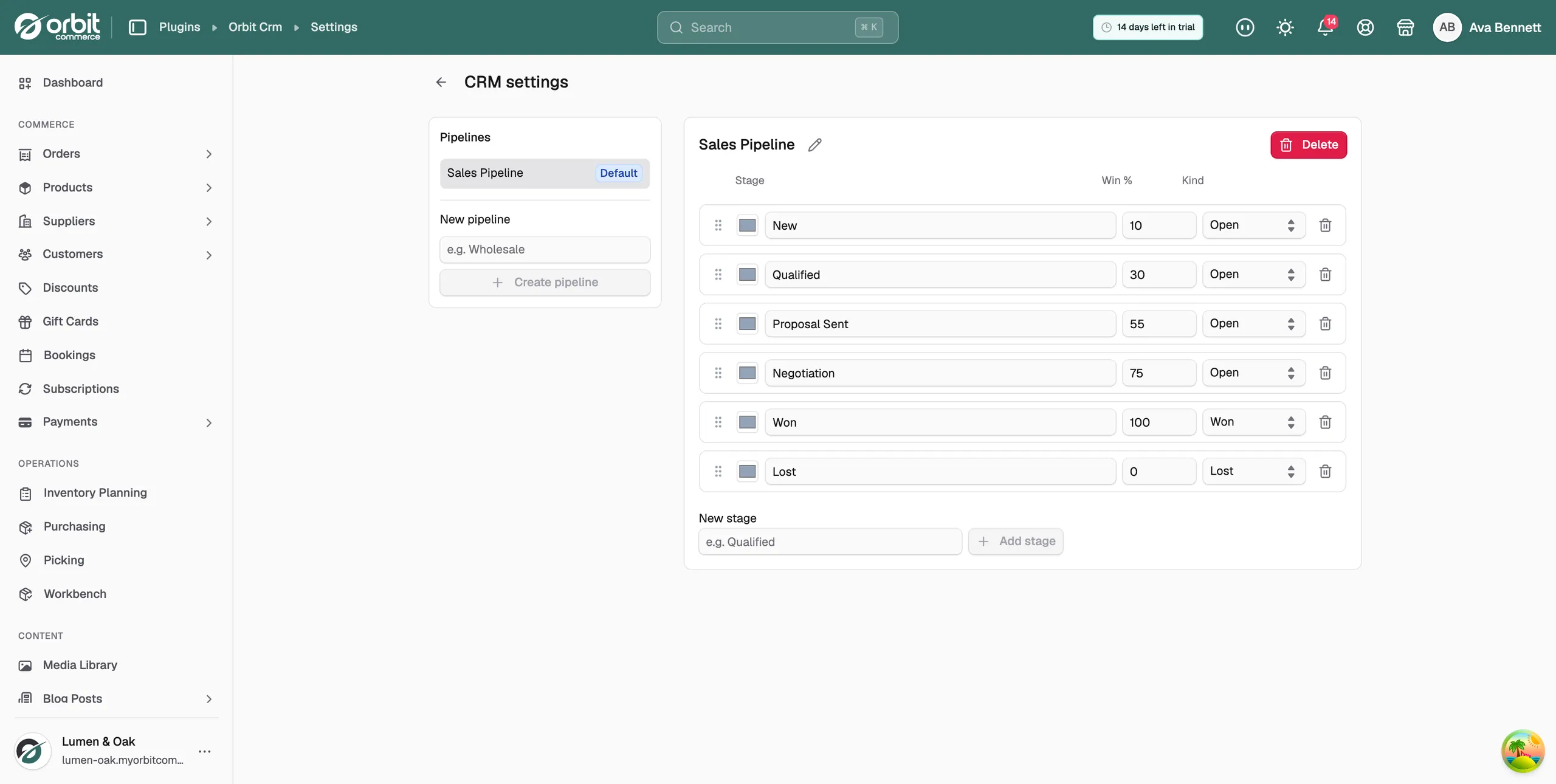
- Rename a stage, change its win probability, or drag it to change the order.
- Add a new stage, or create another pipeline, for example a separate Wholesale pipeline.
- Save your changes.
Note: Win probabilities drive the weighted forecast on the Overview tab. Set them to match how often deals at each stage really close.
Related guides
Was this helpful?
0 people found this helpful