Running bulk imports and exports
When to use the Import/Export plugin instead of the built-in tools, what it adds, and how to set up a feed and run it with a small file first.
The built-in import and export tools on the Products, Customers and Orders pages cover everyday jobs. The Import/Export plugin is for bigger ones: larger files, more record types, and jobs you run again and again. You install it from Plugins.
Considerations
- The plugin has a free plan: manual imports and exports, plus one scheduled feed run daily, weekly or monthly, with up to 1,000 rows per run. More scheduled feeds, faster schedules and bigger files need a paid plan. Paid plans start with a 14-day free trial.
- For a one-off move to Orbit, the built-in importers are usually enough. Install the plugin when the job is recurring or very large.
- The same import rules apply as in the built-in importer. If rows fail, the fix is the same as for a normal CSV import.
What the plugin adds
- Products, inventory and orders: import and export at scale, including fields the quick imports do not cover.
- Bulk inventory updates: the bin location and quantity round trip that warehouse setups use.
- Repeatable jobs: feeds that keep their settings, so you run them again, or on a schedule, instead of mapping a CSV every time.
Install the plugin
- From your Orbit dashboard, go to Plugins.
- Find Import/Export and install it. The full steps are in Installing and managing plugins.
Run an import or export
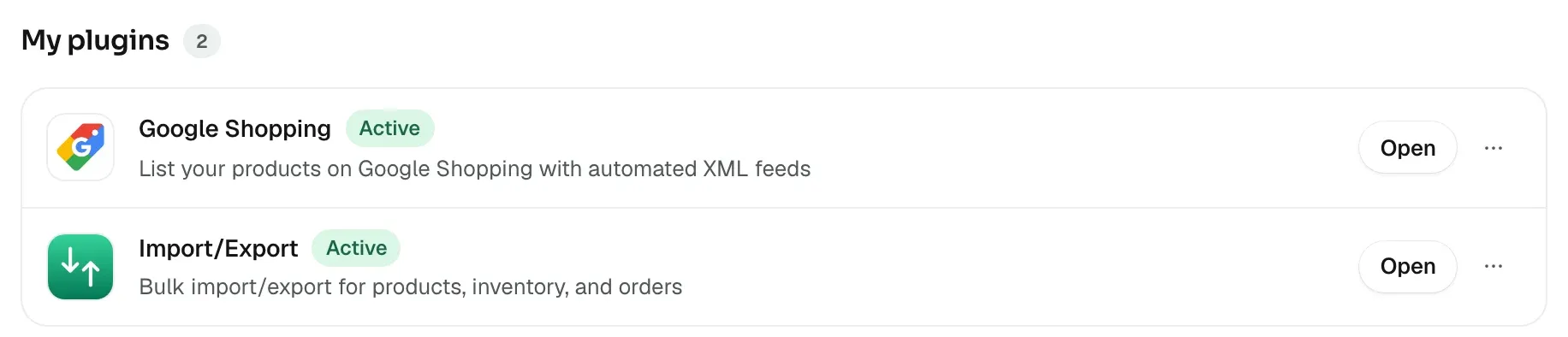
- Under My plugins, click Open on the Import/Export row.
- Click Create feed. A step-by-step form opens: Basics (a name, whether it imports or exports, and the data type), Source, then Export options and Destination for an export, Schedule and Review.
- For an import, point the feed at your file and map each column in it to a field. Choose Don't import for a column you want to leave out.
- On the last step, click Create feed. Then click Run now on the feed's row. Try a small file first.
Tip: A feed keeps its settings. Next time you can run the same feed again, or set a schedule, instead of mapping the file again.
Related guides
Was this helpful?
0 people found this helpful