Adding custom fees at checkout
Use the Dynamic Custom Fees plugin to charge a small-order surcharge, a handling fee or a brand surcharge. Build the conditions, test them, then publish.
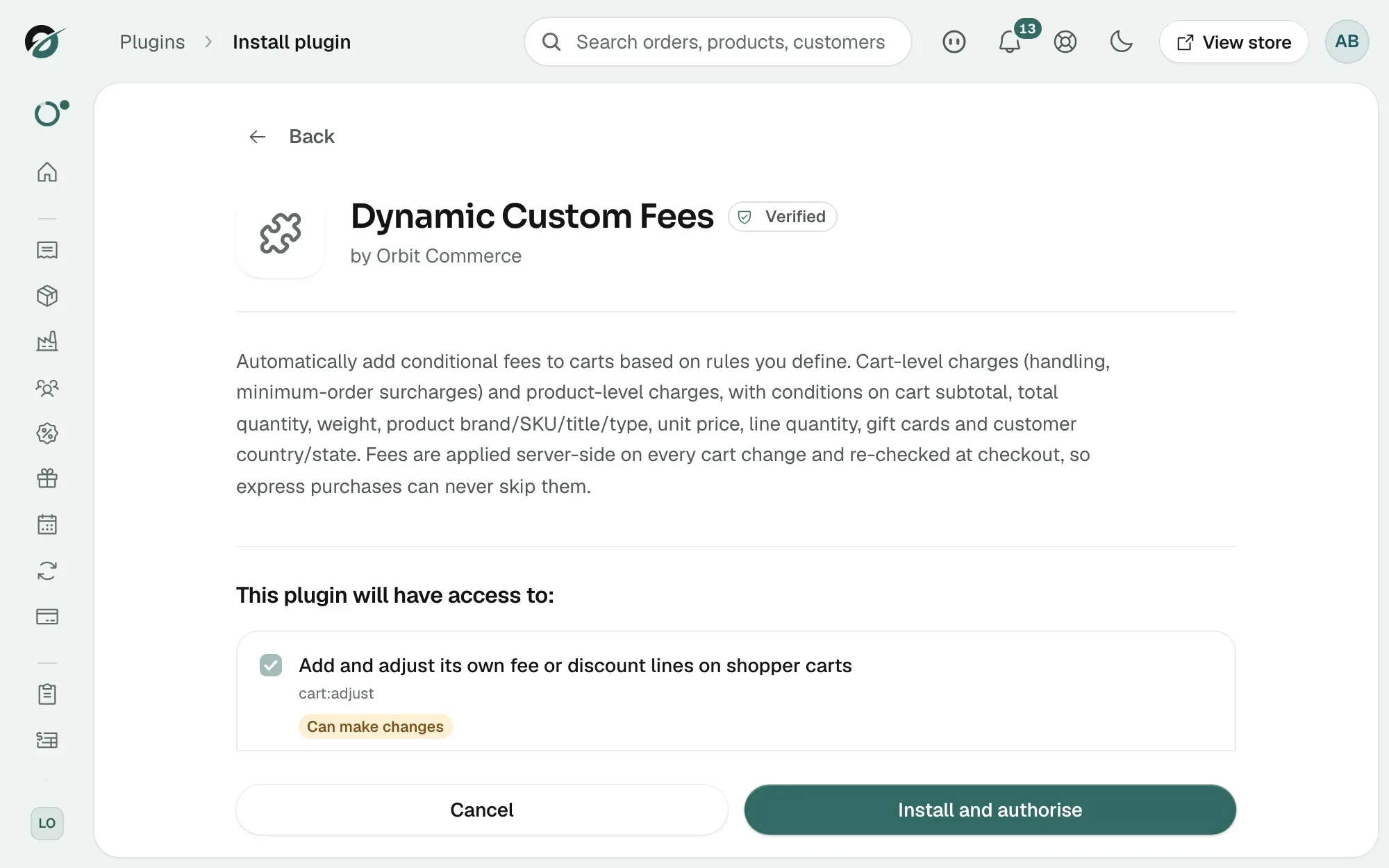
The Dynamic Custom Fees plugin adds an extra charge to a cart when the cart, or a product in it, meets conditions you set. Use it for a small-order surcharge, a handling charge on heavy items, or a surcharge on one brand. Fees are worked out again on every cart change and at checkout.
Considerations
- Dynamic Custom Fees is a private plugin. Ask Orbit support to enable it for your store.
- A fee is not tax. Tax is set up on its own in Setting up taxes.
- A fee is not a shipping rate. Charges that depend on the delivery option belong in Setting up conditional shipping rates.
- Every new fee starts as a draft. A draft never applies to a cart until you publish it.
- A fee can hold up to 20 conditions. A percentage cannot be more than 100.
Open the fees list
- From your Orbit dashboard, go to Plugins.
- Open Dynamic Custom Fees. The Fees tab lists every fee you have.
- Each row shows the fee, its conditions and its value, with badges for Cart fee or Product fee, draft or published, and taxable.
Create a fee
- On the Fees tab, click New fee.
- Fill in Fee name (shown to customers). Your customer sees this name, so keep it plain, such as Handling charge.
- Fill in Fee SKU (accounting) if your accounts need one. It is optional.
- Choose the Fee type. A Cart fee charges the cart once. A Product fee charges each matching line, times that line's quantity.
- Choose the Value type, Fixed amount or Percentage. Fill in Amount, or Percent (%) for a percentage.
- Leave Taxable on if the fee should be taxed like any other line.
- Add your conditions. See the next section.
- Turn on Published when the fee should go live, then click Save fee.
A percentage cart fee is worked out on the goods only, never on other fees. A percentage product fee uses the unit price of the matching line.
Build the conditions
Click Add condition to add a row: a field, an operator and a value. The × removes a row. A fee with no conditions shows as Always applies.
These are the fields you can pick:
- Cart subtotal: the value of the goods.
- Total quantity: items in the cart.
- Cart weight (g): cart weight in grams.
- Contains gift card: whether the cart holds a gift card.
- Customer country: country on the address.
- Customer state: state or region on the address.
- Product brand: the brand on a line.
- Product SKU: the SKU on a line.
- Product title: the product name on a line.
- Product type: the type, such as physical or digital.
- Unit price: price of one unit.
- Line quantity: quantity on a line.
The operators depend on the field:
- Number fields, such as Cart subtotal: >, ≥, <, ≤, =, ≠.
- Text fields, Product SKU and Product title: =, ≠, contains, starts with, is one of, is not one of.
- List fields, such as Product brand: is one of, is not one of, =, ≠.
- Contains gift card: is true or is false.
For is one of and is not one of, separate the values with commas.
How the conditions combine
Pick Match ALL to make every condition true before the fee applies. Pick Match ANY if one is enough.
Cart fields are checked against the whole cart. On a cart fee, a product field means at least one line has to match. On a product fee, product fields pick the lines the charge is added to.
Note: A fee using Customer country or Customer state is badged Applied at checkout. The address is not known on the cart, so the fee joins once your customer enters it.
Test a fee before you publish it
- Open the Preview tab.
- Under Sample cart, search your products by name or SKU and pick them. Change quantities on each line. Goods subtotal keeps a running total.
- To test a product you do not sell yet, click Add a custom line instead (hypothetical product).
- Set Phase to Cart (no address yet) or Checkout (address known). At checkout you can type a country and a state.
- Click Run preview.
Result shows Fees applied with the total, then Why: a tick or a cross for each fee and each condition. Drafts show here, marked as not applied live.
What your customer sees at checkout
- The fee is its own line, under the name you gave it.
- It counts towards the subtotal and what your customer pays.
- Your customer cannot change or remove a fee line.
- Discount codes come off the goods only, never off your fees. A fee does not count towards a code's minimum spend either.
- The order keeps its fee lines, so they show on the order in your dashboard.
Turn a fee off
- On the Fees tab, find the fee.
- Click Unpublish. The fee goes back to draft and stops applying to carts. Click Publish to turn it back on.
- To remove a fee for good, click Delete, then confirm.
Warning: Deleting a fee cannot be undone. Carts stop getting it straight away. Orders that already carry it keep their fee lines.
Related guides
Was this helpful?
0 people found this helpful