Adding a Video element
Embed a YouTube, Vimeo or uploaded video on a page, set its shape and poster image, and control autoplay, looping and player controls.
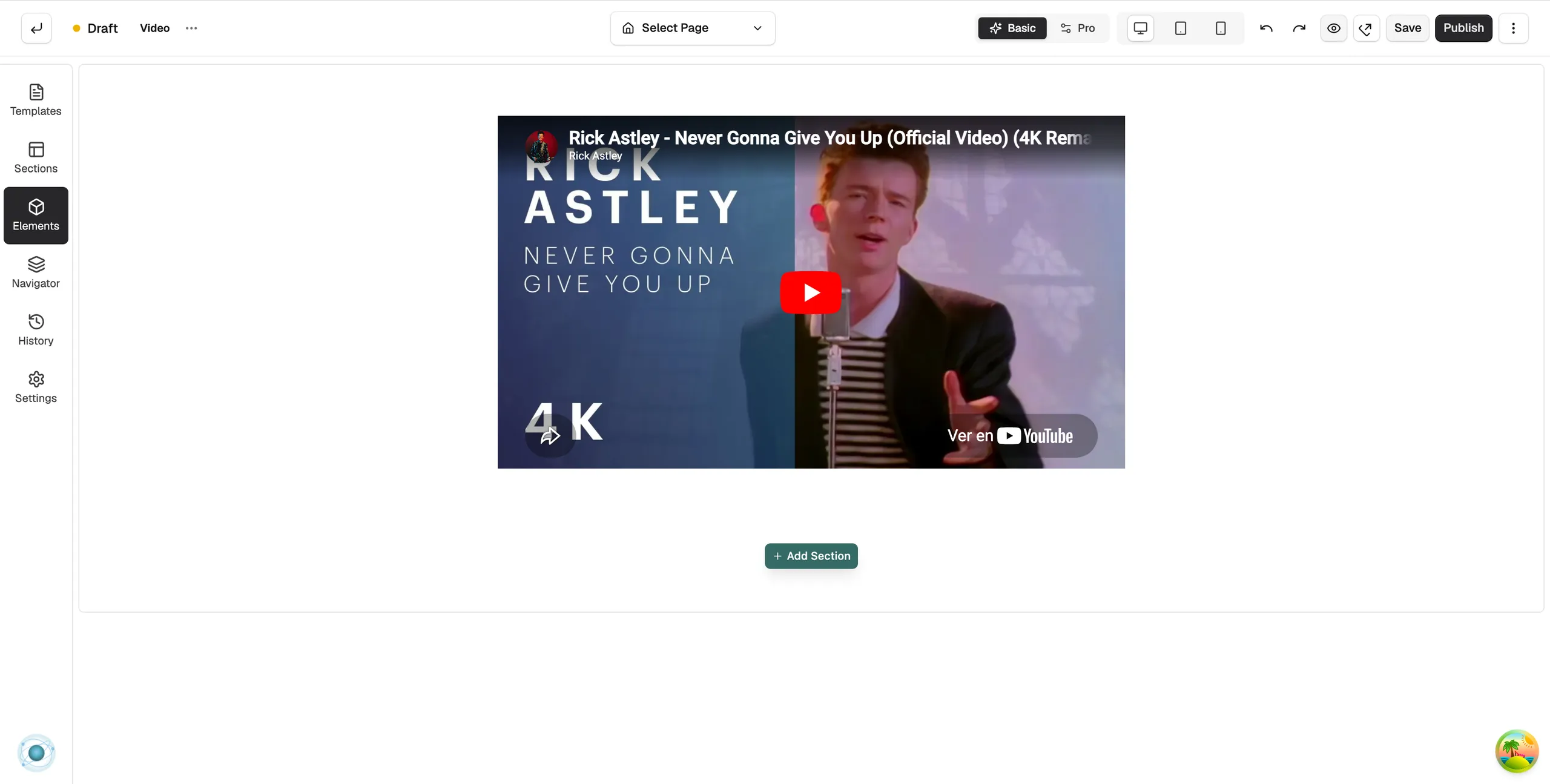
The Video element puts a video on your page. It plays a YouTube or Vimeo link, or a video file from your media library. Use it for product demos, your brand story or how-to guides.
Add the element
- Open the page in the page builder.
- In the toolbox on the far left, click Elements.
- Under Basic, find Video, or type Video in the search box.
- Drag the tile onto the canvas and drop it where you want it.
- Click the element. Its settings open on the right.
Content settings
Open the Content tab in the settings panel. The settings sit in four groups.
- Source: Video URL is the link to the video. Paste a YouTube or Vimeo link, or a direct link to a video file. Click Browse to pick a video from your media library. Title is an optional name for the video.
- Dimensions: Aspect Ratio sets the shape of the player: Original, 16/9 (Widescreen), 4/3 (Standard), 1/1 (Square), 21/9 (Ultrawide) or Custom (use width & height). Width and Height only unlock when you pick Custom.
- Poster & Loading: Poster Image is the still shown before the video plays. Paste a link or click Browse. Preload Strategy sets how much of the video loads before anyone presses play: None, Metadata or Auto.
- Playback: switches for Autoplay, Muted, Loop and Show Controls.
Tip: If you turn on Autoplay, leave Muted on. Most browsers block videos that start with sound.
Design settings
Open the Design tab.
- Effects: Opacity, Blur, Brightness, Contrast, Saturation and Grayscale.
- Border: Border Style, Border Colour, Border Width and Border Radius. Use Border Radius to round the corners of the player.
- Shadow: a drop shadow behind the player.
- Spacing: Padding around the player. Margin appears in Pro mode.
For the Advance tab, see Using the element settings panel.
Related guides
Was this helpful?
0 people found this helpful