Adding a timeline
Show milestones in order along a line. Add each one with a date, title, description and picture, then set the line, markers and cards.
A timeline shows milestones in order along a line. Each milestone has a date or label, a title and a description, and can carry an icon or an image. Use it for your story, a roadmap or a how it works section.
Considerations
- Timeline is in the Advance group. Basic mode hides that group, and search will not find it. Click Pro at the top of the page builder to switch modes.
- Milestones show in the order of the list. Reorder the list to reorder the timeline.
Add the element
- Open the page in the page builder.
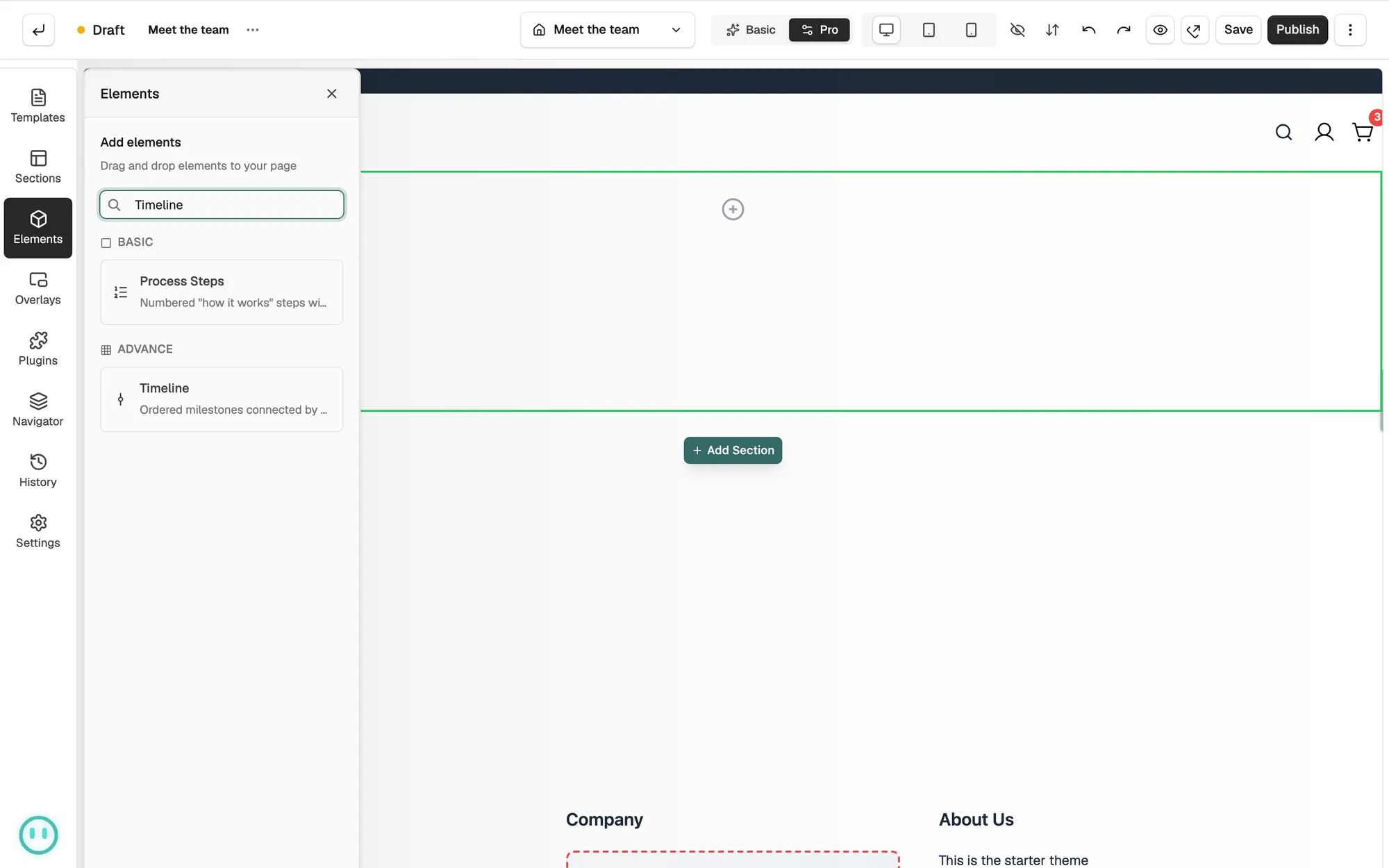
- In the toolbox on the far left, click Elements.
- Open the Advance group and find Timeline, or search for it.
- Drag it onto the canvas and drop it where you want it. The settings panel opens on Editing Timeline.
Add and fill milestones
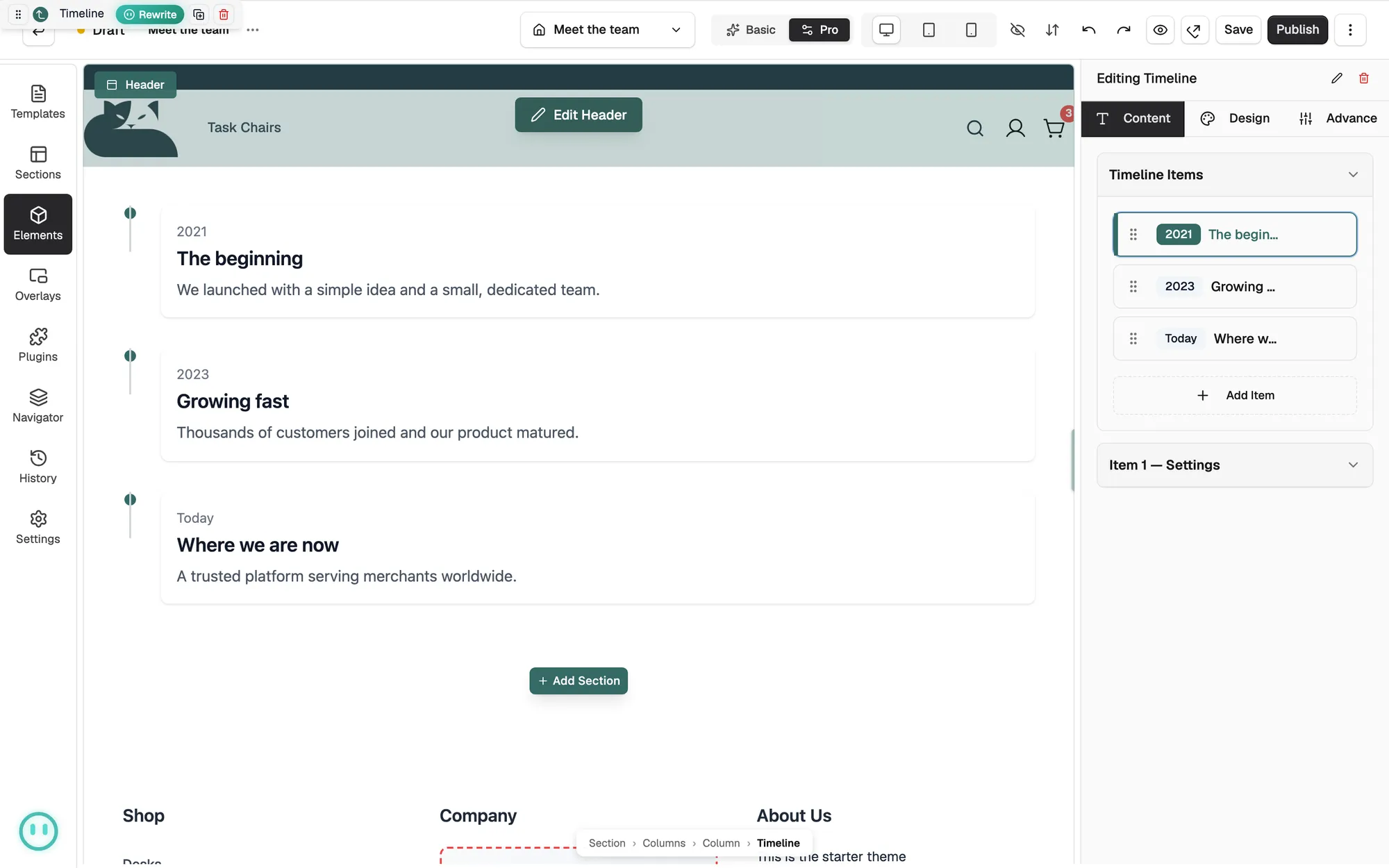
- On the Content tab, open Timeline Items.
- Click Add Item. A row appears, named New milestone.
- Open the row. Under Content, fill in Date / Label, Title and Description.
- Under Media, set Type to None, Icon or Image. For an image, paste an address or click Browse to pick one from your media library.
- Under Link, add a web address if the milestone should link somewhere.
- Drag the handle on a row to reorder. Hover over a row for Duplicate item and Delete item.
Content settings
- Timeline Items: the list of milestones.
- Date / Label: the short line above the title, such as 2024, March or Step 1.
- Title: the name of the milestone.
- Description: a sentence or two about it.
- Type: the picture on the milestone, None, Icon or Image.
- Link: where the milestone goes when a customer clicks it.
Design settings
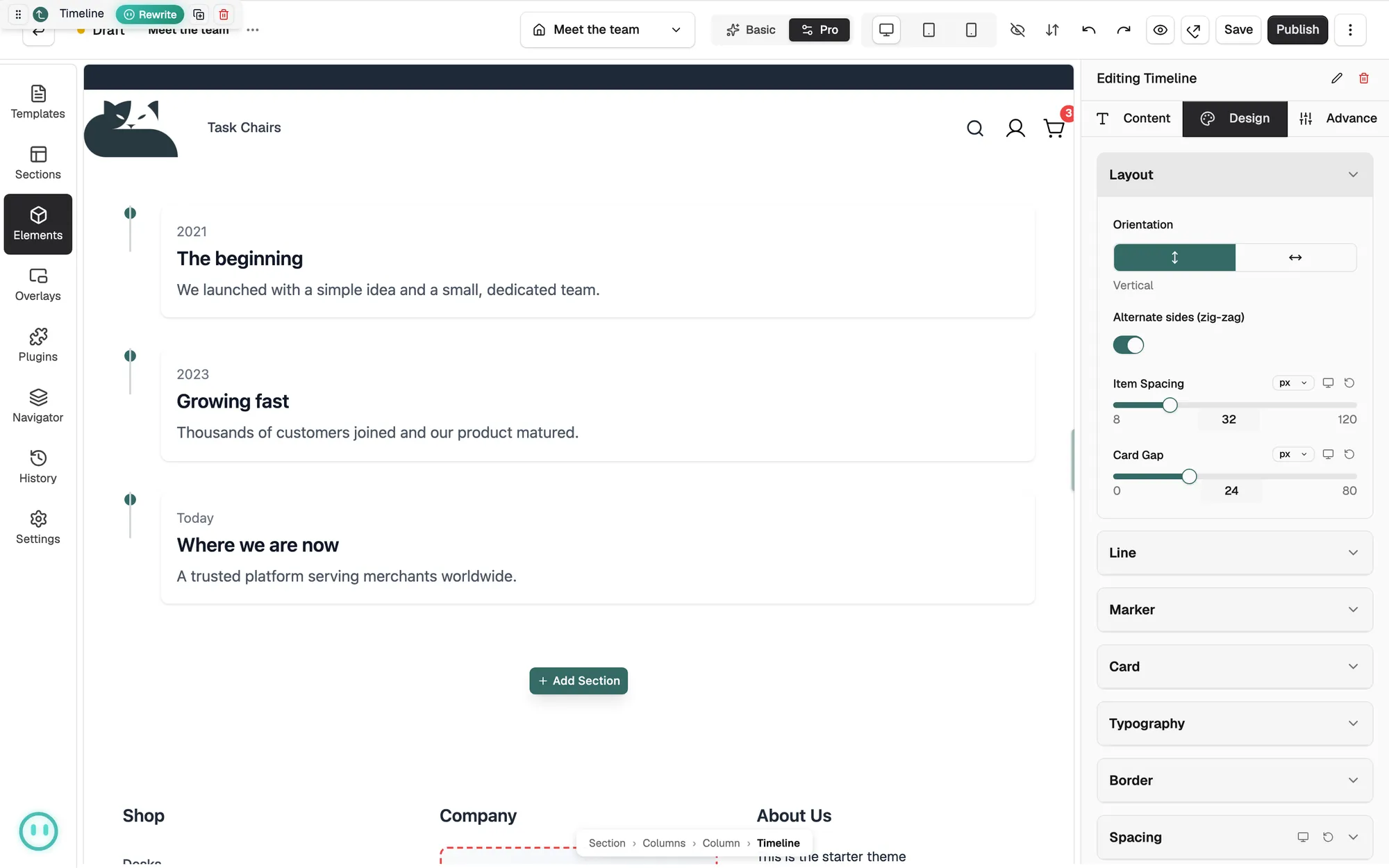
Open the Design tab to style the timeline. The groups are Layout, Line, Marker, Card, Typography, Border and Spacing. Layout sets the Orientation to Vertical or Horizontal, and turns on Alternate sides (zig-zag). A horizontal timeline adds Navigation, either Scrollbar or Arrows.
Related guides
Was this helpful?
0 people found this helpful