Adding a counter
Show a number that counts up to a figure you choose, with a title under it. Covers the number, text and layout settings.
2 min read13viewsUpdated 25 September 2026Orbit Support Team
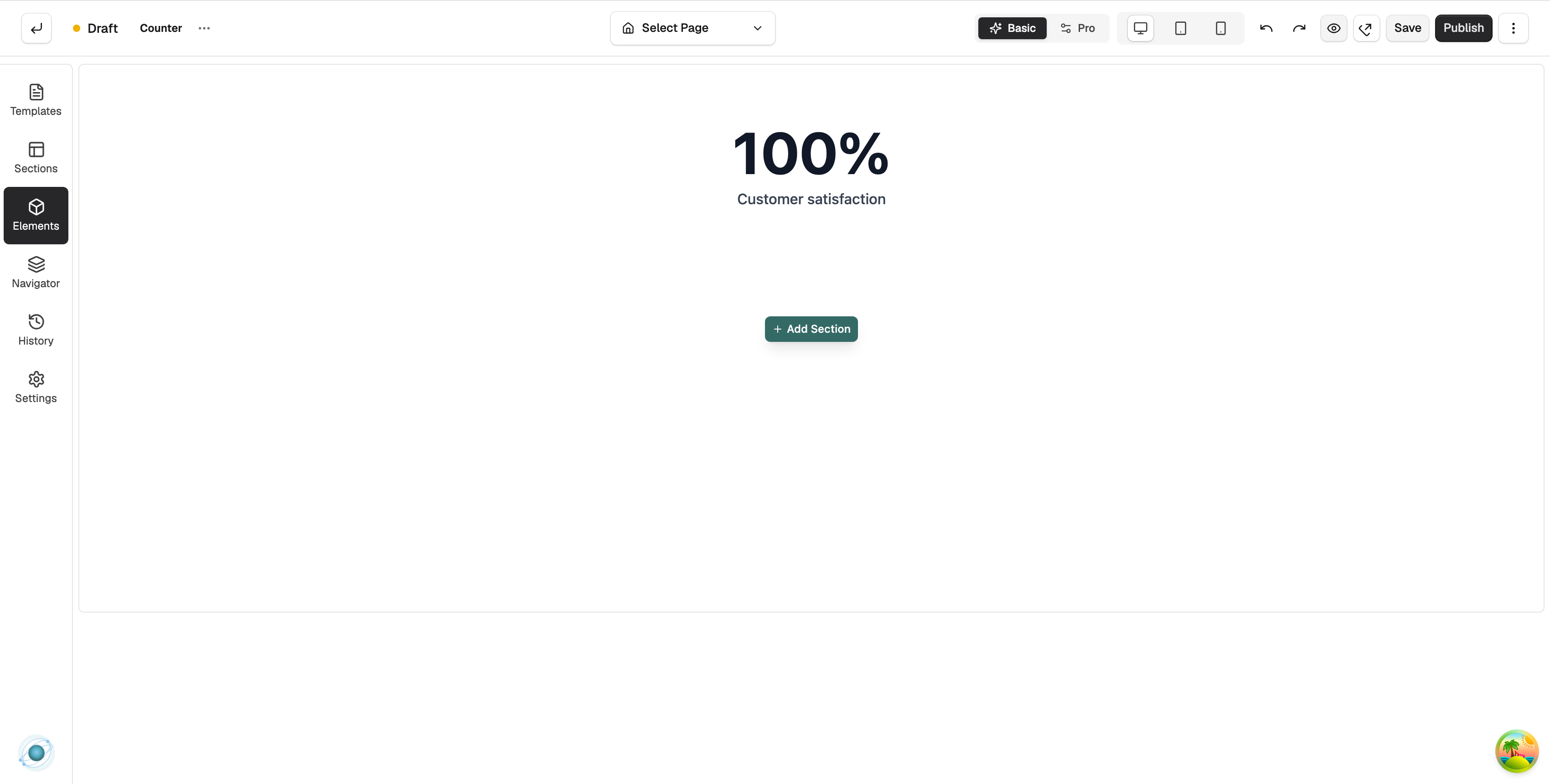
The Counter element shows a number that counts up to a value you set, with a title under it. Use it for figures such as happy customers, orders shipped or years in business.
Considerations
- The Advance group only shows when the builder is in Pro mode. Use the Basic and Pro toggle in the toolbar.
Add the element
- From your Orbit dashboard, go to Storefront, then Pages, and open the page you want to edit.
- In the toolbox on the far left, click Elements.
- Open the Advance group and find Counter, or search for it.
- Drag it onto the canvas and drop it where you want it.
Settings
Click the counter on the canvas and open the Content tab. The settings sit in three groups.
Number
- Start From: the number the count begins at.
- Count To: the final number the counter stops on.
- Animation Duration (ms): how long the count takes, in milliseconds. Drag the slider between 500 and 8000.
- Prefix: text or a symbol before the number, such as £.
- Suffix: text or a symbol after the number, such as % or +.
Text
- Title: the label shown with the number, such as Customer satisfaction.
- Description (optional): extra text under the title.
Layout
- Direction: Column puts the number above the title. Row puts it to the left. Row reverse puts it to the right.
- Alignment: left, centre or right.
The Design tab has Number Typography, Title Typography and Background.
Tip: Drop three or four counters into a Columns element to show a row of statistics.
Related guides
Was this helpful?
0 people found this helpful