Adding a reading progress bar
Show a thin bar that fills as a reader scrolls a long page. Pin it to the top or bottom of the screen and set its height and colours.
The Reading Progress Bar element is a thin bar that fills as your customer scrolls down the page. Use it on long pages such as blog posts and guides, so readers can see how much is left. The bar is pinned to the top or the bottom edge of the screen and stays there while the page moves.
Considerations
- The canvas shows a placeholder card, not the bar. The bar itself appears on your live site.
- The bar sits above your page content but below pop-ups and cookie banners. If a sticky header covers it, raise Z-Index.
- The same bar is also available site-wide from the builder's Overlays tab, with no element to place. Use the element when you want the bar on some pages only. See Adding a back-to-top button, floating contact button or reading progress bar.
Add the element
- Open the page in the page builder.
- In the toolbox on the far left, click Elements.
- Find Reading Progress Bar in the Basic group, or search for it.
- Drag it onto the canvas and drop it where you want it. The settings panel opens on Editing Reading Progress Bar.
Set where the bar sits and how it looks
- With the element selected, open the Content tab.
- Under Position, set Pin To to the top or the bottom of the screen.
- Open the Design tab. Under Bar Appearance, drag Height to set how thick the bar is.
- Set Bar Colour for the part that fills as the page scrolls.
- Set Track Colour for the part behind it. Leave it clear to show only the fill.
- Save the page. The bar appears when you view the page on your storefront.
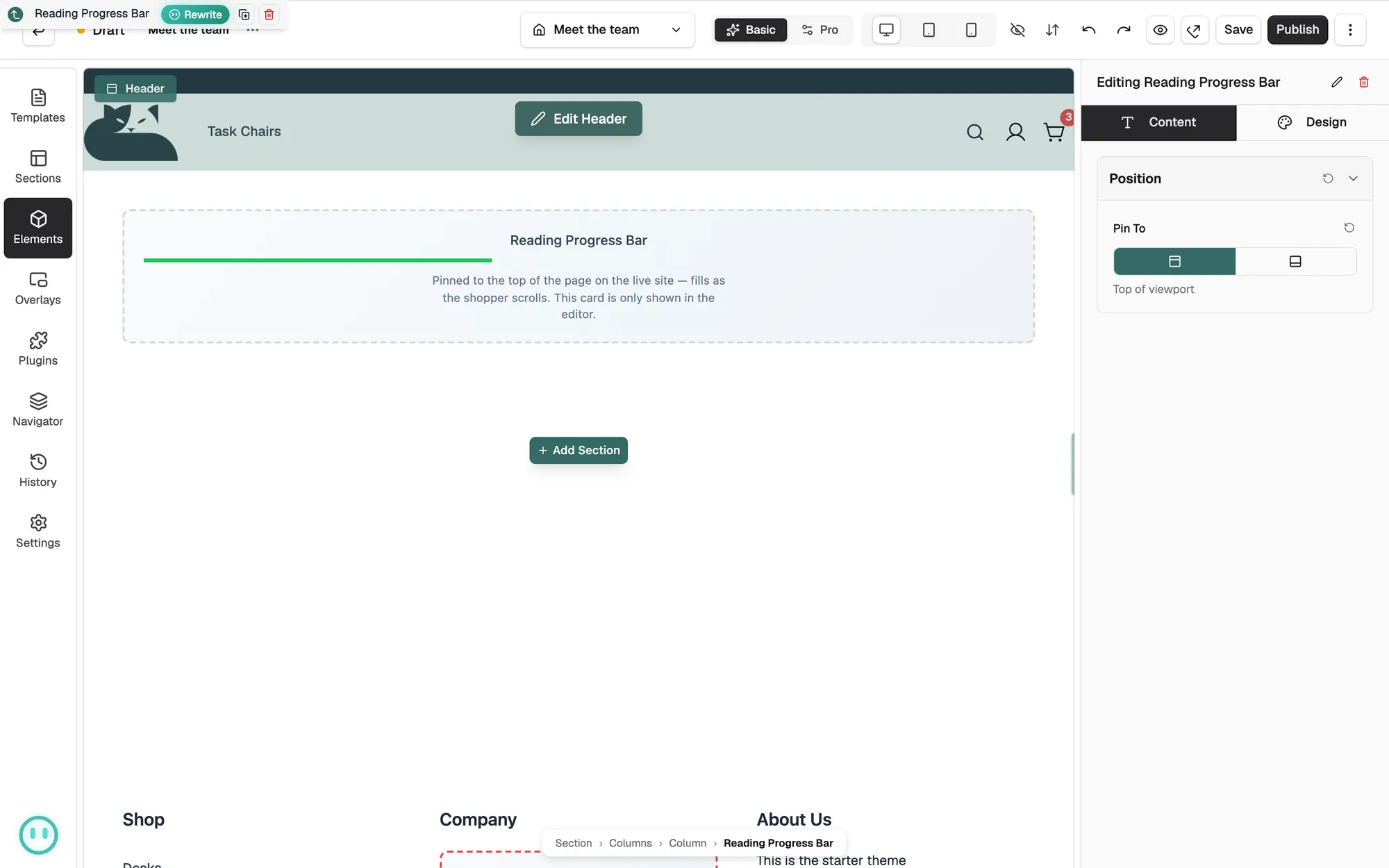
Content settings
- Pin To: whether the bar sits at the top or the bottom of the screen.
Design settings
Open the Design tab to change the look. The groups are Bar Appearance, which holds Height, Bar Colour, Track Colour and Z-Index, then Border for rounded ends and Spacing.
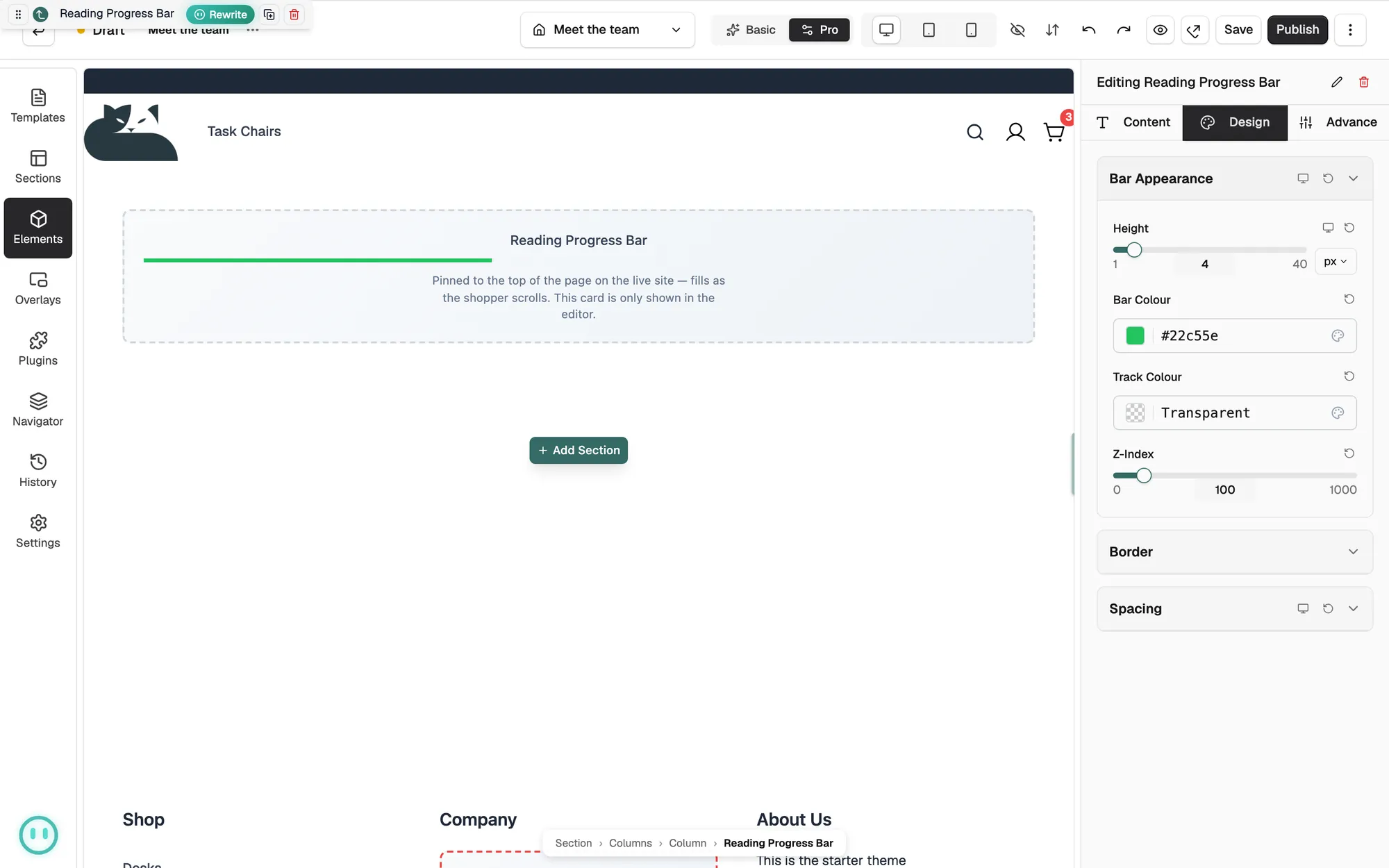
Note: Z-Index is the stacking order. It starts at 100, which keeps the bar under pop-ups and cookie banners.
Related guides
Was this helpful?
0 people found this helpful