Adding a Lottie animation
Play a vector animation on a page. Point the element at a .json or .lottie file, then set when it plays, how fast and how often.
A Lottie is a small vector animation that plays on the page. It stays sharp at any size and the file stays small, so it suits hero accents, animated icons and loaders. You point the element at a .json or .lottie file, then choose when it plays.
Considerations
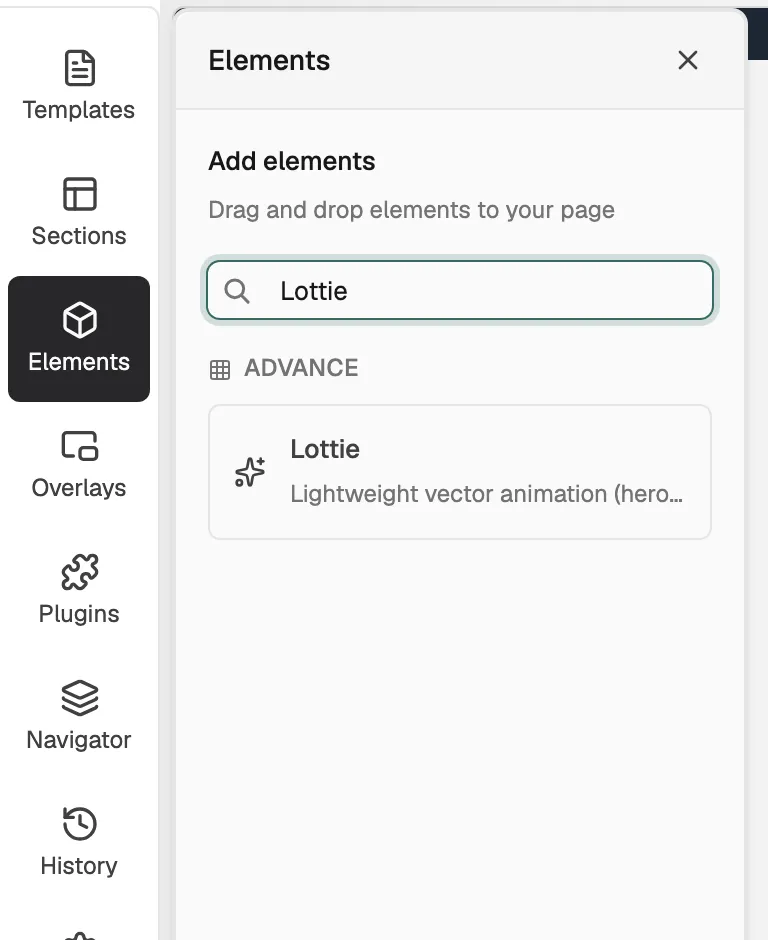
- Lottie is in the Advance group. Basic mode hides that group, and search will not find it. Click Pro at the top of the page builder to switch modes.
- The element needs an animation file. Orbit does not create one for you.
Add the element
- Open the page in the page builder.
- In the toolbox on the far left, click Elements.
- Open the Advance group and find Lottie, or search for it.
- Drag it onto the canvas and drop it where you want it. The settings panel opens on Editing Lottie.
Add your animation file
- With the element selected, open the Content tab.
- Under Animation, paste the web address of your file in Source (.json / .lottie). To use a file of your own instead, click Browse and pick or upload one in the media library window.
- In Accessible label, describe the animation for people using a screen reader.
- Open Playback and set Play on to Page load, Hover, Scroll into view or Click.
- Turn Loop on or off, then set Loop count (0 = infinite) and Speed.
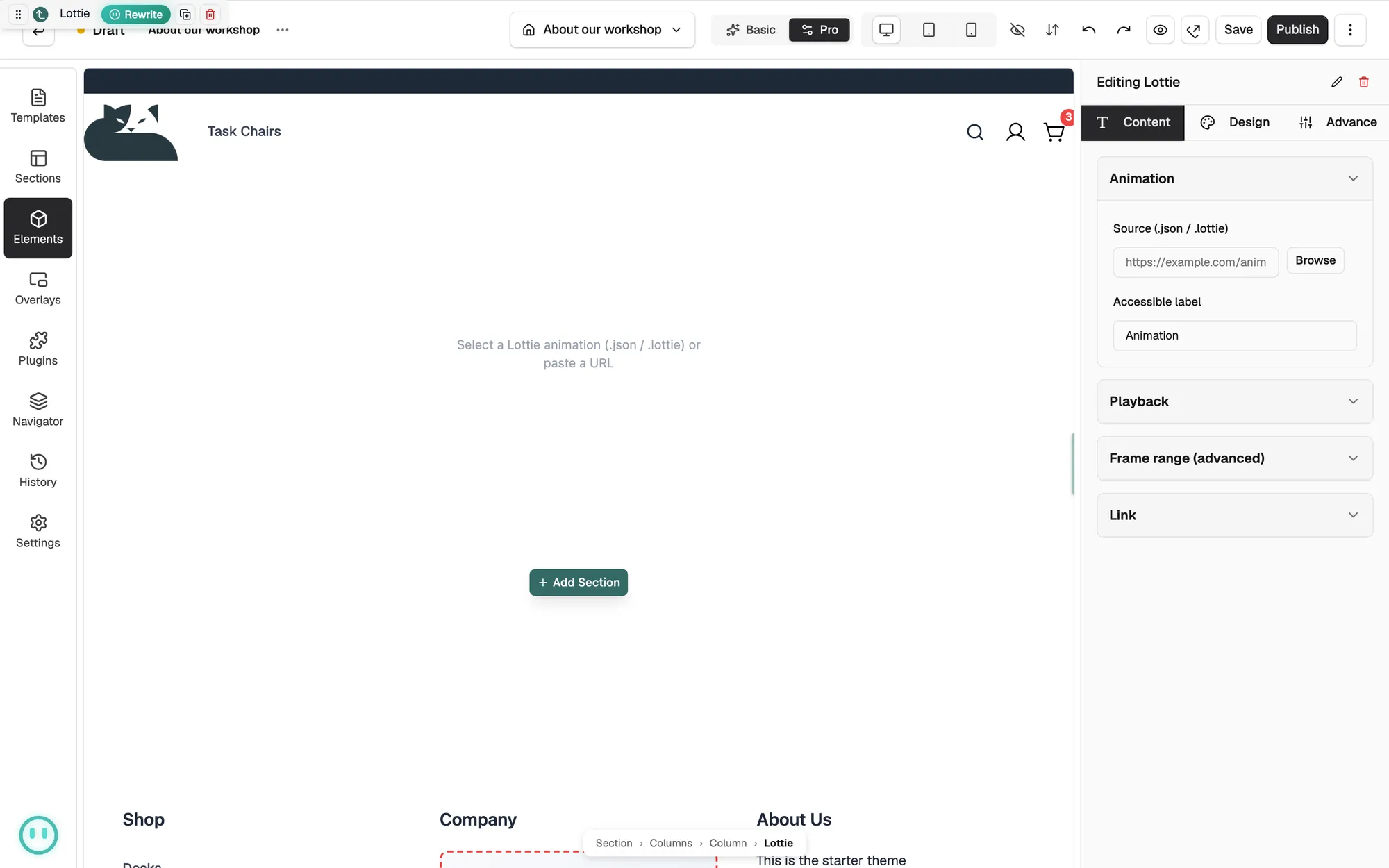
Content settings
- Source (.json / .lottie): the animation file, from a web address or your media library. Clear removes it.
- Accessible label: a short description of the animation.
- Play on: what starts the animation.
- Loop, Loop count (0 = infinite) and Reverse: how many times it repeats, and which way it runs.
- Speed: from a quarter speed up to three times speed.
- Start frame and End frame: under Frame range (advanced), play only part of the animation. Leave both blank for all of it.
- Link URL and Open in: make the animation a link, in the Same tab or a New tab.
Design settings
Open the Design tab to change the look. The groups are Size & Alignment, Background, Border and Spacing.
Related guides
Was this helpful?
0 people found this helpful