Showing a custom field on a product page
Display a value you store on products or variants, such as material or care instructions, with the Custom Field element. Covers setup, adding it and each setting.
The Custom Field element shows the value of a custom field from a product or variant. Use it on product pages to show details you store on each product, such as material, size or care instructions.
Considerations
- Set up the field first. From your Orbit dashboard, go to Settings, then Custom Fields under Selling, and add it to Products or variants.
- Only product and variant fields can be shown. Fields on orders or customers do not appear on the storefront.
- The element is designed for product pages. On the live page it reads the value from the product being viewed.
Add the element
- From your Orbit dashboard, go to Storefront, then Pages, and open the page you want to edit.
- In the toolbox on the far left, click Elements.
- Open the Ecommerce group and find Custom Field, or search for it.
- Drag it onto the canvas and drop it where you want it. It shows [Select a Custom Field] until you pick one.
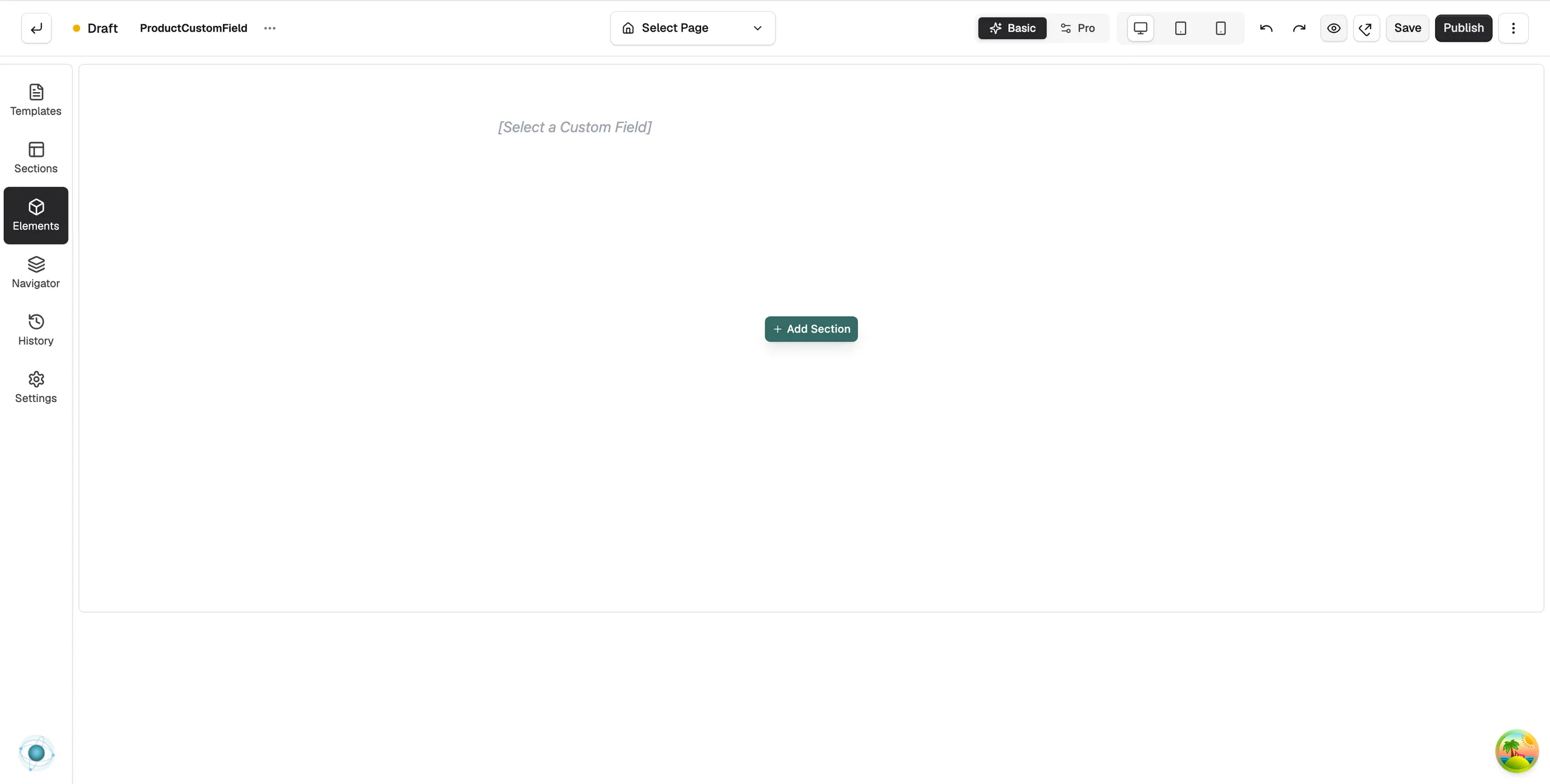
Choose the field
- Click the element on the canvas. The settings panel opens on the right.
- On the Content tab, under Custom Field, choose Product Fields or Variant Fields.
- In Select Field, pick the field to show. The canvas shows its value for the preview product.
Settings
- Product Preview: click Select Product to choose which product the builder uses for the preview. This does not change the live page.
- Field Source: Product Fields or Variant Fields.
- Select Field: the custom field to show. If no fields are set up yet, the list is empty and the panel says so.
- Show Label: show the field name next to the value. Label Position puts it Inline or Above.
- Prefix and Suffix: text before and after the value, such as Weight: and kg.
- Empty Text: shown when the product has no value for this field.
- HTML Tag: Paragraph, Span or Div.
The Design tab has Typography.
Related guides
Was this helpful?
0 people found this helpful