Adding a cookie preferences link
Add a link or button that reopens your cookie banner so shoppers can change their cookie choices. Set the label, pick a link or a button, and style it.
The Cookie Preferences element adds a link or a button that reopens your cookie banner. Your customer clicks it to change the cookie choices they made earlier. Most stores put it in the footer, next to the privacy policy link.
Considerations
- The link shows on the live page only when your cookie banner is switched on. With consent turned off, nothing appears in its place.
- The banner wording and the cookie categories are set on the Cookie Consent page, not here.
- Clicking it does nothing inside the page builder. Open the live page to test it.
Add the element
- Open the page in the page builder.
- In the toolbox on the far left, click Elements.
- Find Cookie Preferences in the Basic group, or search for it.
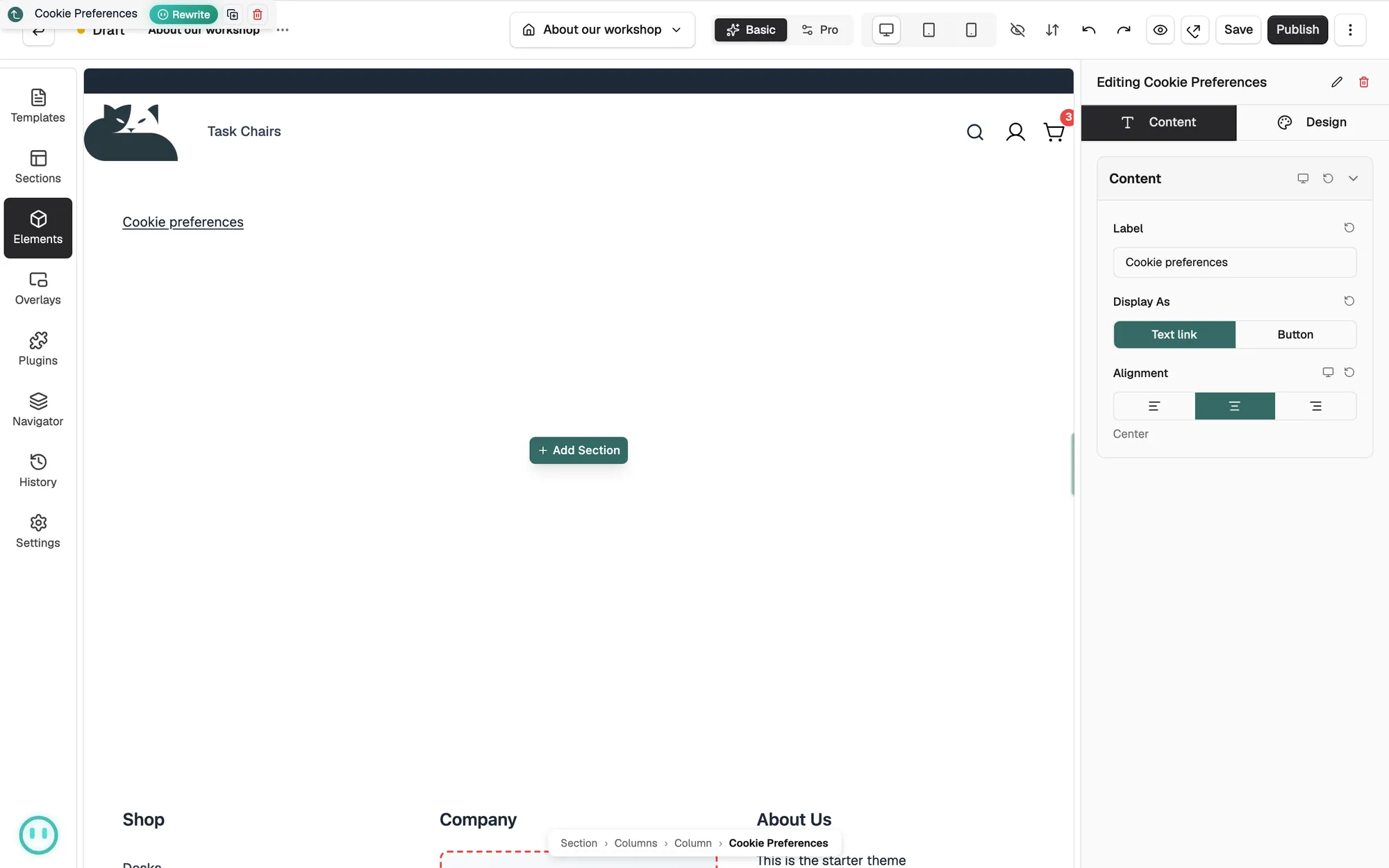
- Drag it onto the canvas and drop it where you want it. The settings panel opens on Editing Cookie Preferences.
Set the label and the shape
- With the element selected, open the Content tab.
- In Label, type the words your customer sees. The default is Cookie preferences.
- For Display As, choose Text link or Button.
- Set Alignment to place it on the left, in the centre or on the right of its row.
Tip: Add the element to your footer template so the link is on every page of your store.
Content settings
- Label: the text on the link or button.
- Display As: Text link for plain text, or Button for a styled button.
- Alignment: Left, Center or Right within the row. Centre is used by default.
Design settings
Open the Design tab to change the look. The groups follow Display As. A text link has Typography and Spacing. A button has Button Style and Spacing, and picking Customize under Button Style adds Button Size, Typography, Background and Colours.
Related guides
Was this helpful?
0 people found this helpful