Adding a company info line
Build the copyright line for your footer from your store name, the copyright symbol, the year and a short closing sentence.
The Company Info element writes the copyright line that usually sits at the bottom of a page. It builds one line from your company name, the copyright symbol, the year and a short piece of text such as "All rights reserved." Most stores put it in the footer.
Considerations
- With Source set to Store name, the name comes from your store settings. Change it there and the line changes too.
- With Year set to Auto (current), the year updates on its own each January. You do not have to edit the page.
Add the element
- Open the page in the page builder.
- In the toolbox on the far left, click Elements.
- Find Company Info in the Basic group, or search for it.
- Drag it onto the canvas and drop it where you want it. The settings panel opens on Editing Company Info.
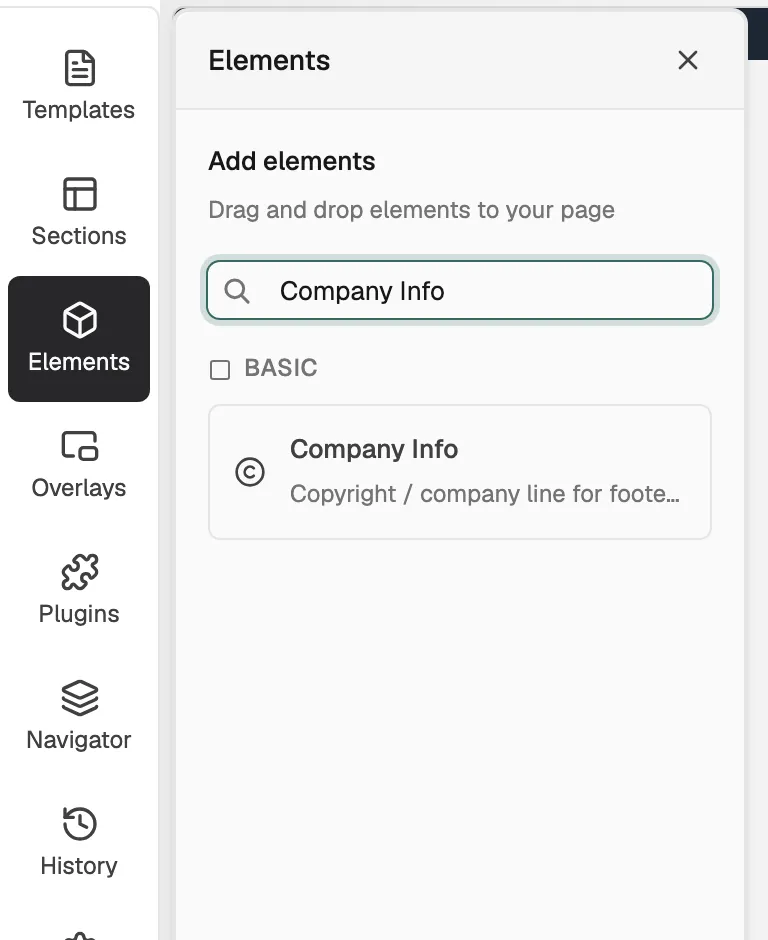
Build the copyright line
- With the element selected, open the Content tab.
- Under Company Name, leave Source on Store name, or click Custom and type the name in Company Name.
- Open Copyright & Year. Type a word in Prefix (optional) if you want one before the symbol.
- Turn Show © symbol and Show year on or off.
- Leave Year on Auto (current), or click Fixed and drag Fixed Year to the year you want.
- Under Suffix, edit Suffix Text. It starts as "All rights reserved."
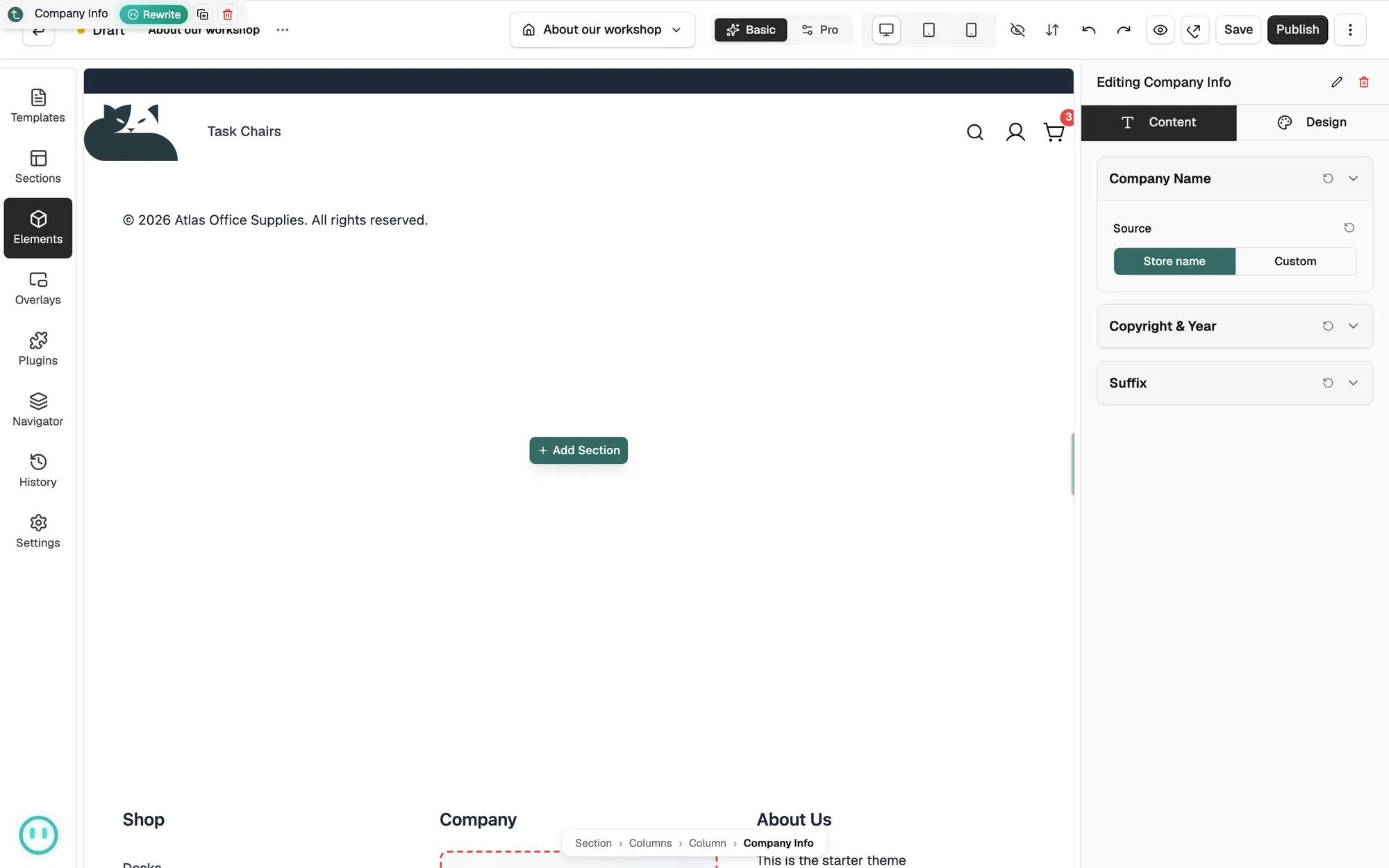
Content settings
- Source: Store name uses your live store name. Custom uses the name you type.
- Company Name: the name shown when the source is custom.
- Prefix (optional): text before the symbol and year, such as "Copyright".
- Show © symbol: show or hide the copyright symbol.
- Show year: show or hide the year.
- Year: Auto (current) shows this year. Fixed pins one year.
- Fixed Year: the year used when Year is Fixed.
- Suffix Text: the sentence after the name.
Design settings
Open the Design tab to change the look. The groups are Typography for the text, Top Border, where Show divider above draws a line above the element and sets its colour, thickness and spacing, then Spacing.
Related guides
Was this helpful?
0 people found this helpful