Adding custom code
Put your own HTML, CSS and JavaScript on a page with the Code element. Covers where to find it, how to edit the code and what to leave out.
2 min read9viewsUpdated 14 September 2026Orbit Support Team
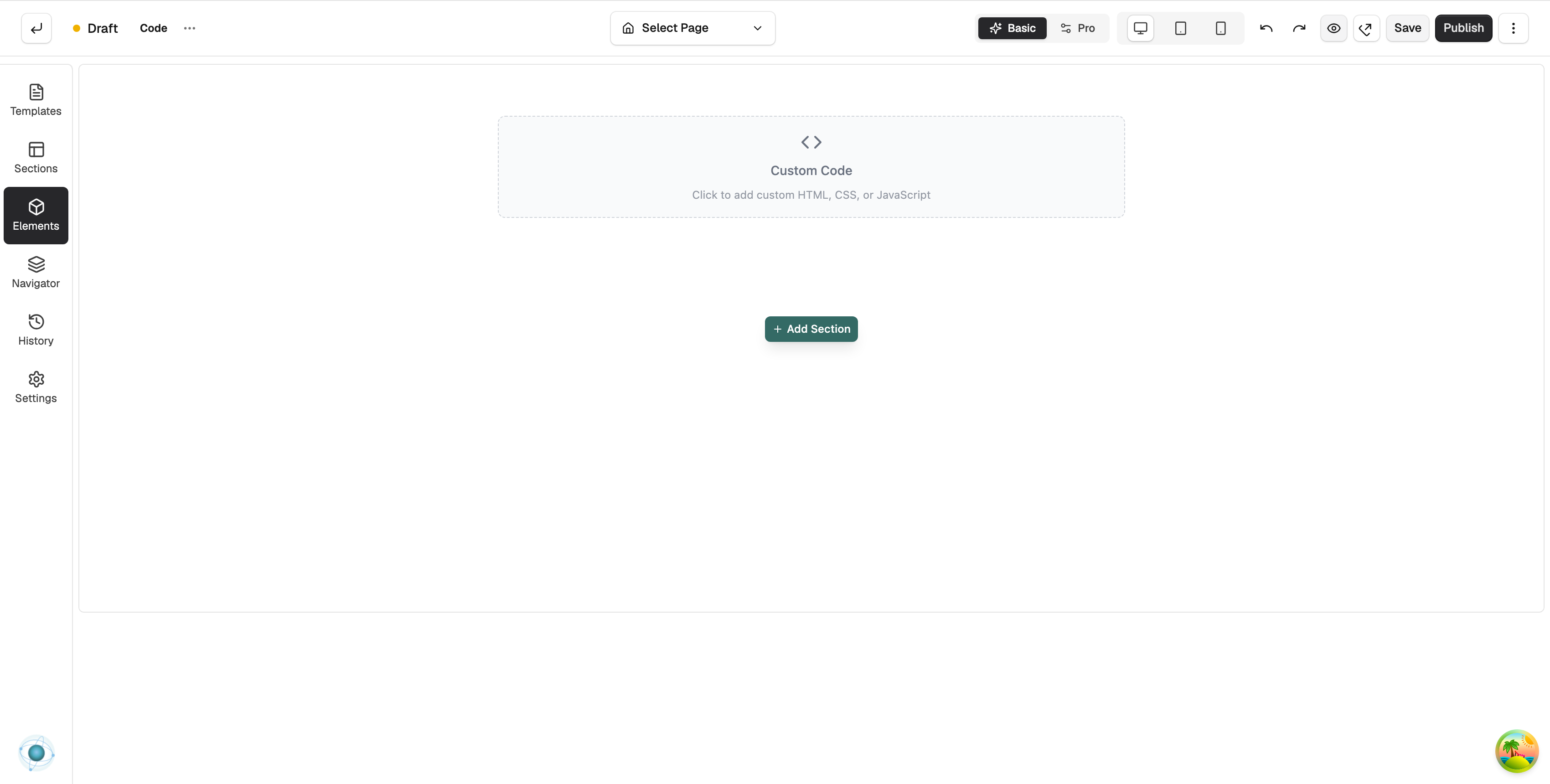
The Code element puts your own HTML, CSS and JavaScript on a page. Use it for a third-party widget, an embed code or a script that the other elements do not cover.
Considerations
- The Advance group only shows when the builder is in Pro mode. Use the Basic and Pro toggle in the toolbar.
- Your code runs on your live storefront. Only add code you trust.
- Do not include
<html>,<head>or<body>tags. They can clash with other elements on the page.
Add the element
- From your Orbit dashboard, go to Storefront, then Pages, and open the page you want to edit.
- In the toolbox on the far left, click Elements.
- Open the Advance group and find Code, or search for it.
- Drag it onto the canvas and drop it where you want it.
Add your code
- Click the Code element on the canvas. The settings panel opens on the right.
- On the Content tab, under Custom Code, click Edit Code.
- Paste or type your code in the editor.
- Click Save Changes. The code runs on the page in place of the element.
Settings
- Custom Code: the HTML, CSS and JavaScript for this element. The panel shows how many lines you have added, or Empty if there is nothing yet.
The Design tab has spacing settings only. Your code controls its own layout.
Related guides
Was this helpful?
0 people found this helpful