Adding a breadcrumb trail
Add a Breadcrumb element, build the trail of links by hand, and choose how the home link and long trails are shown.
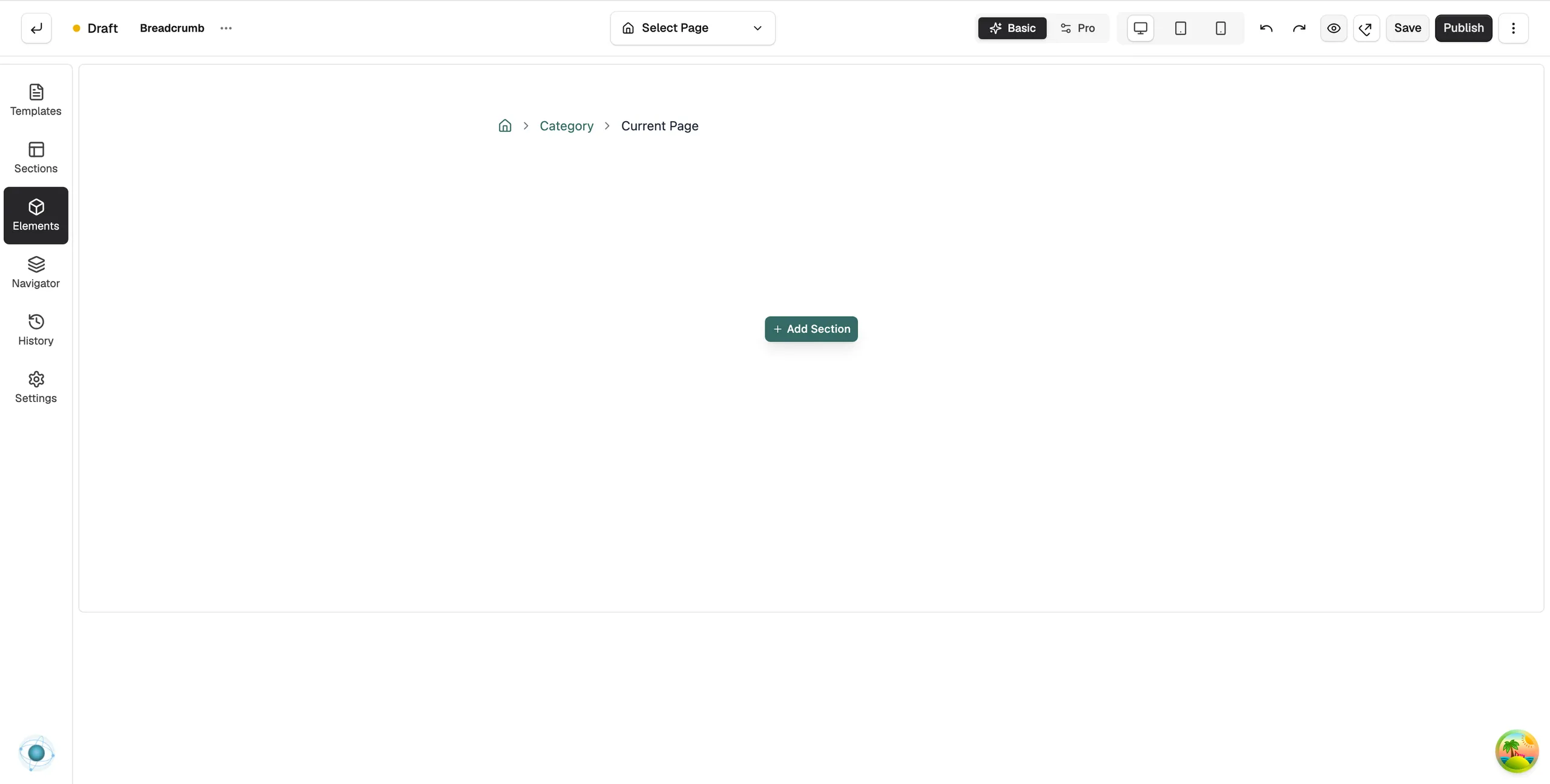
The Breadcrumb element shows a trail of links that tells customers where they are in your store. It starts with a home link and ends at the current page. Breadcrumbs also help search engines see how your pages relate.
Considerations
- You build the trail yourself in this element. Each item has its own label and link.
- The trail always keeps at least one item.
Add the element
- Open the page in the page builder.
- In the toolbox on the far left, click Elements.
- Click the Advance group, or search for Breadcrumb.
- Drag Breadcrumb onto the canvas and drop it where you want it.
- Click the element on the canvas to open its settings, then click the Content tab.
Note: The Advance group only shows in Pro mode. If you cannot see it, click Pro at the top of the editor first.
Edit the trail
- Under Breadcrumb Items, click Add Item to add a link to the trail.
- Click an item in the list to edit it. Set its Label and URL.
- Turn on Is Active (Current Page) for the last item. It shows as the current page, not a link.
- Drag the handle on the left of an item to change its order. Click the bin icon to remove one.
- Click Save at the top right.
Content settings
Home Display
- Home Display Mode: show the home link as Icon Only, Text Only or Icon + Text.
- Home Text: the label of the home link, for example Home.
Display Options
- Max Items (0 = unlimited): the most links to show before the trail is shortened. Leave it at 0 to show the whole trail.
- Collapse From: where links are hidden when the trail is too long: Start, Middle or End.
Design settings
The Design tab has Layout, Separator, Colours, Typography, Breadcrumb Text and Effects groups. For the Design and Advance tabs in full, see Using the element settings panel.
Related guides
Was this helpful?
0 people found this helpful