Adding a blog listing
Show your blog posts on any page with the Blog Listing element. Choose which posts appear, what each card shows, and how more posts load.
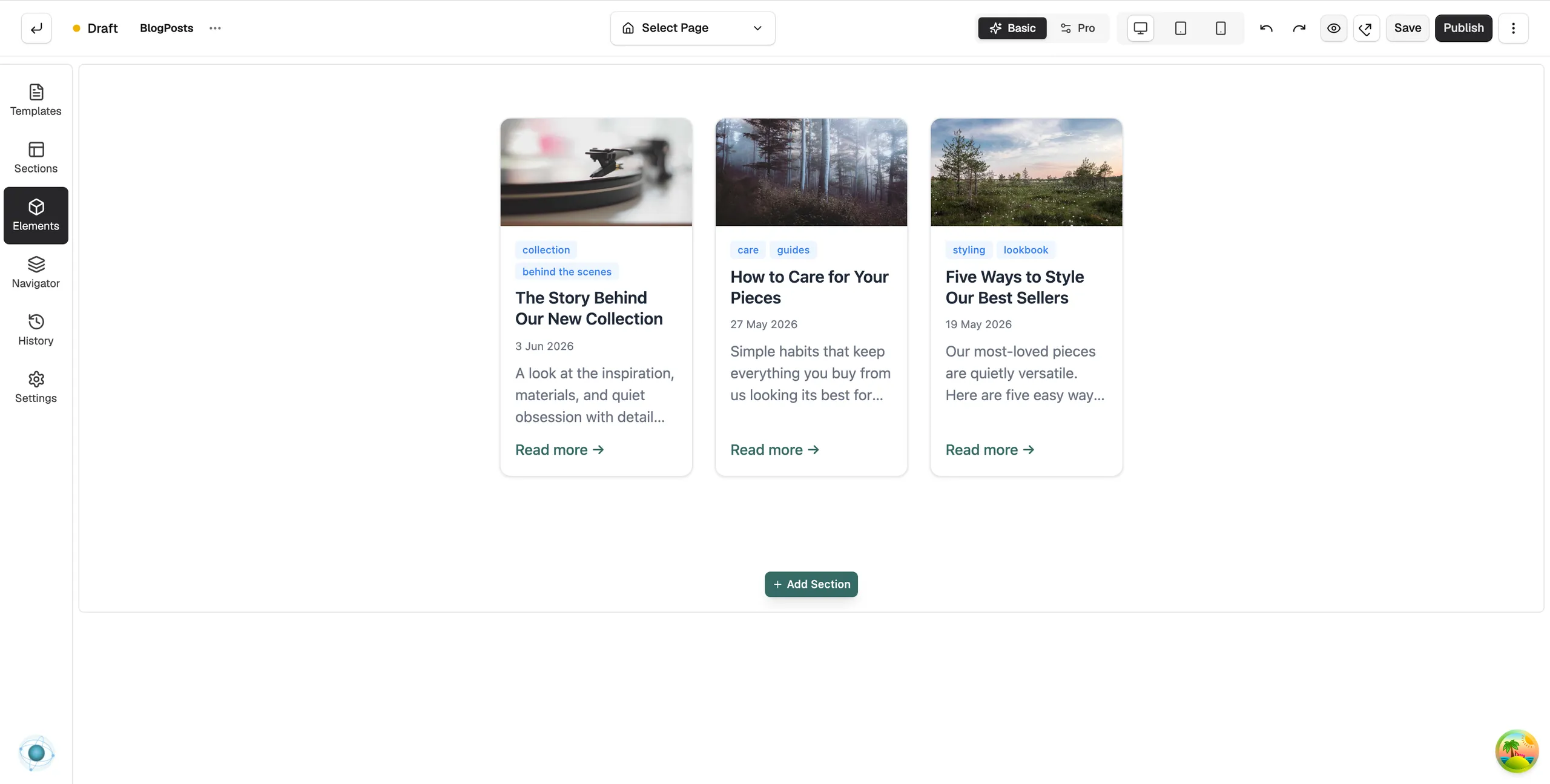
The Blog Listing element shows your blog posts in a grid or a list. Use it to put recent posts on your homepage or any other page. It shows live posts from your store.
Add the element
- Open the page in the page builder.
- In the toolbox on the far left, click Elements.
- Click the Ecommerce group, or search for Blog Listing.
- Drag Blog Listing onto the canvas and drop it where you want it.
- Click the element on the canvas to open its settings, then click the Content tab.
Content settings
The Content tab is split into groups. The first group starts open; click a group name to open the others.
Layout
- Display Mode: Grid or List.
- Columns and Gap: how many cards sit in a row, and the space between them.
- Image Position: Top, Left or Right of the text.
- Max Width: the widest the listing can grow.
Data Source
- Source: All Posts, Specific Blog or By Tag.
- Blog: pick the blog when Source is Specific Blog.
- Tag: type a tag name when Source is By Tag.
- Posts to show: the most posts the listing displays.
- Sort by: Date Published, Title or Date Created.
- Order: Newest First or Oldest First.
Card Content
- Toggles for Featured Image, Title, Excerpt, Author, Date, Tags and Read More.
- Title max lines and Excerpt max lines: where long text is cut off.
- Read More text: the wording of the link on each card.
- Date format: Relative (3 days ago), Short or Long.
Pagination
- Type: None, Load More Button or Numbered Pages.
- Button text: the label on the load more button.
Empty State and Loading
- Show empty state, Title and Description: what shows when there are no posts to list.
- Show skeleton loader: shows grey placeholder cards while posts load.
Tip: The excerpt on each card is the short teaser you write in the post editor. Keep it to a sentence or two.
Design settings
The Design tab has Card Style, Image, Typography and Tag & Read More Extras groups. For the Design and Advance tabs in full, see Using the element settings panel.
Related guides
Was this helpful?
0 people found this helpful