Adding an audio player
Put one audio track on a page with play, pause and volume controls. Add a title, an artist and cover art, then pick the bar or card skin.
The Audio Player element plays one audio track on a page. Use it for a podcast episode, a sample track or a recorded message. Your customer gets play, pause, scrubbing and volume controls from their own browser.
Considerations
- One element plays one track. Add another element for a second track.
- The controls come from the browser, so their colours cannot be changed. You can set the Background and Text colours only.
- Cover art shows with the Card (with cover art) skin. With the bar skin it is hidden.
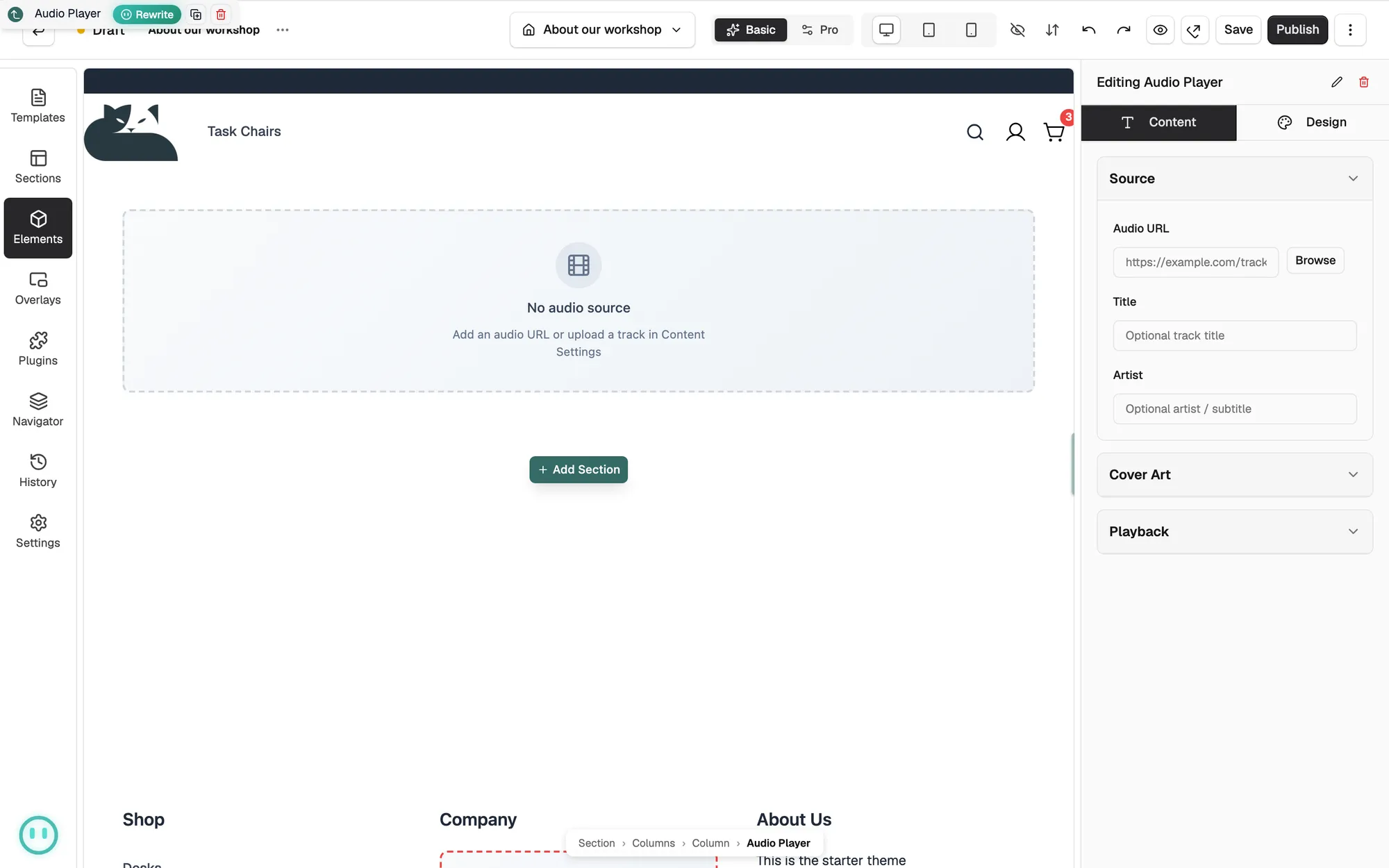
- Until you add a track, the canvas shows No audio source.
Add the element
- Open the page in the page builder.
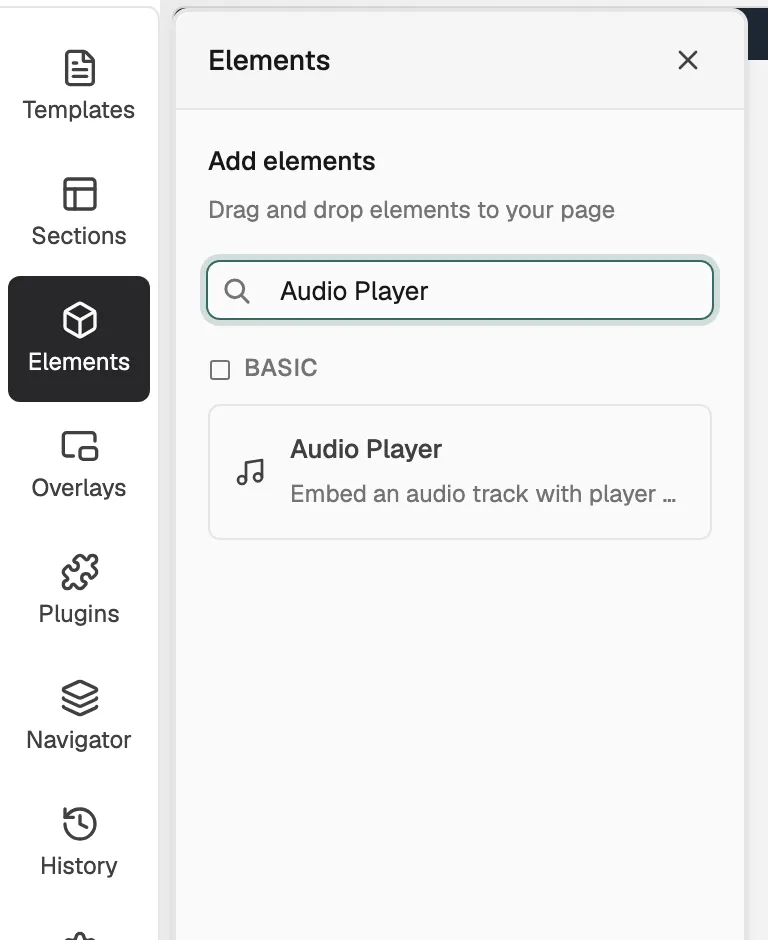
- In the toolbox on the far left, click Elements.
- Find Audio Player in the Basic group, or search for it.
- Drag it onto the canvas and drop it where you want it. The settings panel opens on Editing Audio Player.
Add your audio track
- With the element selected, open the Content tab.
- Under Source, paste the address of the file in Audio URL, or click Browse to pick or upload a file in your media library.
- Add a Title and an Artist if you want them shown next to the player.
- Under Cover Art, add a Cover Image the same way.
- Open Playback and set Autoplay, Loop and Show Download Button.
Content settings
- Audio URL: the address of the audio file. Browse opens your media library.
- Title: an optional track title.
- Artist: an optional artist name or subtitle.
- Cover Image: the picture shown by the card skin.
- Autoplay: start the track when the page loads.
- Loop: play the track again when it ends.
- Show Download Button: add a Download link to the player.
- Preload: how much the browser loads before play. Choose None, Metadata or Auto.
Design settings
Open the Design tab to change the look. The groups are Width, Skin, where you pick Bar (slim inline) or Card (with cover art), then Colours, Cover Art, Typography, Border, Shadow and Spacing.
Related guides
Was this helpful?
0 people found this helpful