Adding an animated headline
Add a heading with a word that keeps changing. Set the words on either side, the list of words, and how each one arrives.
The Animated Headline element is a heading with one word that keeps changing. Use it in a hero section to name several things you sell. You set the text on either side of the word, the list of words, and the way each word arrives.
Considerations
- The rotation needs at least two words. With one word the headline stays still.
- If a visitor has reduced motion turned on in their device settings, only the first word shows.
- Typing Speed (ms / char) appears only when Animation Type is Typewriter.
Add the element
- Open the page in the page builder.
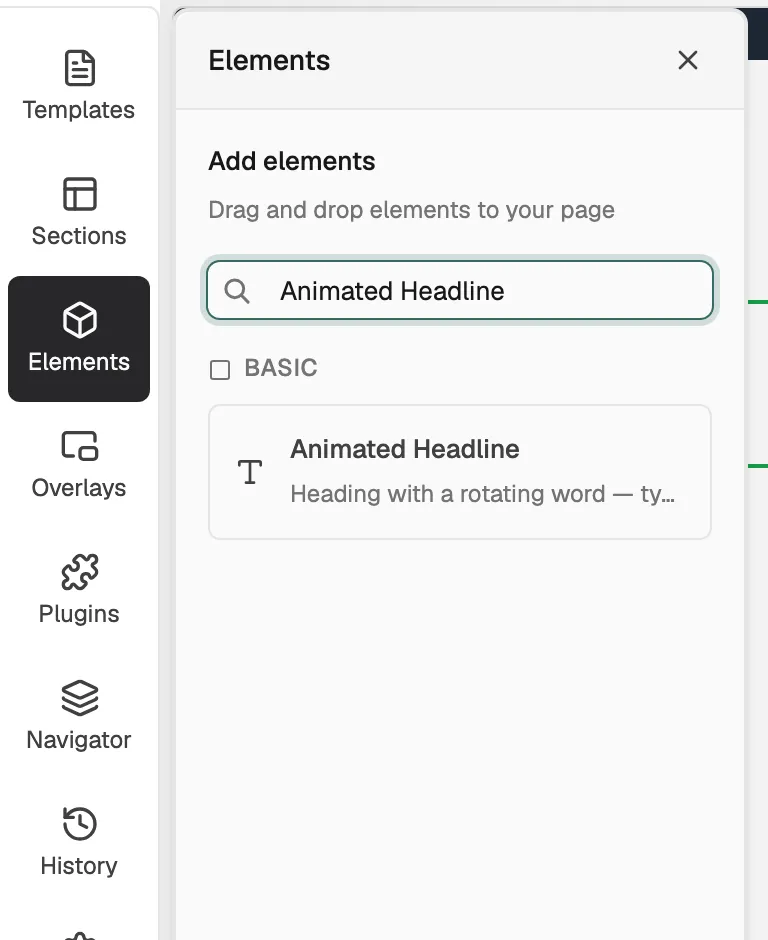
- In the toolbox on the far left, click Elements.
- Find Animated Headline in the Basic group, or search for it.
- Drag it onto the canvas and drop it where you want it. The settings panel opens on Editing Animated Headline.
Set the words and the animation
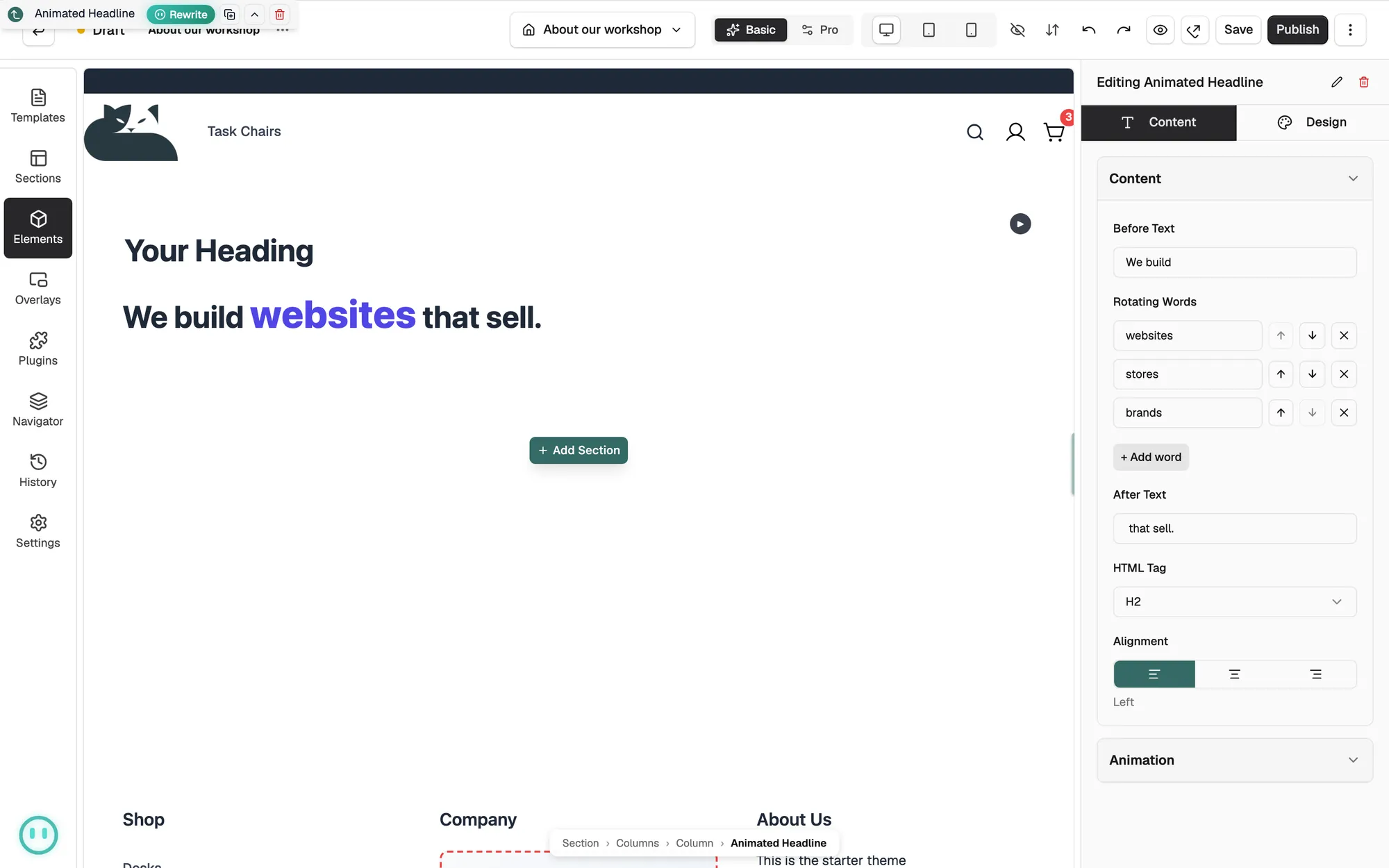
- With the element selected, open the Content tab.
- Type the fixed words in Before Text and After Text.
- Under Rotating Words, type a word in each box. Click + Add word to add another. Use the arrows to change the order.
- Open the Animation group and choose an Animation Type.
- Drag Pause Between Words (ms) to set how long each word holds.
- Turn Loop off to stop the rotation on the last word.
Content settings
- Before Text: the fixed text before the rotating word.
- Rotating Words: the words the headline moves through, in order.
- After Text: the fixed text after the rotating word.
- HTML Tag: the heading level, H1 to H6, or Div (no heading).
- Alignment: left, centre or right.
- Animation Type: None (static accent), Typewriter, Slide up, Fade or Highlight clip.
- Typing Speed (ms / char): how fast each letter is typed. A lower number is faster.
- Pause Between Words (ms): how long a word stays before it changes.
- Loop: go back to the first word after the last one.
Design settings
Open the Design tab to change the look. The groups are Typography, which styles Static Text and the Rotating Word on their own, then Border and Spacing. A Highlight group appears when the animation is Highlight clip.
Related guides
Was this helpful?
0 people found this helpful