Importing orders from a CSV
Move your order history into Orbit from a CSV file, and set what the import does about stock and about emails to your customers.
You can bring orders into Orbit from a CSV file. Most stores use this to move their order history across from another platform, so the customer's past orders are there from day one. You start it from Import on the Orders page.
Considerations
- The file must be a CSV. The largest file Orbit accepts is 25MB.
- The file needs a header row and at least one row of orders.
- Orbit matches rows to orders you already have by order reference.
- Two tick boxes change what the import does to the rest of your store: Reserve stock for imported orders and Trigger fulfilment automations for paid orders. Read both sections below before you start.
- The import runs in the background. You can close the dialog and carry on working.
- A row that fails does not stop the rest of the file. You get the failed and skipped rows at the end.
Import your orders
- From your Orbit dashboard, go to Orders.
- Click Import at the top right of the page. The dialog opens on Import orders by CSV.
- Click + Add file and pick your file, or drop the CSV file onto the dialog. To swap it for another file, click Replace file.
- Under This import should…, tick Create new records, Update existing records, or both. You have to pick at least one before you can go on.
- Set Reserve stock for imported orders and Trigger fulfilment automations for paid orders. Both are covered below.
- Click Upload and preview.
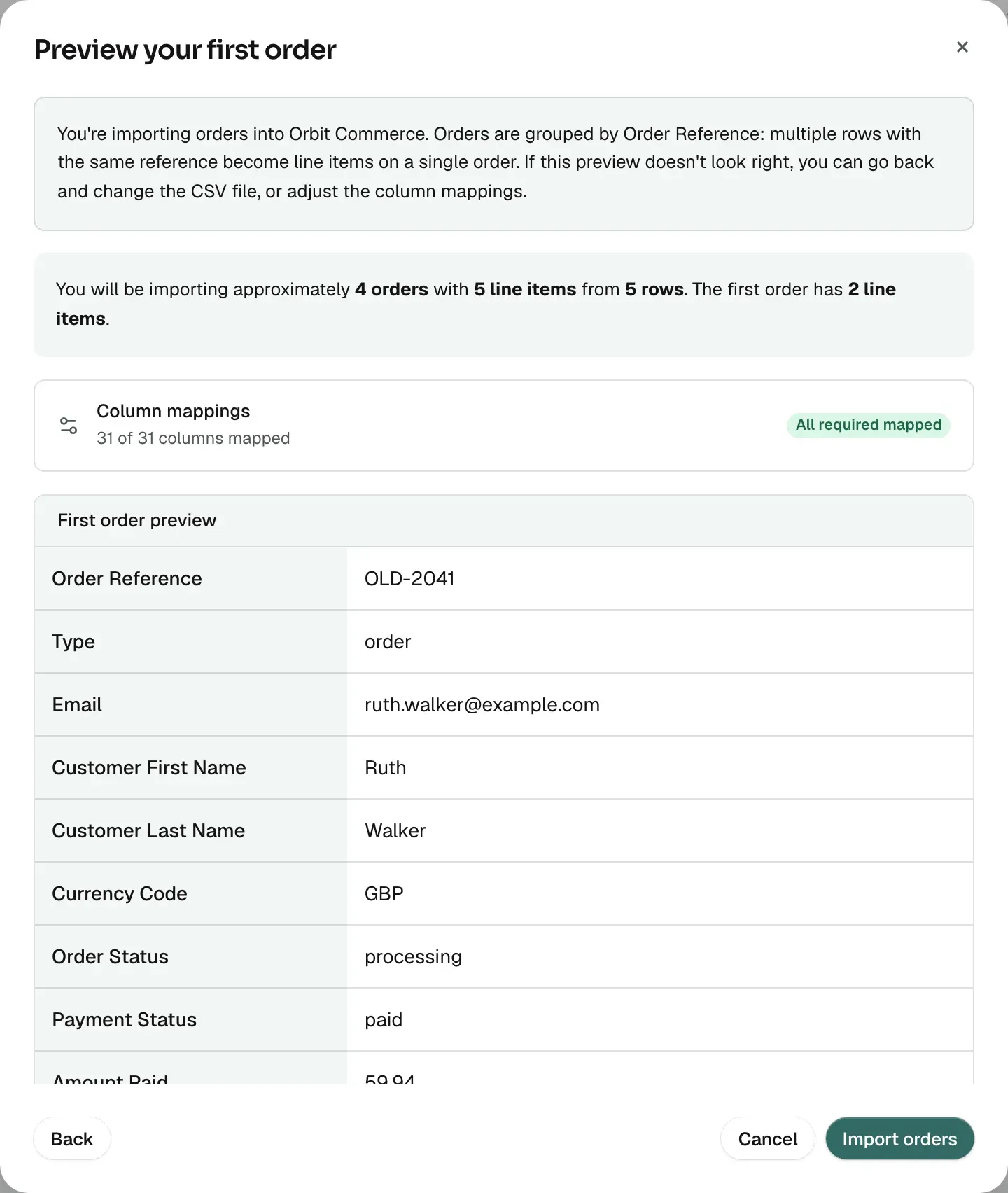
- Check the first order on the preview screen, and the line telling you roughly how many orders and line items Orbit found in your rows.
- Click Import orders.
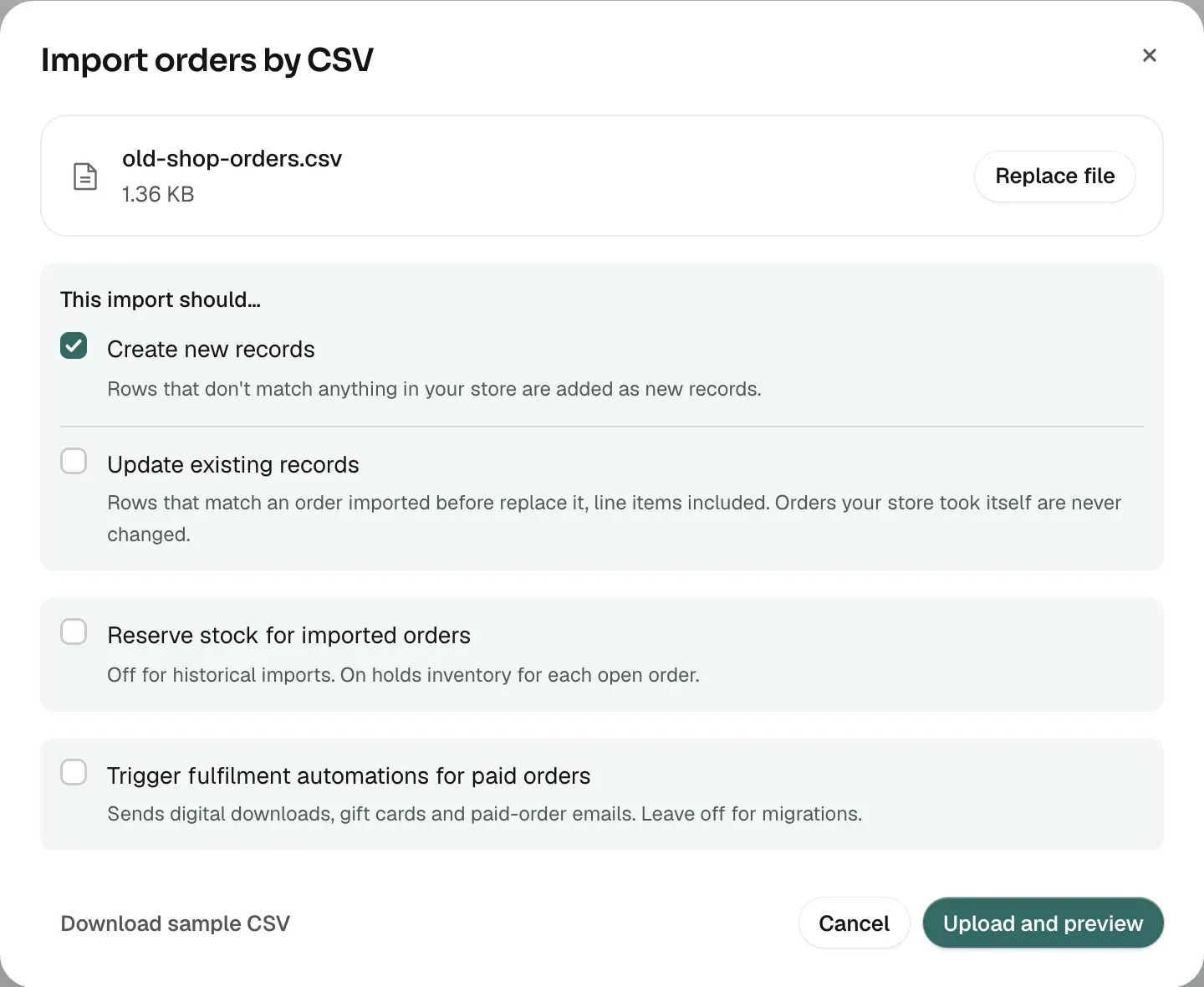
Tip: Click Download sample CSV at the bottom of the dialog to see the columns Orbit expects. Build your file from that and less goes wrong.
With Update existing records ticked, a row that matches an order an earlier import created replaces that order, including its line items. Only tick it if that is what you want. An order your store took itself, from your storefront or your dashboard, is never changed by an import.
Decide whether to reserve stock
Reserve stock for imported orders holds inventory for every open order the import creates.
- Leave it off for history. Old orders were picked and posted long ago, and holding stock for them takes goods you still have on the shelf out of your available counts.
- Turn it on when the orders in your file are live and still to be sent. Orbit then holds the goods so you do not sell them twice.
When it is on, Orbit checks the stock is there before it creates the order. A row can fail when the goods are not available.
Orders that land as refunded, cancelled, failed or expired never reserve stock, whatever you tick here. They are finished records, not orders waiting to go out.
Decide whether to trigger automations
Trigger fulfilment automations for paid orders decides whether a paid order in your file is treated as brand new. With it on, Orbit sends the paid-order email, issues gift cards and sends digital download links to the email addresses in your file.
Warning: Leave this off for a migration. Your customers were already emailed and already got their downloads on the old platform. If you turn it on, they get all of it again, for real, as each order lands, and you cannot pull the emails back.
Turn it on only when the orders in the file are new and nothing has been sent for them yet.
Match your columns to Orbit fields
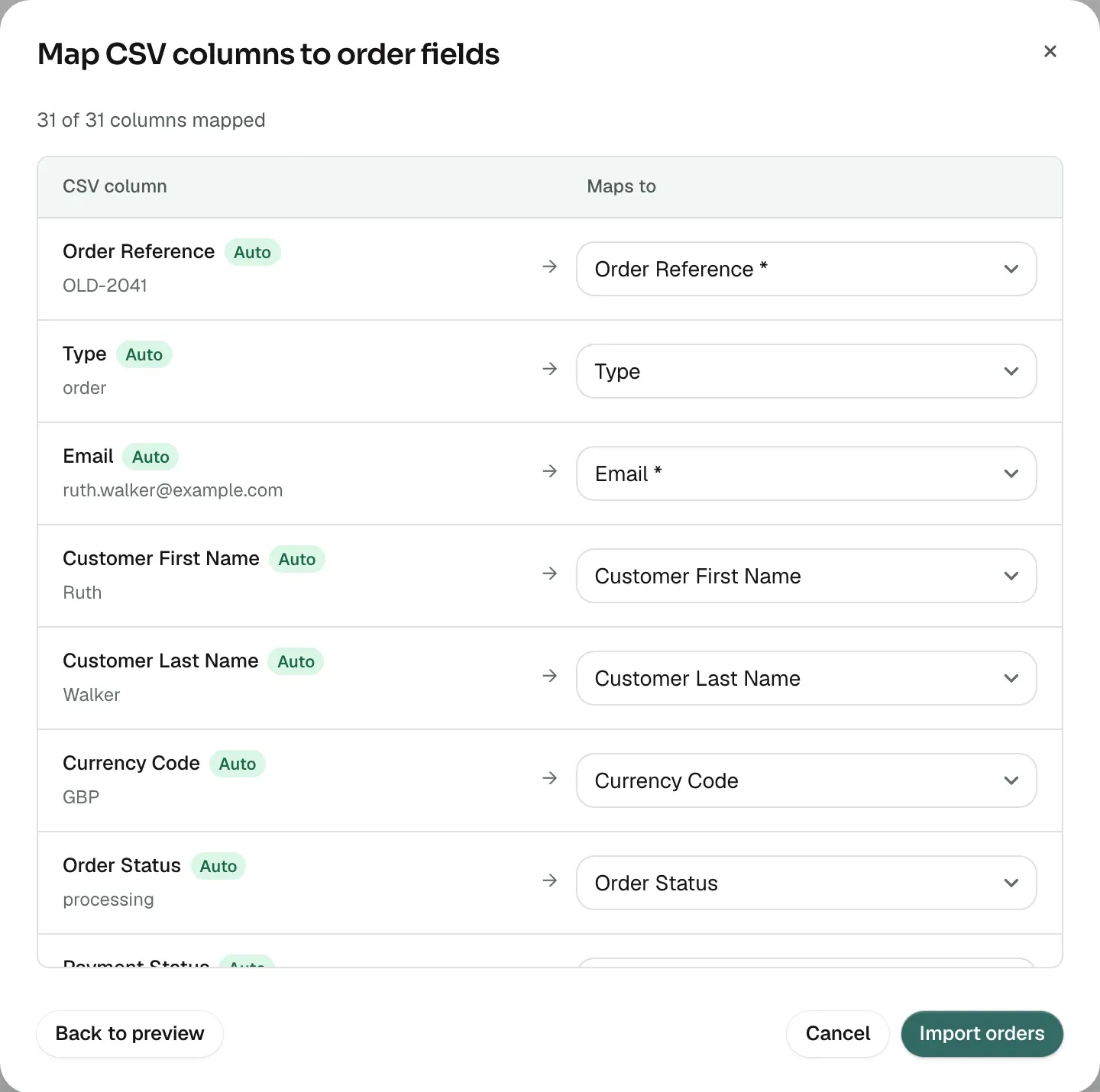
Orbit reads your headers and matches what it can on its own. If your column names came from another platform, check the match before you import.
- On the preview screen, open the column mapping step. It is titled Map CSV columns to order fields.
- For each column in your file, pick the Orbit field it belongs to.
- Pick Do not import for any column you want Orbit to ignore.
- Clear any warning about required fields that are not matched. The import can fail without them.
- Click Import orders to start, or Back to preview to look again.
Watch the import and check the results
The dialog shows a progress bar while the file is worked through. Large files take a while. Click Close and continue working and the import carries on without you, with an indicator showing progress until it finishes.
When it is done you get a count of each outcome:
- orders created: new orders now in your Orders list.
- orders updated: orders you already had that the file changed.
- orders skipped (already exist): rows Orbit left alone.
- orders failed: rows Orbit could not use.
A row is skipped when it matches an order you already have and Update existing records was not ticked, or when it matches nothing and Create new records was not ticked. A row whose order reference is the number of an order your store took itself is always skipped, with the reason given.
- Click Show error details to see the failed rows, each with its row number and what went wrong.
- Click Show skipped orders to see the skipped ones.
- Click Download CSV on either list to save it. Fix those rows in the file and import again.
Related guides
Was this helpful?
0 people found this helpful