Understanding the risk score on an order
What the Order risk card on an order means: the Low, Medium and High ratings, the six signals behind them, and how to check an order before you ship it.
Every order page has an Order risk card. It rates the order Low risk, Medium risk or High risk, and lists the signals behind that rating. The card is there to help you decide whether to ship. Look at it before you fulfil any order you are unsure about.
Considerations
- The rating is a guide, not a decision. Orbit does not hold, cancel or block an order because of its risk level. What you do next is up to you.
- Only card payments taken through Orbit Payments are assessed. Orders paid by bank transfer, cash on delivery or cheque, and orders you create or import yourself, show Not assessed.
- A low rating is not a promise. A customer can still dispute a low risk payment. See Handling a chargeback or dispute.
- The rating is worked out fresh each time you open the order, so the customer history signal changes as the customer places more orders.
Open the risk card
- From your Orbit dashboard, go to Orders.
- Open the order.
- Find the Order risk card in the right-hand column, under the billing address.
- Read the badge and the one-line summary under it. Any signal that needs attention is listed on the card.
- Click View details. The Order risk analysis window lists every signal, including the ones that passed.
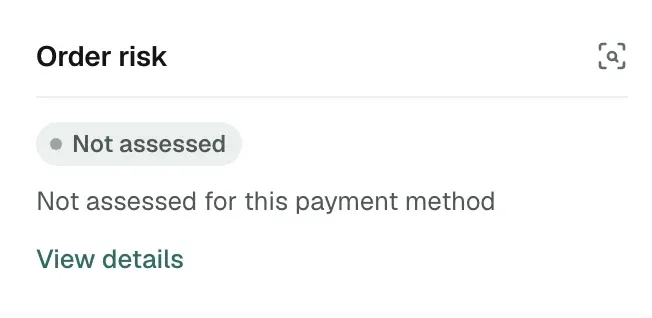
What the card shows
- Low risk: green. The summary reads Low risk. No fraud signals detected., or Low risk. Minor signals to review. when something small was flagged.
- Medium risk: amber. The summary reads Medium risk. Review recommended.
- High risk: red. The summary reads High risk. Review before fulfilling.
- Not assessed: grey. The summary reads Not assessed for this payment method. No card checks ran, so only the two order signals show.
- Score: a number out of 100 next to the badge, such as Score 12/100. Higher means riskier. It only appears when the card processor supplied one.
Each signal carries an icon: a tick for a pass, a triangle for a warning, a cross for a fail, and a dash when the check could not run.
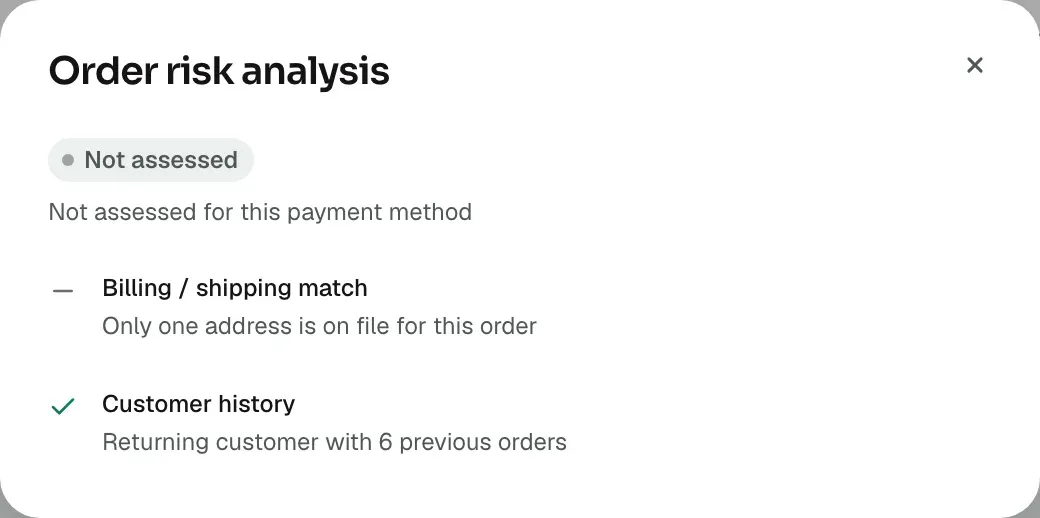
The signals
- Payment risk: the rating from the card processor's own fraud checks, with its score. Low is a pass, medium is a warning and high is a fail. A short message from the processor may follow, explaining the rating.
- CVV verification: whether the three-digit code on the back of the card matched. CVV did not match the card is a strong sign that the buyer did not have the card in hand.
- Address verification (AVS): whether the street and postcode the customer typed match the card's billing address at their bank. A partial match, such as Postal code matches; street not verified, is a warning rather than a fail.
- 3D Secure: whether the customer passed their bank's extra check at checkout. A pass counts in your favour if the payment is ever disputed. 3D Secure was attempted but not completed is a warning, and 3D Secure authentication failed is a fail. A card that does not support it shows a dash.
- Billing / shipping match: whether the billing and shipping addresses are the same street, postcode, town and country. Different addresses are a warning, not a fail. Plenty of honest orders are gifts.
- Customer history: whether this customer has ordered from your store before. First order from this customer is a warning. A guest checkout always counts as a first order. A returning customer shows how many earlier orders they have placed.
Note: Not every check runs on every payment. A wallet payment such as Apple Pay may not include the address check, and some banks do not verify addresses at all. A dash means no result, not a fail.
How the rating is worked out
The card processor rates each card payment as normal, elevated or highest risk. Orbit shows these as low, medium and high. Failed checks then push the rating up:
- One failed CVV, address or 3D Secure check turns low into medium.
- Two failed checks turn low into high.
- One failed check turns medium into high.
- The two order signals, address match and customer history, never change the rating. They are there for you to weigh up.
If the processor gave a score but no rating, Orbit uses the score instead: 75 and above is high, 40 to 74 is medium, and below 40 is low.
Check a medium or high risk order
- Click View details and read every signal. One failed check with everything else passing is a different picture from three warnings together.
- Put the order on hold while you check. Click More actions, then Hold order, and type the reason. A held order cannot be fulfilled by mistake. See Putting an order on hold.
- Contact the customer using the details on the order. A genuine customer can usually confirm the order and the last four digits of their card. You can check those digits on the Transactions page under Payments.
- If you are satisfied, click Release hold and fulfil the order as normal.
- If you are not, click More actions, then Cancel order. Cancelling refunds the customer and releases the stock. See Cancelling an order.
Tip: Write what you found in a note on the order. If the payment is disputed months later, the note and the risk signals are your record that you checked.
Related guides
Was this helpful?
0 people found this helpful