Making your catalogue AI ready
Check the visits AI assistants send your store, work through the readiness checks on your products, and test how your catalogue ranks for a shopper phrase.
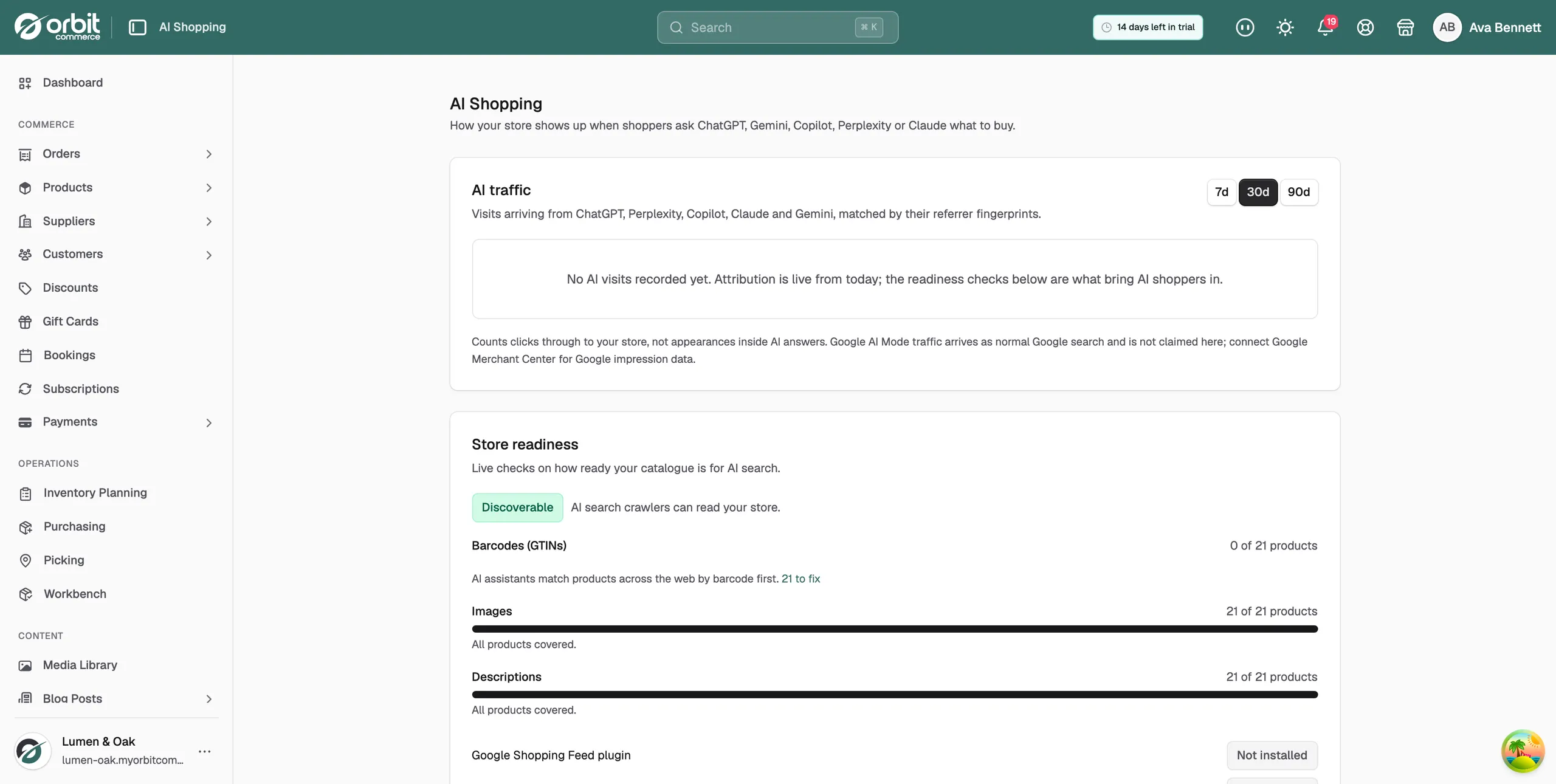
Shoppers now ask ChatGPT, Gemini, Copilot, Perplexity and Claude what to buy. The AI Shopping page shows how your store is doing in that channel. It counts the visits AI assistants send you, and it checks whether your products are ready to be recommended at all. You find it under Insights in your Orbit dashboard.
Considerations
- The readiness checks count your active products only. Drafts and archived products are left out of both the count and the total.
- Nothing on this page is a setting. It reads your catalogue and your traffic and reports what it finds.
- AI traffic is measured from today onwards. Visits from before the page existed are not backfilled.
Check your AI traffic
- From your Orbit dashboard, under Insights, go to AI Shopping.
- Look at the AI traffic panel at the top. It counts visits from ChatGPT, Perplexity, Copilot, Claude and Gemini, matched by their referrer fingerprints.
- Click 7d, 30d or 90d to change how far back you look. It opens on 30 days.
Once you have visits, the panel breaks them down by assistant, with visits, orders and revenue for each, and lists the products AI shoppers viewed most.
Note: This counts clicks through to your store, not how often an assistant mentioned you. Google AI Mode traffic arrives as normal Google search and is not counted here. Connect Google Merchant Center for Google impression data.
Work through Store readiness
Store readiness is a set of live checks on your catalogue. Work down it in order. Each check matters less than the one above it.
- Check the badge at the top of the card. Discoverable means AI search crawlers can read your store. If your custom robots rules block a crawler, you get a warning here instead, and nothing below it counts until you fix it.
- Read the three product checks. Each one shows how many products pass, for example 3 of 7 products, with a progress bar.
- Click the to fix link on a check to open your product list and start working through it.
- Come back and refresh the page. A check that passes on every product reads All products covered.
The three checks are:
- Barcodes (GTINs): AI assistants match products across the web by barcode first. This is the check with the most to gain.
- Images: products need at least one image to show in visual results.
- Descriptions: clear descriptions are what AI answers quote and summarise.
Under the checks sit two feed plugins, each marked Installed or Not installed: the Google Shopping Feed plugin and the Microsoft Feed plugin.
Note: Installed means the plugin is on your store. It does not mean your feed has reached a merchant centre. Connect the feed as well.
See where shoppers find you
Where shoppers find you lists the five assistants, each with what it already does with your store and what is left for you to do.
- ChatGPT: reads your product pages and structured data today.
- Google Gemini and AI Mode: crawls your store today. Click Set up Google Shopping Feed to install the plugin, then connect your feed to Google Merchant Center for full shopping results.
- Microsoft Copilot: Bing crawls your store today, which powers organic Copilot answers. Click Set up Microsoft Feed, then add your feed in Microsoft Merchant Center.
- Perplexity: crawls your product pages and cites stores in its answers.
- Claude: reads your product pages and structured data when shoppers ask for recommendations.
Each card also carries a note on what is not open yet. Merchant programmes for ChatGPT and Perplexity are US only for now, and Anthropic has no merchant programme yet. Crawl based discovery works either way.
Test a shopper phrase
- Scroll to Test a shopper phrase.
- Type a phrase a shopper might ask, for example ergonomic mesh office chair.
- Click Test. Your matching products appear in rank order.
If nothing ranks, add those words to the most relevant product names or descriptions and test again.
Tip: This searches your own catalogue, not a live AI assistant. It shows you the same signals an assistant reads from your product data.
Follow a setup guide
- Scroll to Setup guides at the bottom of the page.
- Click the guide you want, for example Connect Google Merchant Center. It opens and the others close.
- Work through the numbered steps. Some guides end with a link that opens the merchant centre in a new tab.
Related guides
Was this helpful?
0 people found this helpful