Creating and managing API keys
Create an API key for one of your own systems, choose the scopes it gets, save the key the one time Orbit shows it, and revoke or replace it later.
An API key lets one of your own systems, such as an ERP or a warehouse system, read and change your store's data through the Orbit API. You create keys under Settings, then API keys. Each key gets only the access you grant it. This guide is for the person who runs the store. The developer who builds the connection should also read the Store API keys guide on the developer portal.
Considerations
- You need the Update store settings permission. Store Owners have it. Without it the API keys card does not appear under Settings. See Setting what a team member can do.
- A store can hold at most 10 active keys. A key that has expired still counts until you revoke it.
- Orbit shows a key once, when you create it. If a key is lost, revoke it and create a new one.
- A key can never change your billing, store settings, pages, themes or domains.
- Creating and revoking a key is recorded in the Activity log.
Open the API keys page
- From your Orbit dashboard, go to Settings.
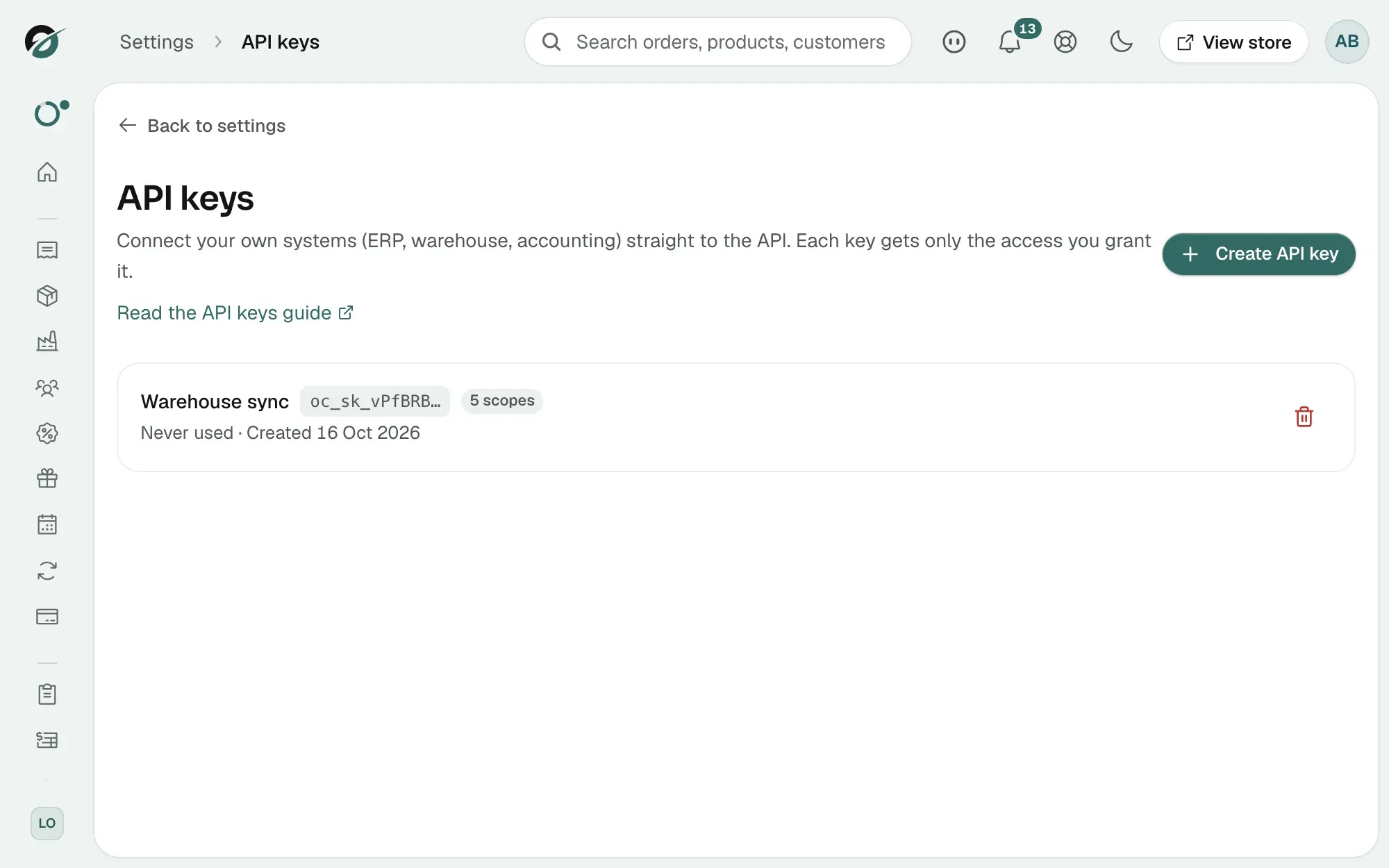
- Under Team & access, click API keys. On a new store the page reads No API keys yet.
Each key is one row showing its name, the first characters of the key such as oc_sk_Ab12…, how many scopes it holds, Last used or Never used, Created, and Expires if you set a date.
Create an API key
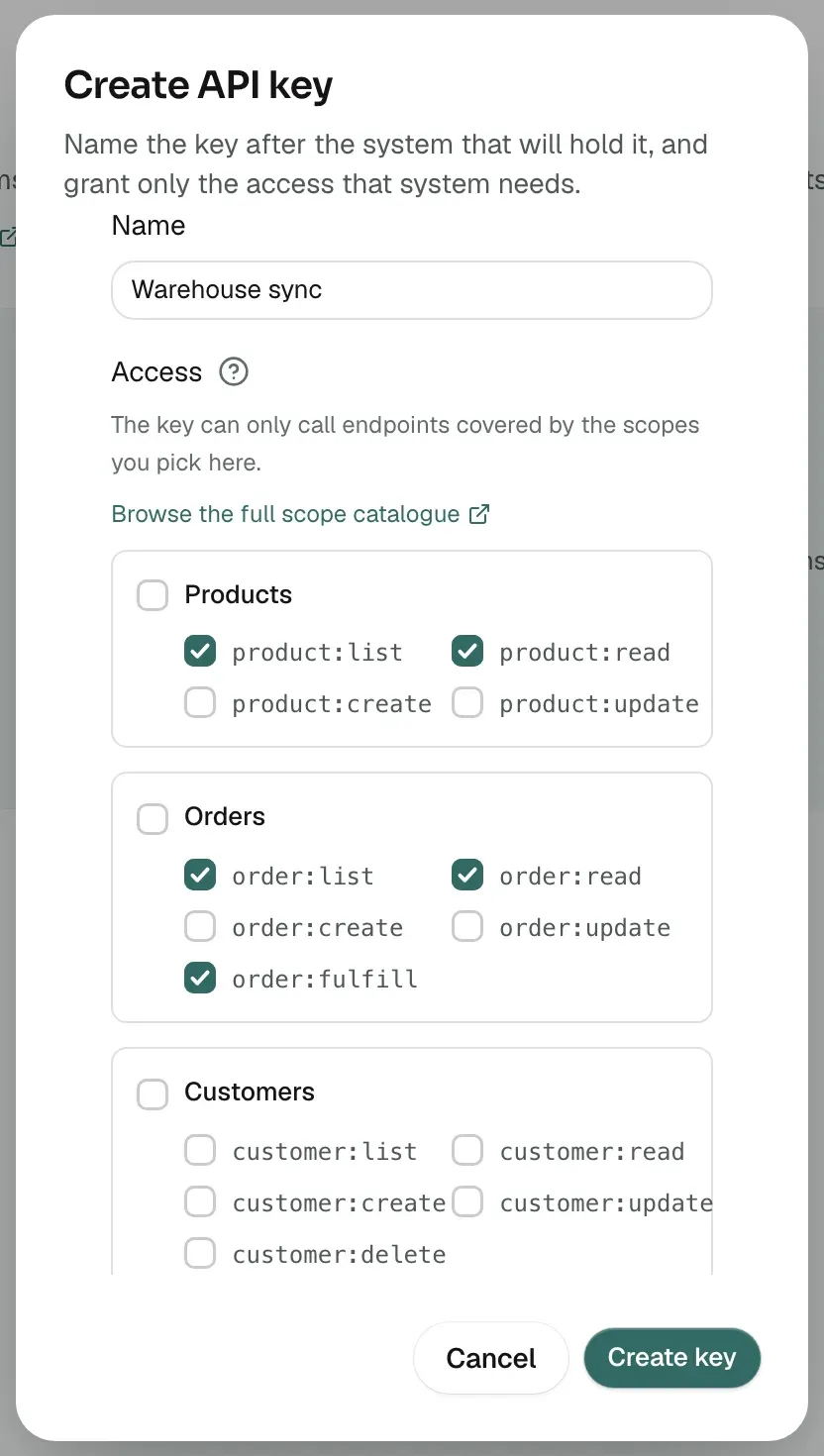
- On the API keys page, click Create API key.
- In Name, type the name of the software that will hold the key, such as Warehouse sync. Make one key per system.
- Under Access, tick the scopes that software needs. Tick a group's name for the whole group, or single scopes inside it.
- Under Expiry (optional), pick a date if the key should stop working on its own. It stops at the end of that day. Leave it empty for a key that stays valid until you revoke it.
- Click Create key. The Copy your API key now dialog opens.
If the store already has 10 keys, the message A store may hold at most 10 active API keys. Revoke one first. appears.
Choose scopes
A scope is one permission on one area. Scopes ending in list or read let software see records. The others let it change them. Give each key only what its software needs. A reporting tool needs read scopes only.
- Products: list, read, create and update products.
- Orders: list, read, create, update and fulfil orders.
- Customers: list, read, create, update and delete customers.
- Companies (B2B): list, read, create, update and delete B2B companies.
- Taxonomies: list and read taxonomies.
- Carts: read and adjust carts.
- Tracking scripts: see the note below.
- Webhooks: list, read, create and delete webhooks. A key with these scopes can add webhooks through the API, for events its other scopes cover. See Setting up webhooks.
The full list is in the scope catalogue on the developer portal.
Note: Leave Tracking scripts unticked. Orbit refuses a key that includes those scopes, and an error message appears instead of a key.
Save the key and hand it over
The Copy your API key now dialog is the only time Orbit shows the key.
- Click the copy icon next to the key. Paste it into your password manager, or straight into the software that will use it. Do not send it by email or chat.
- Under Try your first call, Orbit builds a command that uses the new key. Click its copy icon and give the command to your developer. Running it proves the key works.
- Click I have saved the key. The key is gone from the screen. Its row shows Never used.
Your developer needs the key, the scopes you ticked, and the two links in the dialog: Full API reference and Read the API keys guide. For the basics of calling the API, see Getting started with the Orbit API.
Check that a key is in use
After the first call, the row changes from Never used to Last used. Orbit updates it at most once a minute. A key that still reads Never used after go-live has not been set up on the other end. A key last used months ago may belong to software you no longer run. Revoke it.
Revoke a key
- On the API keys page, click the bin icon (Revoke) at the right of the key's row.
- The Revoke API key? dialog says the key will stop working immediately. Click Revoke.
- The message API key revoked appears and the key leaves the list. Anything still using it loses access on its next request.
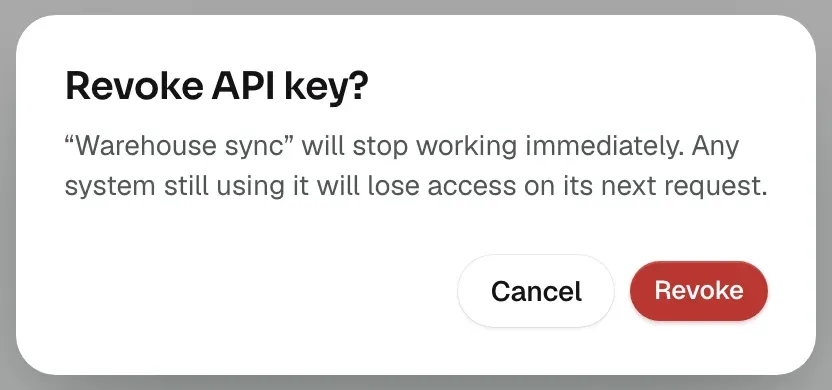
Revoking cannot be undone. Any webhooks that the key added through the API are removed with it.
Replace a key without downtime
There is no renew button. To replace a key before it expires:
- Create a new key with the same scopes.
- Put the new key into the software and check that its row shows Last used.
- Revoke the old key.
Related guides
Was this helpful?
0 people found this helpful