Setting a custom type
Give a product your own internal grouping with the Custom Type field, and see when to use a category or the taxonomy instead.
2 min read3viewsUpdated 14 September 2026Orbit Commerce
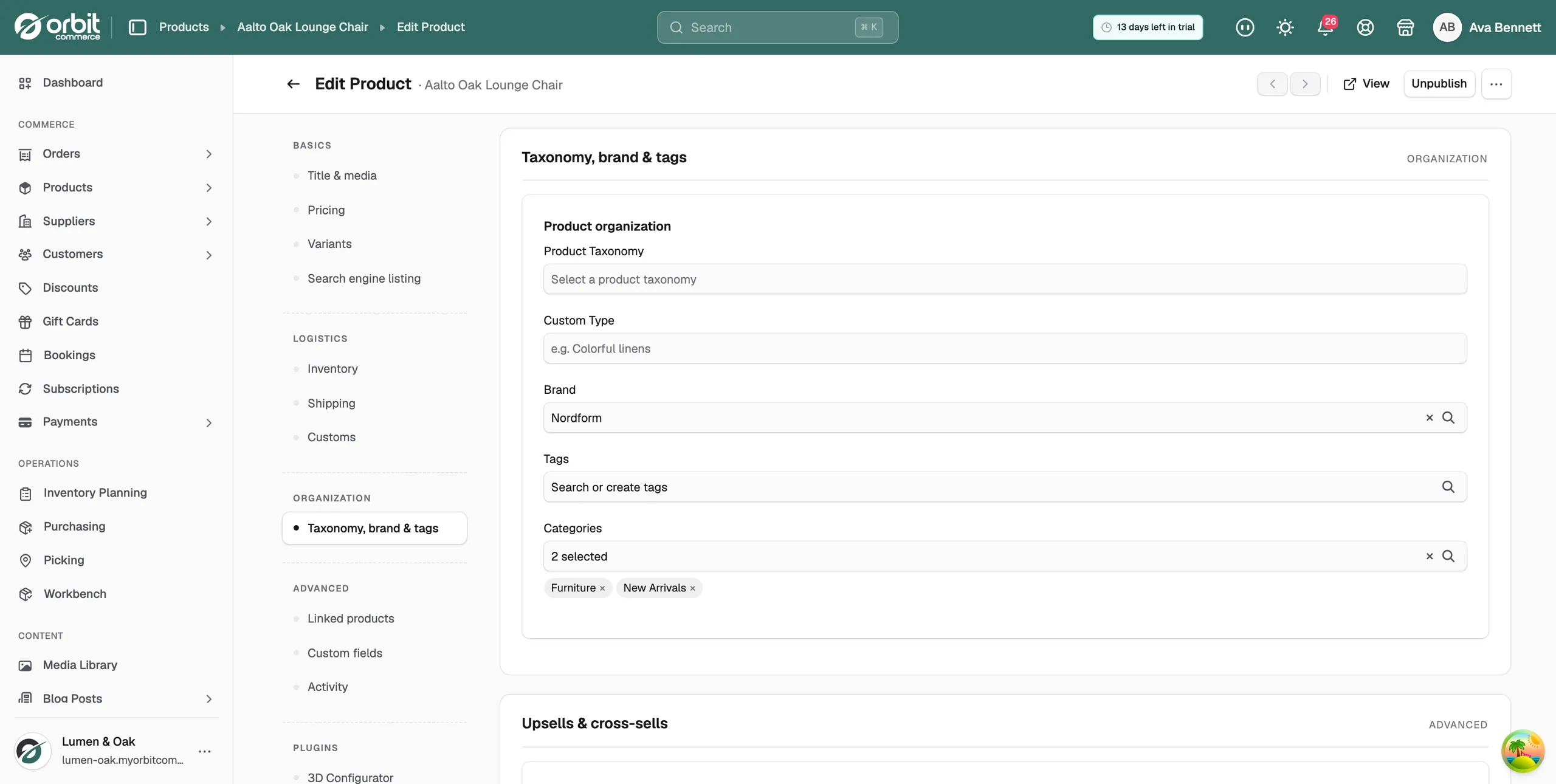
A custom type is a label you write yourself to group products for your own use, such as Q4 samples or Consignment. You set it in the product editor, under Taxonomy, brand & tags. Customers do not see it.
Considerations
- Custom Type is a free-text field. There is no list to pick from, so you can type anything.
- Type the value the same way every time. Winter 2026 and winter-2026 count as two different types in a report.
- Custom Type is not the product type you choose when you create a product (physical, digital and so on). See Choosing a product type.
Set a custom type
- From your Orbit dashboard, go to Products.
- Open the product you want to edit.
- In the menu on the left, click Taxonomy, brand & tags.
- Under Custom Type, type your label, for example Steel Storage.
- Click Save at the bottom right. The message Product updated appears.
Change or clear a custom type
- Open the product and click Taxonomy, brand & tags.
- Under Custom Type, change the text, or delete it to clear the type.
- Click Save.
Custom type, category or taxonomy
The same card holds three ways to sort a product. Pick the one that matches the job.
- Custom Type: a label for your own reports and rules. Not shown on the storefront.
- Categories: groups that customers can shop on your storefront.
- Product Taxonomy: a standard tree that classifies the product for sales channels. A product holds one taxonomy entry.
If customers should be able to browse the group, use a category. If the group is only for you, use a custom type.
What you can use a custom type for
- Reporting: compare how Vintage sells against New without adding public categories.
- Pricing rules: B2B catalogue pricing rules can target a custom type, so a whole group gets agreed pricing at once.
- Warehouse notes: mark products that need special handling, such as bulky, two-person lift.
Related guides
Was this helpful?
0 people found this helpful