Moving a design between stores
Export a page, header or footer as a file from the page builder and import it into another store, and move your global styles the same way.
You can copy a page design from one store into another. Export the page as a file from the page builder, then import that file into a page in your other store. Your global styles, such as colours and fonts, move the same way from the Settings tab.
Considerations
- Import and export are only in Pro mode. When the editor is set to Basic, the two menu items are hidden.
- You can export a page, a header or a footer. Each one exports on its own.
- Importing a page file adds the imported sections under what is already on the page. It does not replace your current design, so delete the sections you do not want after the import.
- Exports are .json files made by the Orbit page builder. Files from anywhere else will not import.
- Nothing changes on your live shop until you save the page and publish it.
Export a page as a file
- From your Orbit dashboard, go to Storefront, then Pages.
- Hover over the page's row and click Edit design. The page builder opens.
- Check that the mode switch at the top of the editor is set to Pro.
- Click the three dots at the top right of the editor. The tooltip reads More actions.
- Click Export as File.
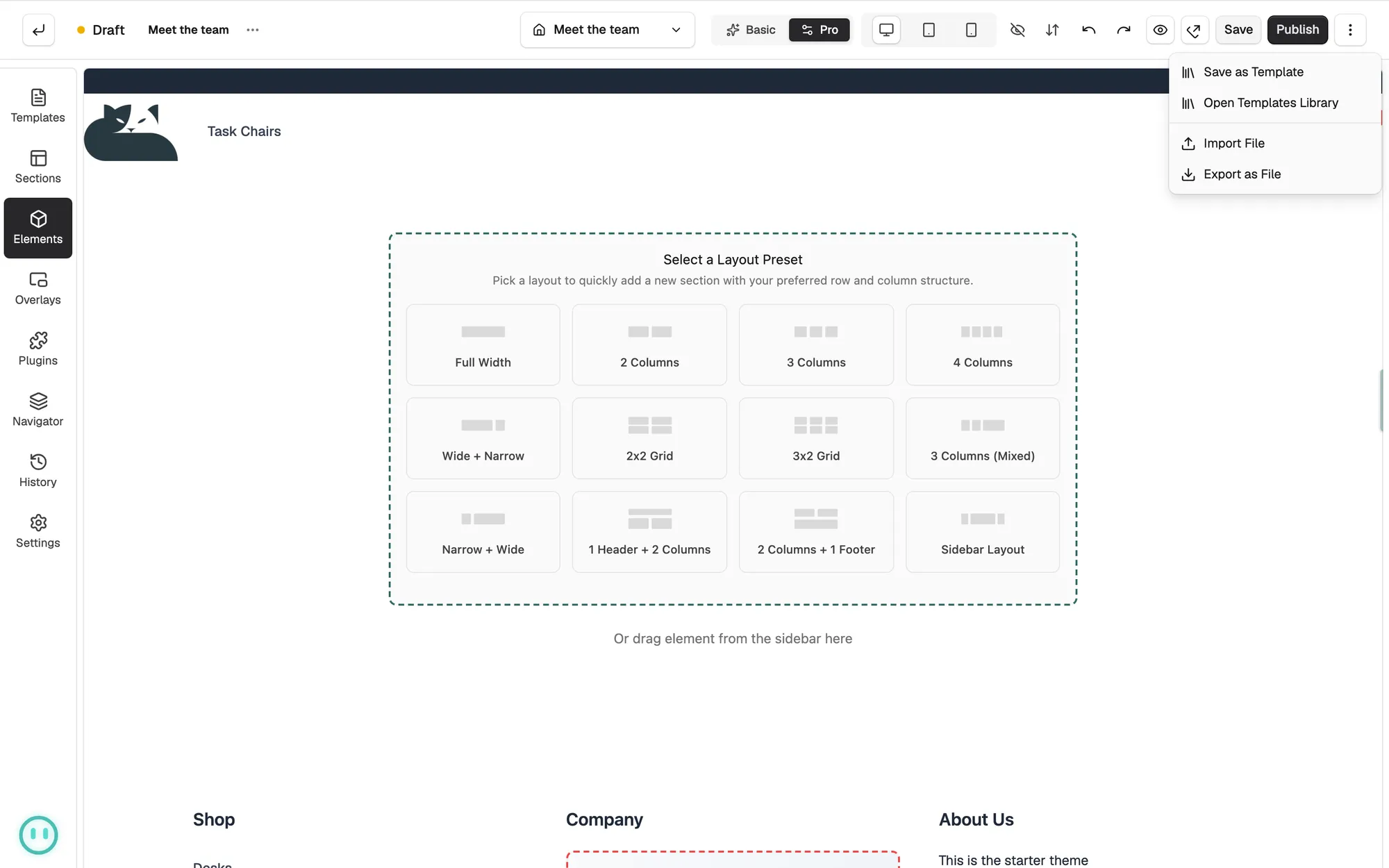
Your browser downloads a .json file. The name starts with page, then the page title, then a number, so every export gets its own name. Headers and footers work the same way, and their file names start with header or footer.
Import a page file into another store
- Switch to the store you want to copy the design into.
- Go to Storefront, then Pages, and click Edit design on the page you want to build.
- Click the three dots at the top right, then click Import File.
- Pick the .json file you exported.
- Orbit copies the pictures and videos in the file into this store's media library first. A message shows how far it has got, such as Copying media to your store... 3 of 8.
- The sections are added under your existing content, and a message reads Added "your-file.json" to this page. Don't forget to save.
- Click Save, then click Publish to put the design live.
Note: If the file is not a page builder export, the import stops and you see Import failed. Make sure the file is a valid page builder export. If some pictures could not be copied, Orbit tells you that they still link to the original files. Swap those ones for pictures from your own library.
Export your global settings
Global settings hold the styles that every page in the store uses. You can save them as a file and load them into another store.
- In the page builder, open the Settings tab in the toolbox.
- At the top of the tab, click Export.
- Your browser downloads a .json file named after your store, ending in page-builder-settings.json. A message reads Settings exported.
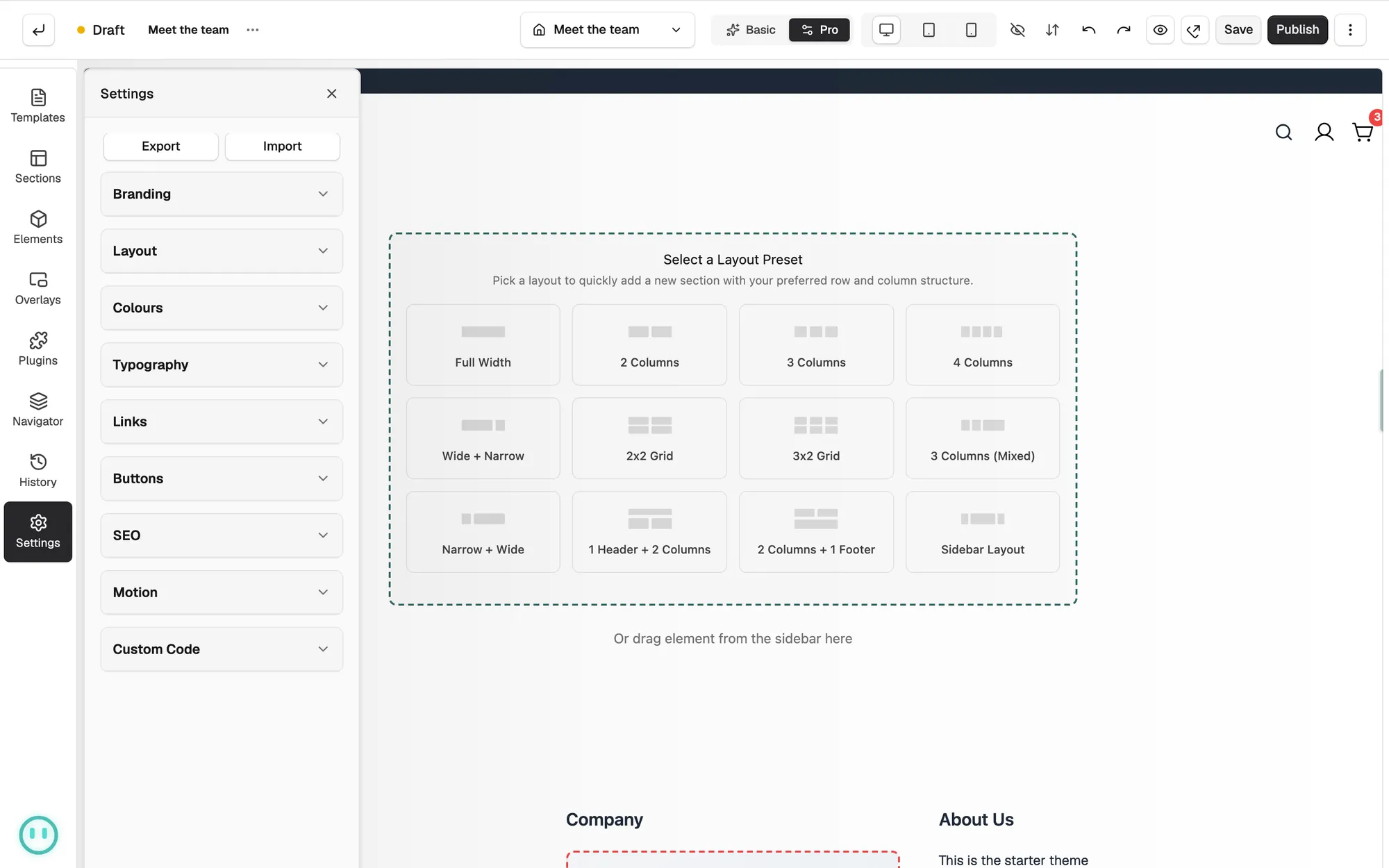
The file carries these groups from the Settings tab:
- Colours
- Typography
- Layout
- Links
- Buttons
- Motion
- Custom Code
Branding and SEO are left out. Those stay with the store they belong to.
Import global settings into another store
- Switch to the other store and open any page in the page builder.
- Open the Settings tab and click Import.
- Pick the settings file you exported. Orbit takes .json files only.
- A message reads Settings imported, with Review the changes, then Save to apply them.
- Look through the groups in the Settings tab, then click Save.
If the file is the wrong sort, you see Import failed with the reason, such as This isn't a valid Orbit settings file. Nothing changes when that happens.
Warning: Imported settings change the colours, fonts and other styles for the whole store, not one page. Check a few pages before you publish them.
What moves and what does not
- Sections, elements, text and layout move with the page file.
- Pictures and videos are copied into the new store's media library as the file imports. If a copy fails, that item still links to the file on the old store.
- Global settings are separate. A page file does not carry them, so export and import the settings file as well.
Related guides
Was this helpful?
0 people found this helpful