Fixing CSV import problems
Your product import failed, brought nothing in, or brought in the wrong thing. The causes in order of likelihood, and what to check for each one.
Your import finished with errors, brought nothing in, or brought in the wrong thing. Product imports go wrong for a handful of reasons, and the same few come up again and again. Work this list from the top. The causes are in the order they are most likely.
Tip: Test with ten rows first. A mistake costs you seconds at ten rows and hours at ten thousand.
Start from the sample file
The sample is the exact shape Orbit understands. Using it removes a whole class of wrong-header problems.
- From your Orbit dashboard, go to Products.
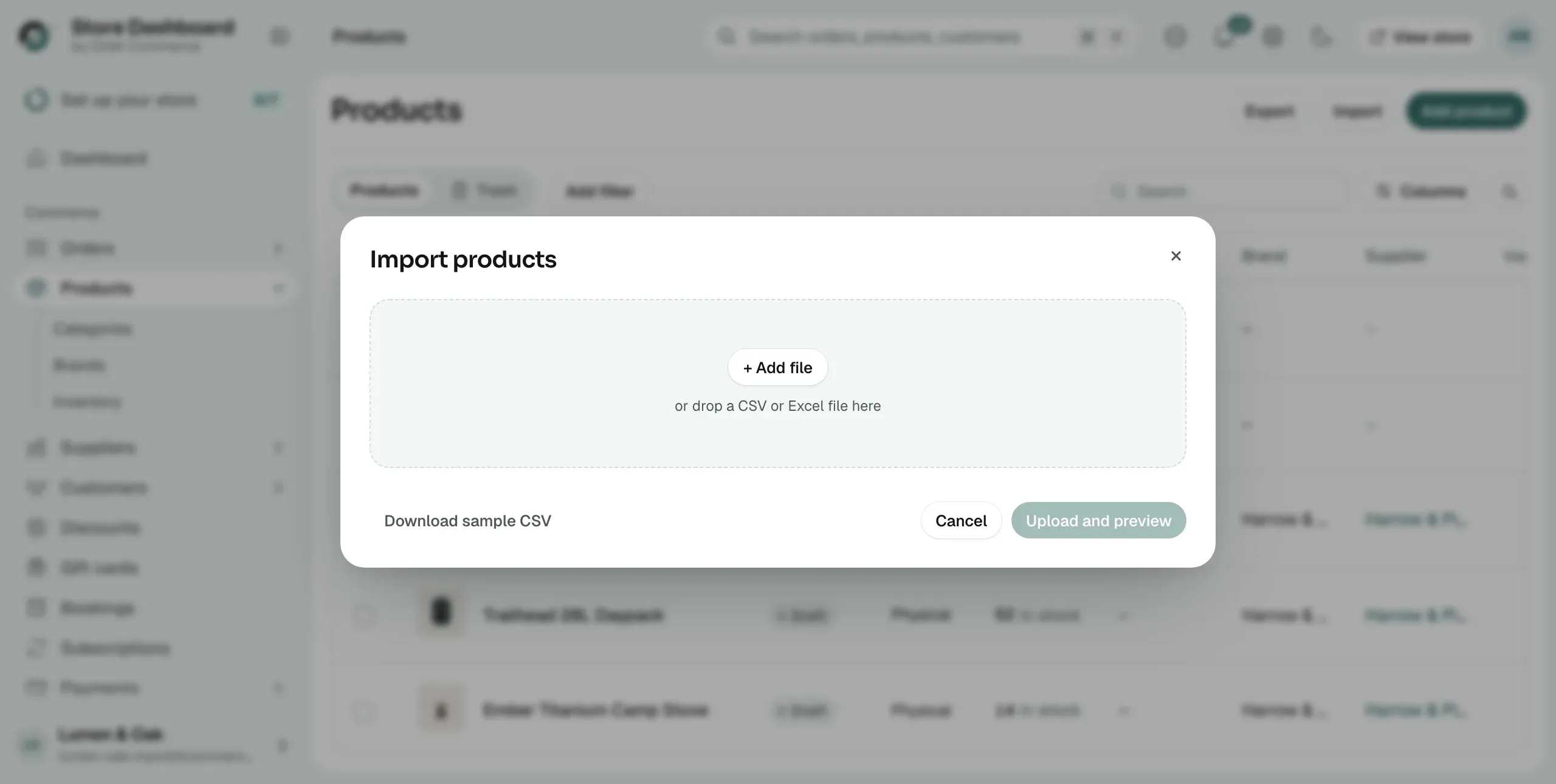
- Click Import. The Import products box opens.
- Click Download sample CSV.
- Paste your data into the sample, then import the sample.
A column is mapped to the wrong field
Orbit guesses your columns and marks each guess with an Auto badge. A guess can be wrong, and a column it could not place is not imported at all.
- On the preview step, look at Column mappings. It reads something like 15 of 16 columns mapped.
- An orange 1 required badge means a required field has no column. Green All required mapped means none is missing.
- Click Column mappings to open the editor.
- Read down the CSV Column and Maps to lists. Check every Auto row.
- Pick the right field for any column that is wrong. A field already claimed by another column shows (mapped) and cannot be picked twice.
- Choose Do not import for columns you do not want, such as an old product URL.
- Click Back to preview and check the First product preview before you import.
Handle, Name and Status are marked with an asterisk in the Maps to list. Those are the required fields.
Note: The orange warning does not stop you. Import products stays clickable with fields unmapped, so read the warning rather than waiting to be blocked.
Rows are missing a handle, or share one
The handle is how Orbit tells one product from another. It is the part of the product's link that identifies it.
- Open your file and check every row has a handle. A row with no handle fails with Handle is required.
- Check that two different products do not share a handle. Rows that share a handle are treated as one product with several variants.
- Variant rows are meant to share their parent's handle. That is how a product gets its sizes or colours.
If you are updating products rather than creating them, you can match on something else. Tick Update existing products on the upload step, then set Match existing products by to SKU, Handle or Barcode.
A price cell has a currency symbol in it
Price fields take plain numbers. A pound sign in the cell makes the row fail.
- Strip currency symbols from Price, Compare At Price and Cost Price. Enter 34.99, not £34.99.
- Use a full stop as the decimal point.
- Avoid thousands separators. If no other number in the file shows which decimal mark it uses, 1,000 could be 1000 or 1, so Orbit does not guess and the row fails.
- A bad price shows in the error list with the cell Orbit could not read, such as Price "£34.99" is not a number.
Everything went live, or came in as a draft
The Status column decides this, and it is strict about what it accepts.
- Status must read active, draft or archived. Anything else fails the row with Status must be one of: active, draft, archived.
- No Status column at all means every product comes in as Active, which is live on your store.
- A row with no price is brought in as a Draft whatever its Status says. An unpriced product cannot be sold, so Orbit will not publish it.
Most shop exports have no status column. Add one before you import if you do not want your whole catalogue to go live at once.
Pound signs and accents came out as nonsense
This is your spreadsheet, not your file's contents. Excel's plain CSV option mangles the pound sign and accented letters.
- In Excel, choose Save As.
- Pick CSV UTF-8 as the format.
- Import the new file.
Images have not appeared
Orbit fetches images from the web addresses in your file, and it does that after the import finishes.
- Wait a few minutes. The products list shows Product data processing in background while the images come in.
- Paste one image address into a browser. If it does not load for you, it will not load for Orbit.
- Check the addresses are full web addresses, not paths from your old site.
- If your old shop is switched off, its images have gone with it. Upload them instead.
The file will not open at all
- Could not read that file. Supported formats: CSV, XLSX, XLS. means the format is wrong. Save it again as one of those three.
- File size exceeds maximum limit (100MB) means the file is too big. Split it into smaller files.
- That file has no readable data rows. means the sheet is empty, or the headers are not on the first row.
- If your workbook has more than one sheet, pick the right one under Sheet to import.
Only some rows came in
The result screen tells you what happened to every row.
- Read the heading. Import completed with some errors and Import failed both give you a list.
- Click Show error details. Each line names the row number and what went wrong.
- Click Download CSV to save the whole error list and open it in a spreadsheet.
- Click Show warnings for rows that came in with something odd, such as a quantity Orbit could not read.
- Fix only the failed rows, then import that small file on its own.
Do not re-run the whole file and hope. Re-running repeats the work and can create duplicates.
If it still does not work
Cut your file down to the one row that will not import, and import that. A single-row file makes the cause obvious in seconds.
If it still fails, contact support at support@orbitcommerce.net. Send the row, the error text you saw and the time you ran the import.
Related guides
Was this helpful?
0 people found this helpful