Getting help from Orbit
Chat, email and guides on the contact page, the Support menu in your dashboard header, the bug report form, and what to put in a message.
Orbit support is one click from your dashboard. You can chat with the team, send an email, file a bug report or read a guide. This page covers each route, and what to put in a message so your problem is sorted on the first reply.
Considerations
- Live chat is answered during working hours. Email is answered within 24 hours on weekdays.
- The bug report form takes text only. If you need to send a screenshot or an invoice, email the team instead.
- A bug report opens a support ticket for the team. You get a confirmation with its reference and ticket number. The team replies on that ticket: click Support in the header, then My support tickets, to read it. Use chat or email as well if you need an answer back quickly.
Three ways to contact the team
The contact page in the help centre offers three routes. Pick the one that suits the problem.
- Chat with support: real-time help from the team. It usually replies in under two minutes during working hours. Click Start chat.
- Email us: a note to support@orbitcommerce.net. Best for anything that needs screenshots, invoices or longer context. Replies come within 24 hours. Click Open email.
- Browse guides: the help articles, covering setup, storefront, payments and more. Often the quickest route to an answer. Click Browse topics.
Note: Orbit aims to reply to every message within 24 hours on weekdays. Live chat is usually quicker.
Open support from your dashboard
- From your Orbit dashboard, click Support in the header. It is the life ring icon next to the bell.
- Pick the item you need from the menu.
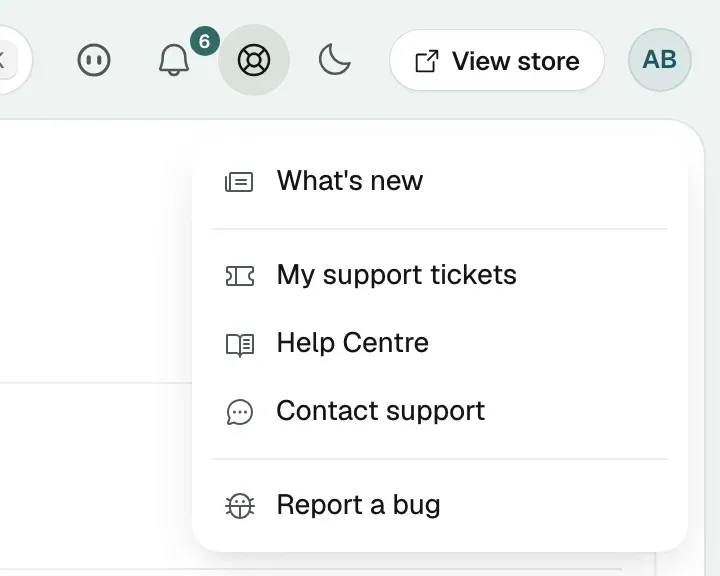
The menu holds:
- What's new: the list of recent changes to Orbit. A dot on the life ring means there is something you have not read.
- My support tickets: your tickets in the help centre.
- Help Centre: the guides.
- Contact support: the contact page, in a new tab.
- Report a bug: the bug report form.
Tip: Open chat with Contact support rather than typing the web address. Opened that way, the chat already knows who you are and which store you run, so you do not have to type your name or email.
Report a bug from your dashboard
Use this when something in the dashboard does not work the way it should. Start it from the page where the problem happened, so the right address is attached.
- From your Orbit dashboard, click Support in the header, then Report a bug.
- In Title, write a short summary of the problem.
- In Description, answer the three questions in the box: what did you do, what did you expect, and what happened instead?
- Check the Attached automatically box. It shows the Page you were on and the Browser you are using, exactly as they will be sent. Open What's included to see the other technical details that go with them.
- Click Submit report. The window reads Thanks, we've got it and shows your reference and ticket number. Click Done to close it.
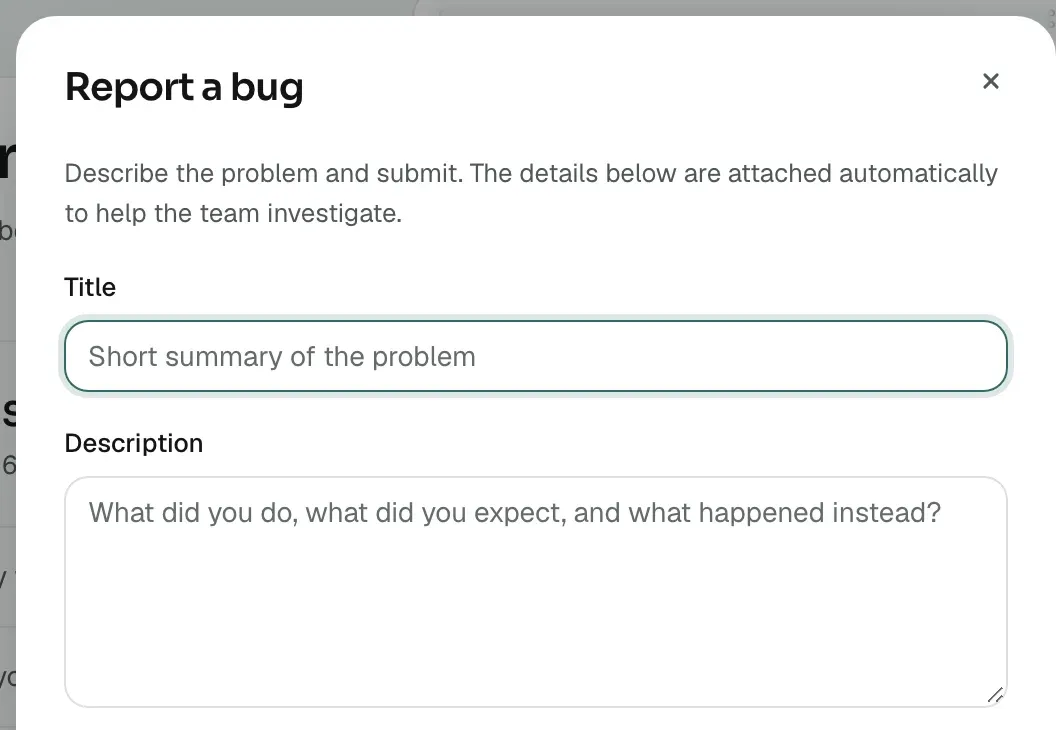
Both fields are required. Click Cancel or press esc to close the form without sending. If sending fails, the form stays open with your text in it so you can try again.
The report is saved against your store, opens a ticket for the Orbit team and is emailed to them. It carries your title and description, your name and email address, your store, the page address without any search terms or filters, your browser, your last few steps in the dashboard, any requests that failed, the last error you saw if there was one, the dashboard version and the time. Your title and description are the only text you type that is sent. It never includes passwords or payment details.
What to include so it gets fixed fast
The team cannot see your screen. The more of this you give, the fewer questions come back.
- The steps: what you clicked, in order, from a page you can name.
- Expected and actual: what you thought would happen, and what happened instead.
- The record: the order number, product name, customer email address or discount code involved.
- The time: the date and time it happened, so the team can find it in the logs.
- How often: every time, or only once.
- Any message: the wording of the error, typed out or copied.
- A screenshot: send this by email, as the bug form does not take files.
Help without leaving the page
Some fields in the dashboard have a small help icon next to the label. Click it for a short explanation of what the field does. Some of these also offer:
- Read more: opens the guide for that field in a new tab.
- Ask Nebula: puts a longer answer straight into the Nebula panel.
You can switch these help tips off under Settings, then My preferences.
Related guides
Was this helpful?
0 people found this helpful