Managing returns
What the Returns page shows: the status tabs, the columns in the list, and every section of a single return.
The Returns page lists every return raised against your orders in one place. Use it to see which returns are waiting on you, what the customer sent back and why, and how much is going back to them. It sits under Orders in the left-hand menu of your Orbit dashboard.
Note: You cannot start a return from this page. A return you raise yourself starts on the order, and a customer can request one from the order in their account. See Creating a return on a customer's behalf and How customers request a return or cancellation.
Open the Returns list
- From your Orbit dashboard, go to Orders.
- Click Returns. The page opens with your returns in a table.
- Click a row to open that return.
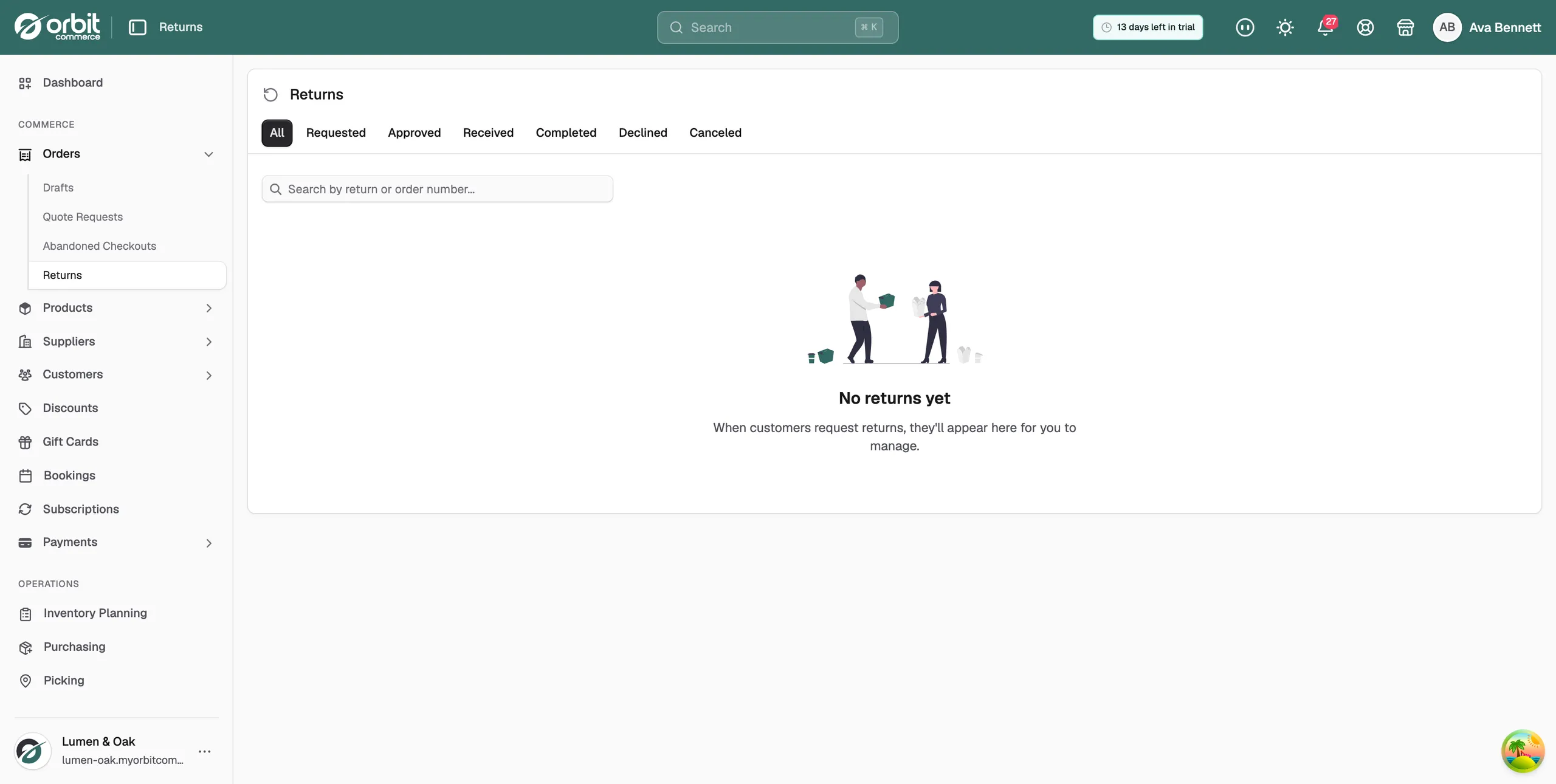
If you have never had a return, the page reads No returns yet instead of a table.
Filter and search returns
The tabs above the table filter by status. Click one to switch the list.
- All, Requested, Approved, Received, Completed, Declined and Canceled.
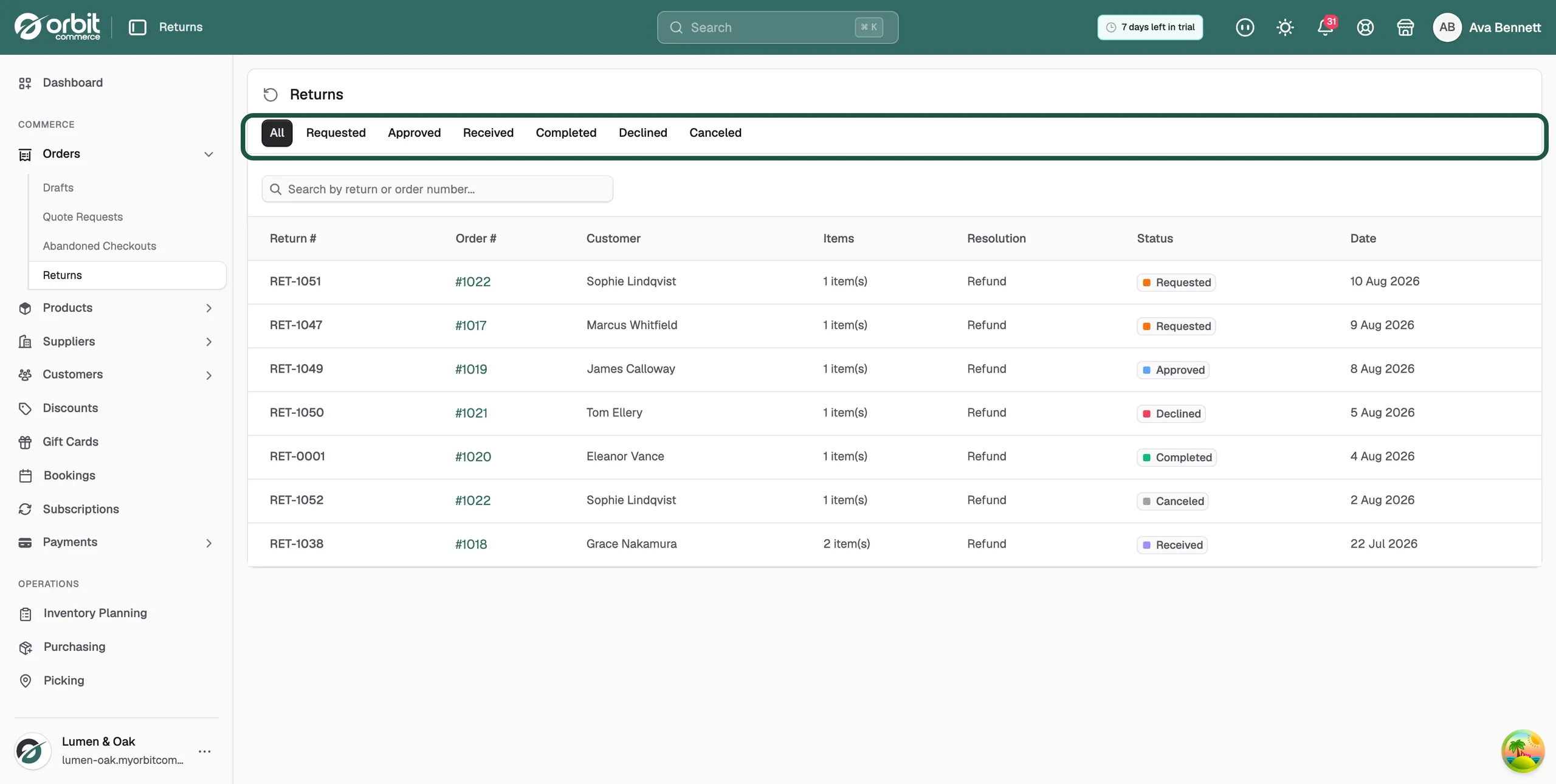
- To find one return, click the search box under the tabs.
- Type a return number or an order number.
- Press Enter. Only matching returns stay on screen.
The list holds 20 returns per page.
What the Returns list shows
Each return is one row, with these columns:
- Return #: the return's own reference, such as RET-0001.
- Order #: the order the return came from. Click it to open the order.
- Customer: who is sending the goods back.
- Items: how many lines are on the return.
- Resolution: what the customer gets, Refund or Exchange.
- Status: where the return has got to.
- Date: when the return was raised.
Return statuses
- Requested: the return is waiting for you to approve or decline it.
- Approved: you have said yes and the goods are on their way back.
- Received: the goods have arrived and you have marked them received.
- Completed: the return is finished and settled.
- Declined: you turned the request down.
- Canceled: the return was stopped after it was raised.
What a return page shows
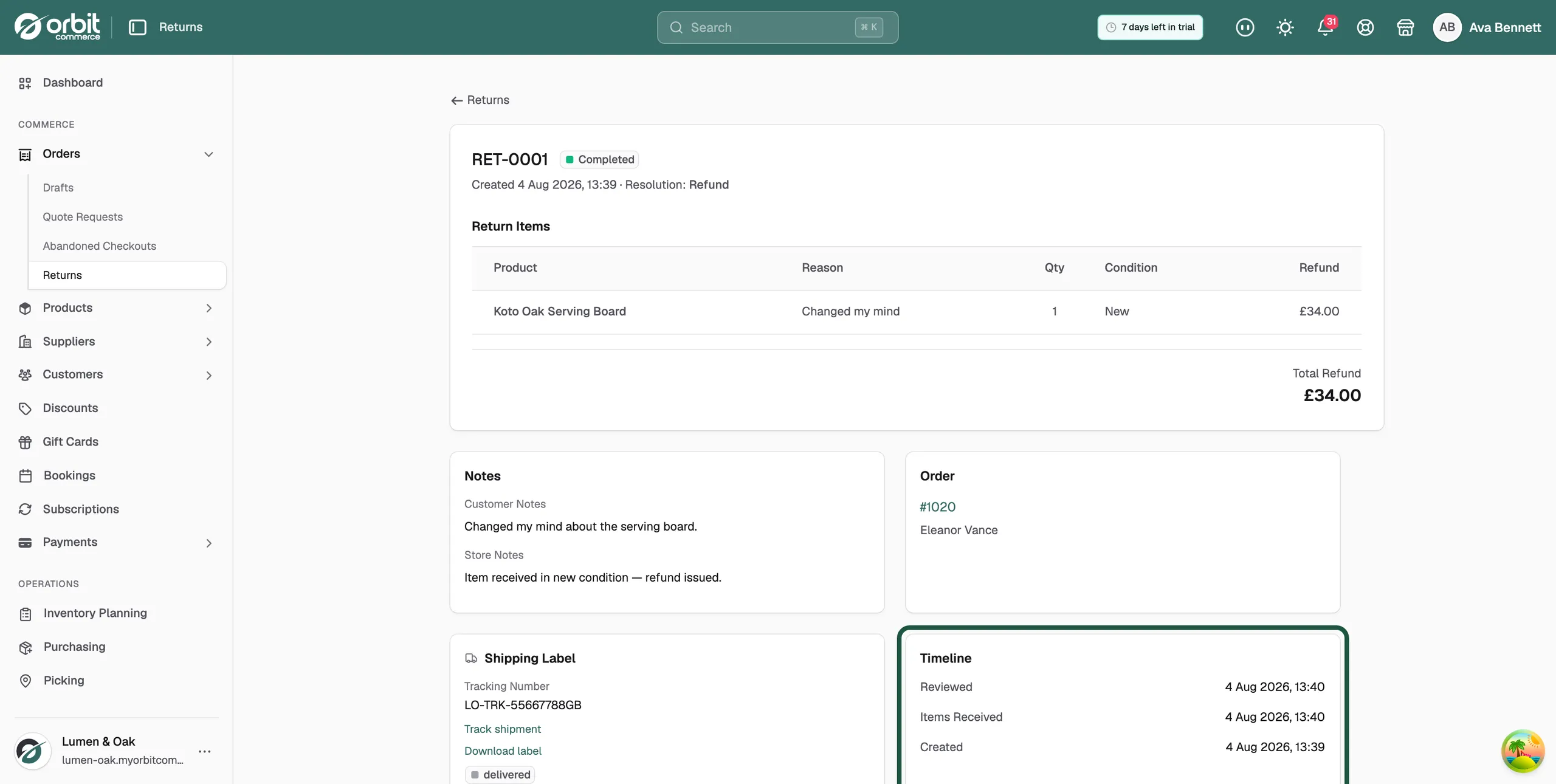
Click a row to open the return. The top of the page carries the return number, the current status, the date it was created and the resolution.
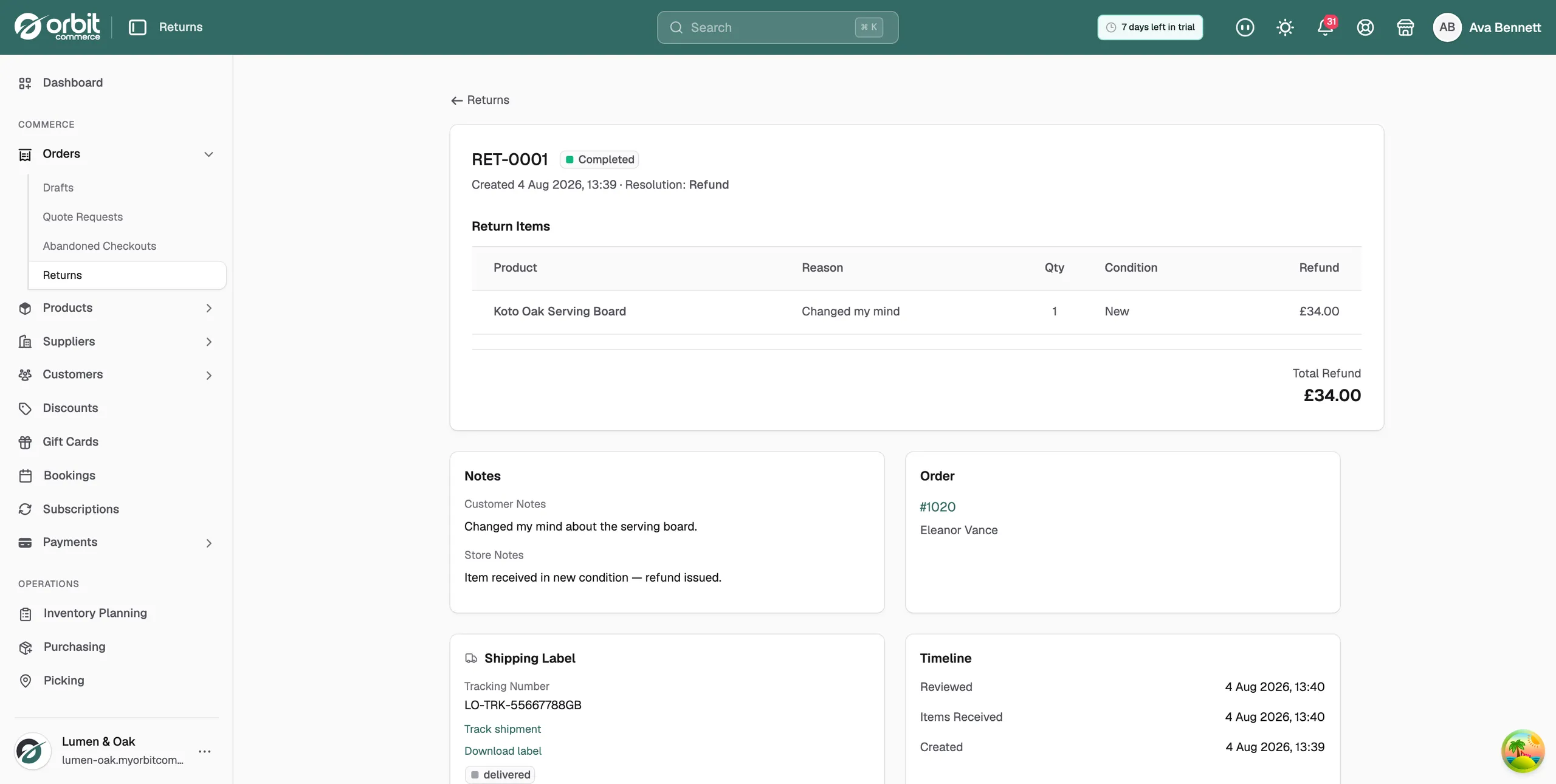
Below that are four sections.
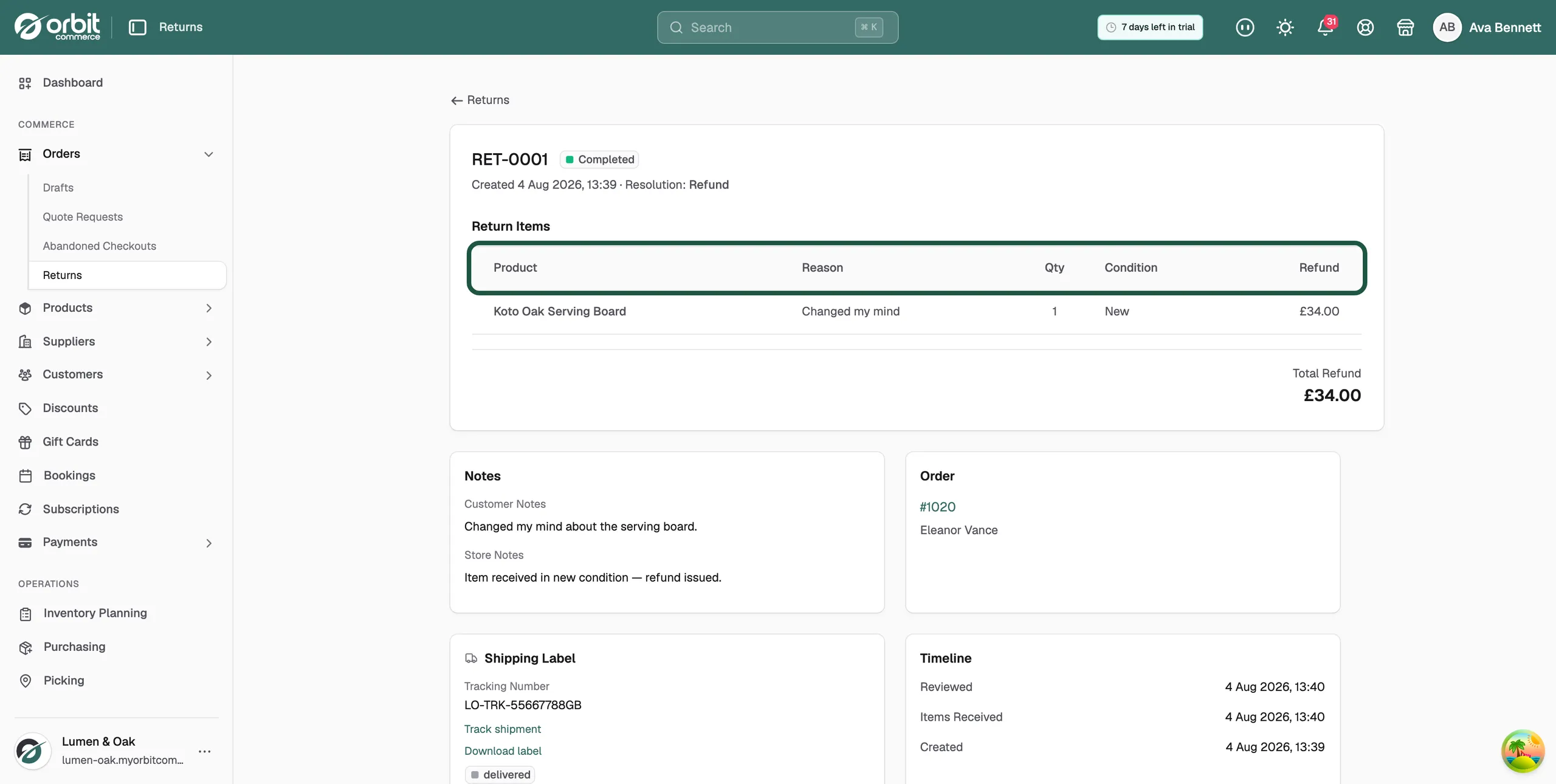
- Return Items: one row per product coming back, with Product and its SKU, Reason, Qty, Condition and Refund. Total Refund sits at the foot of the table.
- Order: the order the return belongs to, and the customer's name.
- Shipping Label: the return label, if there is one. With none it reads No shipping label.
- Timeline: the history of the return, with the date and time of each step. You may see Created, Items Received and Reviewed.
The buttons on a return page change with its status. Approving, receiving and completing a return are covered in Processing a return.
Related guides
Was this helpful?
0 people found this helpful