Ordering stock from a supplier
Raise a purchase order on a supplier's Orders tab, send it, then track it through to fulfilment from the Direct Purchase Orders list.
A purchase order is your request to a supplier for stock. It records what you asked for, what they confirmed, and what they have sent. You raise one on the supplier's own connection page, then track it from Direct Purchase Orders in the menu.
Considerations
- You raise purchase orders on a supplier's Orders tab. There is no create button on the Direct Purchase Orders list.
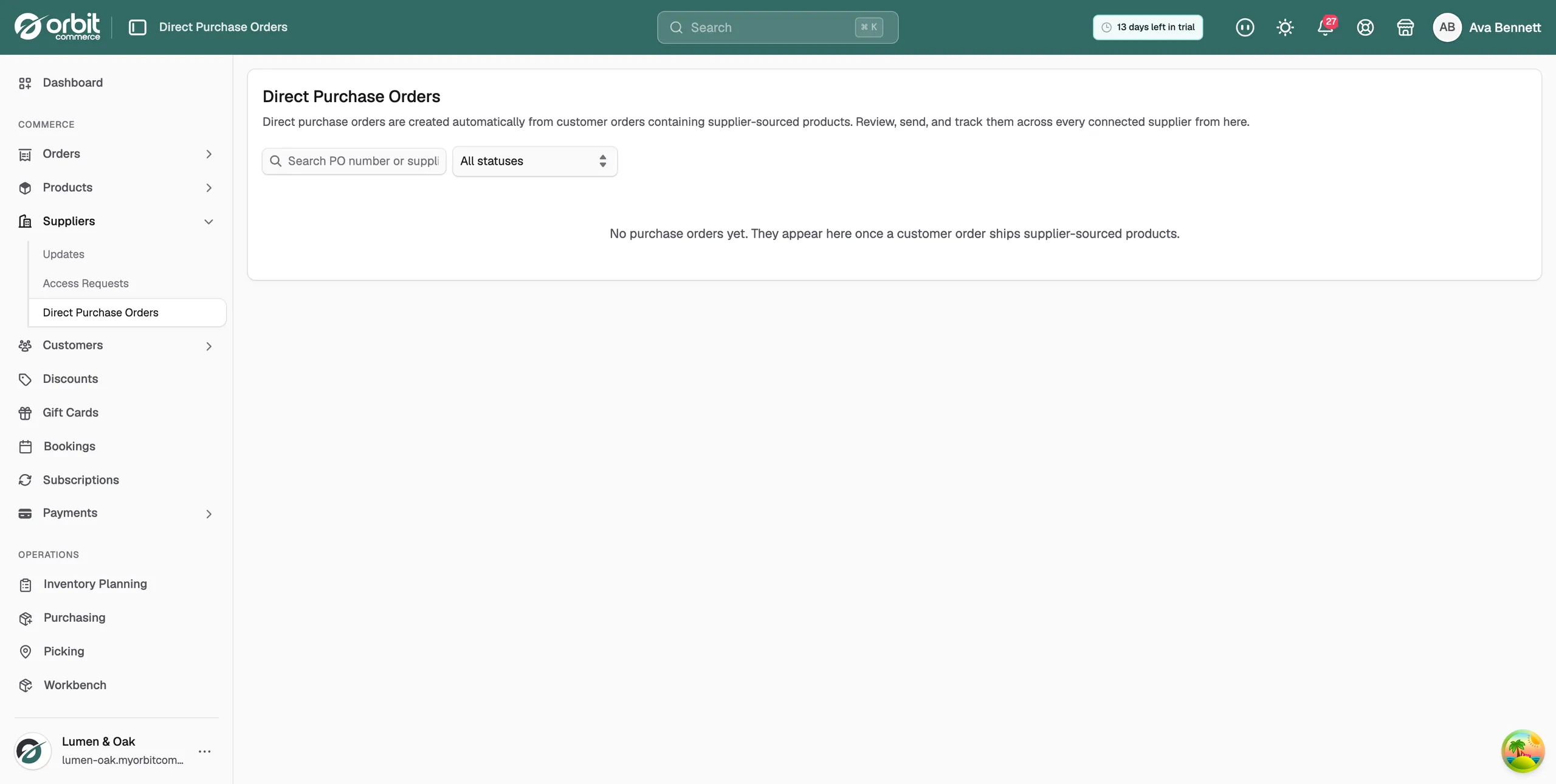
- Some purchase orders are raised for you, from customer orders that contain supplier-sourced products.
- You can only order products you have already imported from that supplier.
- Fulfilled, cancelled and declined orders are final and cannot be changed.
Open the Orders tab for a supplier
- From your Orbit dashboard, go to Suppliers.
- Click Active.
- Find the supplier and click Manage.
- Click Orders, the fourth tab.
The tab shows seven counters (Draft, Sent, Acknowledged, Partial, Fulfilled, Cancelled and Declined) and a table of every order you have raised with that supplier. The columns are Number, Created, Items, Total, Status and Actions.
The line under the heading tells you what happens to new orders. It reads either New POs are saved as drafts for review before sending or New POs are sent automatically on create, depending on the Auto-send purchase orders switch on the Settings tab.
Create a purchase order
- On the supplier's Orders tab, click New purchase order at the top right.
- The order opens with one line on it already, holding the first product you imported from this supplier at a quantity of 1.
- Click the product name to swap it. The list holds the products you have imported from this supplier.
- Type the quantity you want. The line cost and the Subtotal update as you type. A quantity below 1 is set back to 1.
- Click Add line to put another product on the order, then set its quantity. Use the bin icon to take a line off. The bin is greyed out while there is only one line.
- Add anything the supplier needs to know under Notes for supplier (optional), such as a dispatch date or a preferred carrier. Notes are cut off after 500 characters.
- Check the Subtotal, then click Save draft. If the connection sends orders automatically the button reads Create & send instead, and the order goes out as soon as you create it.
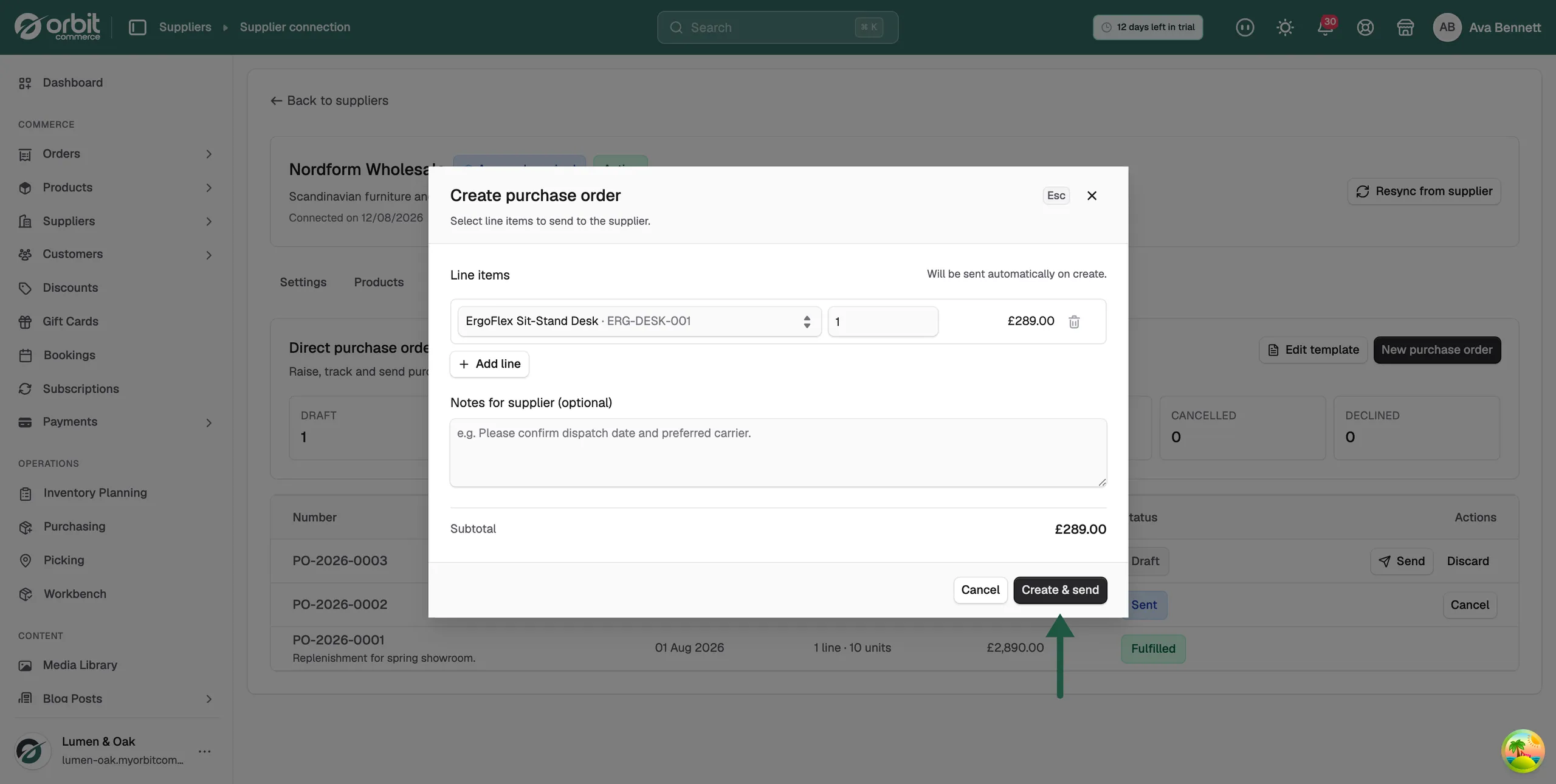
A message confirms the draft was created, the Draft counter goes up by one, and the order appears in the table with Send and Discard beside it.
Send a draft to the supplier
- In the menu, go to Suppliers, then Direct Purchase Orders.
- Find the draft in the list.
- Click Send in the Actions column. The status changes to Sent and Send leaves the row.
You can also send a draft from the supplier's own Orders tab, or from the order's page.
Track a purchase order
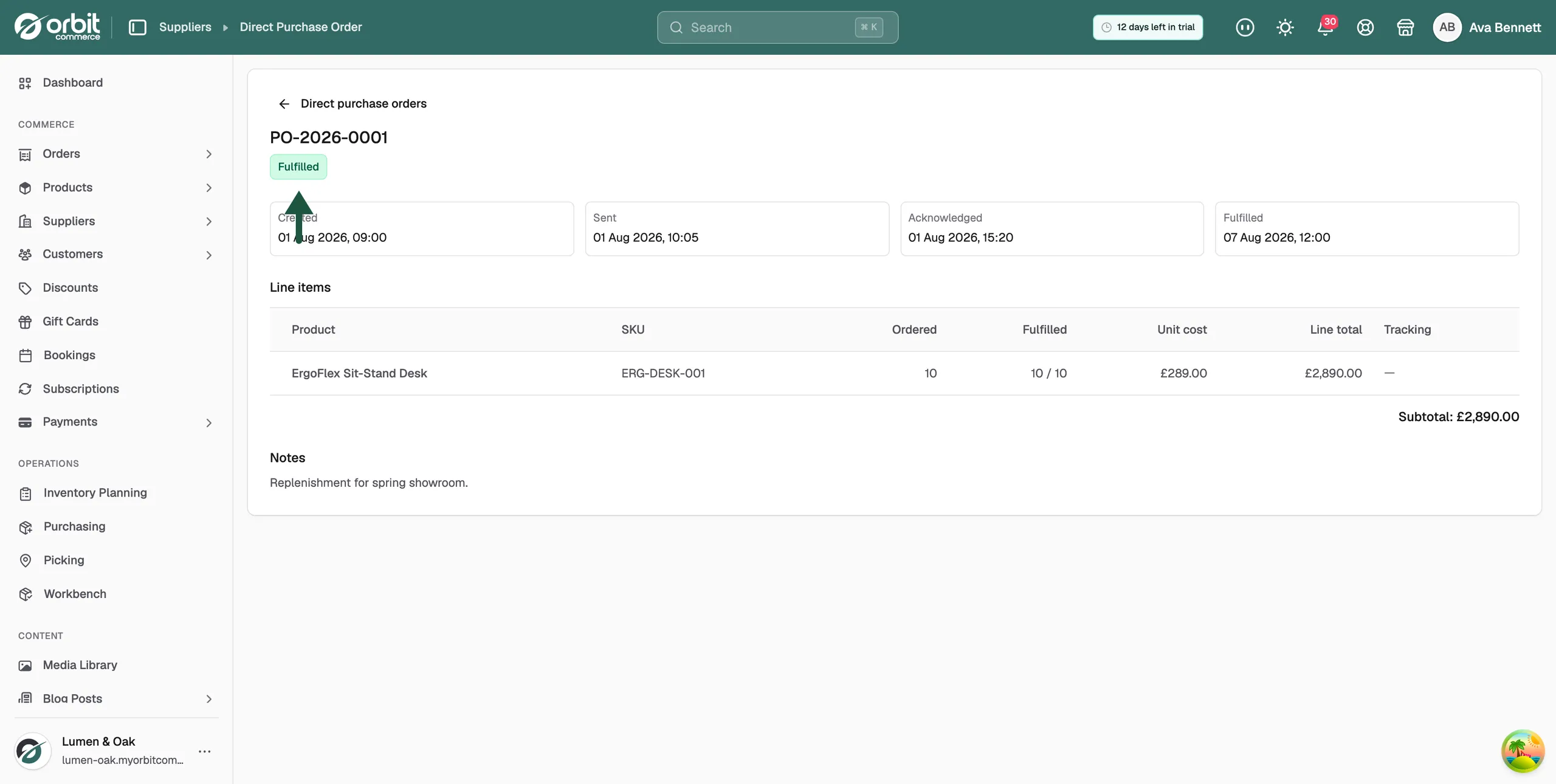
- Click the PO number to open the order.
- Read the header. It shows the order number, the current status and the supplier.
- Follow the timeline below it. It records Created, Sent, Acknowledged and Fulfilled, each with the date and time.
- Check the Line items table. It lists Product, SKU, Ordered, Fulfilled, Unit cost, Line total and Tracking, with the Subtotal beneath and your Notes at the bottom.
What each status means
- Draft: saved but not yet sent.
- Sent: with the supplier, waiting for their response.
- Acknowledged: the supplier has confirmed the order.
- Partially fulfilled: some of the items have been sent.
- Fulfilled: every item has been sent.
- Cancelled: you cancelled the order before it was fulfilled.
- Declined: the supplier could not accept the order.
See every purchase order in one place
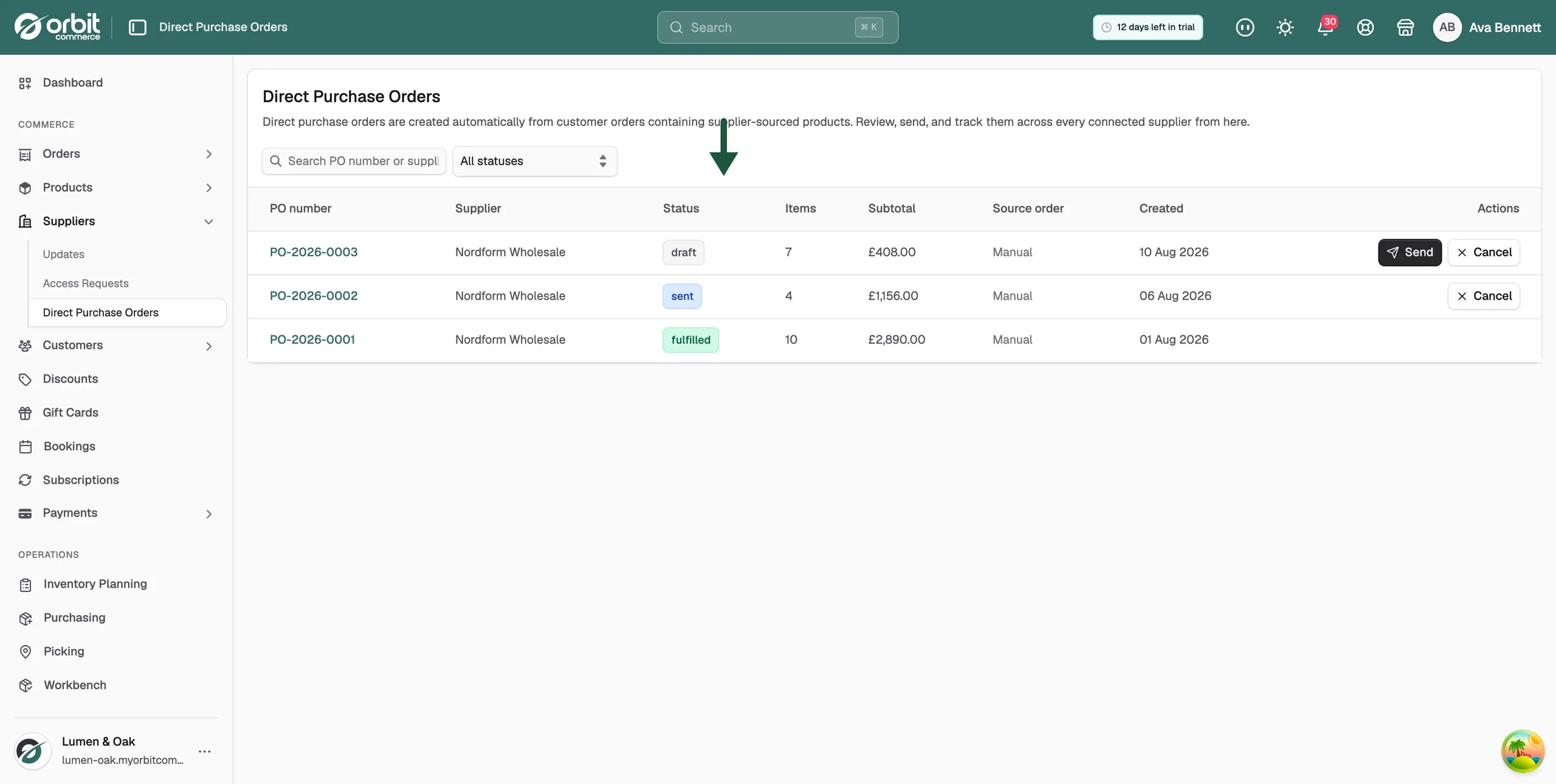
Go to Suppliers, then Direct Purchase Orders. The list covers every connected supplier, with columns for PO number, Supplier, Status, Items, Subtotal, Source order, Created and Actions.
- Search PO number or supplier: find one order by its number or by who it went to.
- All statuses: the dropdown that narrows the list to a single status.
- Source order: the customer order that triggered the purchase order, or Manual if you raised it yourself.
Cancel a purchase order
- Open the Direct Purchase Orders list, the supplier's Orders tab, or the order itself.
- Click Cancel. The status changes to Cancelled.
Warning: A cancelled order cannot be reopened, and an order that has been fulfilled cannot be cancelled at all. The supplier may already be picking the stock, so tell them as well.
Change the purchase order template
Click Edit template on the supplier's Orders tab to change the document they receive. You can include your store logo, and set a Header message, Payment terms, Shipping instructions and a Footer / sign-off. A Preview shows the result. Click Save template when you are done.
Related guides
Was this helpful?
0 people found this helpful