Viewing subscription details
Open one customer's subscription to see the plan, billing dates, payment history, activity and internal notes, and to change, pause or cancel it.
The subscription details page shows everything about one customer's subscription: who holds it, the plan they are on, their billing dates, every payment taken, a dated history of what has happened, and your own internal notes. The buttons at the top of the page are where you change the plan, pause, resume or cancel.
Open a subscription
- From your Orbit dashboard, go to Subscriptions.
- Click the customer's row. The row itself is the link, so click anywhere on it except the tick box.
- The page opens with the heading Subscription details and a status badge next to it.
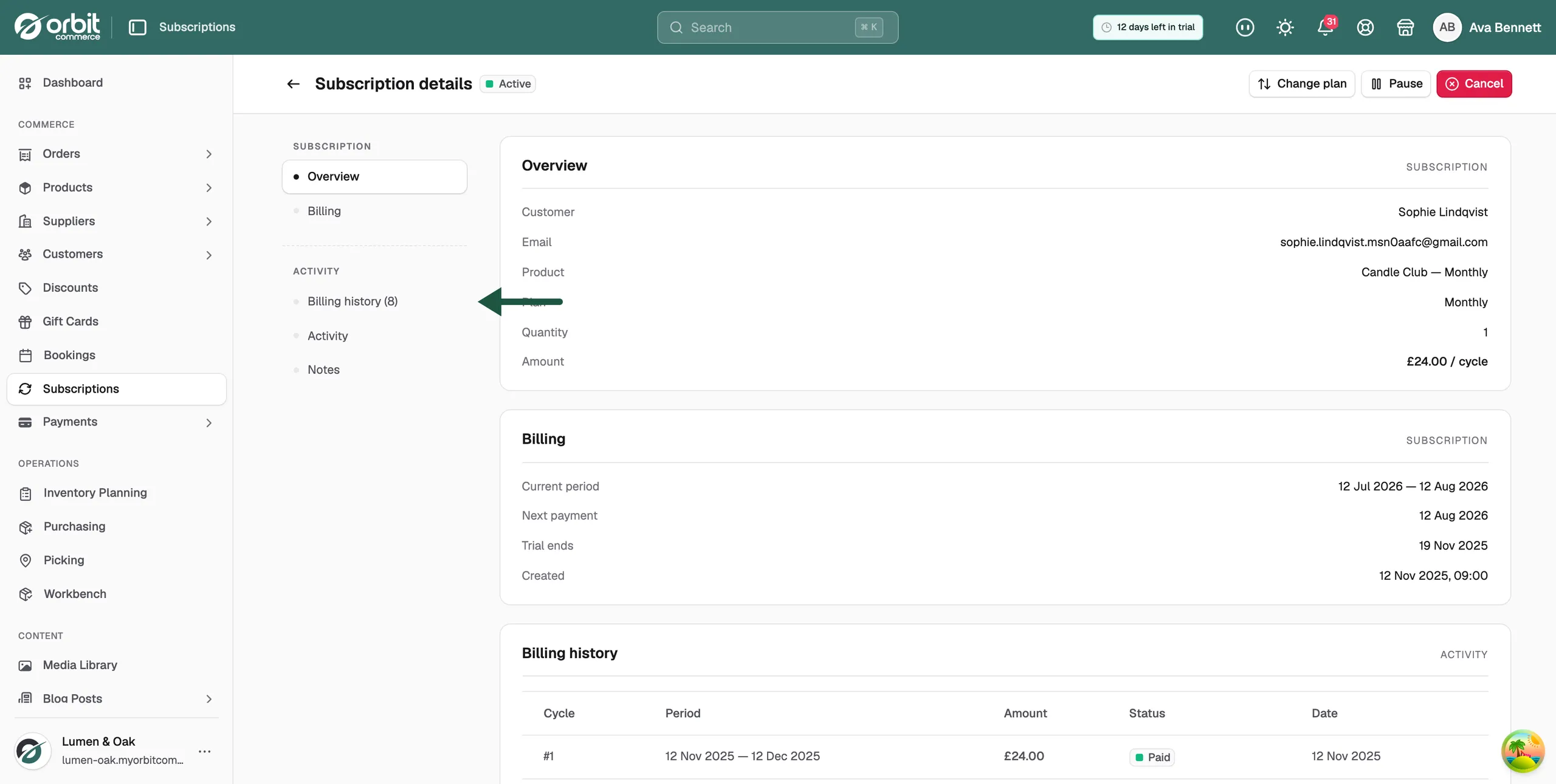
The list on the left moves you between the sections. It is in two groups: Subscription holds Overview and Billing, and Activity holds Billing history, Activity and Notes.
Overview
The Overview card holds the core details of the subscription:
- Customer: the name of the customer who holds the subscription.
- Email: the customer's email address.
- Product: the product the subscription is for.
- Plan: the plan the customer is on.
- Quantity: how many units are included in each cycle.
- Amount: the amount charged each cycle, shown as an amount per cycle.
- Discount: the discount on the plan. It only appears when there is one, and the Amount above already has it taken off.
Billing
The Billing card holds the dates:
- Current period: the start and end dates of the cycle the subscription is in now.
- Next payment: the date the next payment is due.
- Trial ends: the date the trial finishes. It stays on the page after the trial has ended, so a past date here is normal.
- Cancels at: the date a scheduled cancellation takes effect. It only appears when the subscription is set to end at the end of the period.
- Paused since: the date the subscription was paused. It only appears while it is paused.
- Failed payments: how many payments have failed. It only appears when at least one has.
- Created: the date and time the subscription started.
Billing history
The Billing history card lists every billing cycle, with one row per cycle:
- Cycle: the cycle number, counting up from the first payment.
- Period: the start and end dates the cycle covers.
- Amount: the amount charged for that cycle.
- Status: Paid, Failed, Pending or Refunded, as a coloured badge.
- Date: the date the cycle was paid, failed, or created.
Until the first payment is taken, the card reads No billing history.
Activity
The Activity card is a dated timeline of everything that has happened, newest at the top. It records the subscription being created, the trial starting and ending, payments succeeding and failing, renewals, plan changes, pauses, resumes and cancellations.
Each entry shows a short sentence and the date and time. Where there is more detail behind an entry, such as a renewal, a Show details link opens it. Pauses and resumes carry no extra detail, so they have no link.
Add an internal note
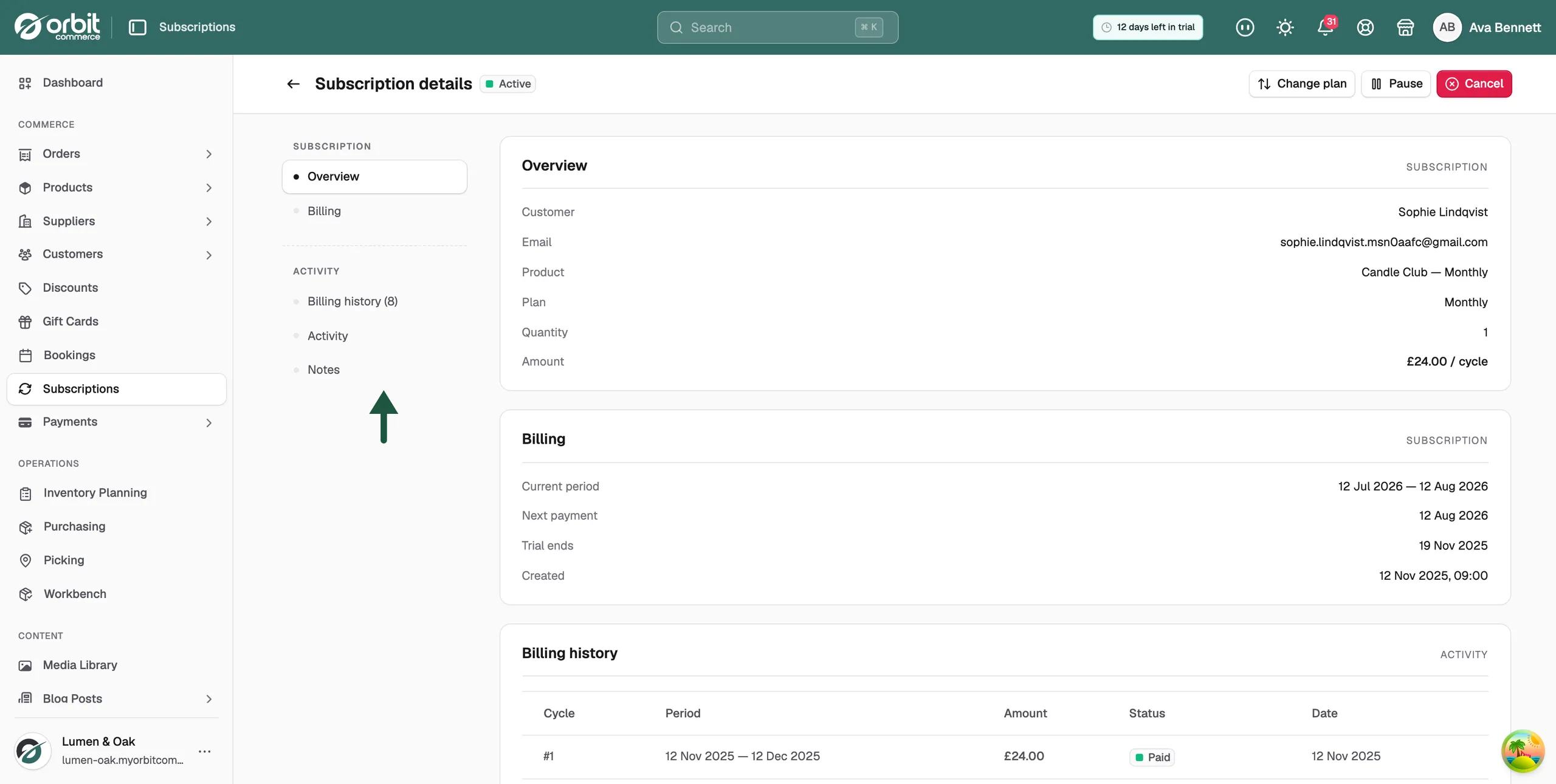
Notes are for your team. The customer never sees them.
- On the subscription, click Notes in the list on the left.
- Type in the box under Internal Notes, for example a record of a call with the customer.
- Click Save. The message Notes saved appears.
The Save button only appears once you have changed the text.
The buttons at the top of the page
Which buttons you get depends on the status of the subscription:
- Retry payment: try the failed charge again. Shown when the status is Past Due.
- Change plan: move the customer to another plan. Shown when the status is Active or Trialing.
- Pause: pause the subscription. Shown when the status is Active.
- Resume: restart a paused subscription. Shown when the status is Paused.
- Cancel: end the subscription. Shown when the status is Active, Trialing or Paused.
A subscription that has been cancelled or has expired has no buttons at all.
Note: Cancel does not cancel straight away. It opens a short form that asks why, then asks when the cancellation should take effect. Pause and Resume take one click, with no form and no confirmation message.
Related guides
Was this helpful?
0 people found this helpful