Writing your store policies
Write your refund, privacy, terms, shipping, cookie and acceptable use policies from a template or with Nebula AI. Saved policies are not shown on the storefront yet.
Store Policies is where you write the legal text for your shop: refunds, privacy, terms of service, shipping, cookies and acceptable use. You find it under Settings, then Store Policies. Each policy comes with a template you can generate and then edit.
Considerations
- Saved policies are not shown on your storefront or at checkout yet. To publish legal text, create a page under Storefront, then Pages, and link it from your menu under Storefront, then Navigation.
- Generated templates are a starting point, not legal advice. You are responsible for checking that a policy is accurate, complete and right for your business. Take independent legal advice where needed.
- There is no Publish button. Save is the only action, and each policy saves on its own.
Open Store Policies
- From your Orbit dashboard, go to Settings, then Store Policies.
- Read the disclaimer at the top of the page.
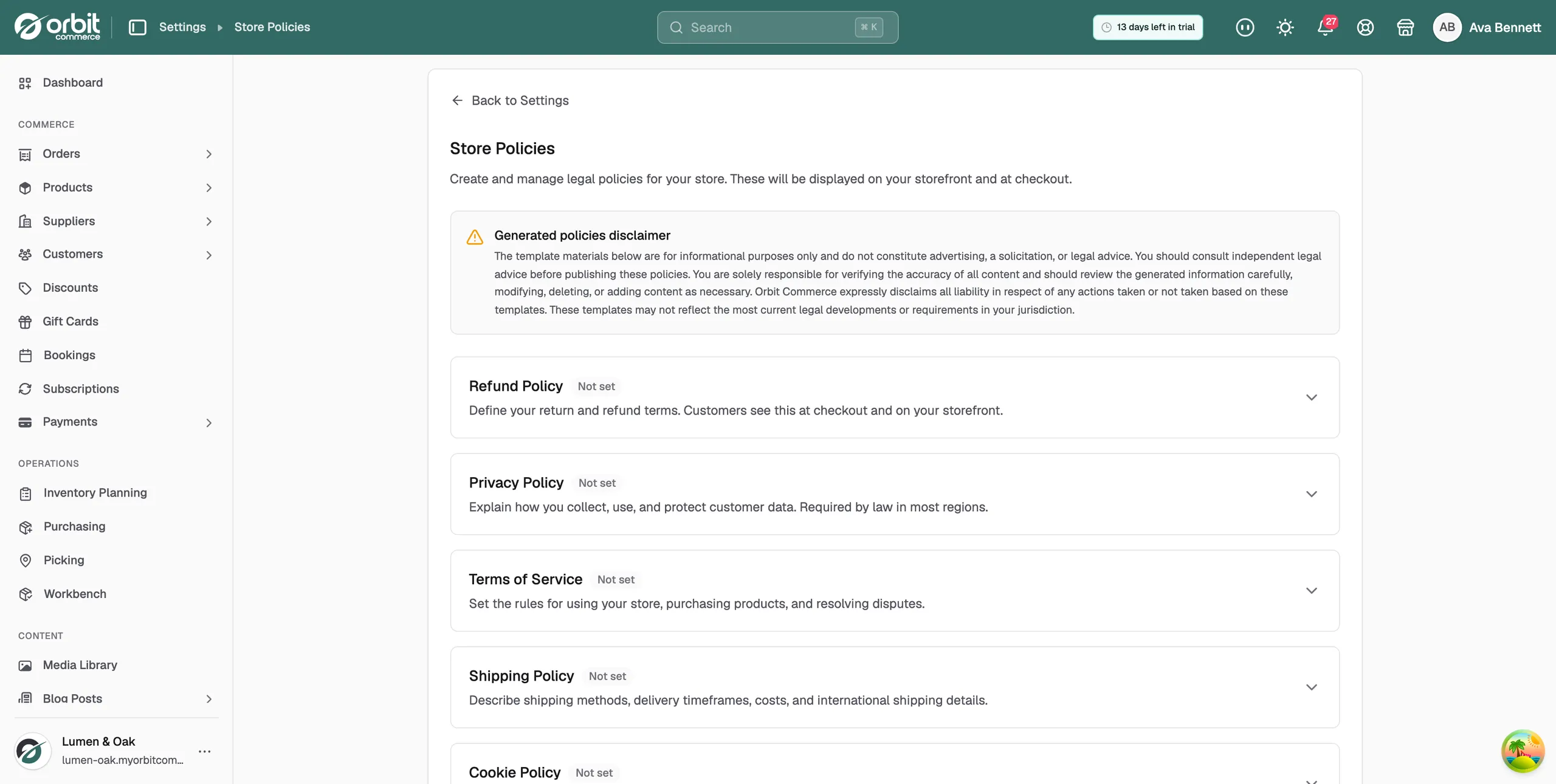
- Six policy cards sit below it, all closed. Click a policy's header row to open it.
The policies you can write
- Refund Policy: your return and refund terms. Whether you accept returns, how long customers have, who pays return shipping, and when refunds are issued.
- Privacy Policy: how your store collects, uses, stores and protects customer data, including accounts, orders, marketing consent, payments, cookies and third-party services. Required by law in many regions.
- Terms of Service: the rules for using your store and buying from it. Orders, payments, accounts, cancellations, disputes and limits of liability.
- Shipping Policy: how orders are shipped and delivered. Methods, timeframes, costs, international delivery, customs and any restrictions.
- Cookie Policy: how your store uses cookies.
- Acceptable Use Policy: what visitors may and may not do on your store.
Generate a policy from a template
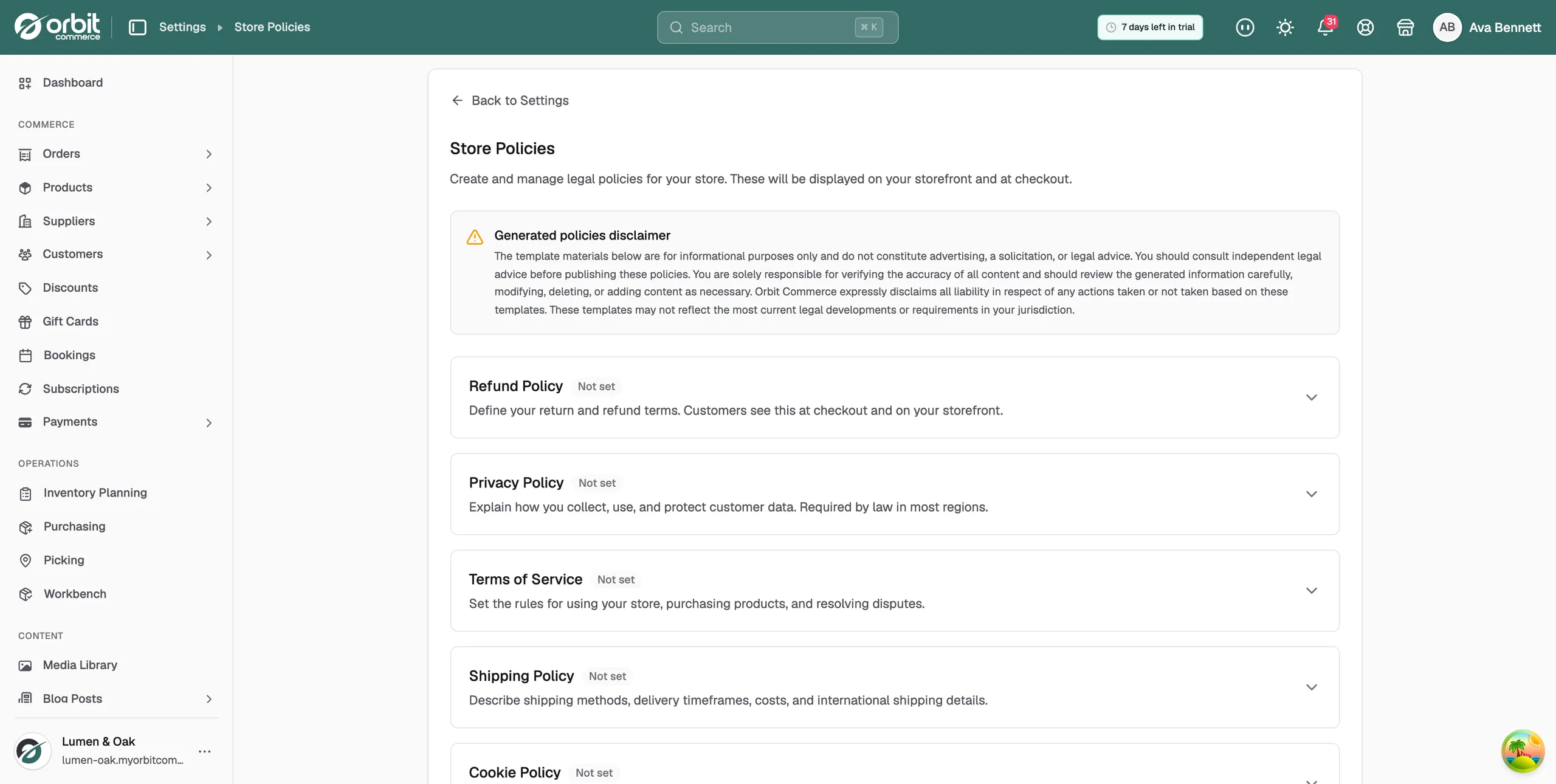
- Open the policy you want to write.
- Click Generate from template.
- Fill in every box in the dialog: Store Name, Contact Email, Contact Phone and Business Address. The Refund Policy also asks for Return Window (days) and Refund Processing (business days). Most other policies ask for your Website URL.
- Click Generate Template. The dialog closes and the editor fills with the whole policy.
- Read it through and change anything that does not fit your business.
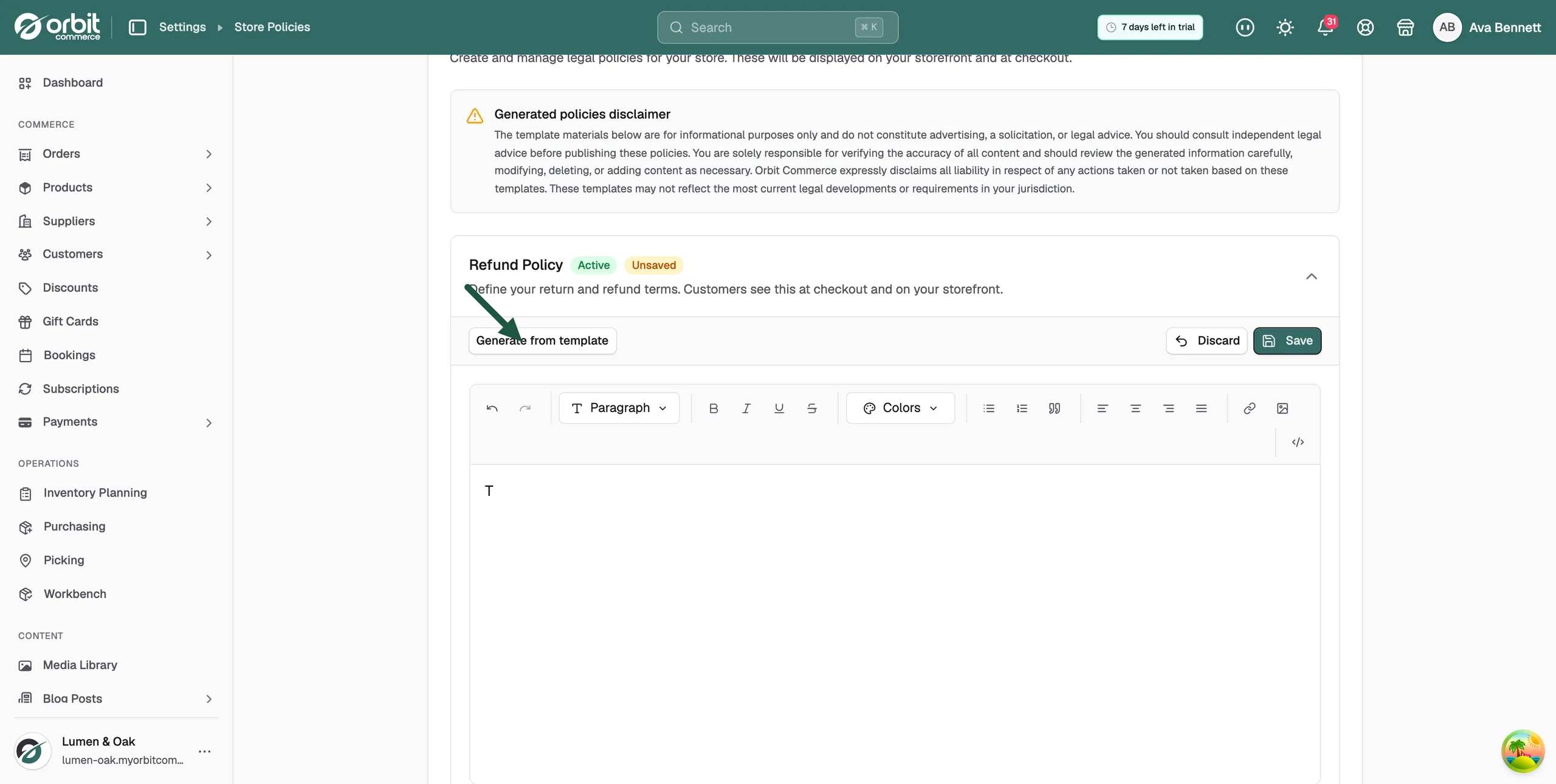
- Click Save. A message confirms the policy is saved.
Note: The dialog does not read anything from your store settings. A box you leave blank comes out in the policy as a bracketed placeholder, such as [Your Store Name].
Edit a policy
- Open the policy you want to change.
- Type or edit the text in the editor.
- Use the toolbar to format it. Click Paragraph to pick a heading level, or use bold, italic, lists, alignment, links, images and colours.
- Click Save. To throw away unsaved edits instead, click Discard.
Draft a policy with Nebula AI
Nebula AI can write a policy for you and put it straight into the editor. You ask for it in plain English, in the Nebula panel. Nebula can also rewrite a policy you already have.
- Open Nebula AI from your Orbit dashboard, or press Cmd+Shift+K. The panel is headed Nebula AI Assistant.
- In the box that reads Ask Nebula anything about your store, type which policy you want and any details that matter, such as your return window or the countries you ship to. Send the message.
- Wait for the reply. Nebula shows a card headed Policy generated, with the policy name under it. If you asked it to change a policy you already have, the card reads Policy rewritten.
- Nebula opens Settings, then Store Policies, if you were on another page. You can also click View policies on the card.
- The policy card opens on its own with the draft in the editor, as the card says: Review the generated content in the editor and click Save when ready.
- Read the whole draft. Change anything that is wrong or missing, and anything that does not fit your business.
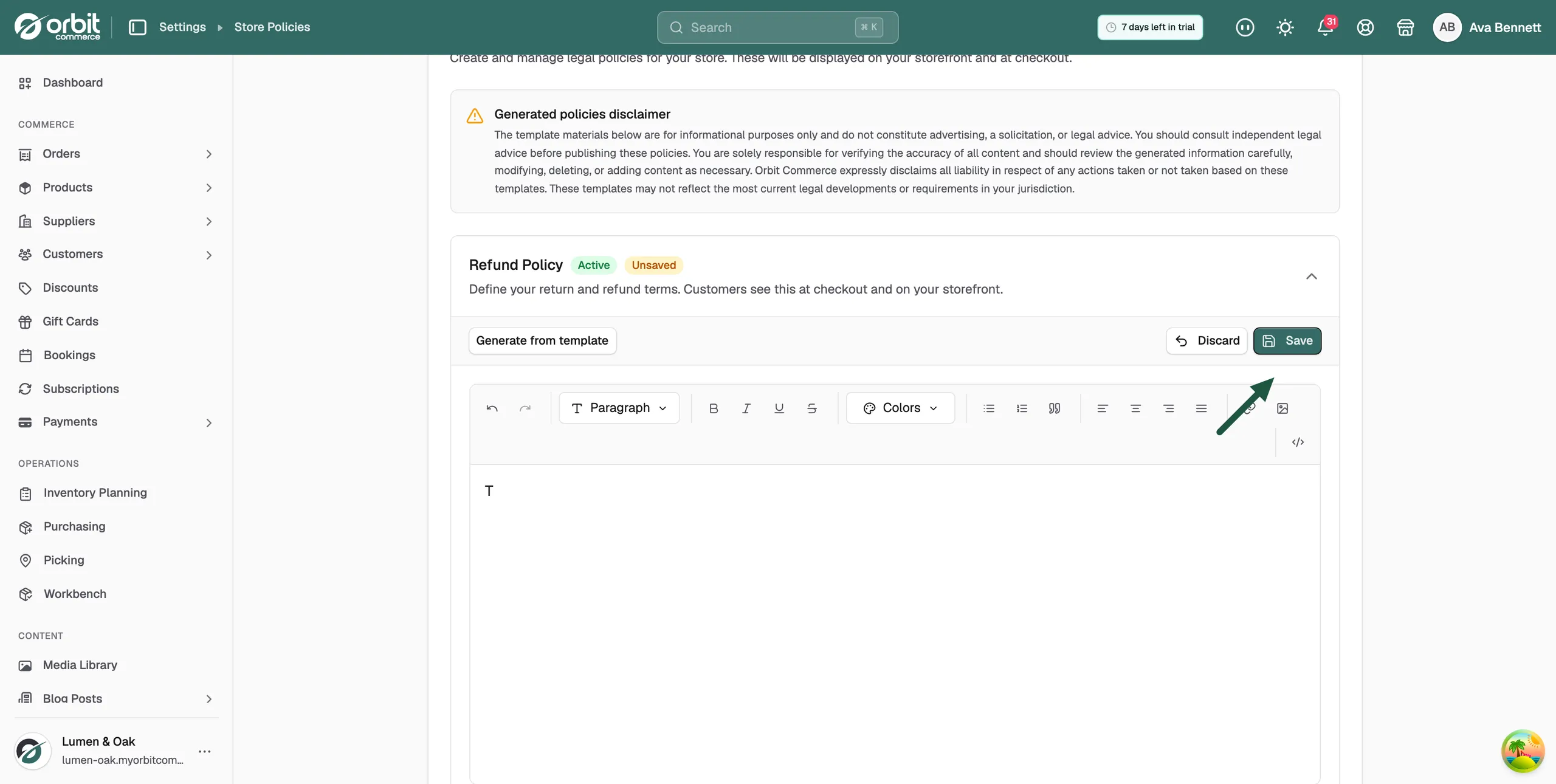
- Click Save. Until you do, the policy shows as Unsaved and you lose the draft if you leave the page.
Warning: A Nebula draft is a starting point, not legal advice. Read every line and edit it before you publish the policy. You are responsible for the text being accurate, complete and right for your business.
Policy statuses
Each policy card shows a status chip in its header.
- Active: the policy has content. It flips to Active as soon as you generate or type text, before you save.
- Not set: the policy is empty.
- Unsaved: you have changes that are not saved yet. Click Save, or you lose them when you leave the page.
Related guides
Was this helpful?
0 people found this helpful